Build and Manage Your Sales Pipeline
A pipeline turns your sales process into a set of stages every deal moves through, so the whole team sees the same picture: where each deal stands, what the next move is, and how likely it is to close. It's also what makes your revenue forecast trustworthy.
Every deal sits in exactly one stage at a time, and you move it forward as the opportunity progresses. On this page you'll see your pipelines, create a new one, and edit an existing one.
Entry pointCRM → Deals → Pipelines
Why Pipelines Matter
A well-built pipeline does three jobs for a sales team:
- Shows progress at a glance. Anyone can open the deal board and see how many deals are sitting at each stage — fresh leads, site visits, negotiations, and closes.
- Forecasts revenue. Each stage carries a win probability, so Brixi can weight your open deals and give a realistic picture of what is likely to close, not just the headline total.
- Surfaces stuck deals. When a deal sits in one stage too long, it stands out, and someone can step in before it goes cold.
Most teams run a single pipeline. You only need more than one when you sell in genuinely different ways — for example, a Sales pipeline for new buyers and a separate Leasing or Channel Partner pipeline with its own steps.
See All Your Pipelines
- Open CRM > Deals.
- Select the Pipelines tab.
You will see every pipeline in a table:
| Column | What it tells you |
|---|---|
| Pipeline Name | The name of the pipeline (for example, Sales). |
| Created On | When it was set up. |
| Created By | Who created it. System means it shipped with your workspace. |
| Modified On | When its stages were last changed. |
| Actions | The gear (⚙) menu to Edit Pipeline. |
The pipeline you select here is the same one you choose when you create a deal and the one whose stages appear on the Flow board in the deals list.
Anatomy of a Stage
Every stage in a pipeline has four parts:
| Part | What it does |
|---|---|
| Stage Name | The plain-language step, such as Qualified, Site visit, or Negotiation. Name stages after what just happened, so the next action is obvious. |
| Win Probability | A percentage (0–100) estimating how likely a deal at this stage is to close. Brixi uses it to weight your forecast. |
| Color | A color used on the Flow board so the team can read the pipeline at a glance. |
| Order | Where the stage sits in the flow. Drag the handle (⠿) to reorder stages. |
Two stages are fixed bookends and cannot be deleted, because every deal ends one of two ways:
- Lost — win probability 0% (the deal did not close).
- Closed Won — win probability 100% (the deal closed).
Everything in between — your real selling steps — is yours to define.
Create a Pipeline
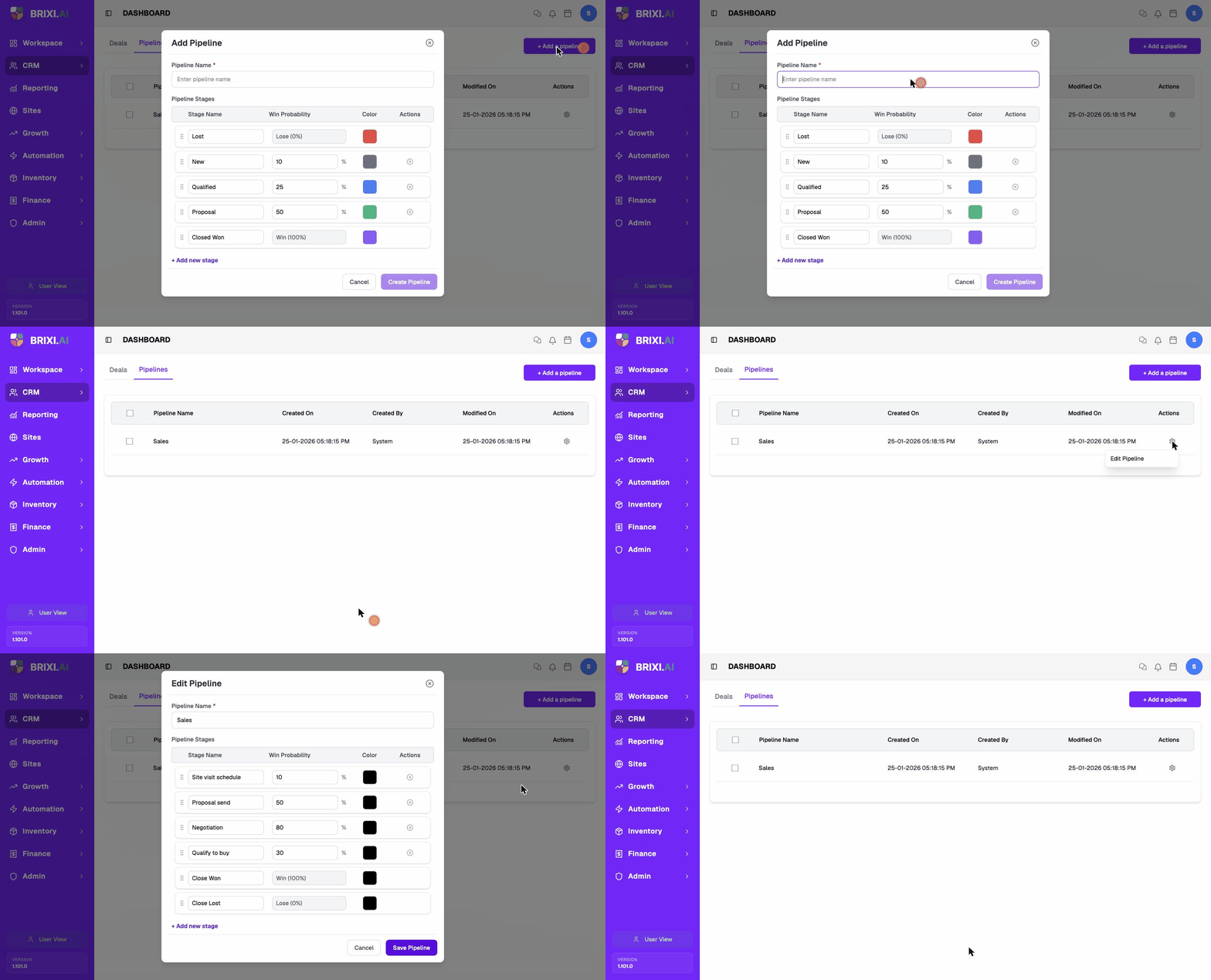
- On the Pipelines tab, select + Add a pipeline.
- Enter a Pipeline Name that the team will recognize (for example, Leasing or Resale).
- Build your stages:
- Edit a stage's Stage Name and Win Probability (%).
- Pick a Color for the deal board.
- Drag the handle (⠿) to put the stages in the right order.
- Select + Add new stage to add a step, or the × on a stage to remove it.
- Leave Lost (0%) and Closed Won (100%) in place — these are required.
- Select Create Pipeline.
Your new pipeline appears in the list and becomes selectable when creating a deal.
Edit a Pipeline
- On the Pipelines tab, select the gear (⚙) in the Actions column for the pipeline you want to change.
- Select Edit Pipeline.
- Rename the pipeline, rename stages, change win probabilities, recolor, reorder, add, or remove stages.
- Save your changes.
Deals already sitting in a stage you change will follow the new setup, so agree on pipeline changes with your team before editing a live pipeline.
Tips for a Pipeline That Works
- Keep it short. Five to seven working stages is plenty. Too many stages and the team stops updating deals.
- Name stages by the action that's done, not the action you hope for. Site visit done is clearer than Interested.
- Set win probabilities from real history, not optimism — that is what makes your forecast trustworthy.
- One pipeline per way of selling. Don't split a single process into multiple pipelines; split only when the steps genuinely differ.
Troubleshooting
If the Pipelines tab is read-only for you — no + Add a pipeline, no gear (⚙) menu — ask your admin. Pipeline editing is usually restricted because changing stages affects every open deal, so it may be deliberate rather than a bug.
Contact Brixi support if a pipeline saves but its stages don't show up on the Flow board or when creating a deal, or if you can't reorder stages even though edit access works. Include the pipeline name and what you changed.