Open a Deal to Track an Opportunity
When an opportunity is real enough to chase, open a deal so its value, owner, and stage are tracked from day one — and so it shows up in your pipeline and forecast instead of living in someone's head.
Entry pointCRM → Deals
Create the Deal
- Open CRM > Deals.
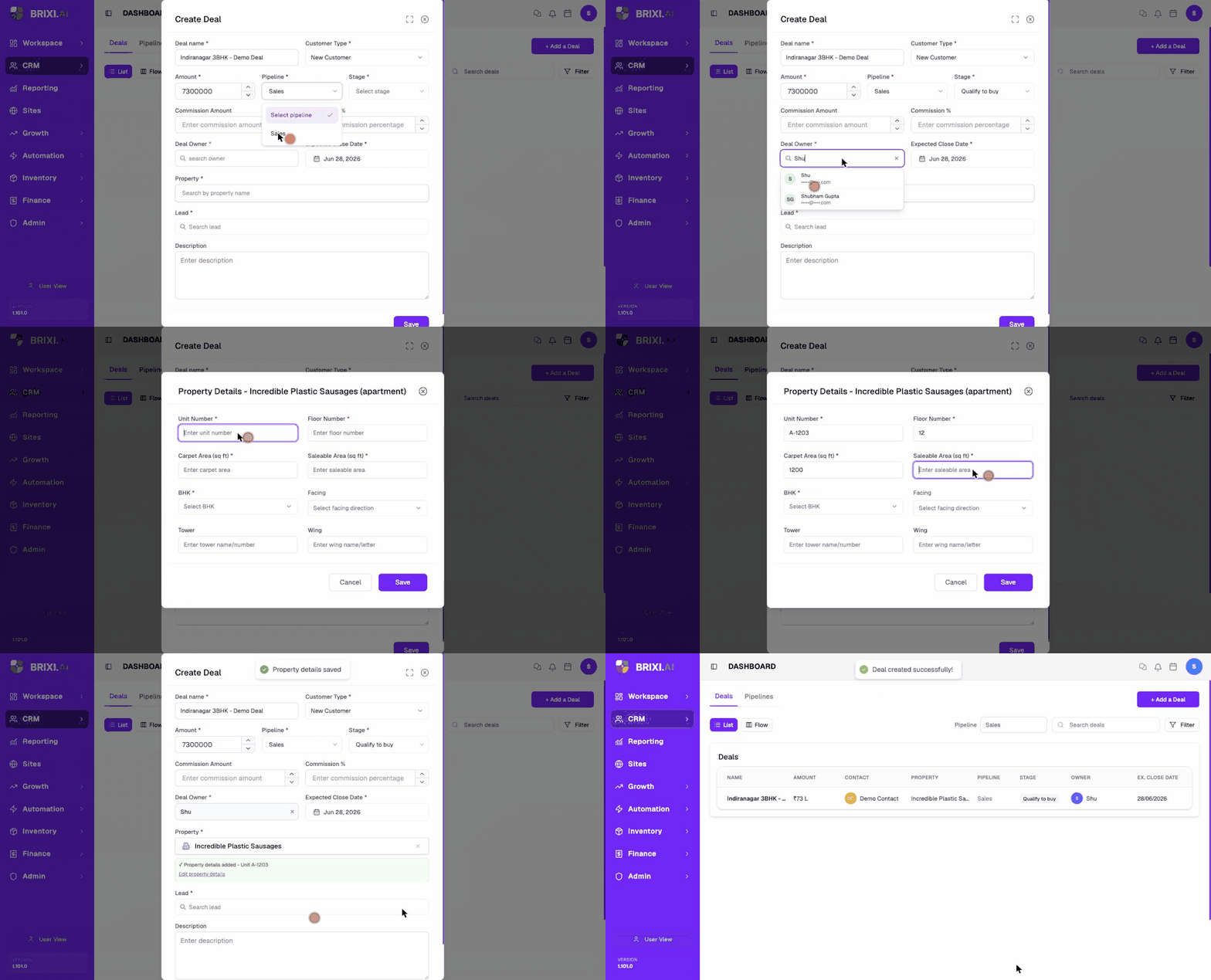
- Select + Add a Deal. The Create Deal form opens.
- Enter the Deal name.
- Choose the Customer Type: New Customer or Repeat Customer.
- Enter the Amount.
- Choose the Pipeline (for example, Sales).
- Choose the Stage. The available stages depend on the pipeline you picked.
- Search for and select the Deal Owner.
- Set the Expected Close Date.
- Search for and select the Property. When you pick a project, a Property Details form opens — enter the unit specifics (Unit Number, Floor Number, Carpet Area, Saleable Area, BHK, and optionally Facing, Tower, Wing) and select Save.
- Search for and select the Lead (the linked contact).
- (Optional) Enter Commission Amount, Commission %, and a Description.
- Select Save.
Field Reference
| Field | Required | What to enter |
|---|---|---|
| Deal name | Yes | A name your team will recognize. |
| Customer Type | Yes | New Customer or Repeat Customer. |
| Amount | Yes | The deal value. |
| Pipeline | Yes | The pipeline the deal belongs to. |
| Stage | Yes | The current stage (depends on the pipeline). |
| Deal Owner | Yes | The user responsible for the deal. |
| Expected Close Date | Yes | When you expect the deal to close. |
| Property | Yes | The property the deal is about. |
| Lead | Yes | The linked contact. |
| Commission Amount | No | Commission value. |
| Commission % | No | Commission percentage. |
| Description | No | Extra context about the deal. |
Pipeline Stages
Stages are configured per pipeline on the Pipelines tab. The default Sales pipeline includes:
Qualify to buy, Site visit schedule, Proposal send, Negotiation, Close Won, Close Lost.
Troubleshooting
| Problem | What to check |
|---|---|
| + Add a Deal is missing | Deal creation is role-gated — ask your admin to check your access. |
| The Stage list doesn't match how your team sells | Stages come from the pipeline's configuration on the Pipelines tab. |
| Can't find the property or lead in search | The record has to exist in CRM before you can link it — add the contact or property first. |
| The form is complete but Save fails | See Getting Help — include the deal name, pipeline, and stage. |
Was this article helpful?If something is unclear or out of date, email support@brixi.ai with the article title — or see Getting Help for what to check first.