Move a Deal Toward Close
As an opportunity progresses, advance its deal through the pipeline and keep its details current — so the stage, value, and forecast always reflect reality. Moving a deal's Stage is how you drive it from first interest to a closed sale.
Entry pointCRM → Deals
The Deal Detail Page
Selecting a deal opens its detail page, which shows:
- A stage progress bar across the top (for the Sales pipeline: Qualify to buy → Site visit schedule → Proposal send → Negotiation → Close Won → Close Lost).
- The linked property, the deal value, rate per sq ft, commission, and time to close.
- The Buyer/Renter, Sales Executive, and Seller/Property Owner panels, plus a Deal Progress percentage.
- An Activity Timeline.
Move a Deal to the Next Stage
- Open the deal from CRM > Deals.
- Select the ⋮ menu in the top-right of the deal.
- Select Move to next stage.
- Confirm that the stage progress bar moves forward.
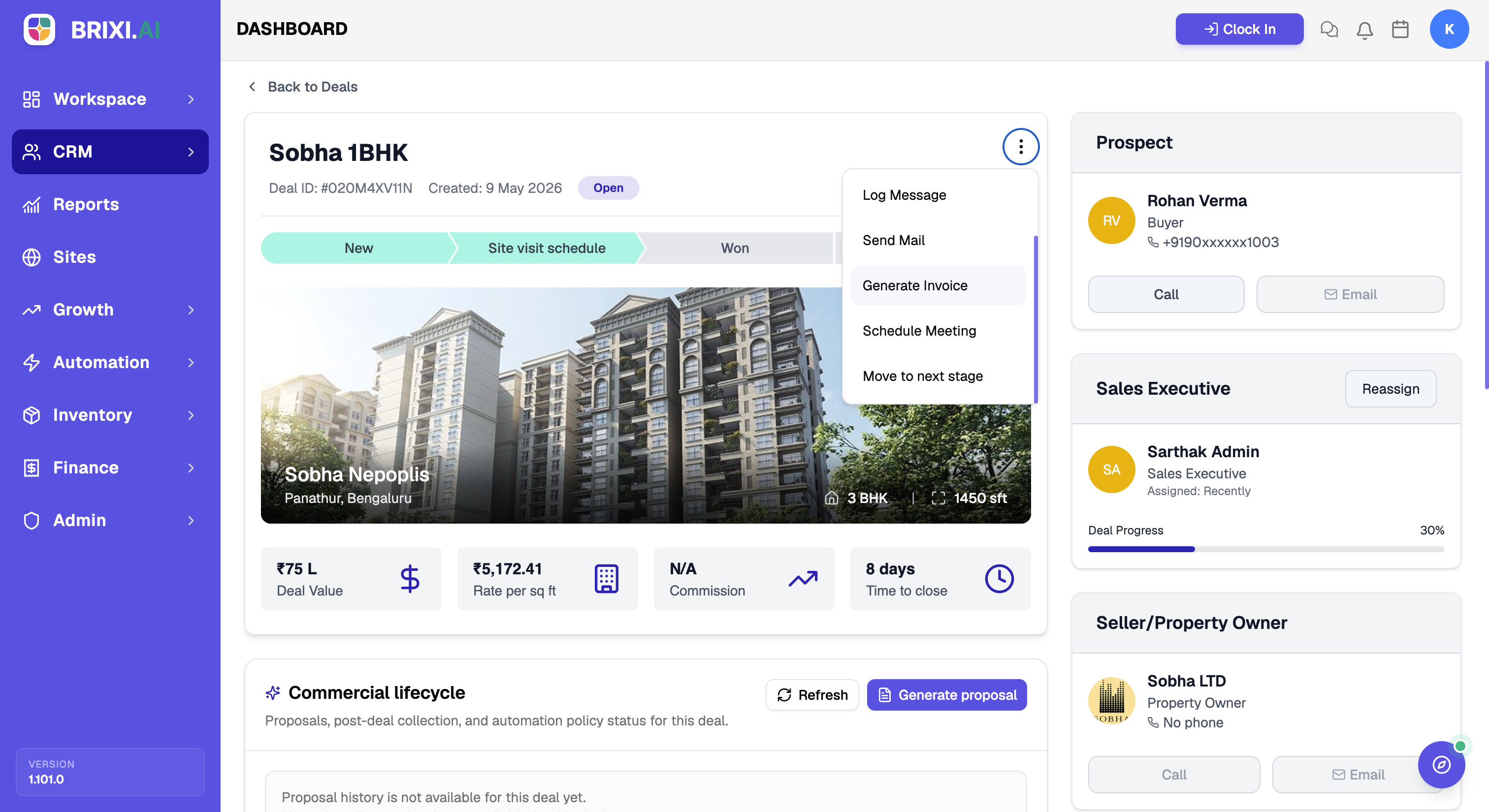
After updating, the stage progress bar and the Deal Progress percentage reflect the new stage.
To change other deal details, open the ⋮ menu and select Edit. You can update fields such as amount, owner, expected close date, or linked records without moving the stage.
The deal's ⋮ menu also lets you Log Call, Log Message, Send Mail, Generate Invoice, and Schedule Meeting.
Troubleshooting
If Move to next stage or Edit is missing from the ⋮ menu, or you can open a deal but not change it, ask your admin — editing other people's deals depends on your role and team setup.
If you move a stage and the progress bar or Deal Progress percentage doesn't update after a refresh, contact Brixi support with the deal name, the stage you moved from and to, and a screenshot.