Message Every Lead From One Place
Reply to a lead the moment they message you — without bouncing between WhatsApp, your email client, Instagram, and Facebook. The Omnichannel Inbox pulls every customer conversation into one shared list, puts the contact's CRM record right next to the thread so you reply with full context, and lets you, a teammate, or an AI agent take the next turn.
Entry pointInbox (top bar 💬 messages icon, or Inbox from the left navigation)
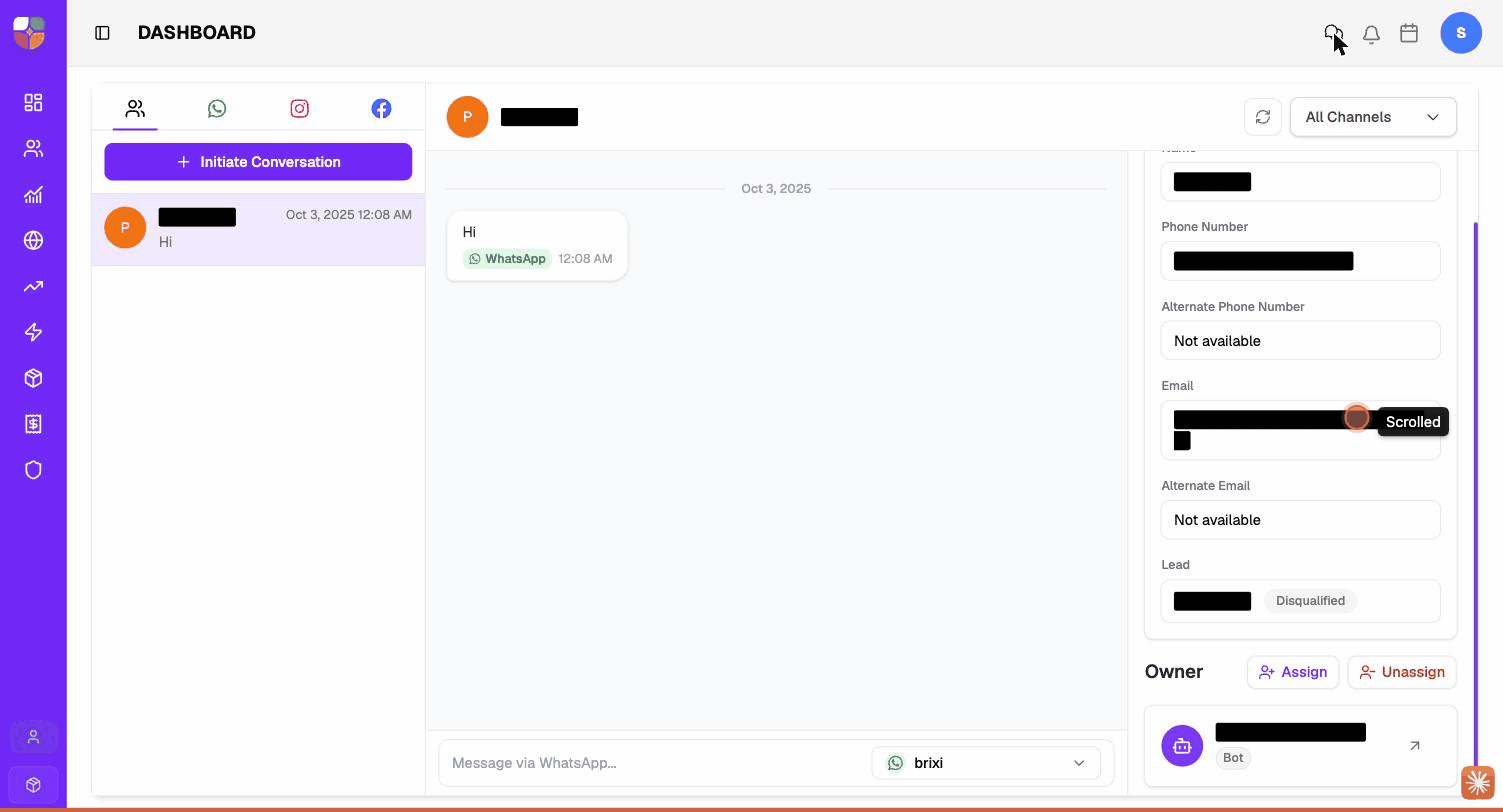
The Three Panes
The inbox is laid out left-to-right in three panes:
| Pane | What it shows |
|---|---|
| Conversation list (left) | Every conversation across the selected channel tab, newest first. Each row shows the contact, the channel and the last message preview. |
| Conversation thread (centre) | The selected conversation's full message history, with channel labels (WhatsApp, Email, etc.) and timestamps. The composer sits at the bottom. |
| Contact Information (right) | The CRM record for the contact — name, phone, email, lead and lead stage. Scroll down to see the Owner and the assigned AI agent. |
Channel Tabs
Four tabs sit above the conversation list. Each one is a different way to slice the same conversation data.
| Tab | Shows |
|---|---|
| Contacts (people icon) | Every conversation grouped by contact. The default view. |
| Only WhatsApp conversations, regardless of which connected number they came in on. | |
| Only Instagram DMs. | |
| Only Facebook Page messages. |
Use the Contacts tab when you're working a lead queue (you care about the person), and switch to a channel tab when you're scanning for any unanswered WhatsApp / Instagram / Facebook messages specifically.
Inside an open thread, the All Channels dropdown (top-right of the thread pane) filters the thread itself — useful when one contact has a long history across WhatsApp, Email and SMS and you want to focus on one channel only.
What You Can Do Here
| Action | How | Details |
|---|---|---|
| View conversations across channels | Channel tabs + conversation list | View and Filter Conversations |
| Reply to a message | Composer at the bottom of the thread | Reply Across Channels |
| Start a chat with an existing contact | Initiate Conversation button | Start a New Conversation |
| Hand the conversation to a teammate | Owner → Assign (Users tab) | Assign Owners and AI Agents |
| Hand the conversation to an AI agent | Owner → Assign (Chat agents tab) | Assign Owners and AI Agents |
| Remove the current owner / AI agent | Owner → Unassign | Remove an Owner or Agent |
| Create a lead from a new conversation | Contact Information → Create / Link | Manage Contact Context |
| Open the full contact record | The link arrow on the contact name in the right panel | Contact Detail Page |
In This Section
- View and Filter Conversations
- Reply to a Lead on Any Channel
- Start a New Conversation
- Review Contact Context Before Replying
- Route a Conversation to the Right Person or AI Agent
- Troubleshoot Omnichannel Inbox Issues
Troubleshooting
Most "I can't see it" problems in the inbox are setup, not bugs. If a channel tab is missing or the conversation list is empty, ask your admin whether that channel is actually connected under Integrations and whether your role includes inbox access.
If the channels are connected and your access checks out but messages still don't arrive or sync, contact Brixi support. Tell them the channel, the contact involved, what you expected to see, and attach a screenshot.