Work a Lead from Its Detail Page
Moving a lead toward a close means staying on top of every touch — what was said, what's next, what they're looking for. The contact detail page is the single screen where all of that lives: you log calls, emails, messages, notes, tasks, meetings, site visits, documents, enquiries and deals here, and take admin actions like marking a duplicate or deleting the record. Open a contact from the Contacts list to reach it.
Entry pointCRM → Contacts
Page Layout
The detail page has three areas:
- Header — name, contact ID, last-active time, Inbox button, Enquiry, Add personal note box, and the Actions menu (top-right).
- Contact summary (left) — Priority, Lead type, Status, Engagement, Source, Tags, then collapsible cards for Deals, Owners, Tasks, Meetings, Property Visits, Documents, Enquiries, Other fields, and Custom fields.
- Activity area (right) — tabs for Activities, Notes, Emails, Calls, Messages, Pinned, filtered by Activity type, User, and Time period.
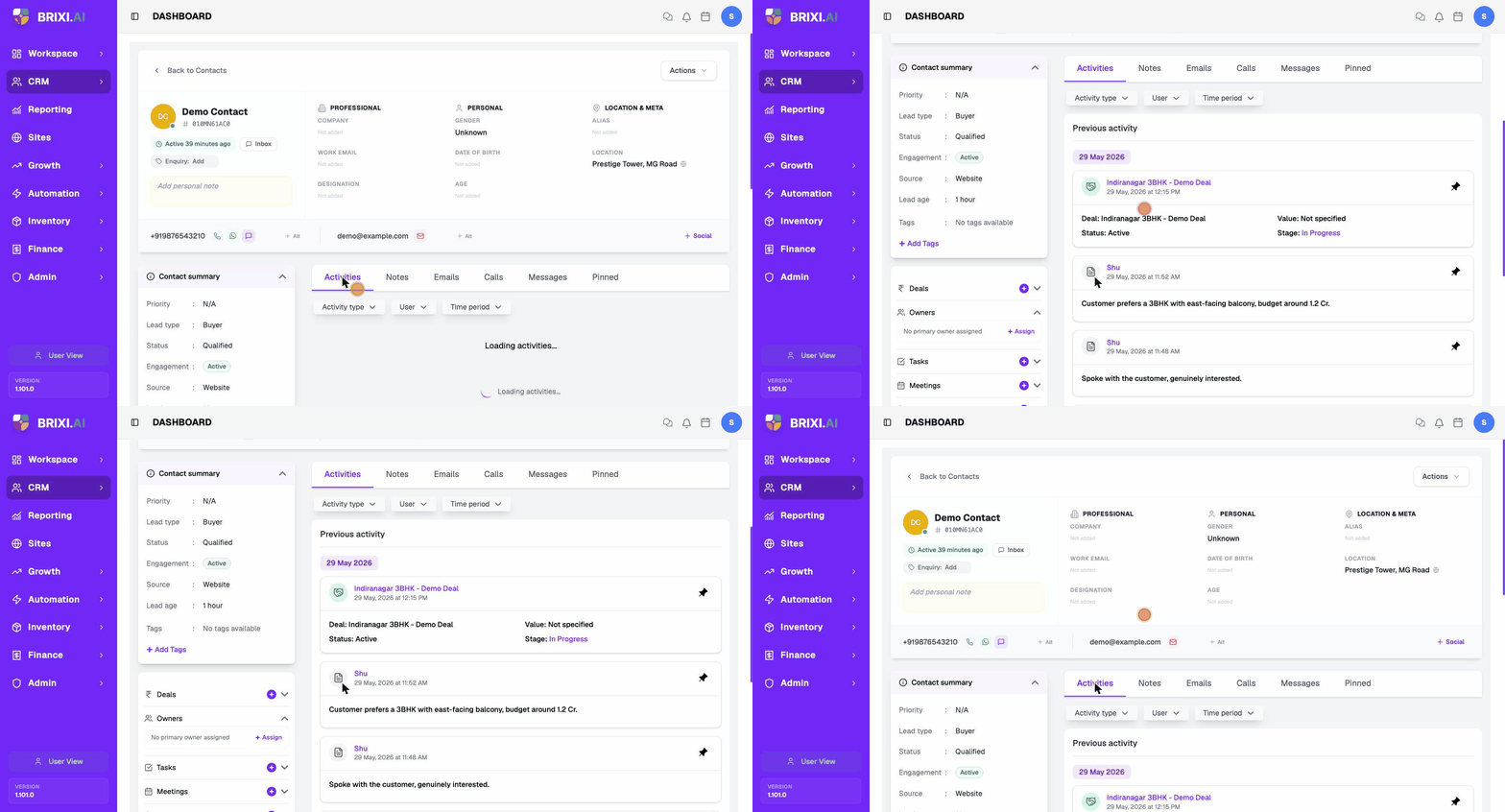
For profile fields (Professional / Personal / Location & Meta), and for editing phone, email, location, tags, custom fields, status, lead type and priority, see Add and Update a Contact.
Activity Timeline
Everything you log against a contact lands on the timeline on the right. Use the tabs to focus, and the filters to narrow further.
| Tab | Shows |
|---|---|
| Activities | Everything logged against the contact, newest first. |
| Notes | Notes only. |
| Emails | Logged emails. |
| Calls | Logged calls. |
| Messages | Logged messages (WhatsApp, SMS, etc.). |
| Pinned | Activities you have pinned to the top. |
Above the timeline, Activity type, User, and Time period filters narrow the list — useful when scanning a long history.
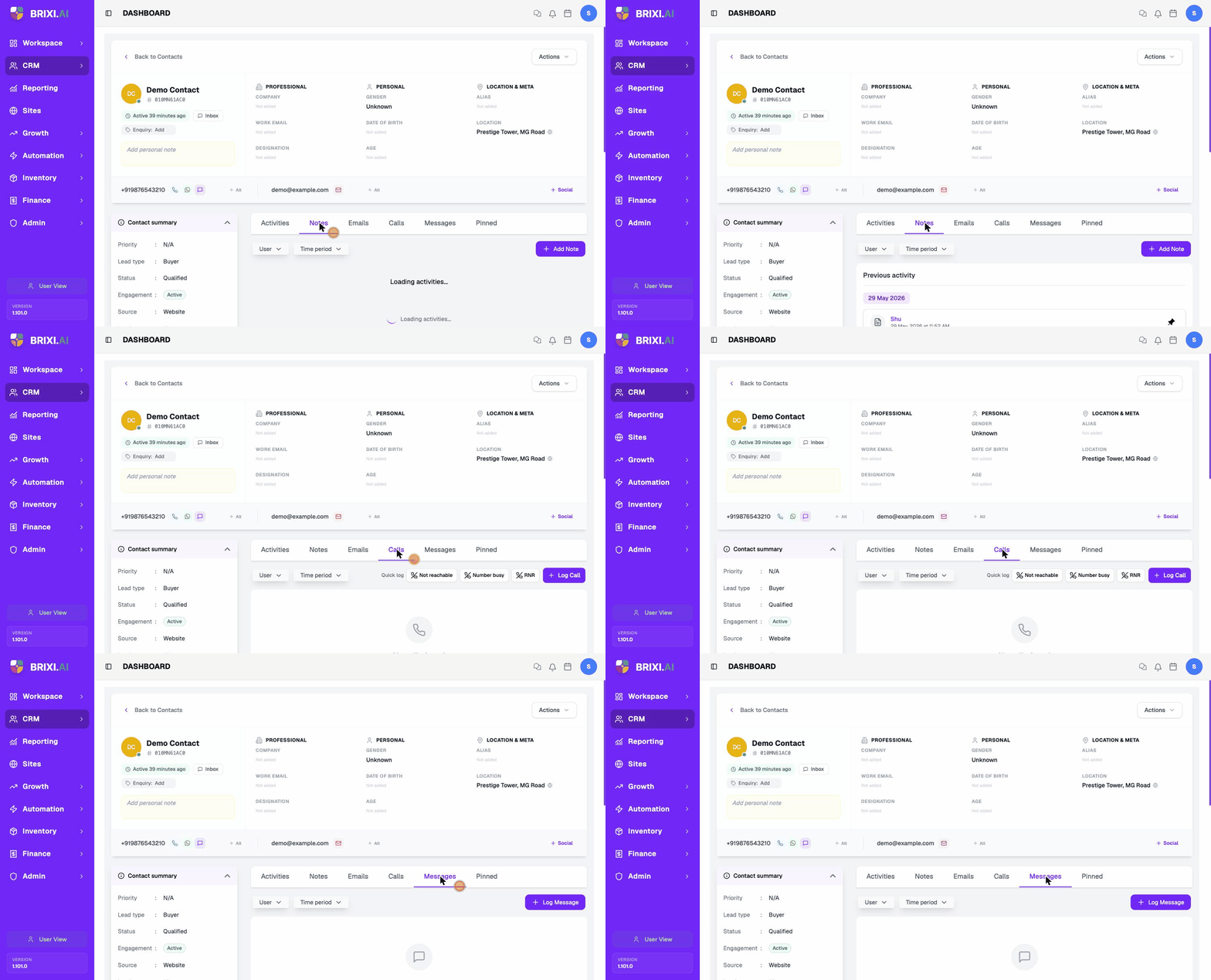
Pin the activity that summarises a deal (a key call, the proposal email) so anyone opening the contact sees it first under the Pinned tab.
Open the Actions Menu
The Actions button (top-right of the detail page) is the launcher for everything you can log or do to the contact. It groups every action under Manage Contact.
| Action | Opens |
|---|---|
| Log Notes | New Note dialog. |
| Log Email | Log email dialog. |
| Log Message | Log message dialog. |
| Log Call | Log call dialog. |
| Search Google | Opens a Google search for the contact's name. |
| Match Project | Match this contact to a project. |
| Match Properties | Match this contact to properties. |
| View History | The contact's full change history. |
| Delete Contact | Delete Contact dialog (soft delete). |
| Mark Duplicate | Merge Duplicate Contacts dialog. |
Log a Note
A note records context about a customer — what was discussed, what they want, anything the team should know. Notes appear on the timeline under the Activities and Notes tabs.
- Select Actions, then Log Notes. The New Note dialog opens.
- Type your note in the text box (up to 1000 characters).
- (Optional) Tick Add a task to follow up to attach a linked follow-up task. Pick the task type, due date and time.
- Select Save.
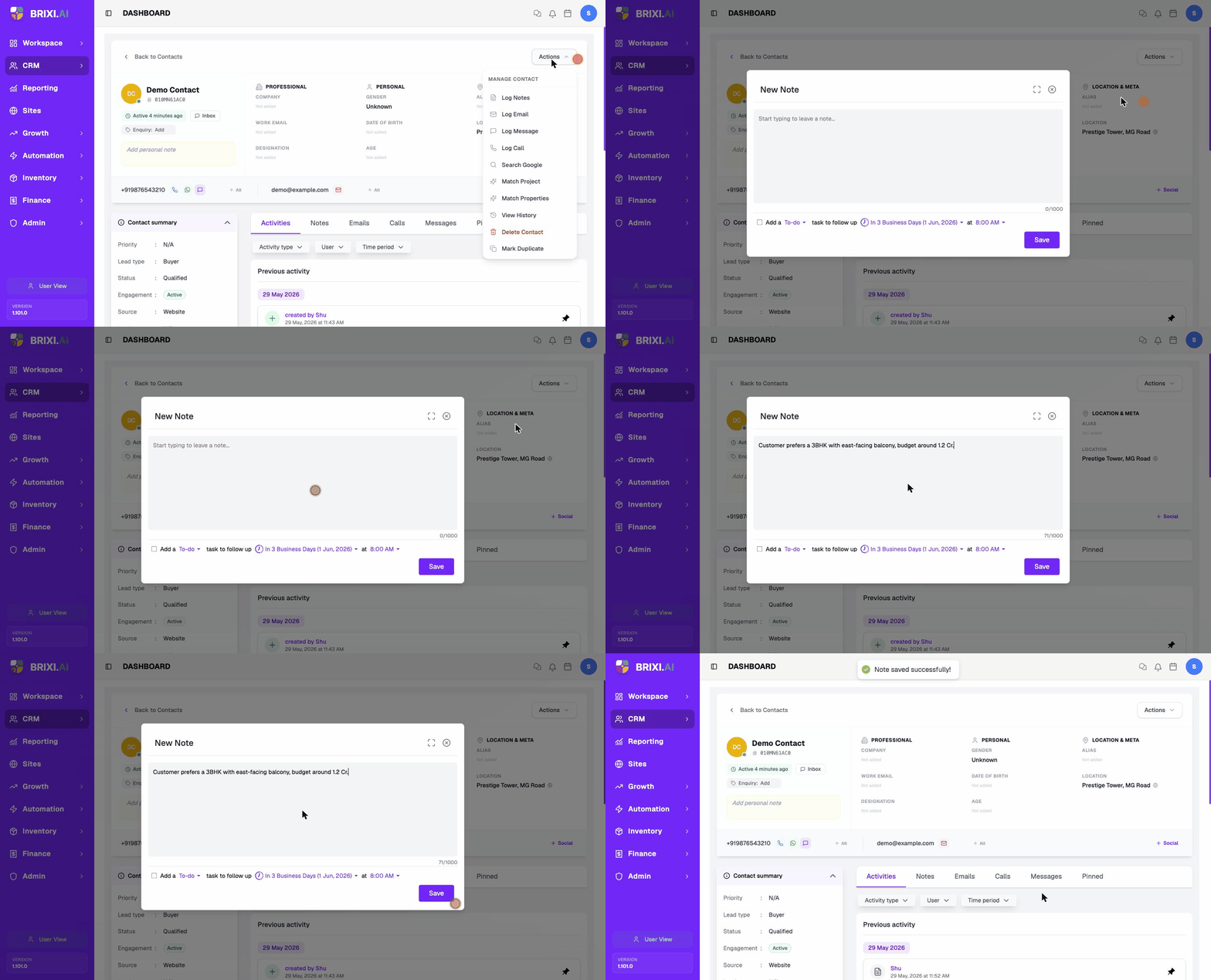
The note appears at the top of the activity timeline with your name and the date.
For a quick reminder only your team needs to see, type into the yellow Add personal note box in the contact header instead of opening the full Log Notes dialog.
Log an Email
Use Log Email to record an email you sent or received outside Brixi (or use a sender that's not connected). It lands under the Emails tab.
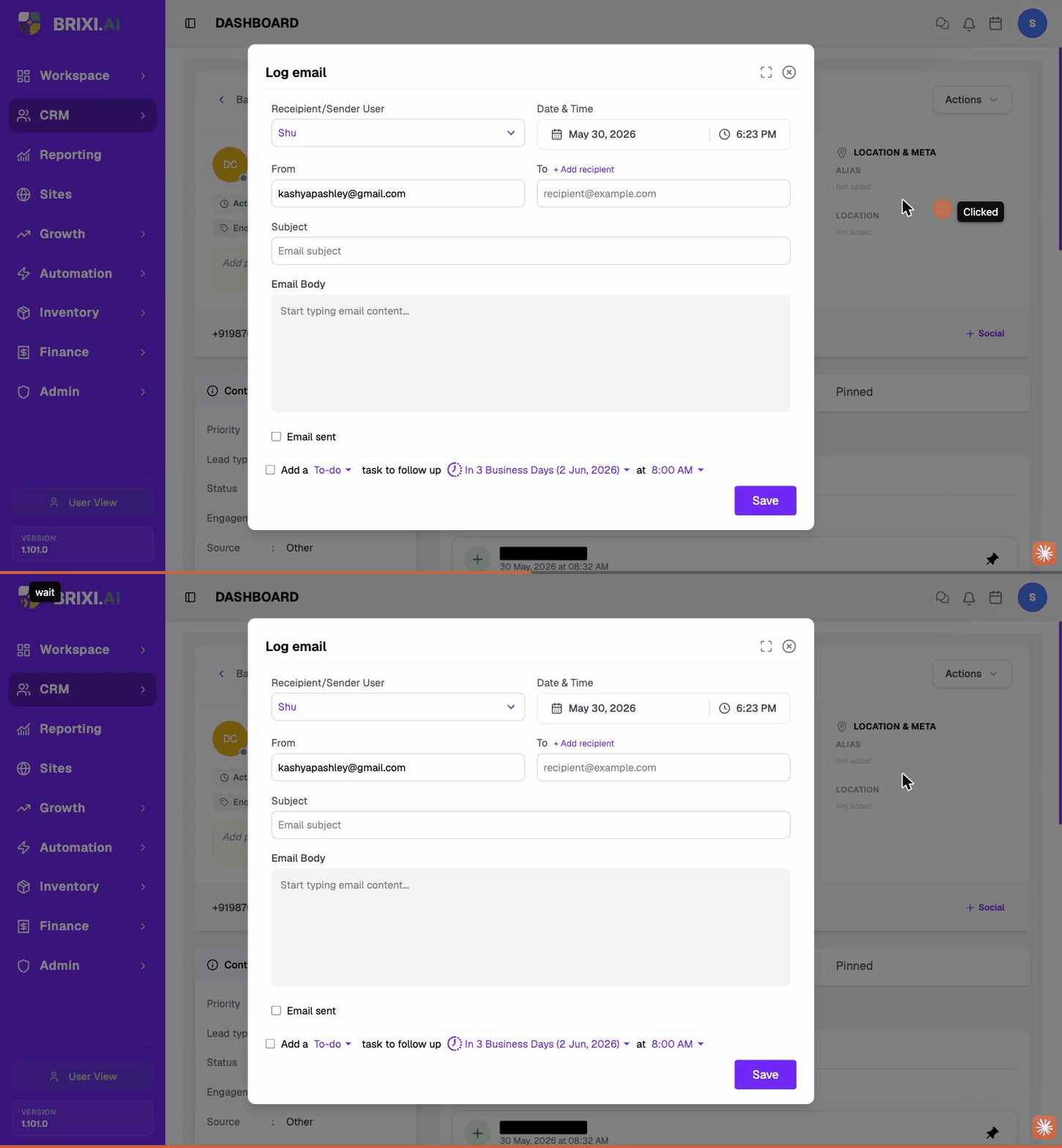
- Select Actions → Log Email. The Log email dialog opens.
- Choose the Recipient/Sender User (the team member involved).
- Set Date & Time (defaults to now).
- From is pre-filled with your connected sender; To — click + Add recipient to add the customer's email.
- Enter a Subject and the Email Body.
- (Optional) Tick Email sent if the email has already been sent.
- (Optional) Tick Add a To-do task to follow up to attach a follow-up task — pick the time window (e.g. In 3 Business Days) and time.
- Select Save.
If From is empty, no email sender is connected for your user. See SMTP Sender Setup.
Log a Message
Use Log Message to record a WhatsApp, SMS or other chat with the contact. It lands under the Messages tab.
- Select Actions → Log Message. The Log message dialog opens.
- Contacted — pick the team member who handled the message.
- Direction — Sent or Received.
- App — pick the channel (Whatsapp, SMS, etc.).
- Date & Time — defaults to now.
- Type the message in Description.
- (Optional) Tick Add a To-do task to follow up to schedule a follow-up.
- Select Log message.
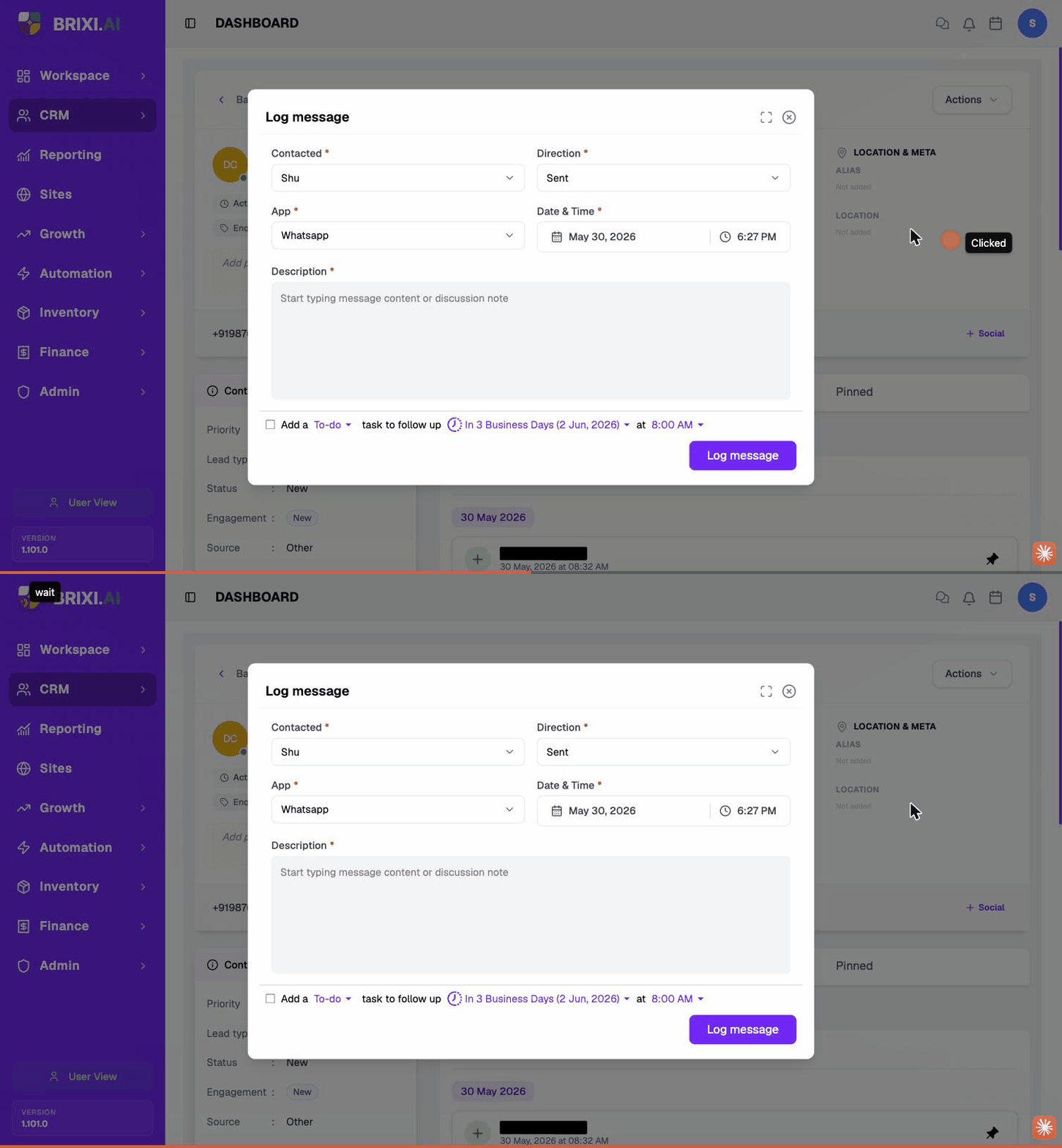
Use Log Message only for chats that happened off Brixi — a reply from someone's personal phone or another device. See WhatsApp Message Sync to the CRM.
Log a Call
Use Log Call to record a phone conversation — duration, outcome, notes, and (optionally) the audio file.
- Select Actions → Log Call. The Log call dialog opens.
- Connected user — the team member who took the call.
- Call outcome — pick from the dropdown (e.g. Connected, No answer).
- Direction — Outgoing or Incoming.
- App — usually Phone.
- Date & time, Duration (HH:MM:SS).
- From number and To number — auto-filled from the contact and connected user; edit if needed.
- Type call Notes.
- (Optional) Add recording — upload the call audio file.
- (Optional) Tick Add a To-do task to follow up.
- Select Save.
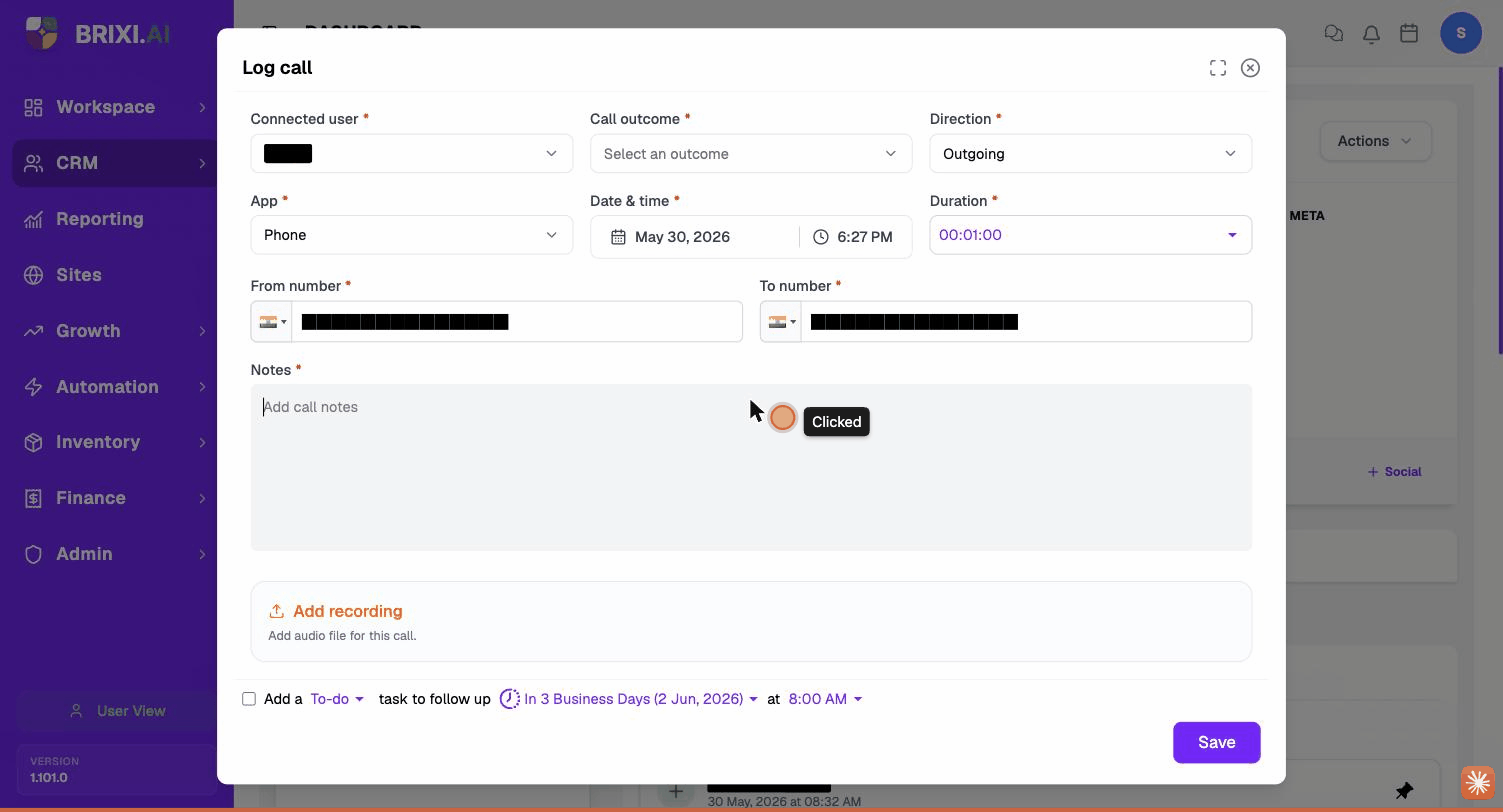
Add a Task
A task is a planned action with a due date and time — for example, a follow-up call. Tasks attached to a contact also show up in the Calendar under the Tasks filter.
- In the Contact summary panel, find the Tasks card and click the + button. The Schedule Task dialog opens.
- Enter a Title.
- Set the Activity date & time.
- (Optional) Choose a Send reminder option.
- Task type — defaults to To-Do.
- Task assigned to — defaults to you. Pick another user if needed.
- Priority — High, Medium (default), or Low.
- (Optional) Add Notes.
- Select Save.
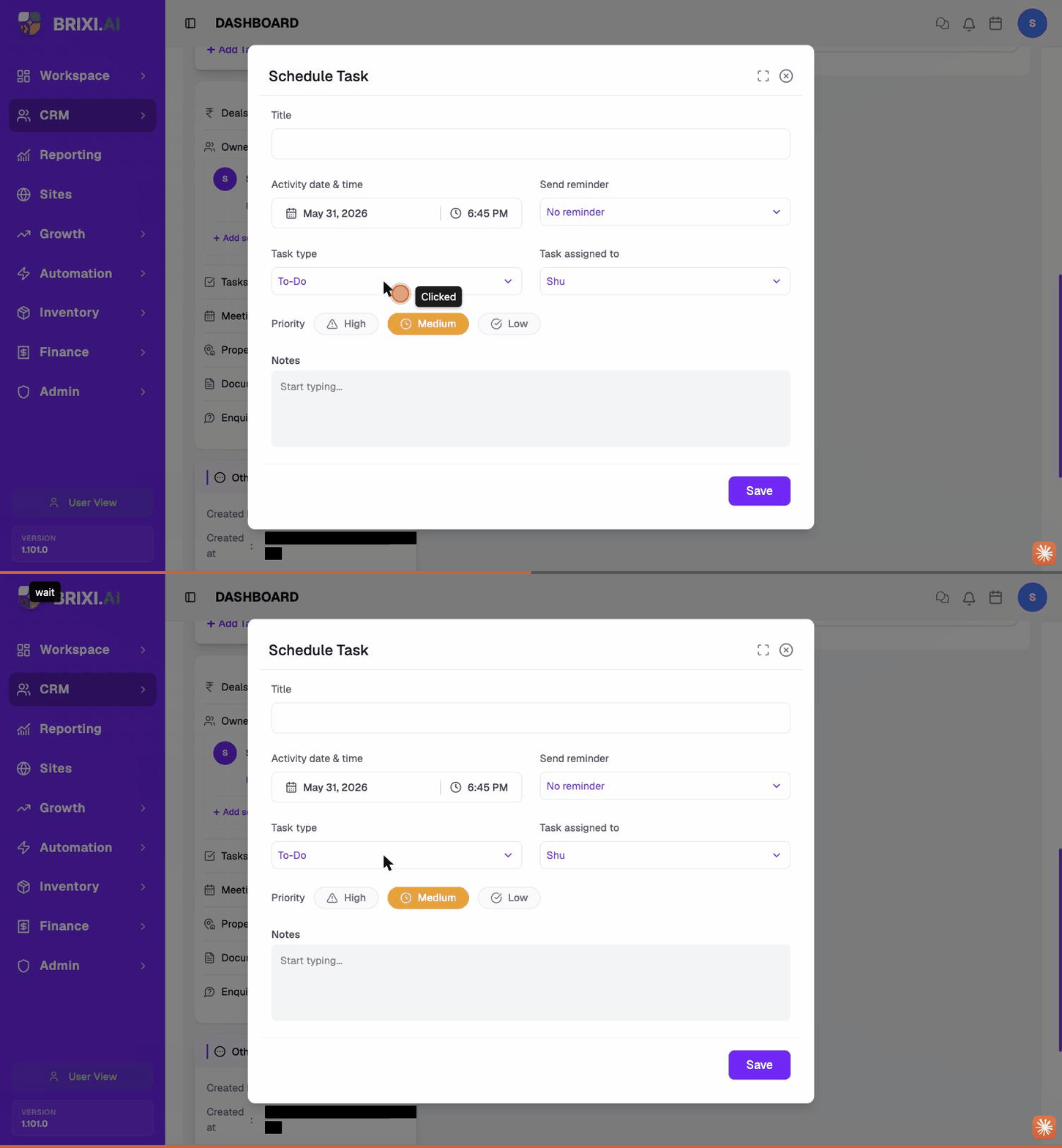
You can also create a follow-up task while logging a note, email, message or call — tick Add a task to follow up in those dialogs.
Schedule a Meeting
A meeting is a scheduled conversation with the customer — online or offline. Meetings appear in the Calendar under the Meetings filter and on the contact's Meetings card.
- In the Contact summary panel, find the Meetings card and click the + button. The Schedule Meeting dialog opens.
- Meeting Title — pre-filled with Meeting - [Contact Name]; edit if needed.
- Set Start Date, Time (start → end), and End Date.
- Meeting type — Online or Offline.
- (Optional) Open Reminders and choose when Brixi should notify you (defaults to 4 reminders).
- (Optional) Select Add people to invite team members from your directory. They appear under Participants.
- (Optional) Add a Description.
- Select Save.
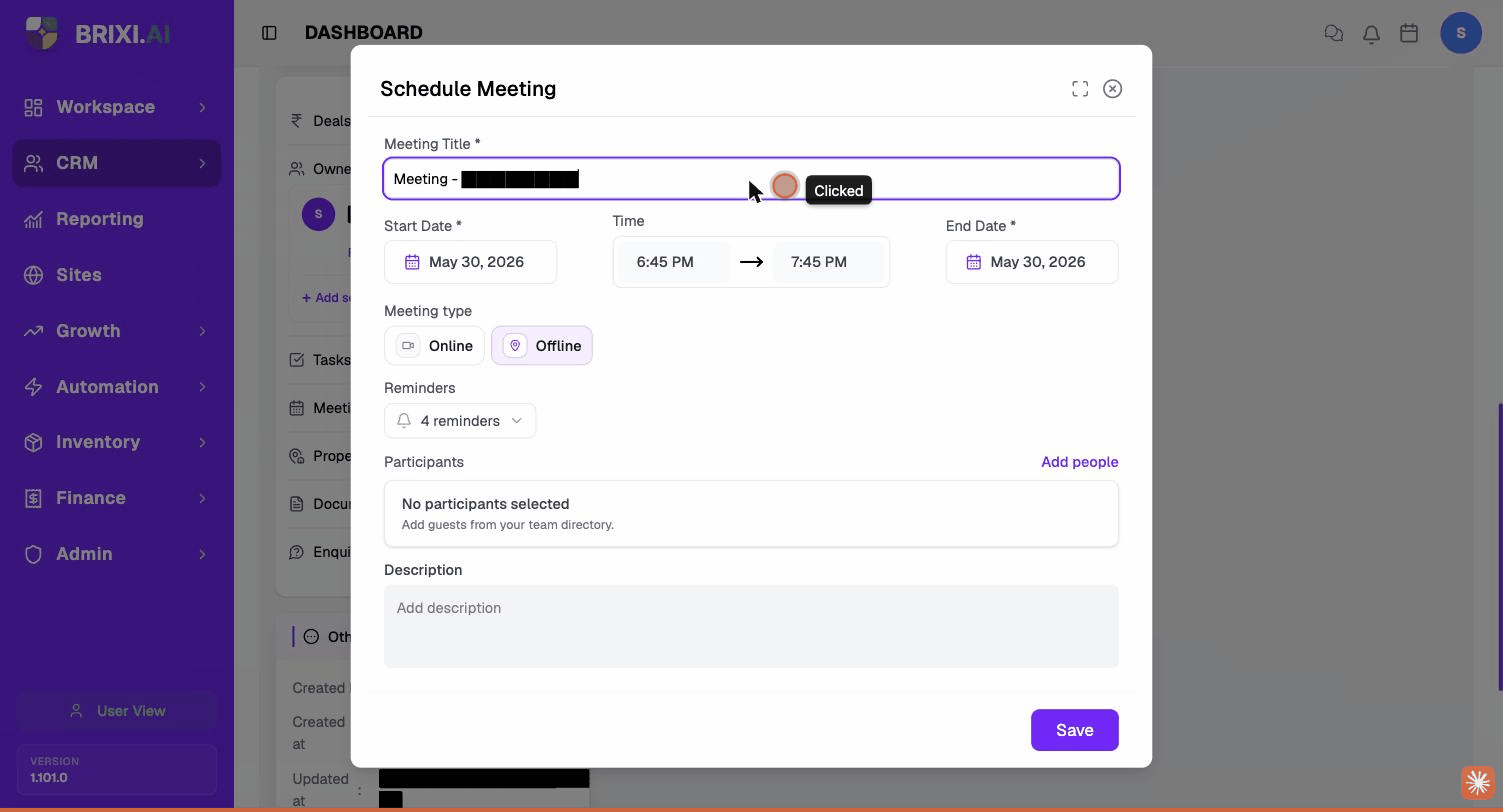
Schedule a Site Visit
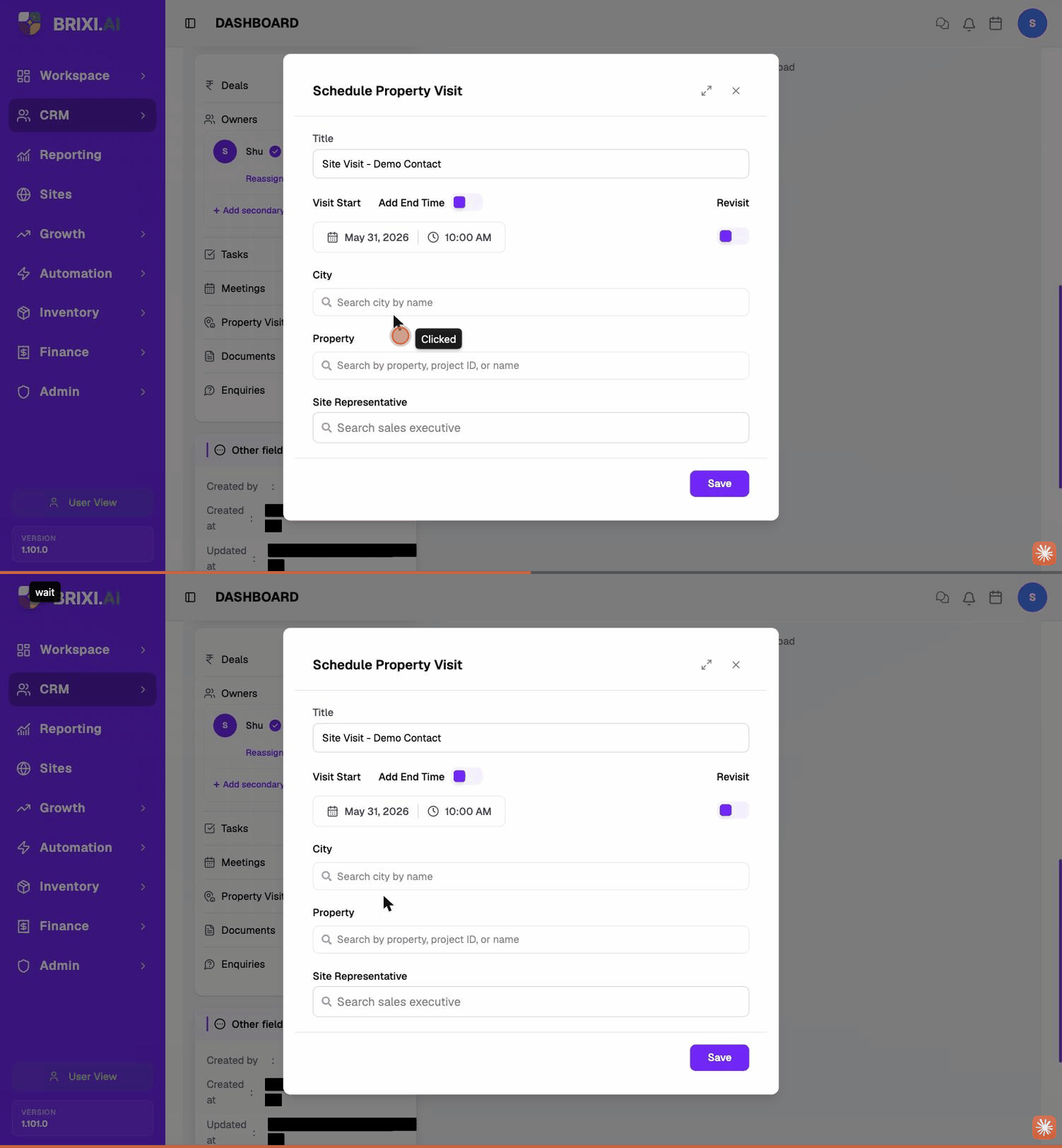
A site visit (property visit) is a planned visit to a property with the customer. Site visits appear in the Calendar under the Property Visits filter and on the contact's Property Visits card.
- In the Contact summary panel, find the Property Visits card and click the + button. The Schedule Property Visit dialog opens.
- Title — pre-filled with Site Visit - [Contact Name]; edit if needed.
- Visit Start — set date and time.
- (Optional) Toggle Add End Time to set an end window.
- (Optional) Toggle Revisit if this is a return visit.
- City — search and pick.
- Property — search by property name, project ID or name.
- Site Representative — search a sales executive to host the visit.
- Select Save.
Upload or Remove Documents
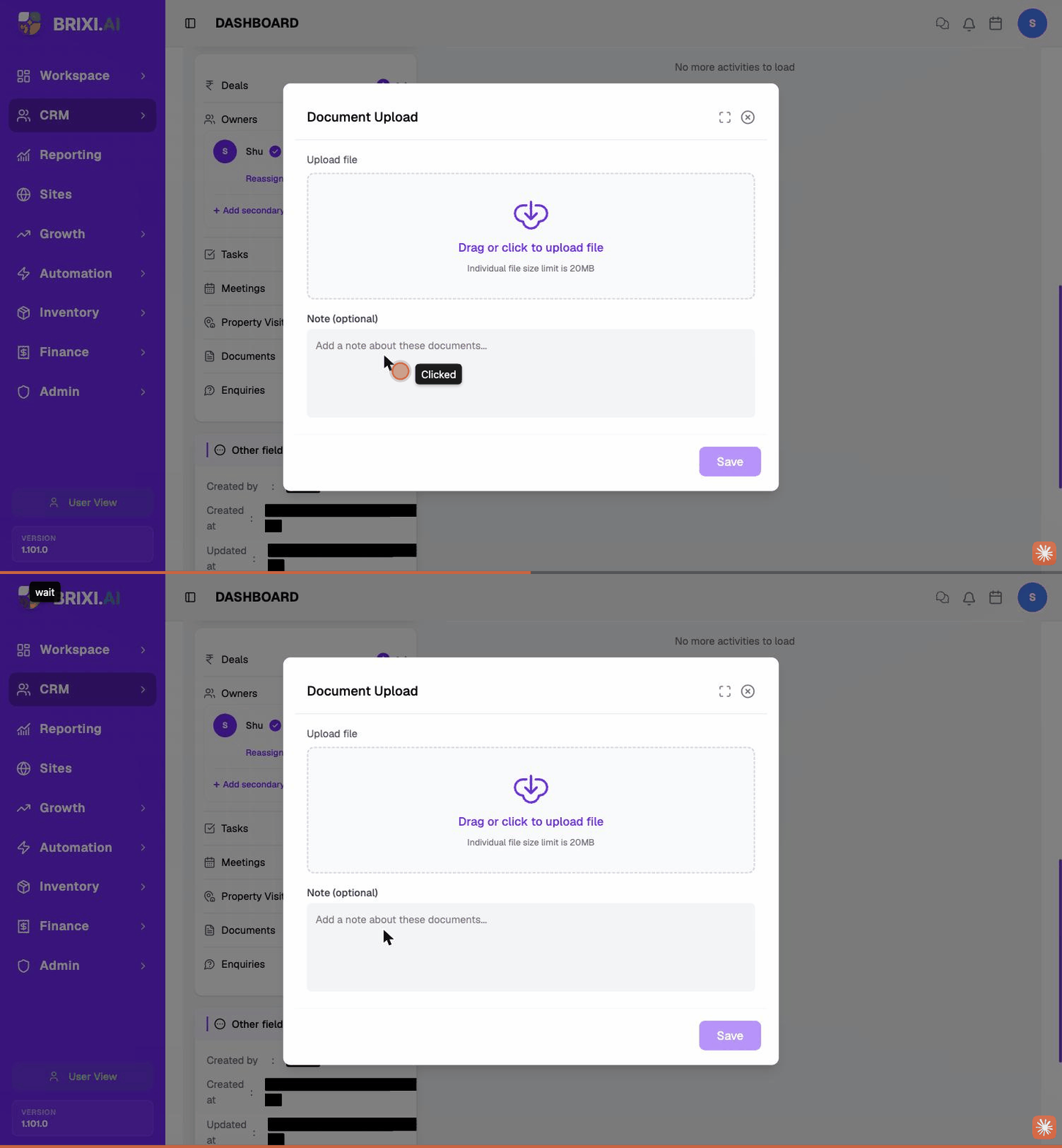
Attach documents to the contact — a signed agreement, an ID copy, a floor plan, anything. Documents land on the Documents card.
Upload
- In the Contact summary panel, find the Documents card and click the + button. The Document Upload dialog opens.
- Drag or click to upload file — select the file from your computer. Each file must be 20 MB or smaller.
- (Optional) Add a Note describing the document.
- Select Save.
Remove
Expand the Documents card, find the file row, and click the remove (×) control next to it. The document is detached from this contact; the file itself is removed from the contact's record.
Removed documents cannot be restored from the contact's record. Keep a copy elsewhere if you may need it later.
Add or Update an Enquiry
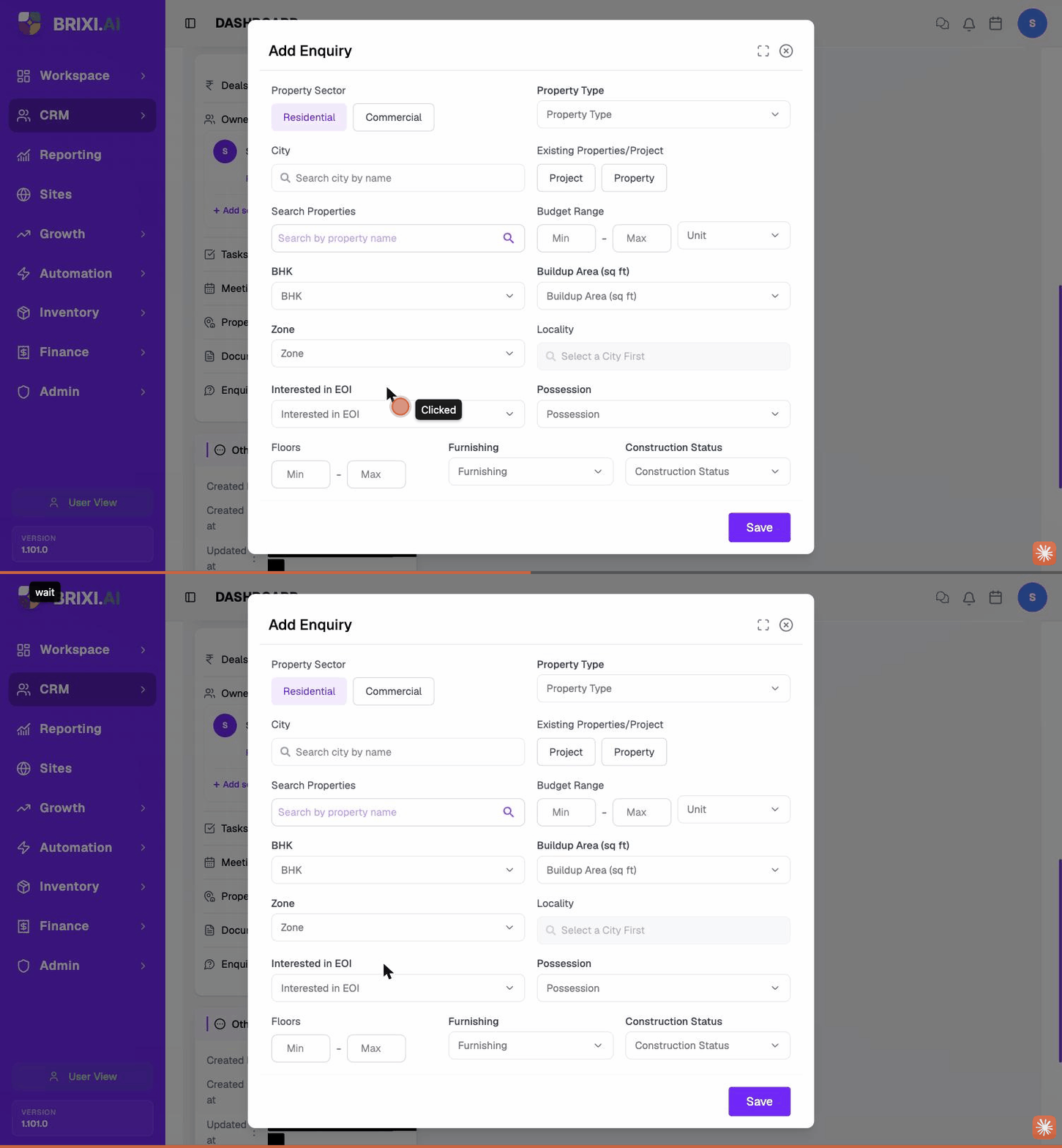
An enquiry captures what the customer is looking for — sector, type, budget, configuration, locality, possession status. The first enquiry is the chip you see in the contact header (next to Enquiry: in the yellow header strip).
Add an enquiry
- In the Contact summary panel, find the Enquiries card and click the + button. The Add Enquiry dialog opens.
- Property Sector — Residential or Commercial.
- Property Type — pick from the dropdown (Apartment, Villa, Plot, etc.).
- (Optional) City — search by name.
- (Optional) Existing Properties/Project — pick Project or Property tab, then search by name.
- (Optional) Budget Range — Min – Max, with a Unit (e.g. Lakhs / Crores).
- (Optional) BHK — configuration.
- (Optional) Buildup Area (sq ft).
- (Optional) Zone (East / West / North / South / Central) and Locality (after a city is selected).
- (Optional) Interested in EOI, Possession, Floors (Min – Max), Furnishing, Construction Status.
- Select Save.
Update an enquiry
Expand the Enquiries card, click an existing enquiry row to open it, edit any field, then Save. To remove an enquiry, use the remove (×) control on the row.
Fill the enquiry early — it powers Match Project and Match Properties from the Actions menu, and the Buy / Sell / Lease / Rent budget filters in Advanced Search.
Create a Deal
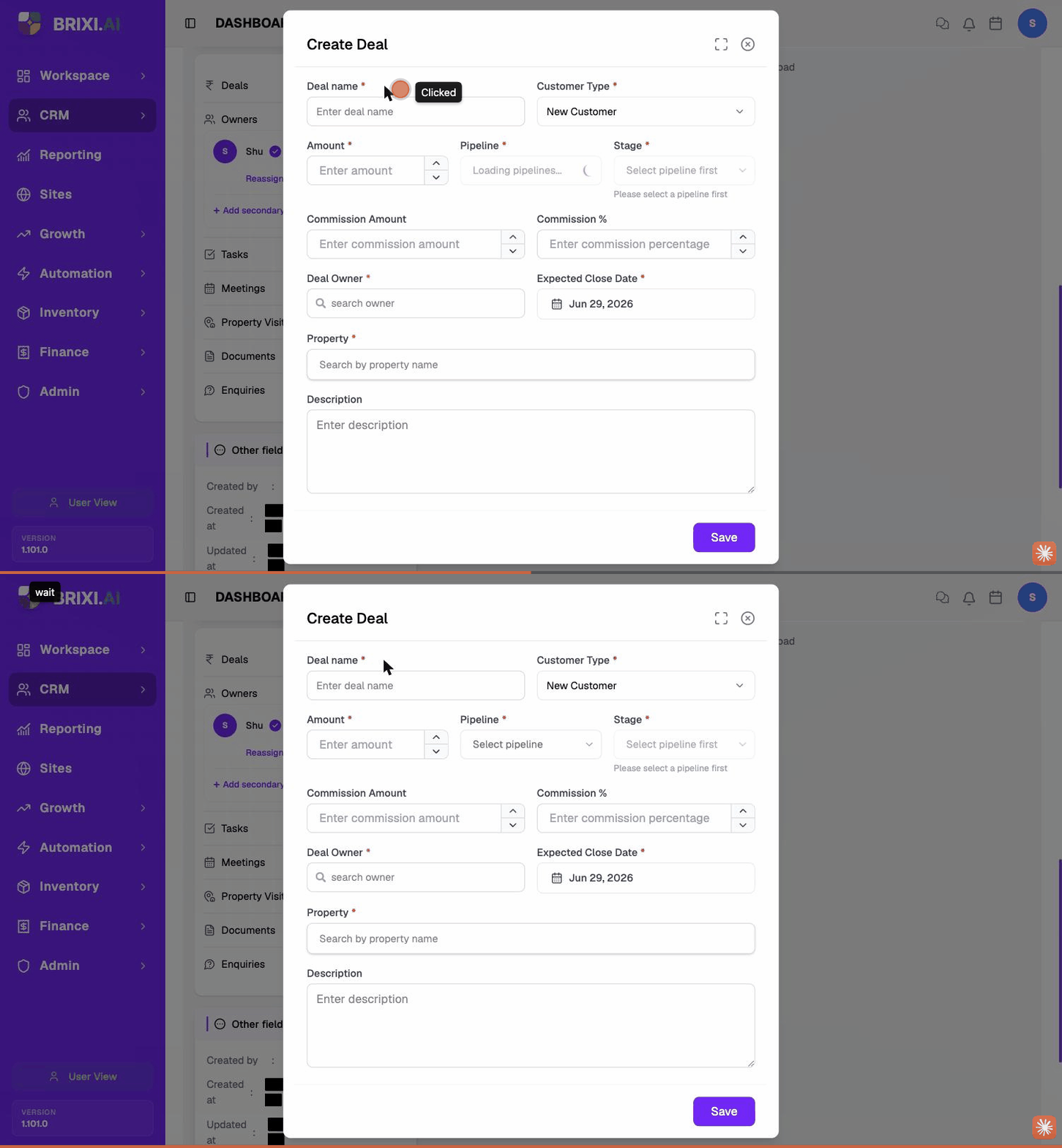
A deal turns an enquiry into a tracked sales opportunity with a pipeline stage, owner, expected close date and commission.
- In the Contact summary panel, find the Deals card and click the + button. The Create Deal dialog opens.
- Deal name — what this deal is called internally.
- Customer Type — New Customer or Repeat Customer.
- Amount — deal value.
- Pipeline — pick the pipeline this deal belongs to.
- Stage — choose the stage (enabled after a pipeline is picked).
- (Optional) Commission Amount and Commission %.
- Deal Owner — search a user to own the deal.
- Expected Close Date — defaults to ~30 days out.
- Property — search by property name.
- (Optional) Description.
- Select Save.
After saving, the deal appears on the Deals card and in the deals pipeline view for the owner.
Manage Owners
The Owners card on the contact summary shows the active owner. From here you can reassign, unassign, or add a secondary owner.
| Action | What it does |
|---|---|
| Reassign | Replace the current owner with a different user. |
| Unassign | Clear the owner — the contact becomes unknown and shows under the Unassigned chip on the Contacts list. |
| + Add secondary owner | Add a second user who can also work the contact (visible alongside the primary). |
For bulk reassignment across many contacts, see Bulk Actions on Contacts → Assign or Unassign an Owner.
Mark Duplicate
When two records turn out to be the same person, merge them so the history sits in one place.
- Select Actions → Mark Duplicate. The Merge Duplicate Contacts dialog opens.
- The contact you're on is shown as Primary Contact (will be kept) with a PRIMARY badge.
- Secondary Contact (will be merged) — search and pick the duplicate. Its activity history will move under the primary.
- Relationship Type — defaults to Duplicate.
- (Optional) Add a Note explaining the merge for audit.
- Select Merge Contacts.
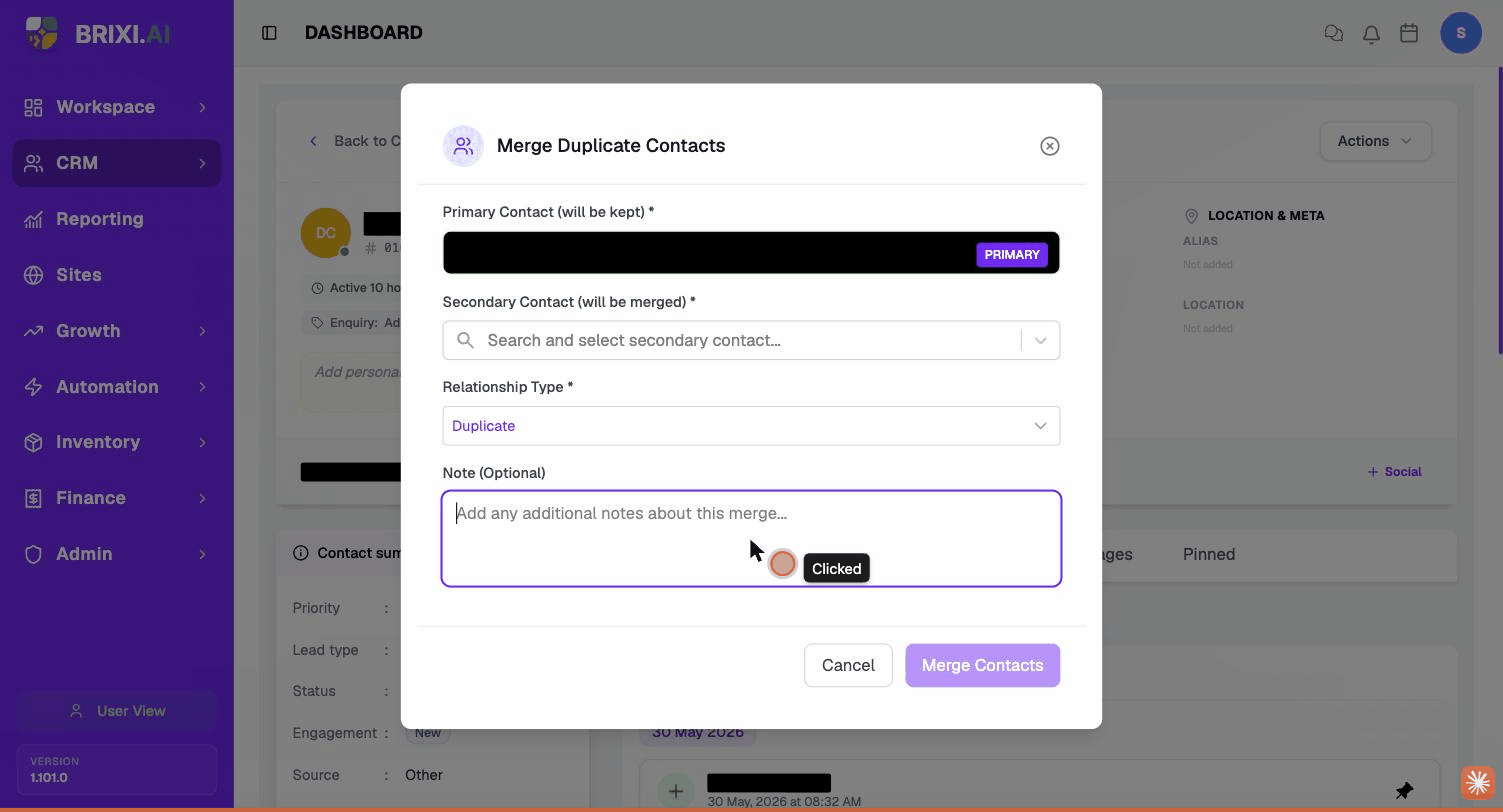
The secondary contact's activity history moves under the primary. Pick carefully — the secondary record is taken off the active list as a duplicate.
Delete a Contact
Use Delete Contact when a record should not be in the CRM — a test row, an obvious bad lead, a request to be forgotten.
- Select Actions → Delete Contact. The Delete Contact dialog opens.
- Read the warning: "This action will hide the contact information, notes, and communication history from your view, but the data will not be permanently deleted and can be restored later."
- Enter a Reason (required) — stored for audit.
- Select Delete.
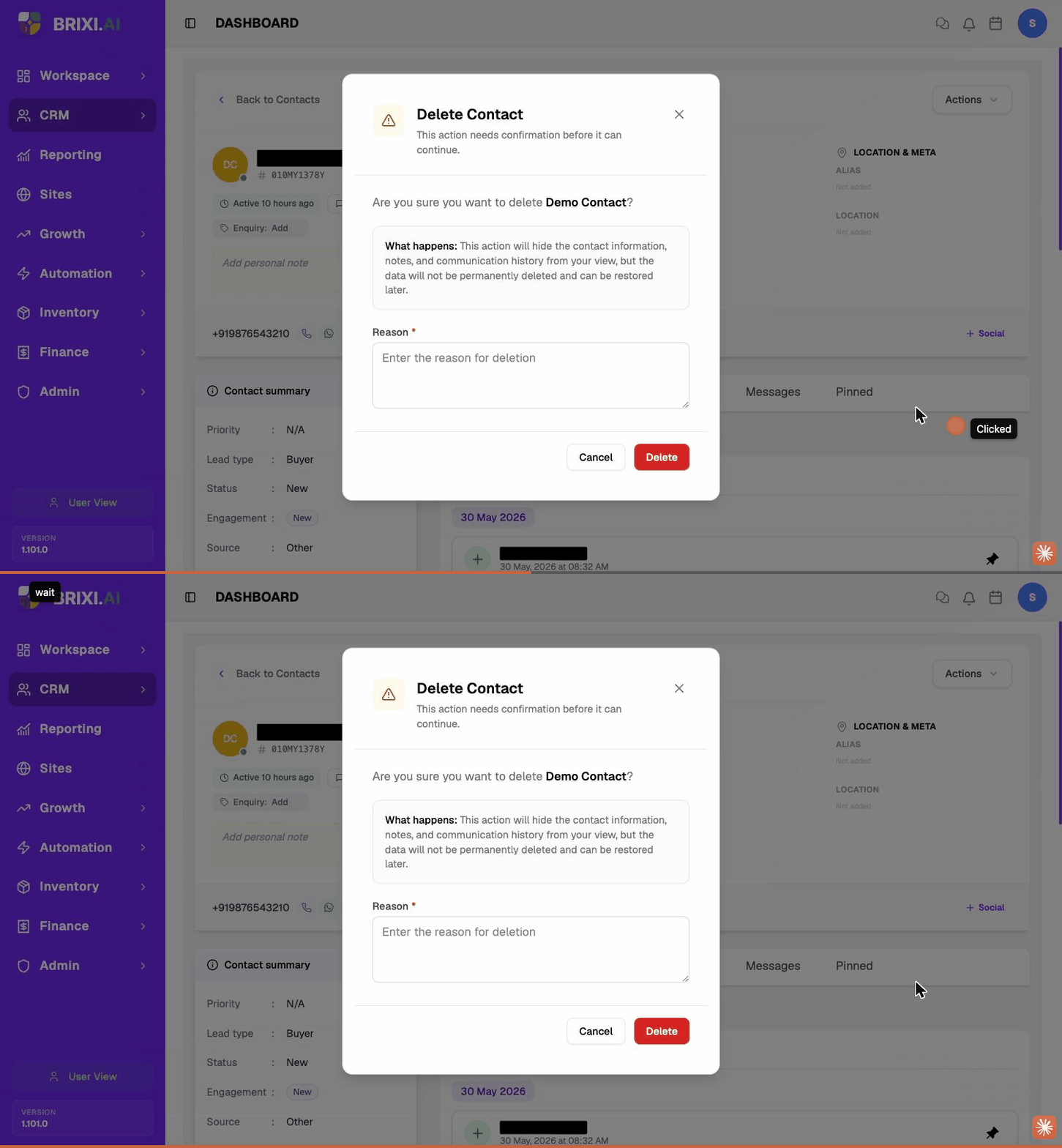
Delete in Brixi is a soft delete — the record is hidden from your views but not permanently removed and can be restored. For bulk deletion across many contacts, see Bulk Actions → Delete.
More Actions
A few utility actions from the Actions menu don't open a dialog — they jump you somewhere or run a quick lookup.
| Action | What it does |
|---|---|
| Search Google | Opens a Google search in a new tab for the contact's name and phone — handy for a quick background check. |
| Match Project | Suggests projects that match this contact's enquiry. |
| Match Properties | Suggests properties that match this contact's enquiry. |
| View History | Opens the contact's full change log — every field edit, status change, owner change and timestamp. |
Troubleshooting
If items are missing from your Actions menu — most often Delete Contact or Mark Duplicate — that's role permissions, so start with your admin. The same goes for an empty From field when logging an email: it means no sender is connected for your user.
Contact Brixi support if logged activities don't appear on the timeline after a refresh, or a merge completes but the secondary contact's history doesn't show under the primary. Include the contact name and what you logged or merged.