Find the Leads You Need to Work
The leads worth your time today — unassigned new arrivals, this week's hot buyers, everyone who asked about a 3 BHK in West Bangalore — are buried in a long list until you filter for them. The Contacts page gives you three layers of search to pull exactly those leads to the top:
- Quick filter chips — one-click toggles for the most common views (Active, All, Unassigned, New, Recently Active).
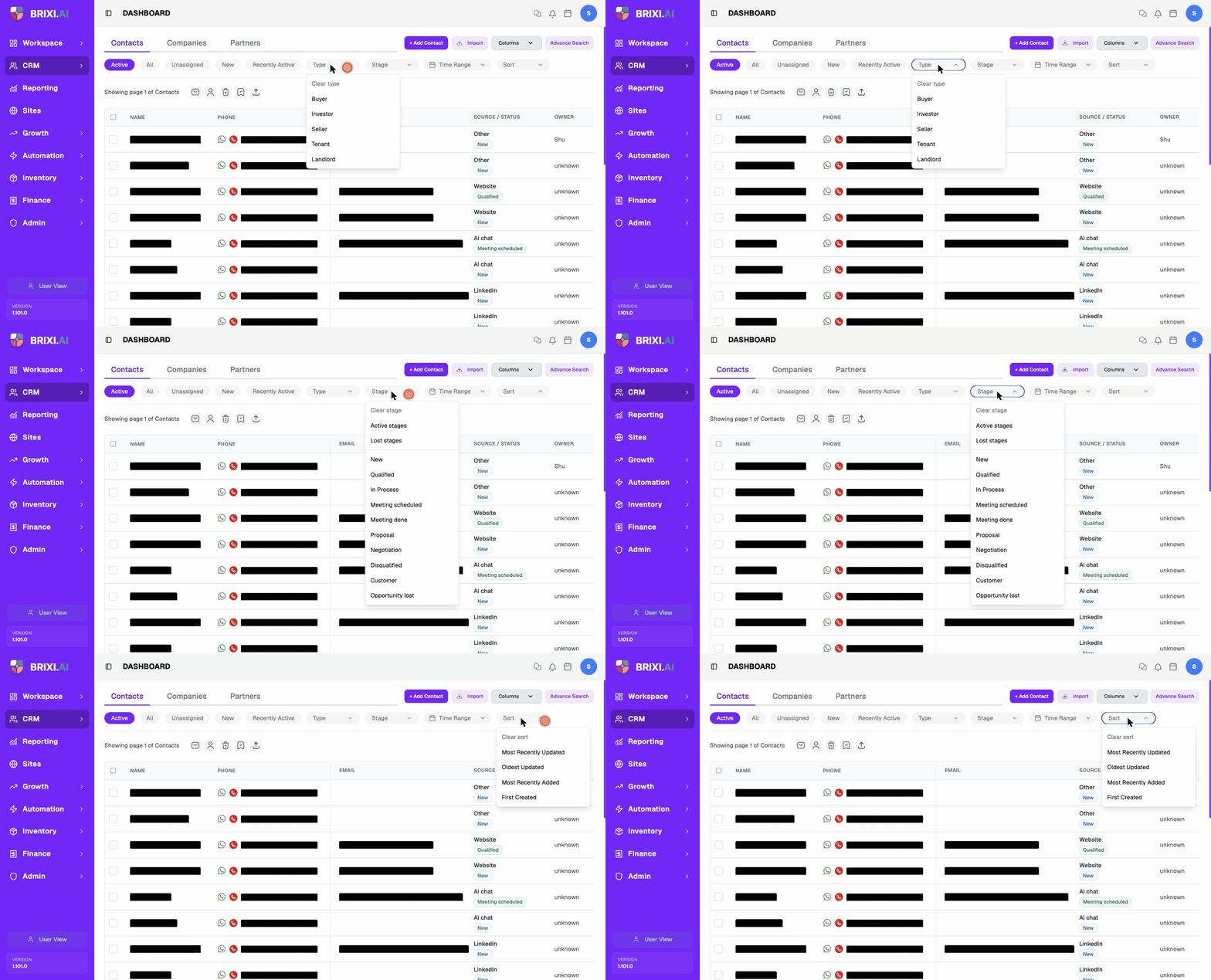
- Filter dropdowns — narrow by Type, Stage, Time Range, or change the Sort order.
- Advanced Search — a dialog that combines contact, location, property, budget, assignment, and activity-date criteria.
Plus a Columns picker that controls what shows on each row.
Entry pointCRM → Contacts
Quick Filter Chips
The chip row right above the contacts list is the fastest way to narrow
what you see. Click a chip and the list refreshes — the URL updates to the
selected filter (for example ?filter=Unassigned).
| Chip | Shows |
|---|---|
| Active | Contacts your team is currently working. The default view. |
| All | Every contact in the workspace. |
| Unassigned | Contacts with no owner — pick them up or assign them out. |
| New | Contacts recently created. |
| Recently Active | Contacts that had activity recently (calls, messages, status changes). |
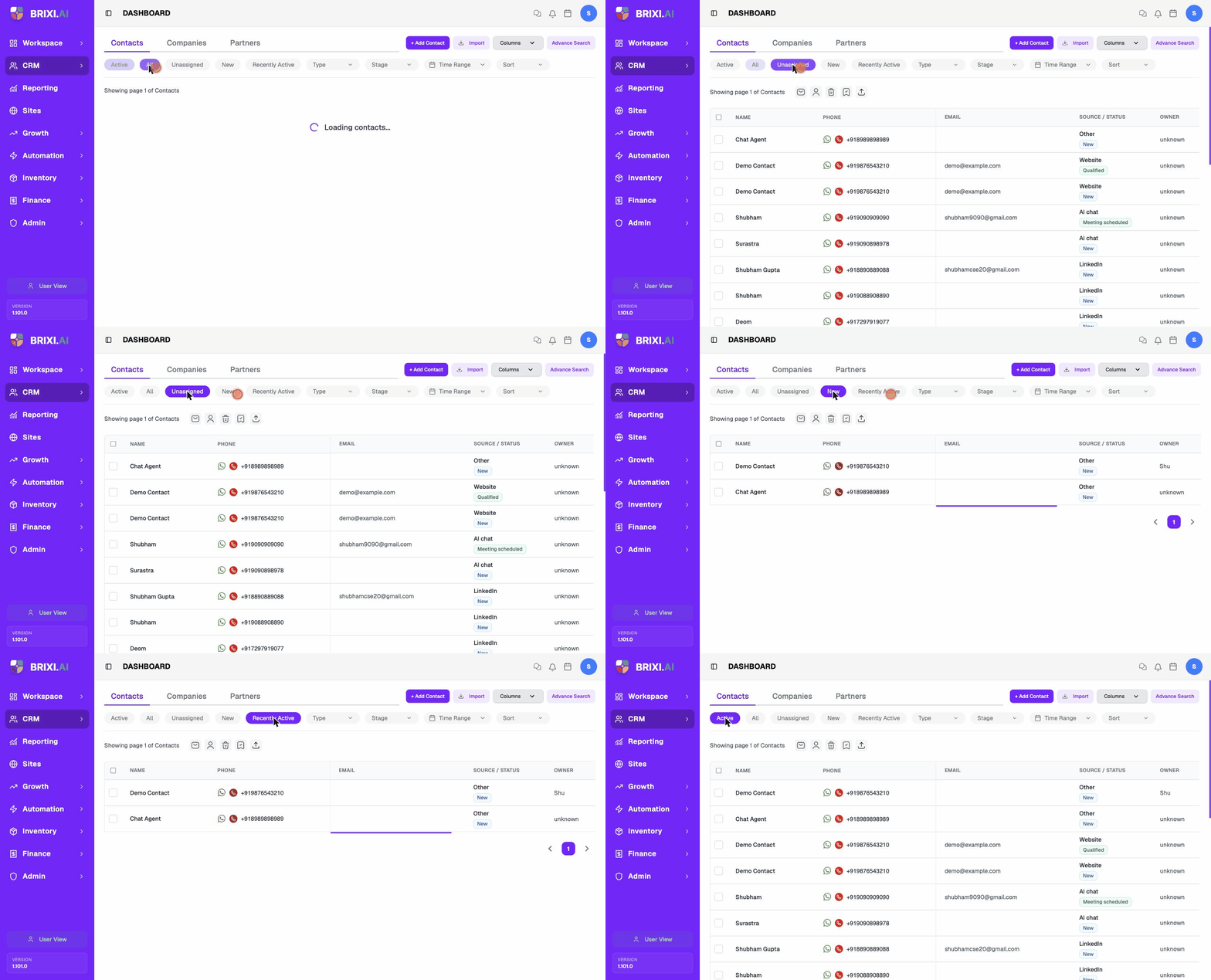
Only one chip is active at a time. To clear it, click the same chip again or pick another. The chip you choose is remembered in the URL — you can bookmark Unassigned or New and come straight back to that view.
Filter Dropdowns
Next to the chips, four dropdowns let you refine further. Each one is independent and stacks with the active chip.
Type
Filter by contact type. Options:
| Value | Meaning |
|---|---|
| Buyer | Buyers and prospective buyers. |
| Investor | Investors. |
| Seller | Sellers. |
| Tenant | Renters / tenants. |
| Landlord | Property owners renting out. |
| Clear type | Remove the Type filter. |
Stage
Filter by where the contact sits in the lead pipeline. Pick a single stage or one of the two grouped options:
| Value | Meaning |
|---|---|
| Active stages | Everything still moving — New, Qualified, In Process, Meeting scheduled, Meeting done, Proposal, Negotiation. |
| Lost stages | Everything that closed out — Disqualified, Opportunity lost. |
| New / Qualified / In Process / Meeting scheduled / Meeting done / Proposal / Negotiation / Disqualified / Customer / Opportunity lost | Just contacts in that single stage. |
| Clear stage | Remove the Stage filter. |
Time Range
Pick a date range — Brixi shows contacts that match the active filters and fall in that range. Useful for "this week's new leads" or "what came in last month".
Sort
Change how the list is ordered. Options:
| Value | Orders by |
|---|---|
| Most Recently Updated | Newest updates first. |
| Oldest Updated | Oldest updates first. |
| Most Recently Added | Newest contacts first. |
| First Created | Oldest contacts first. |
| Clear sort | Reset to the default order. |
Choose Columns
The Columns button (next to Import at the top-right) controls which columns appear on every row. Tick or untick to show or hide a column — the list updates immediately. Available columns:
- Name
- Phone
- Created
- Last Activity
- Type
- Source
- Owner
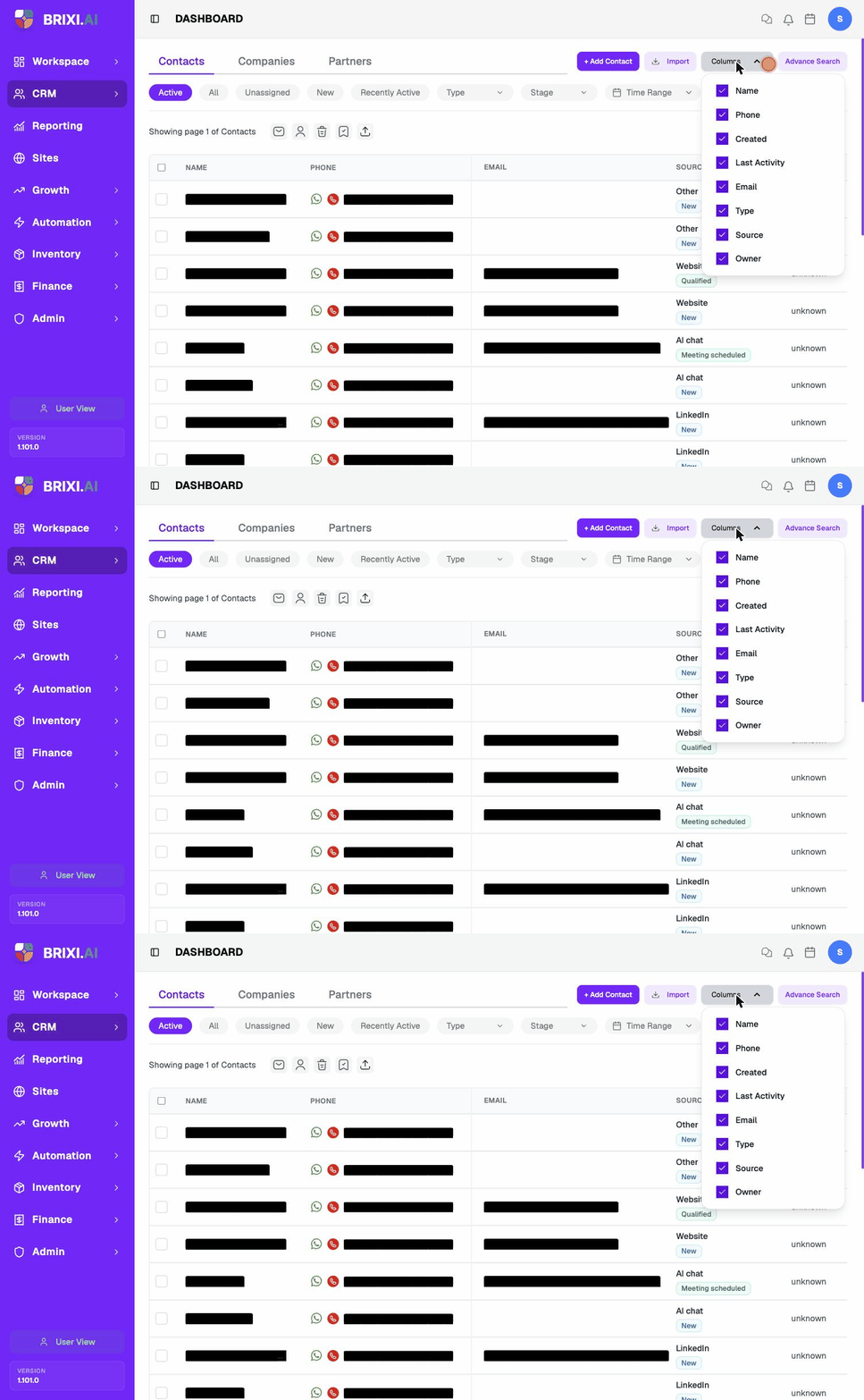
Hide columns you don't use to fit more contacts on screen and pull the columns you care about (for example, Last Activity) into view without scrolling sideways.
Advanced Search
When the chips and dropdowns aren't enough, open Advance Search from the top-right of the Contacts page. Combine criteria and select Search contacts. The list then shows Advanced Search results as a separate mode; choosing a regular list filter replaces those results.
See Search Contacts with Advanced Search for the full steps, available criteria, and troubleshooting. To reuse a set of filters, see Create and Manage Contact Views.
Troubleshooting
If a search comes back emptier than you expect, the usual culprit isn't search at all — it's team visibility. You only ever see contacts your role allows, so ask your admin whether records owned by other teams are hidden from you before reporting missing results.
Contact Brixi support if a contact you can open directly doesn't appear when you search its exact name, email, or phone, or Advanced Search ignores a criterion you've set. Include the contact and the exact filters you used.