Group Leads into Reusable Lists
When you target the same group of leads over and over — your VIP clients, a launch waitlist, a set of referral partners — rebuilding that audience for every send is wasted effort. Build the group once as a list, name it, and reuse it as the audience for broadcasts, marketing campaigns, and automations.
Entry pointCRM → Lists
| Article summary | Details |
|---|---|
| Best for | Agents and managers who target groups of contacts |
| Main outcome | A reusable, named list ready for campaigns and automations |
| Roles | Sales agent, manager, admin |
| Requires | Permission to manage lists; existing contacts or partners |
| Related reports | Campaign and broadcast reach reporting |
Before You Start
- Decide whether the list holds Contacts or Partners (the entity type).
- Decide the list type: Broadcast, Marketing, or General. This signals how you intend to use the list.
- Have a clear, recognizable name in mind so the team can find it later.
Review Your Lists
The Lists page shows each saved list with these columns:
| Column | Shows |
|---|---|
| Name | The list name |
| Description | An optional note about the list |
| Type | The entity and list type, such as Contact · General |
| Members | How many records are in the list |
| Created At | When the list was created |
| Actions | Open the list, edit it, or delete it |
Use the Columns control to choose which columns appear, and open a list to inspect its members.
Create a List
- Open CRM → Lists.
- Select + Add List.
- Enter a List Name (required) and an optional Description.
- Choose a List Type: Broadcast, Marketing, or General.
- Choose an Entity Type: Contact or Partner.
- Select Save.
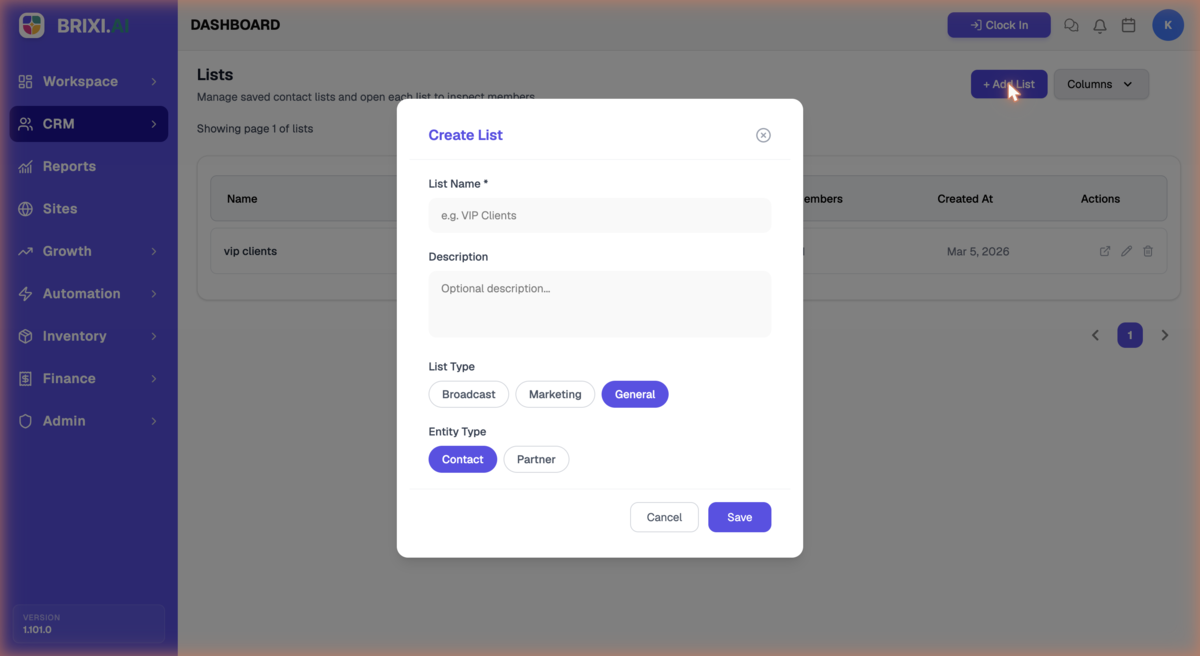
Add contacts to a list from the Contacts page using bulk actions, then reuse the list as the audience for a campaign or automation.
Check the Result
After saving, you should see:
- The list on the Lists page with its type and member count.
- The list available to select as an audience in campaigns and automations.
Common Issues
| Issue | What to check |
|---|---|
| Cannot save the list | Enter a List Name and choose the list and entity types |
| List has no members | Add contacts from the Contacts page or via bulk actions |
| List is missing the right people | Confirm the entity type matches who you are adding |
| Cannot create or edit lists | Confirm your role can manage lists |
Contact your admin first if + Add List or list actions are hidden — these depend on your permissions.
Contact Brixi support if a list saves but cannot be selected as an audience. Include the list name, type, expected result, and a screenshot.
Reporting Impact
Lists define the audience for broadcasts, campaigns, and automations. Accurate, well-named lists keep reach and campaign reporting meaningful.