Lead Management
Capture every lead, keep it organized, and work it to a close — all from one place. A contact is the record behind each lead: it holds the person's name, phone, email, type, source, owner, status, address, and every activity logged against them. Because deals, notes, messages, tasks, and appointments all attach to a contact, this is where the day-to-day work of moving leads forward happens.
Entry pointCRM → Contacts
This section covers everything you do to capture and work leads.
| In this section | What you do |
|---|---|
| Capture a New Lead | Add a lead and keep its details current as you work it. |
| Import Contacts | Map a CSV or Excel file to contact fields, preview it, and track the import. |
| Find the Leads You Need to Work | Surface the right contacts using filters and search. |
| Search Contacts with Advanced Search | Combine contact, activity, assignment, date, and industry-specific criteria. |
| Create and Manage Contact Views | Save reusable filters, sort order, columns, and shortcuts. |
| Act on Many Leads at Once | Email, assign owner, delete, tag, or export a whole batch in one step. |
| Work a Lead from Its Detail Page | Log activity, schedule follow-ups, and move a lead forward. |
| Group Leads into Reusable Lists | Build saved lists to target with campaigns and automations. |
Open Contacts
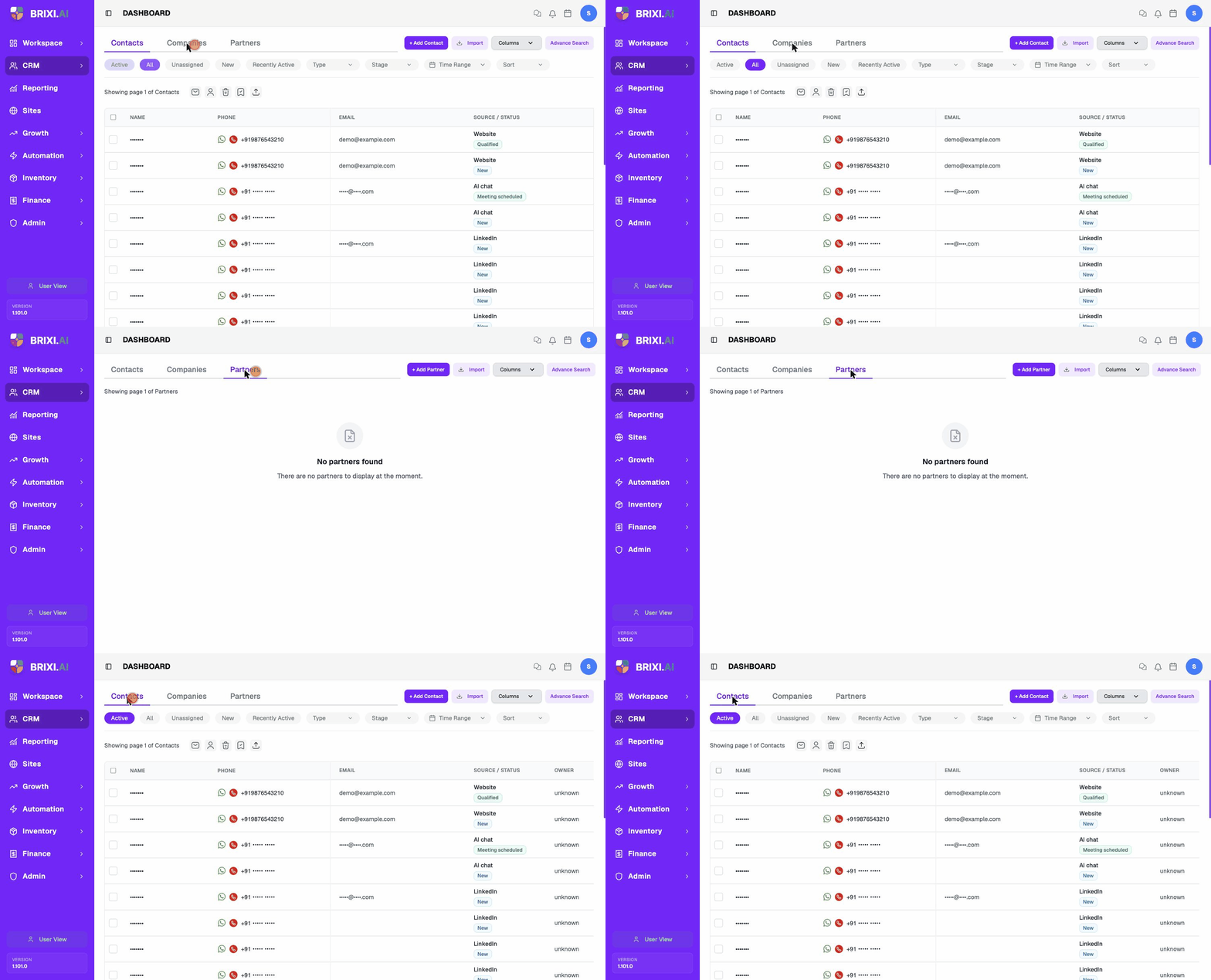
Select CRM, then Contacts. The Contacts page opens.
The page has three tabs:
- Contacts — individual people.
- Companies — organizations.
- Partners — brokers, referral sources, and channel partners.
The Contacts List
The list shows these columns:
| Column | What it shows |
|---|---|
| Name | The contact's name. Select it to open the contact. |
| Phone | The phone number, with WhatsApp and call shortcuts. |
| The contact's email address. | |
| Source / Status | Where the lead came from and its current status. |
| Owner | The user responsible for the contact, or unknown if unassigned. |
Actions on the Contacts Page
| Action | What it does |
|---|---|
| + Add Contact | Create a new contact. See Add and Update a Contact. |
| Import | Add contacts from CSV or Excel. See Import Contacts. |
| Columns | Choose which columns appear in the list. |
| Advance Search | Combine detailed criteria. See Search Contacts with Advanced Search. |
| Manage views | Create and edit reusable contact views. See Create and Manage Contact Views. |
Above the list, filter chips and dropdowns narrow what you see: Active, All, Unassigned, New, Recently Active, plus Type, Stage, Time Range, and Sort. See Find the Leads You Need to Work.
Troubleshooting
If the Contacts page is missing from your CRM menu, or you can only see some contacts when you expect to see your whole team's, that's role and team visibility — ask your admin before anything else. The same goes for a missing + Add Contact or Import button.
Contact Brixi support if contacts you know exist don't show up under any filter, or the list won't load at all. Mention which tab you were on (Contacts, Companies, or Partners) and an example record you expected to see.