Route a Conversation to the Right Person or AI Agent
Every conversation can be owned by a human user (a teammate) or a chat agent (one of your workspace's AI agents), and the owner is on the hook for the next message. To hand a conversation off — to a teammate, to an AI agent, or back and forth between them — you just assign a new owner; Brixi notifies them and routes future replies their way.
Entry pointInbox → select a conversation → Contact Information (right pane) → Owner
Where the Owner Controls Live
Open any conversation, then look at the Contact Information panel on the right and scroll down. The Owner section has two buttons:
- Assign — open the Assign conversation owner dialog to pick a new owner.
- Unassign — clear the current owner.
Below the buttons, a row shows the currently assigned user or AI agent — with an avatar, the name, and a Bot label when the owner is a chat agent. A small link arrow opens the agent's detail page.
Assign a Human User
Use this when a teammate should take over the next reply — for example, the lead is qualified and ready for a senior agent.
- Open the conversation.
- In the right panel, scroll to Owner.
- Click Assign. The Assign conversation owner dialog opens with two tabs.
- Make sure the Users tab is selected (it is by default).
- Open the Select user dropdown and pick a teammate.
- Click Assign.
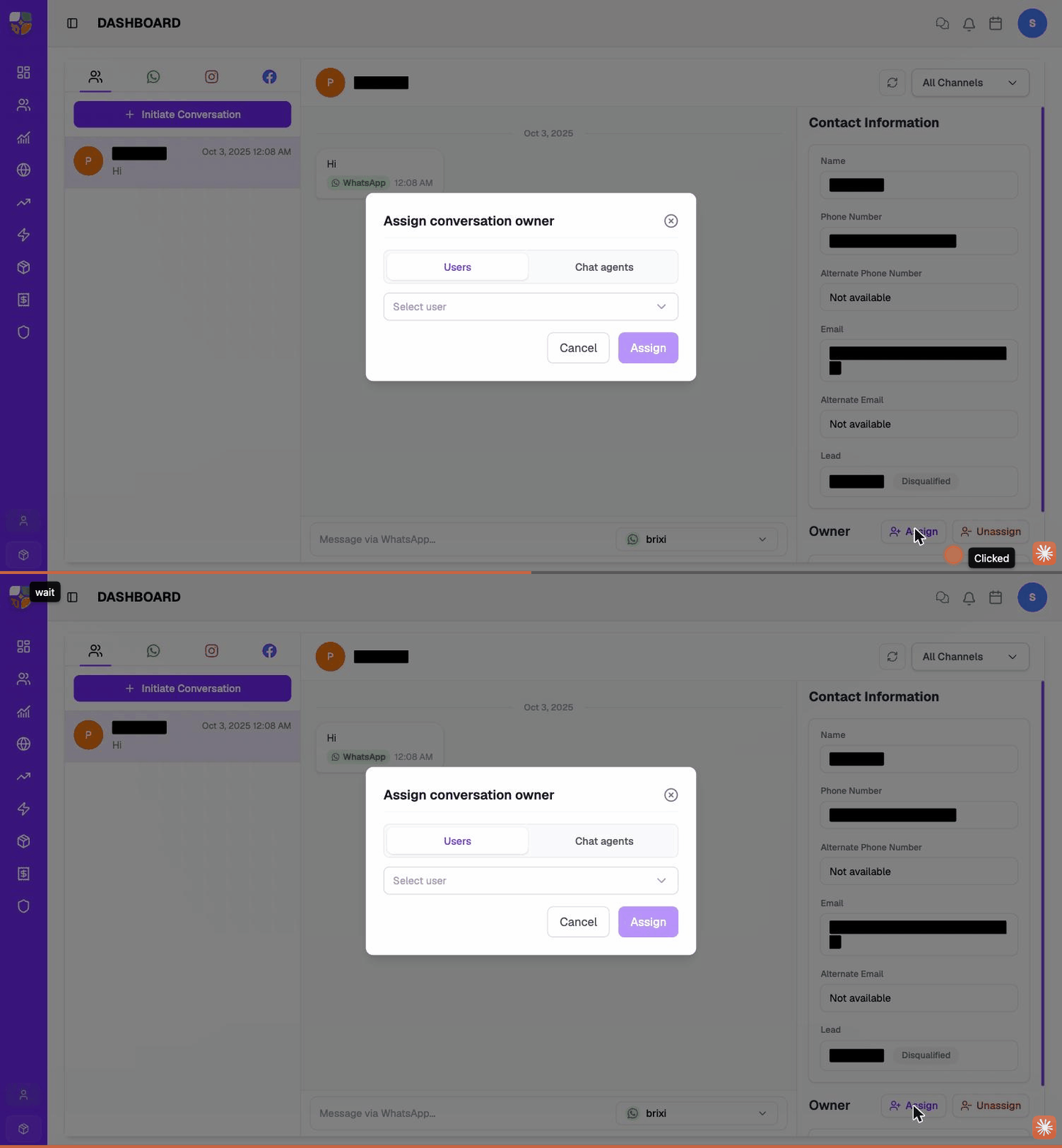
The new user appears under Owner with their avatar. Future replies route to them and they get a notification.
Assign an AI Agent (Chat Agent)
Use this when an AI agent should handle the conversation — typically to qualify a new lead, answer FAQs, or follow up overnight.
- Open the conversation.
- In the right panel, click Owner → Assign.
- In the dialog, switch to the Chat agents tab.
- Open the Select chat agent dropdown — every chat agent enabled in your workspace is listed (each row shows the agent name and a short description).
- (Optional) Type in the Search chat agents box to filter.
- Pick the agent.
- Click Assign.
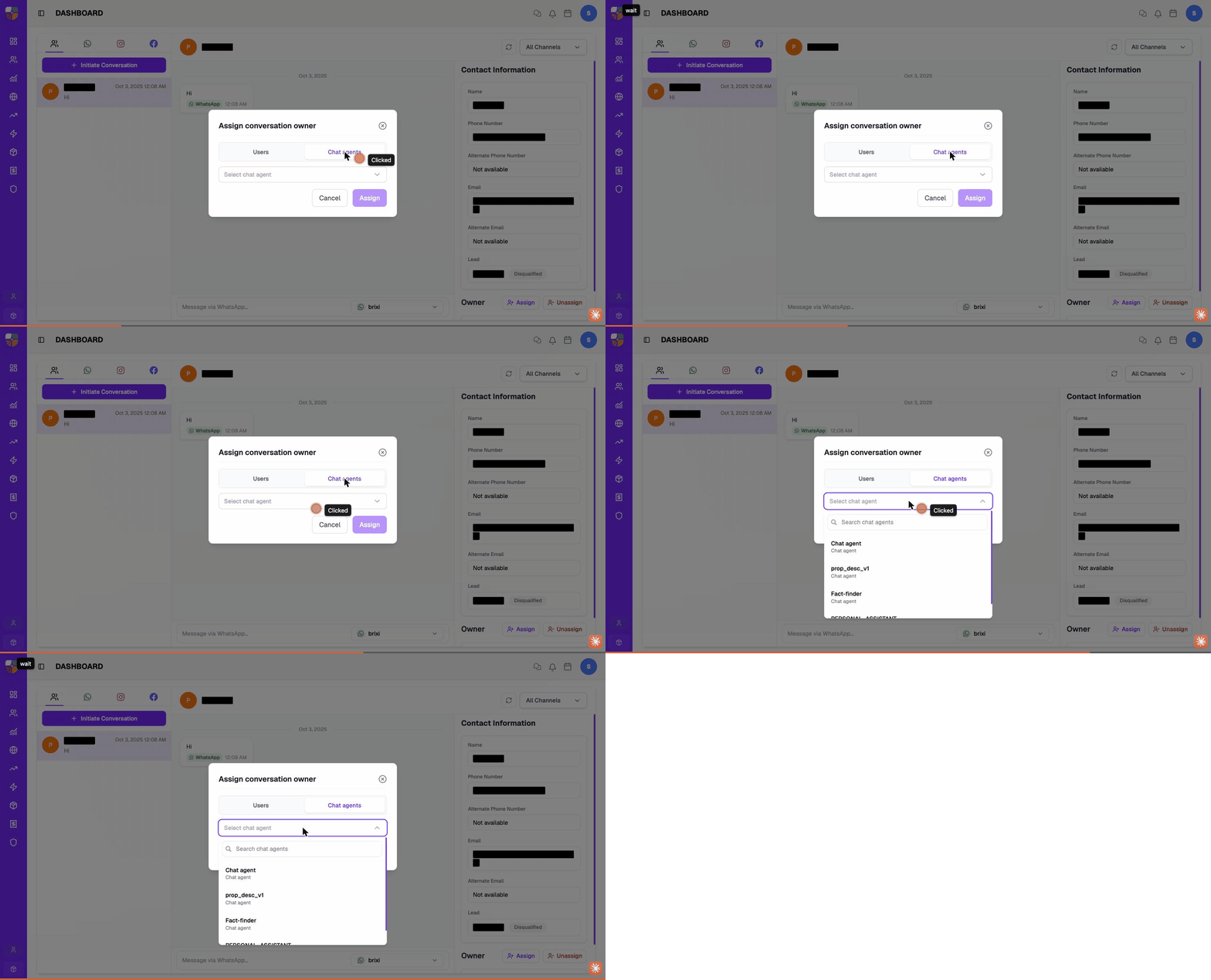
The chat agent appears under Owner with a Bot label. From this point on, Brixi routes the customer's next message to the agent, and the agent replies according to its prompt and tools.
Most workspaces have multiple agents — one for qualifying inbound leads, one for answering property questions, one for booking site visits. The agent's description in the dropdown tells you what it does.
Remove an Owner or Agent
Use Unassign when the conversation should go back to the team's shared queue — for example, the owner is on leave and no one specific should pick it up.
- Open the conversation.
- In the right panel, click Owner → Unassign.
- Confirm.
The owner is cleared. The conversation now appears unassigned in the team's shared list, and replies don't route to anyone in particular.
This works the same way whether the current owner is a human user or an AI agent.
If a chat agent was actively handling the conversation, removing it pauses the AI replies until you assign a human user or a different agent.
Hand Over From AI to Human (or Human to AI)
Handover is the same flow as assignment — you don't unassign first, you just assign a new owner and Brixi swaps them.
AI agent → human user (the most common handover — AI qualifies the lead, a human closes it):
- Open the conversation.
- Owner → Assign.
- Stay on the Users tab, pick the teammate, Assign.
The AI agent is replaced by the user. The customer's next message goes to the user. The AI agent doesn't reply automatically anymore.
Human user → AI agent (used when a user goes off-shift and an overnight agent should pick up):
- Open the conversation.
- Owner → Assign.
- Switch to the Chat agents tab, pick the agent, Assign.
The user is replaced by the chat agent. From now on, incoming messages route to the agent's reply logic.
Before assigning a new owner, type a quick internal note in the composer (or log a note on the contact) summarising what was discussed — the new owner sees the conversation history but a one-line summary saves them five minutes.
What Changes After Assignment
| What | Behaviour |
|---|---|
| Routing | Future incoming messages on this conversation go to the new owner — they show up under the new owner's view and they get a notification. |
| Replies | Outgoing replies from this conversation count toward the new owner's response time / activity metrics. |
| Contact owner | Conversation ownership is separate from contact ownership (CRM owner). Reassigning the conversation doesn't change who owns the contact record. To change the CRM owner, see Manage Owners on a Contact. |
| AI agent activity | When an AI agent is the owner, it replies automatically according to its prompt. When a user owns the conversation, the AI agent stops replying. |
Tips & Common Issues
| Issue | What to check |
|---|---|
| Assign button is missing | The conversation may be archived, merged, or deleted, or your role lacks owner-management permission. |
| The AI agent isn't in the dropdown | The agent isn't enabled for this workspace — ask an admin to enable it. |
| Owner updated but messages still route to the old owner | Refresh the conversation. If it persists, the old user may have an active reply draft — ask them to discard. |
| Two owners shown | Brixi shows only one primary owner per conversation; what you may be seeing is the conversation owner + the contact's CRM owner. They can differ. |
Troubleshooting
A missing Assign button and an AI agent that never appears in the dropdown are both admin territory: the first depends on your role's owner-management permission, the second on which chat agents are enabled for your workspace.
If owners assign correctly but messages keep routing to the previous owner after a refresh, or an assigned agent simply never replies, that's one for Brixi support. Include the conversation, the owner you set, and a screenshot of the Owner section.