Reply to a Lead on Any Channel
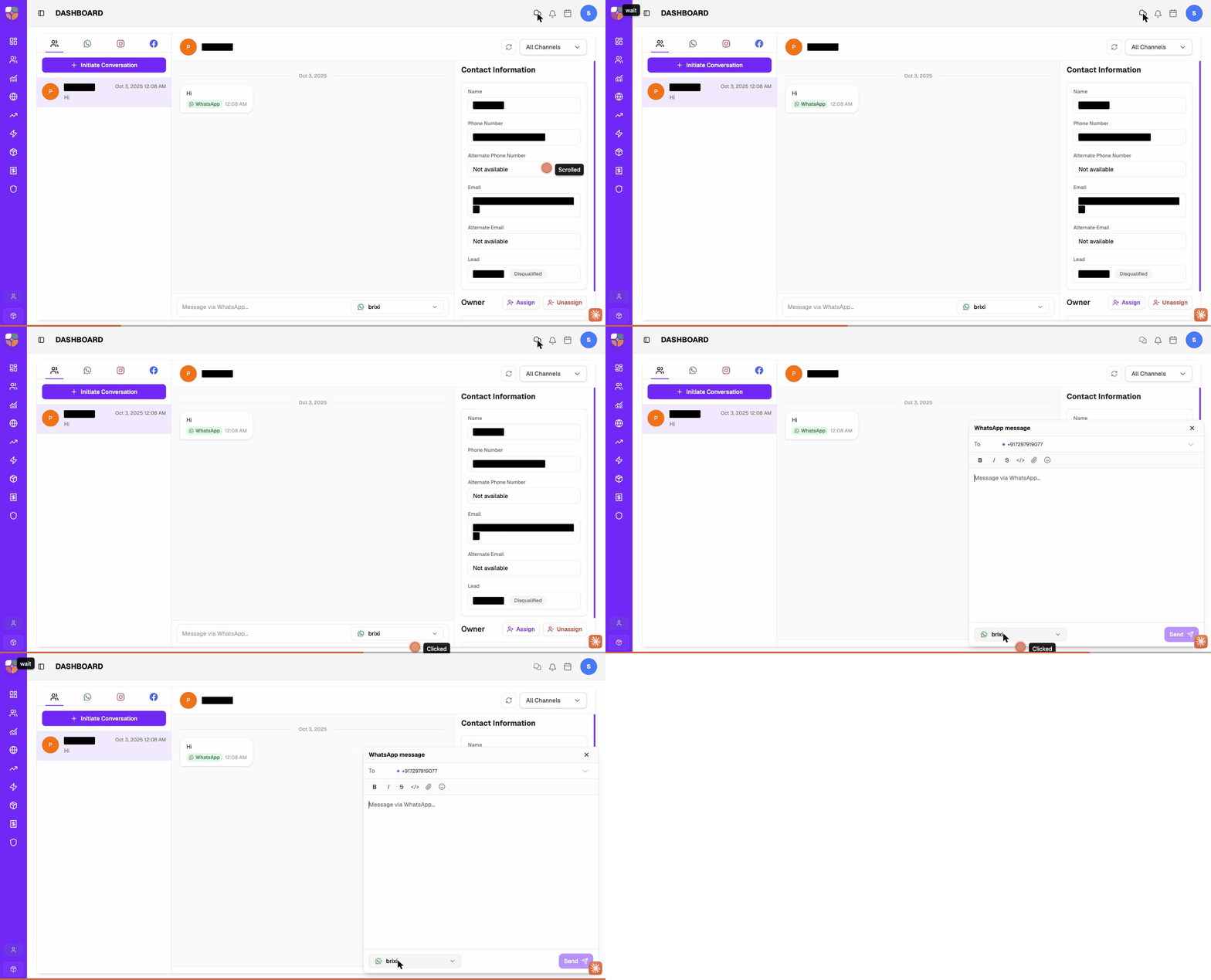
Answer a lead on whatever channel they reached you on — without leaving the inbox or switching apps. Every conversation has a composer at the bottom: open it, pick which connected sender to send from, type your reply, and hit Send.
Entry pointInbox → select a conversation → composer at the bottom of the thread
Open the Composer
- Open the Inbox from the top bar.
- Click the conversation you want to reply to.
- Click the composer at the bottom of the thread (it shows a placeholder like Message via WhatsApp…).
The composer expands into a popup with:
- A To field showing the contact's primary recipient on the current sender's channel.
- A formatting toolbar (Bold, Italic, Strikethrough, code, attach, emoji).
- A large message body.
- A sender selector at the bottom-left (which channel and number to send from).
- A Send button at the bottom-right.
Pick the Sender / Channel
The sender selector at the bottom-left of the composer controls which of your connected channels / numbers the message goes out from. Click it to open the channel picker.
The picker is grouped into two sections:
Message Channels
Each row is one of your workspace's connected senders — the icon shows the channel, the first line is the sender's display name, the second line shows the channel type and the address (email / phone number).
| Channel type | What the row shows |
|---|---|
| Sender display name + the sending email address. | |
| WhatsApp Business display name + the connected phone number. | |
| SMS | Sender ID or short name. |
| Connected Page name. | |
| Connected Instagram handle. |
A green tick appears on the currently selected sender. The picker also has a Search channels box at the top for workspaces with many senders.
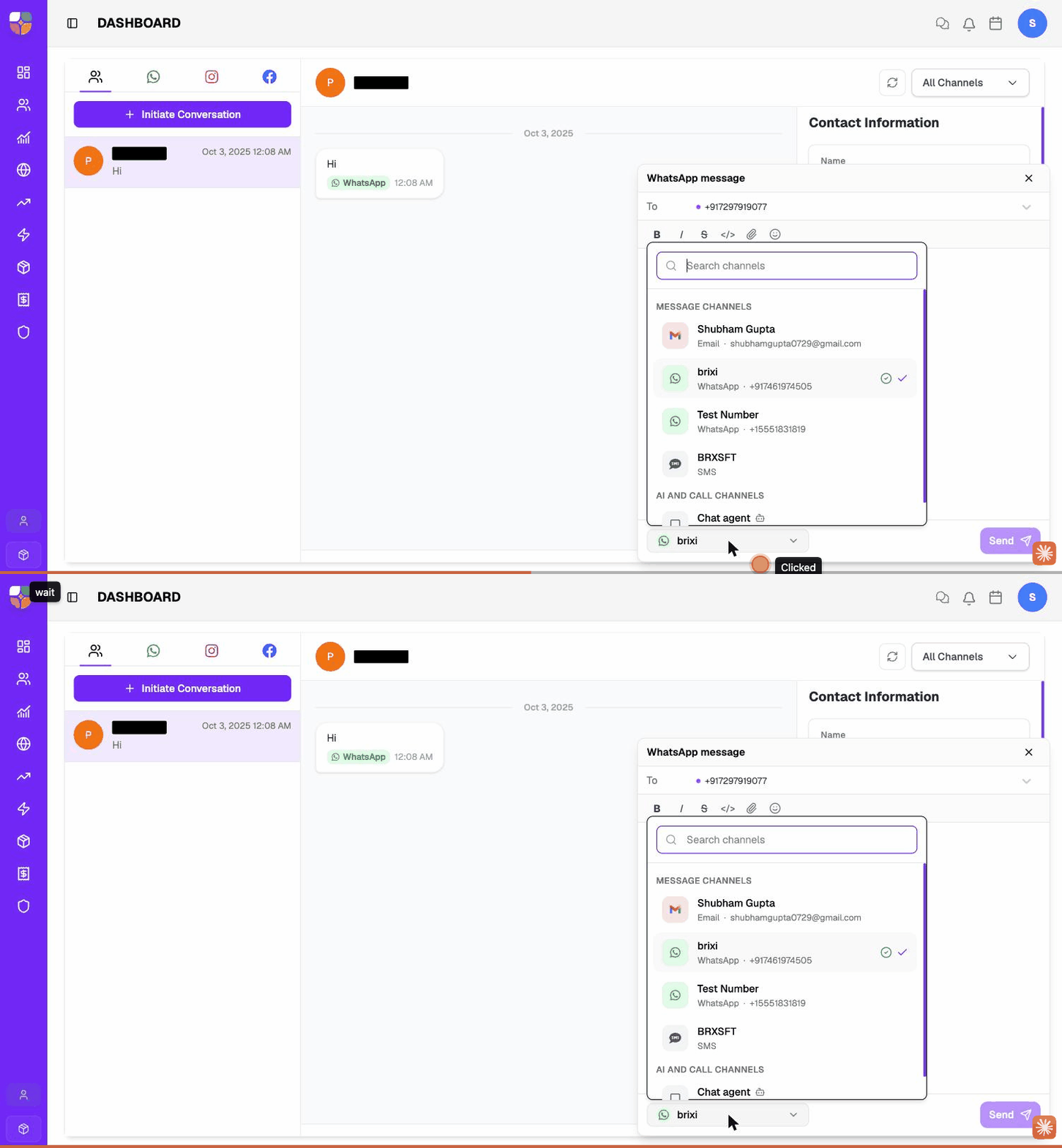
Sender display names, WhatsApp numbers and email addresses are visible in this list — that's how you tell two connected WhatsApp Business numbers apart. Treat the picker as workspace-confidential.
AI and Call Channels
Below Message Channels, a second section lists any chat agents (AI) and voice / call channels available in your workspace. Picking one routes the message through that agent — useful when you want the AI agent to handle the reply rather than sending it yourself. See Assign Owners and AI Agents for the full handover flow.
Write and Send
- Confirm the To is the right recipient — if the contact has multiple numbers or emails, the selector shows them.
- Type the message in the body.
- (Optional) Add formatting or an attachment — see Formatting & Attachments.
- Click Send.
The reply lands in the thread immediately with the channel label and timestamp. Messages you send appear on the right (your side); the customer's incoming messages stay on the left.
Formatting & Attachments
The formatting toolbar at the top of the composer:
| Icon | What it does |
|---|---|
| B | Bold. |
| I | Italic. |
| Strikethrough. | |
</> | Code / monospace. |
| 📎 | Attach a file — image, PDF, document, audio (supported types depend on the channel). |
| 😊 | Insert emoji. |
Not every channel supports every option — WhatsApp accepts bold / italic / strikethrough and most attachments; SMS does not support formatting; Email supports rich text and attachments.
Tips & Common Issues
When a contact has been talking to your brixi WhatsApp number, switching to a different connected WhatsApp number mid-thread looks like a new business to the customer. Keep the sender consistent unless you have a good reason to change.
| Issue | What to check |
|---|---|
| Send is disabled | The body is empty, or the selected channel needs a recipient (a phone for WhatsApp / SMS, an email for Email). |
| The sender picker is empty | No senders are connected for your user — ask an admin to connect a channel under Integrations. |
| Wrong recipient shown in To | The contact has multiple numbers / emails — change it from the To dropdown, or update the primary in Contact Detail. |
| The picker doesn't show an AI agent | The agent isn't enabled for the workspace — see Assign an AI Agent. |
| The attachment fails | Check the file size and type — most channels cap attachments at 16 MB and reject executables. |
Troubleshooting
An empty sender picker, or a channel you expected that isn't listed, means nothing is connected for you yet — that's an admin job, not a bug. Ask them to connect the sender under Integrations before raising anything else.
If the senders are there and a message still fails to send — or sends from your side but never reaches the customer — contact Brixi support with the channel, the recipient, any error shown, and a screenshot of the composer.