Start a New Conversation
Most conversations start when a customer messages you — but sometimes you need to make the first move: send a quote, follow up after a site visit, or chase a stuck lead. The Initiate Conversation button at the top of the conversation list lets you open a fresh chat with any existing contact and message them on any connected channel.
Entry pointInbox → Initiate Conversation (top of the conversation list)
| Requires | Permission to send messages, and at least one connected sender on a channel the contact is reachable on. |
|---|
Initiate a Conversation
- Open the Inbox from the top bar.
- (Optional) Switch to the Contacts or WhatsApp tab depending on which channel you plan to send from.
- Click Initiate Conversation (the purple button at the top of the conversation list). The Initiate Conversation dialog opens.
- Search Contact — type the contact's name or email and pick from the matches.
- Click Confirm & Start Chat.
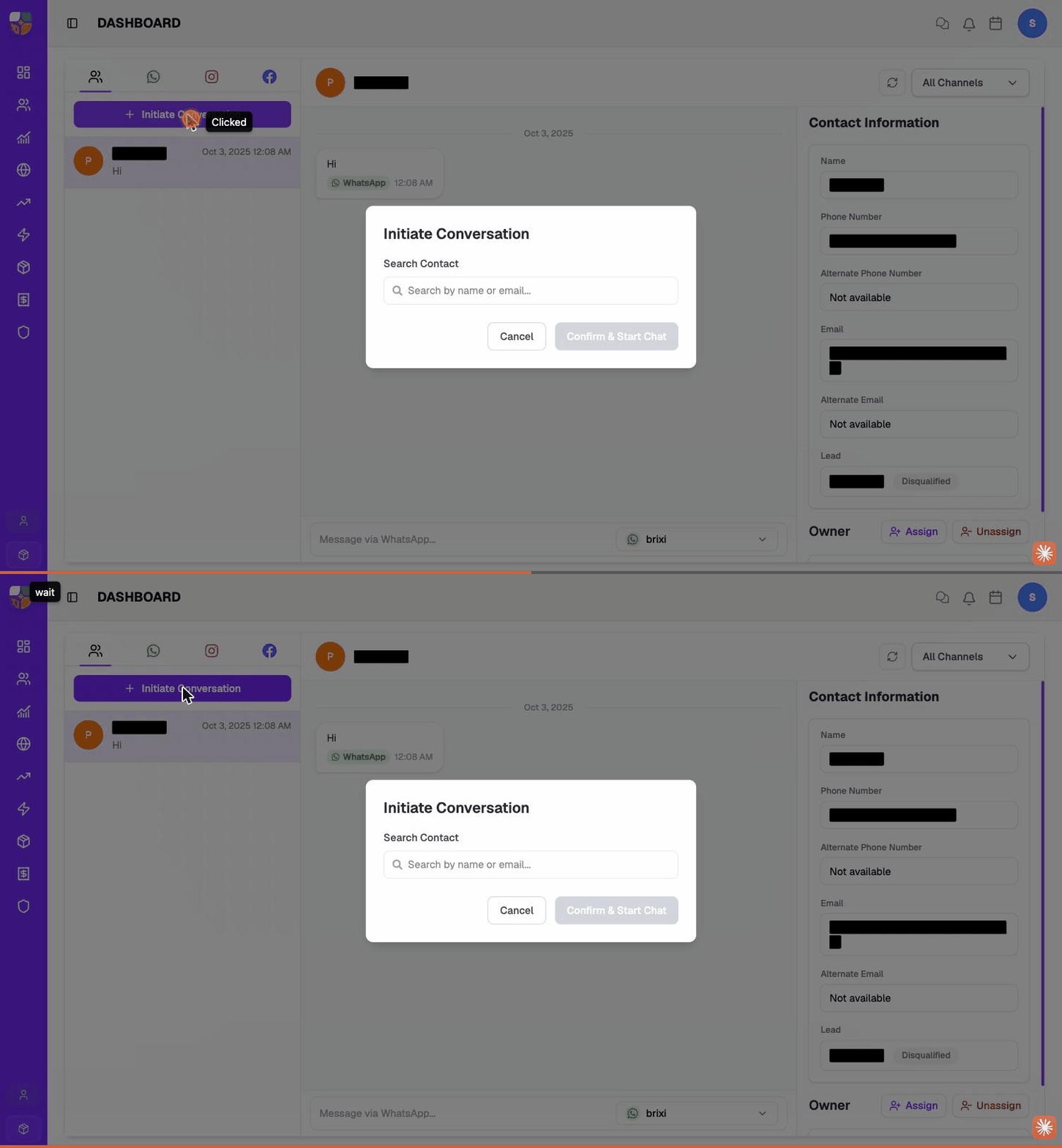
Brixi opens a fresh conversation thread for the contact. If there's no previous history, the thread shows an empty state — ready for your first message.
Send the First Message
Once the empty thread is open, you send the first message the same way you reply to any other conversation:
- Click the composer at the bottom of the thread.
- The message popup opens with the contact pre-filled in To.
- Pick the sender / channel from the picker at the bottom-left — for example, your WhatsApp Business number, your Email sender, or an SMS sender. See Reply Across Channels → Pick the Sender / Channel.
- Type the message.
- Click Send.
The first message lands in the new thread; from then on the conversation is part of the regular inbox.
Open Inbox → Initiate Conversation, type the contact name, pick the right contact (Brixi shows the name and email so you don't pick a namesake), then Confirm & Start Chat. Open the composer, pick the WhatsApp sender at the bottom, type the message, hit Send. The conversation now lives under the WhatsApp tab and under Contacts → that contact.
When You Can't Initiate
The contact must already exist in Brixi — Initiate Conversation doesn't create contacts. If the person you want to message isn't in the CRM yet:
- Open CRM → Contacts → + Add Contact and create the contact first. See Add a Contact.
- Come back to the inbox and Initiate Conversation as above.
For an incoming message from an unknown number, Brixi creates a placeholder conversation — see Create a Lead from a New Conversation.
Common Issues
| Issue | What to check |
|---|---|
| The contact doesn't appear in the search | They might not exist in Brixi — see When You Can't Initiate above. |
| Confirm & Start Chat is disabled | You haven't selected a contact yet. |
| No channel is available in the picker | The contact has no phone / email, or you have no senders connected. Open the contact's detail page and add the missing channel, then try again. |
| The first message fails to send | The chosen sender isn't connected (check Integrations) or the contact's number / email is invalid. |
If the Initiate Conversation button isn't there at all, or no sender ever appears in the picker, check with your admin first — you need permission to send messages and at least one connected sender before any of this works.
Take it to Brixi support when you can pick a contact and a sender but Confirm & Start Chat or the first message keeps failing with no obvious reason. Send them the contact name, the channel you tried, and a screenshot of the error.