List and Match Properties to Leads
This is where you post listings and put them in front of the right buyers. Each property is a single unit with its own price, size, location, photos, and status. From the same page you can search inventory, match a listing to the leads who want it, and keep ownership and availability current — so nothing gets sold twice.
Entry pointInventory → Properties
| Article summary | Details |
|---|---|
| Best for | Agents and managers who maintain live listings |
| Main outcome | A complete, searchable property listing matched to the right leads |
| Roles | Sales agent, manager, admin, inventory owner |
| Requires | Permission to add or edit Inventory; location and listing details |
| Related reports | Property matching and listing status reporting |
Before You Start
- Decide whether the listing is for Sale, Rent, or Lease.
- Decide whether it is Residential or Commercial and its property type (Apartment, Independent floor, Independent house, Villa, Plot, or Others).
- Gather location details: city, building or society name, locality, and postal code. You can also place the listing using Search using map.
- Have price, size, amenities, furnishing details, and photos ready to complete the listing.
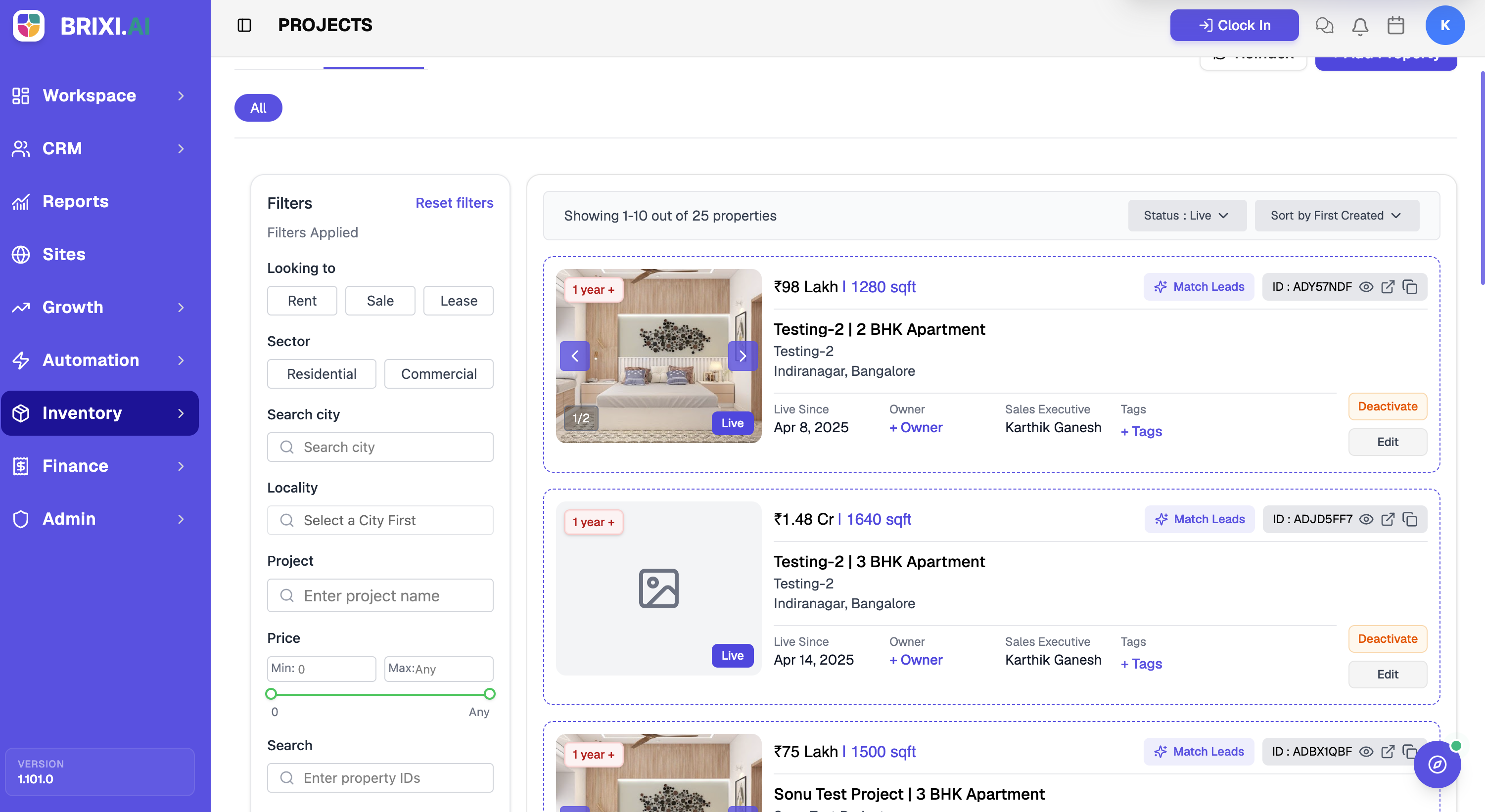
Search and Filter Listings
Use the Filters panel to narrow the list:
| Filter | Use it to |
|---|---|
| Looking to | Show Rent, Sale, or Lease listings |
| Sector | Show Residential or Commercial |
| Search city / Locality | Narrow to a city, then a locality within it |
| Project | Limit to listings under a named project |
| Price | Set a minimum and maximum price |
The results header shows the count (for example, Showing 1–10 out of 73 properties) and Status and Sort controls. Select Reset filters to clear everything.
Post a Property
Select + Add Property to open the New Property wizard. A progress bar tracks how far you are, and the left rail shows the six steps and their status (In progress, Pending, Completed). Each step saves as you continue, so you can return to a draft later.
Step 1 — Basic Details
- Choose the Property Type: Residential or Commercial.
- Choose Looking To: Sell, Rent, or Lease.
- Choose the specific type: Apartment, Independent floor, Independent house, Villa, Plot, or Others.
- Select the City. You must pick a city first — the next fields stay disabled until you do.
- In Building / Apartment / Society Name, search for and select the project. Picking a known project auto-fills the Locality / Sector and the Sublocality / Area / Street.
- Optionally adjust the Sublocality / Area / Street and Postal Code, or use Search using map to drop the exact location.
- Select Next: Add property details.
Step 2 — Property details
| Field | Options / notes |
|---|---|
| BHK | 1 RK, 1 BHK, 1.5 BHK, 2 BHK, 2.5 BHK, 3 BHK, 3.5 BHK, 4 BHK, 4.5 BHK, 5 BHK, 6 BHK, 7 BHK |
| Facing | East, West, North, South, North-East, North-West, South-East, South-West |
| Bathrooms | 1–5 |
| Balconies | 0–4 |
| Covered Parking / Open Parking | 0–4 each |
| Amount + Currency | The asking price and its currency (for example, INR) |
| Floor Number / Total Floors | Which floor the unit is on, and floors in the building |
| Unit Number / Tower/Building Name | Optional identifiers |
| Built-up Area / Carpet Area | In sq.ft |
| Construction Status | Ready to move or Under construction |
| Sale Type | New or Resale |
| Possession Date | When the unit can be handed over |
Select Continue to move on. Use View address to confirm the location captured in Step 1.
Steps 3–6
- Amenities — select the amenities the property offers.
- Furnishing Details — record the furnishing status (for example, unfurnished, semi-furnished, or fully furnished).
- Photos — upload listing images so the card and detail page show the property.
- Review — check every section, then save the listing.
Each step is saved as you continue, so a partly-finished listing is kept as a draft you can return to. Picking a known project in Step 1 fills in the locality and street for you, which keeps listings consistent.
Manage a Listing
Each listing card shows the price, size, a freshness label (such as Fresh · 2d), the listing ID, and a status badge. Card actions let you:
| Action | What it does |
|---|---|
| Match Leads | Find leads that match this listing |
| Owner / Sales Executive | Assign or change who owns the listing |
| Tags | Add tags to group and find the listing |
| Edit | Update any listing detail |
| Unreserve | Release a listing that was reserved |
| Archive | Remove the listing from active inventory |
Check the Result
After posting a property, you should see:
- The listing card with its ID, price, size, and status.
- The correct owner and sales executive.
- The listing returned by the matching filters (city, sector, price).
If a new listing is missing from search, select Reindex to refresh results.
Common Issues
| Issue | What to check |
|---|---|
| Building or locality fields are disabled | Select a city first |
| New listing is missing from results | Use Reindex, then search again |
| Cannot edit, archive, or unreserve | Confirm your role can edit Inventory and that you own the listing |
| Listing not matching expected leads | Recheck Looking To, sector, location, and price details |
Missing the + Add Property button, or unable to edit, archive, or unreserve a listing you can see? That's permissions, and sometimes ownership — your admin can confirm your role and who owns the listing.
Two things are worth taking to Brixi support: a listing that saves but won't appear after reindexing, and Match Leads returning nothing when leads clearly fit the listing. Include the listing ID, what you expected, and a screenshot.
Reporting Impact
Property listings drive lead matching and the inventory customers see. Accurate status, ownership, price, and location keep matched leads, reserved-versus- available counts, and listing reports reliable.