List the Projects You Sell
List the developments your team represents so their units can be posted as properties and matched to leads — and so every enquiry lands with the right agent. A project groups related listings under one named development in a city, giving sales a single place to organize everything you're selling there.
Entry pointInventory → Projects
| Article summary | Details |
|---|---|
| Best for | Sales managers and admins who maintain the project list |
| Main outcome | A project listed in your inventory with a preferred agent |
| Roles | Manager, admin, inventory owner |
| Requires | Permission to add or edit Inventory and the city the project sits in |
| Related reports | Property matching and pipeline reports for project-linked deals |
Before You Start
- Know the city the project is in. You select the city first, then pick the project name from the projects available there.
- Decide whether the project is Residential or Commercial.
- Decide which agent should be the preferred agent for the project.
List a Project
- Open Inventory → Projects.
- Select + Add Project in the top right.
- Choose a Sector: Residential or Commercial.
- In Search city, type and select the city.
- Open Project name and choose the project from those available in that city.
- In Preferred Agent, search for and select the agent who should own enquiries for this project.
- Select Save project.
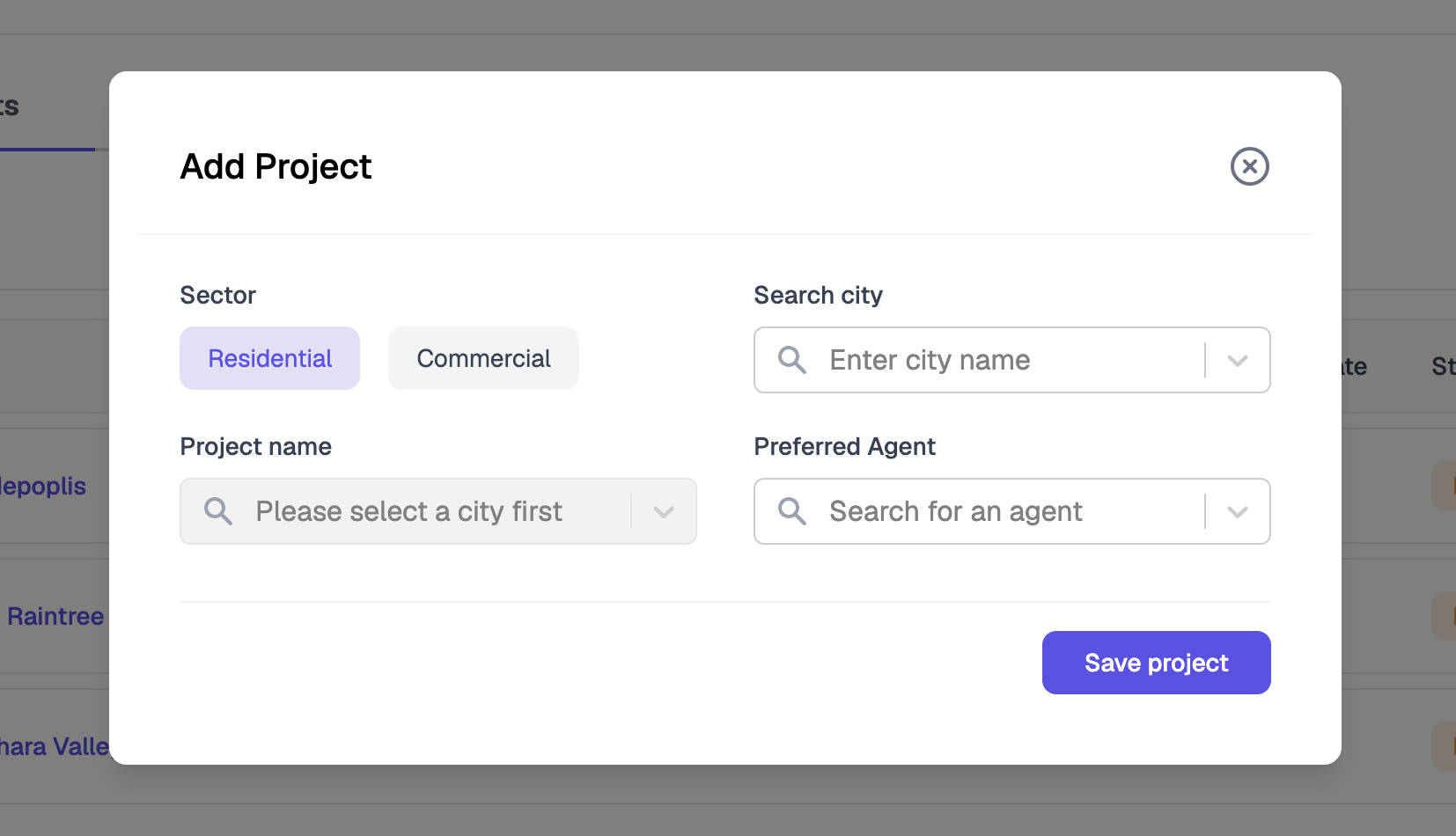
You must pick a city before the Project name list becomes active. If a project is missing from the list, confirm the city is correct first.
Edit Projects You Own
The Projects page has two tabs:
| Tab | What it shows |
|---|---|
| Projects | Projects currently listed in your inventory |
| Edit Projects | Projects you have permission to edit |
- Open the Edit Projects tab.
- Use Search editable projects to find the project.
- Use the row Actions to update the project record.
Each row shows Name, Project ID, Type, Location, Possession Date, and Status, so it's easy to confirm you're on the right record before changing anything.
Check the Result
After listing a project, you should see:
- The project in the Projects tab with its Project ID and status.
- The location and type you selected.
- The preferred agent assigned to the project.
If a newly added project is missing from search, select Reindex to refresh results.
Common Issues
| Issue | What to check |
|---|---|
| Project name list is empty | Select a city first; the list is filtered by city |
| Project is missing from search | Use Reindex, then search again |
| Cannot add or edit a project | Confirm your role can edit Inventory |
| Wrong agent receives enquiries | Update the Preferred Agent on the project |
If + Add Project, the Edit Projects tab, or the row actions are hidden, your admin needs to grant you Inventory edit access — permissions aren't something support can change. The same goes for a project that's missing from the city list: your admin can check whether it exists for that city at all.
Bring in Brixi support only when a project saves but still won't appear after a Reindex. Send the project name, the city, and a screenshot.
Reporting Impact
Projects organize the properties beneath them and route enquiries to the preferred agent. A clean project list keeps property matching, ownership, and project-linked pipeline reporting accurate.