Build Your Product Catalog
If your business sells items rather than property, this is where you build the catalog. Each product carries its own name, description, category, brand, and setup, and once published it's ready to attach to deals and records across Brixi.
Entry pointInventory → Products
| Article summary | Details |
|---|---|
| Best for | Admins and managers who maintain a product catalog |
| Main outcome | A published product with a category and brand |
| Roles | Manager, admin, inventory owner |
| Requires | Permission to add or edit Inventory; a category and, optionally, a company |
| Related reports | Product attribution on deals and listings |
Before You Start
- Decide the product Category and whether it is a Simple product or one with variants (Product Setup).
- Decide which Company or brand the product belongs to, if any.
- Have a short tagline and a detailed description ready.
Add a Product
- Open Inventory → Products and stay on the Product tab.
- Select + Add Product.
- Enter the Name (required) and an optional Tagline.
- Write the Description (required) using the rich text editor.
- Choose a Category (required) and a Product Setup (Simple or a variant setup).
- Optionally select a Company and a Primary Type.
- Select Create Product.
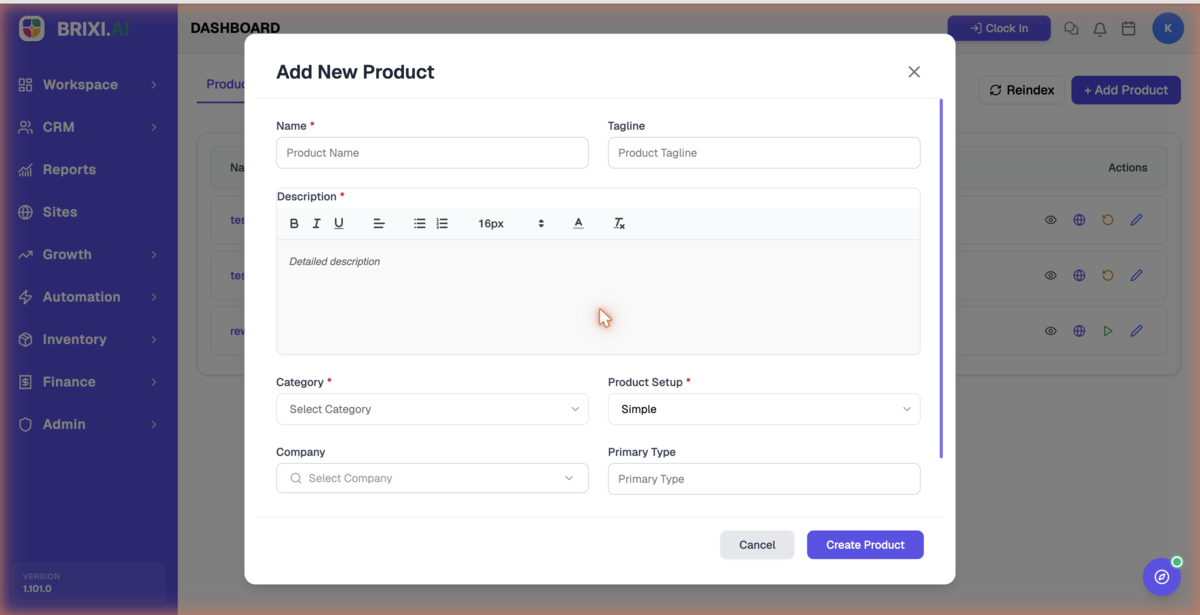
Use Simple for a single product and a variant setup when the same product comes in multiple options. Choose the right setup before saving, since it shapes how the product is configured.
After creating a product, the row Actions let you preview, publish, activate, and edit it. Each row shows Name, Setup, Category, Brand, and Status.
Manage Companies
The Company tab holds the brands or manufacturers you assign to products. Add a company here first and it'll be available in the Company field when you add or edit a product.
Check the Result
After adding a product, you should see:
- The product listed on the Product tab with its category, brand, and status.
- The product available to select on records that reference products.
If a new product is missing from search, select Reindex to refresh results.
Common Issues
| Issue | What to check |
|---|---|
| Cannot save the product | Complete the required Name, Description, Category, and Product Setup |
| Company is not selectable | Add the company on the Company tab first |
| New product is missing from search | Use Reindex, then search again |
| Product is not visible to the team | Confirm it is published and active |
Can't see + Add Product, the Company tab, or the publish and activate actions? Ask your admin — those follow your role, not the product, and support can't change permissions for you.
If a product saves cleanly but refuses to show up or publish even after a Reindex, that's worth a ticket to Brixi support. Include the product name, its category, and a screenshot.
Reporting Impact
Products attach to deals and records that reference what was sold. Clean categories, brands, and statuses keep product attribution and catalog reporting accurate.