Build Lead-Capture Forms
A form is how a visitor becomes a lead. On this page you'll build one, choose the fields it collects, and publish it so every response lands in your CRM. The builder has a live preview, so you see the form exactly as visitors will before it goes out.
Entry pointSites → Forms
| Article summary | Details |
|---|---|
| Best for | Marketers and admins capturing leads from the web |
| Main outcome | A published form that collects responses into your CRM |
| Roles | Manager, admin, marketing owner |
| Requires | Permission to edit Sites |
| Related reports | Website and campaign lead source reporting |
Before You Start
- Decide the form's purpose: lead capture or feedback.
- Pick the fields you need, and ask only for what you'll actually use.
- Know where the form will appear — a landing page, or your main site.
Create a Form
- Open Sites → Forms.
- Select + Create form.
- Add the fields you want to collect and arrange them, using the live preview to check the layout.
- Set the form's category so you can find it later.
- Publish the form, then add it to a landing page or your main site.
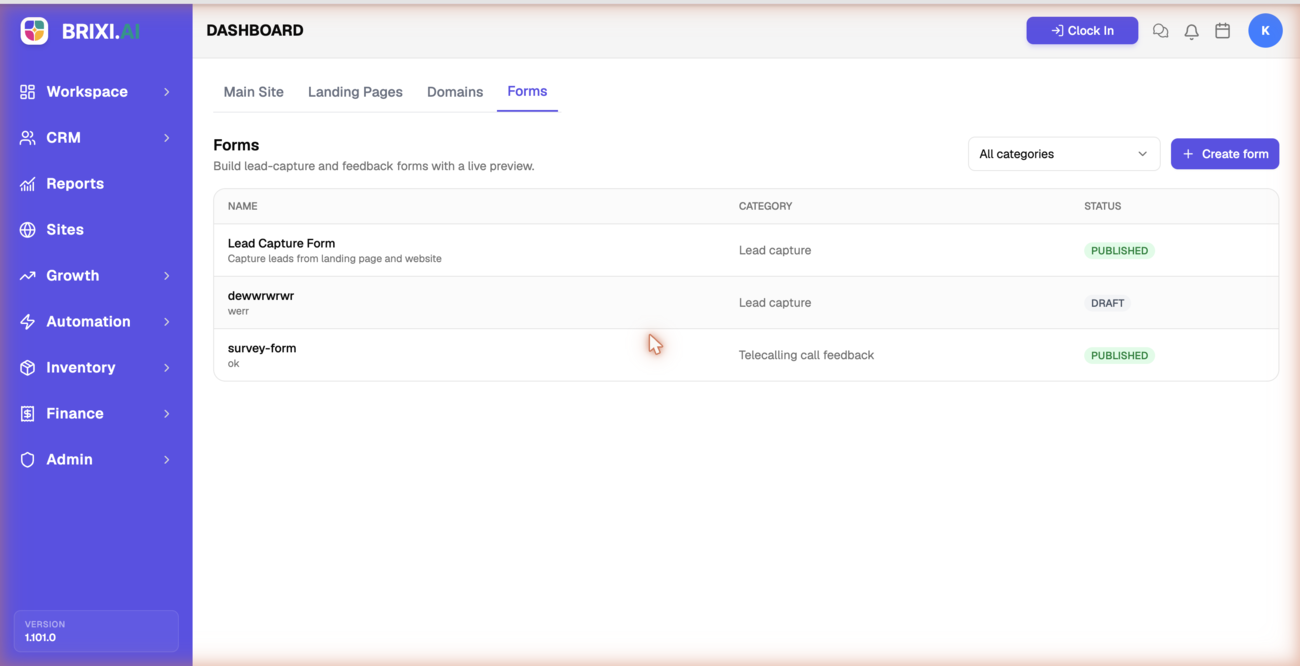
Use the All categories filter to find forms quickly once you have several. Shorter forms with fewer fields usually convert better.
Check the Result
After publishing, you should see:
- The form listed under Sites → Forms with its category and status.
- The form visible where you placed it.
- Submissions arriving as leads or feedback in your CRM.
Common Issues
| Issue | What to check |
|---|---|
| Form does not appear | Confirm it is published and added to a page |
| Submissions are missing | Confirm required fields and that the form is live |
| Cannot create a form | Confirm your role can edit Sites |
| Hard to find a form | Filter by category on the Forms tab |
The two things most likely to go wrong here are access and missing submissions. If + Create form or the Forms tab itself is hidden, your role can't edit Sites — ask your admin to fix that rather than support.
Missing submissions are different. First check the form is published and actually placed on a live page; if it is and test submissions still don't reach your CRM, contact Brixi support with the form name, the page it sits on, and roughly when you submitted the test.
Reporting Impact
Every submission creates a lead with a source attached. Keep forms published and on the right pages and your website and campaign lead reporting stays accurate.