Launch a Landing Page to Capture Leads
When you run a campaign or promote a specific offer, you don't want traffic landing on your main site — you want a focused page with one call to action. That's a landing page. You'll build and publish one here, and every submission flows into your CRM with its own source.
Entry pointSites → Landing Pages
| Article summary | Details |
|---|---|
| Best for | Marketers running campaigns that need a dedicated page |
| Main outcome | A published landing page that captures leads |
| Roles | Manager, admin, marketing owner |
| Requires | Permission to edit Sites |
| Related reports | Campaign and website lead source reporting |
Before You Start
- Settle on the page's single goal, such as collecting enquiries for one offer.
- Have the page content and any form ready. Forms are built on the Forms tab.
- Know which domain the page should use. See Connect a Custom Domain.
Add a Landing Page
- Open Sites → Landing Pages.
- Select Add landing page.
- Build the page content for your campaign goal.
- Attach a lead-capture form so visitors can submit their details.
- Publish the page.
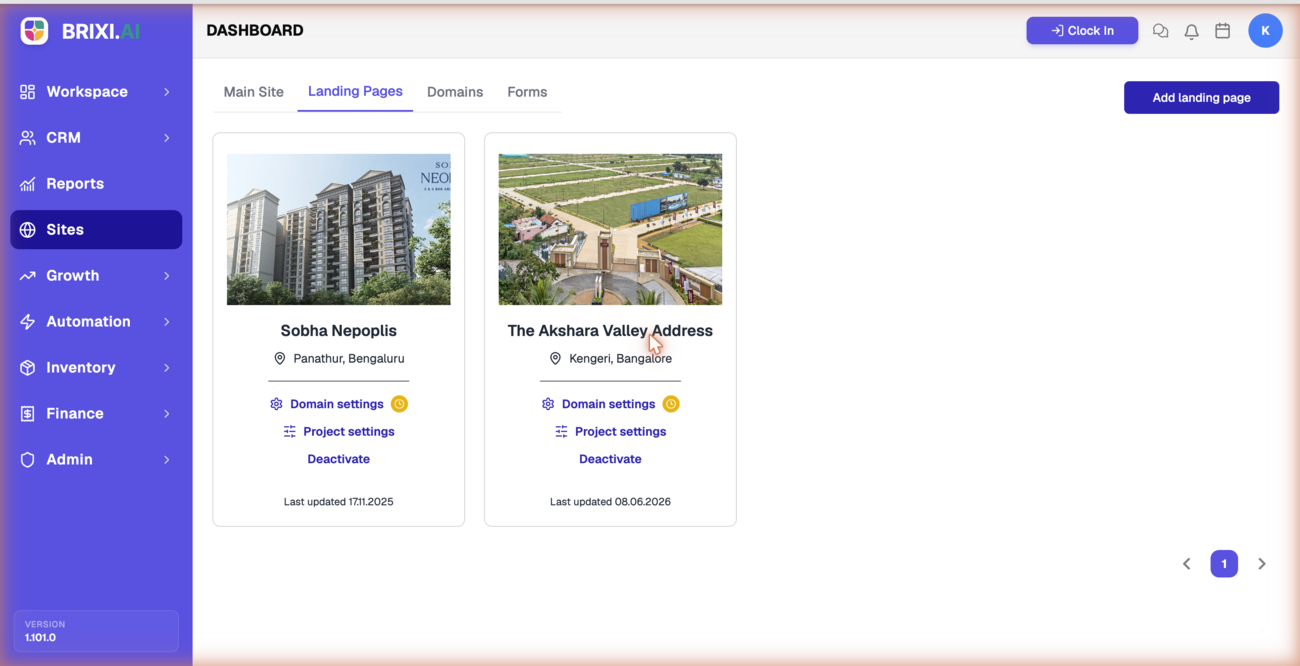
Each landing page appears as a card with its name and location. Card actions let you open Domain settings, adjust Project settings, and Deactivate the page, and the card shows when it was last updated.
Keep each landing page to one goal. A single, clear call to action usually captures more leads than a page that tries to do everything.
Check the Result
After publishing, you should see:
- The landing page listed under Sites → Landing Pages.
- The page reachable at its address.
- Form submissions arriving as leads in your CRM.
Common Issues
| Issue | What to check |
|---|---|
| Landing Pages list fails to load | Select Try again; if it continues, contact support |
| Page does not capture leads | Confirm a form is attached and published |
| Page uses the wrong address | Check the connected domain on the Domains tab |
| Cannot add a page | Confirm your role can edit Sites |
If Add landing page is missing, or the tab isn't there at all, your role can't edit Sites — that's your admin's to fix, not support's. The same goes if a colleague published the page and you can't deactivate it.
Go to Brixi support when a published page won't load at its address (and the domain checks out on the Domains tab), or when a page with an attached, published form isn't producing leads. Send the page name and its URL, plus a screenshot if there's an error.
Reporting Impact
Landing pages capture campaign leads with their own source. If a page or its form goes offline mid-campaign, attribution and website lead reporting drift, so keep both live for as long as the campaign runs.