Configure Your Main Site
Your main site is the public website Brixi hosts for you. This page covers how to set it up section by section — branding, contact details, services, message templates, and widgets — so visitors can learn about you and reach out, with every enquiry landing in your CRM automatically.
Entry pointSites → Main Site
Use View to open the live site, Edit to change a section, and Edit Domain to change the address it uses.
| Article summary | Details |
|---|---|
| Best for | Admins and managers who own the public website |
| Main outcome | A published, on-brand site that captures enquiries |
| Roles | Manager, admin, marketing owner |
| Requires | Permission to edit Sites; branding and contact details |
| Related reports | Website lead source and enquiry reporting |
Before You Start
- Gather your tagline, welcome message, and about-us text.
- Have contact details and any service descriptions ready.
- Think about which widgets visitors should see, such as WhatsApp or a chat widget.
Configuration Areas
The Main Site tab is organized into sections you edit one at a time. Each section has its own Edit button:
| Section | What it controls |
|---|---|
| General | Tagline, Welcome Message, Privacy Policy URL, Terms & Conditions URL, Background Images, About Us, and Achievements |
| Theme | The site color palette — Brand colors (Primary, On Primary, Accent) and Base colors (Background, Secondary Background, Surface, Surface Variant, Border, Border Strong), each set by hex value |
| Contact | Contact Number, WhatsApp Number, Support Email, and social profile links (Instagram, Facebook, X/Twitter, LinkedIn) |
| Services | The cities you serve, and what you deal in — Buy, Sell, or Rent for Commercial and Residential |
| Messages | Header and footer Title and Sub Title for the Lead form and the Channel Partner form |
The WhatsApp message templates for Leads and Channel Partners, using variables like {{contact.first_name}}, {{product_name}}, {{microsite_link}}, and {{user.name}} | |
| Alerts | Which visitor events you get alerted for — for example, Brochure Viewed, Cost Sheet Requested, Meeting Scheduled, Floor Plan Viewed, or Price Unlock Requested |
| Chat Widget | The on-site chat experience: External Widget (paste a third-party script), Dummy Chat (placeholder), or AI Agent (a published chat agent) |
| Settings | Toggles such as Free Cab Service, Best Price Guaranteed, Verify Lead Phone Number via OTP, and Disable Property Comparison; plus Licenses and the Contact Ribbon |
| AboutUs | The About Us page — Hero Title, Hero Subtitle, Hero Image, and long-form Paragraph content blocks |
| Home Cards | Promotional cards on the microsite home page, each linking to a project or property |
The WhatsApp templates support merge variables, so a single message can greet each lead by name and drop in the right project link and microsite URL automatically.
Edit the General Section
- Open Sites → Main Site and stay on the General section.
- Select Edit.
- Update the Tagline, Welcome Message, About Us, and other fields.
- Add Background Images and Achievements (company metrics such as properties sold or years in business).
- Save your changes.
- Select View to confirm the live site reflects the update.
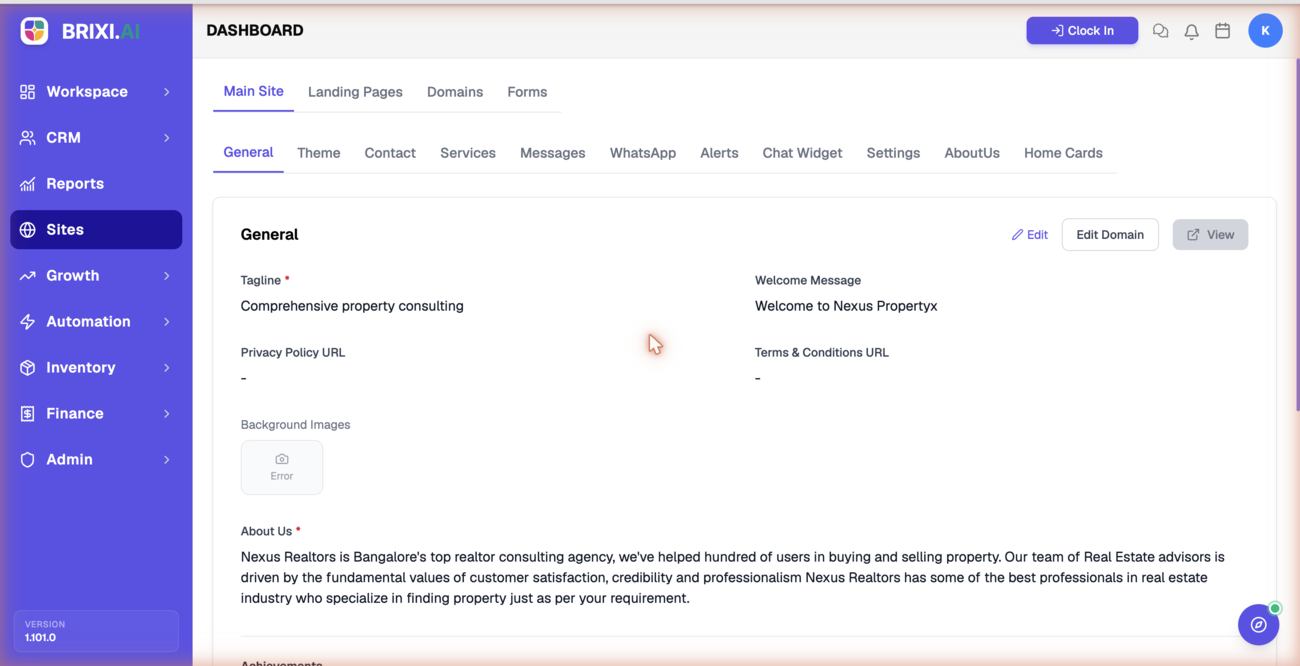
Use Edit Domain to change the address your site uses, and the Domains tab to connect a custom domain.
Check the Result
After editing, you should see:
- The updated content saved in its section.
- The live site, opened with View, reflecting the change.
- Contact and widget options working as configured.
Common Issues
| Issue | What to check |
|---|---|
| Changes do not appear on the live site | Save the section, then reopen View |
| A background image shows an error | Re-upload the image in the General section |
| Cannot edit a section | Confirm your role can edit Sites |
| Wrong domain in the address bar | Update it with Edit Domain or the Domains tab |
Two things tend to need escalating from this page. If the Edit buttons are missing or a whole section is hidden, your role can't edit Sites — your admin can sort that without involving support.
If a section saves fine but the live site (opened with View) still shows old content after a refresh, that's worth a support ticket. Name the section, say what you changed, and attach a screenshot of what the live site shows instead.
Reporting Impact
Your main site captures enquiries that become leads. Accurate contact details, services, and widgets keep website lead source and enquiry reporting reliable.