Schedule a Site Visit
Get a customer out to a property with your field team fully prepped. Set up the visit — pick the property, city, and the rep who'll host it — and Brixi captures who, what, when, and where in one place. The visit lands on the Calendar, on the linked contact's Property Visits card, and on the field executive's daily plan, so everyone knows where to be before heading out.
Entry pointCalendar → Add Event
| Also available from | CRM → Contacts → [contact] → Property Visits card → + |
|---|
To manage and track property visits in one list, see Manage Property Visits.
Open the Schedule Property Visit Dialog
- Open the Calendar from the top bar.
- Click Add Event (top-right).
- From the menu, choose Schedule Site Visit. The Schedule Property Visit dialog opens.
You can also open the same dialog from a contact: open CRM → Contacts → [contact], find the Property Visits card on the summary panel, and click +.
Fill the Visit Details
- Title — when opened from a contact, pre-filled with Site Visit - [Contact Name]; edit if needed.
- Set Visit Start — date and time.
- (Optional) Toggle Add End Time if the visit has a defined end window — Brixi shows a second date/time picker.
- (Optional) Toggle Revisit if this is a repeat visit to the same property — useful for follow-ups.
- City — search the city by name and pick from the dropdown.
- Property — search by property name, project ID, or name and pick from the matches.
- Site Representative — search a sales executive who will host the visit. They get the assignment on their day plan.
- Select Save.
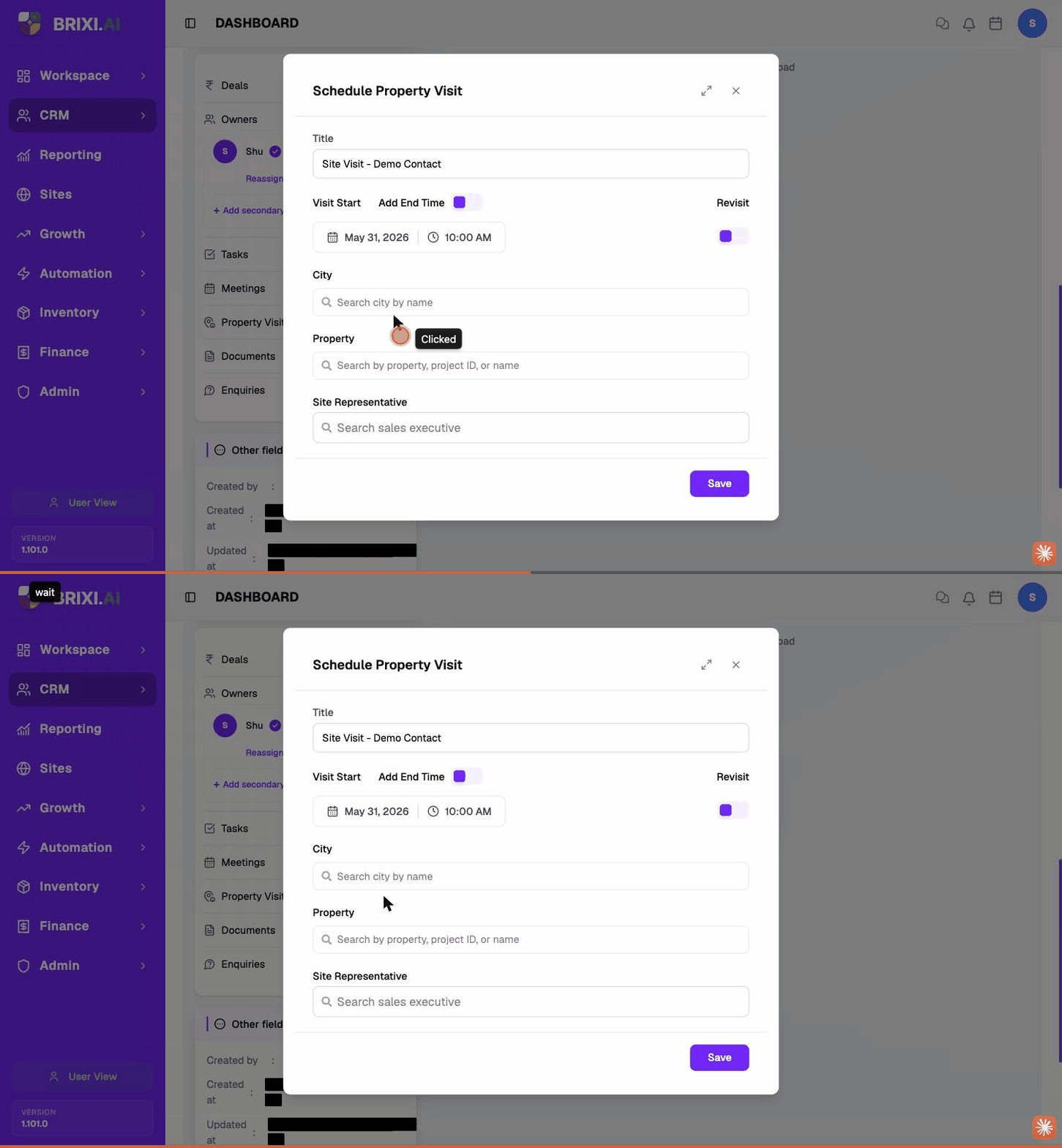
Field Reference
| Field | Required | What it does |
|---|---|---|
| Title | Yes | Shown on the calendar tile and the visit card. |
| Visit Start | Yes | Date and time the visit begins. |
| Add End Time | No | Toggle on to add an end window — useful for long visits or back-to-back tours. |
| Revisit | No | Toggle on to mark this as a repeat visit. Helps the field exec know context before going. |
| City | Yes | The city the property is in. |
| Property | Yes | The property or project to visit. |
| Site Representative | Yes | The sales executive who will host the customer at the property. |
Add End Time & Revisit Toggles
Two small toggles next to Visit Start let you tune the visit:
- Add End Time — by default a visit just has a start time. Toggle this on if the visit has a defined end (e.g. 2 PM – 4 PM). The end-time picker appears.
- Revisit — toggle on if the customer has visited this property before. Brixi tags the visit as a revisit so the rep can prepare differently from a first walkthrough.
After Saving
The visit appears in four places:
- Calendar — on the visit date, under All and Property Visits.
- The linked contact's Property Visits card on their detail page.
- The site representative's daily plan in the field executive view.
- The visit reports that managers see — counts, completion, owner, location.
When the visit happens, the site representative logs the outcome from the visit record. See Property Visits (Field Executive).
Open a Site Visit from the Calendar
Click any site visit tile on the calendar to open its detail popover. The popover shows the full visit details — title, organizer, date and time, location (Online / Offline), video link, "starts in" countdown, the list of attendees with their RSVP status, and the agenda.
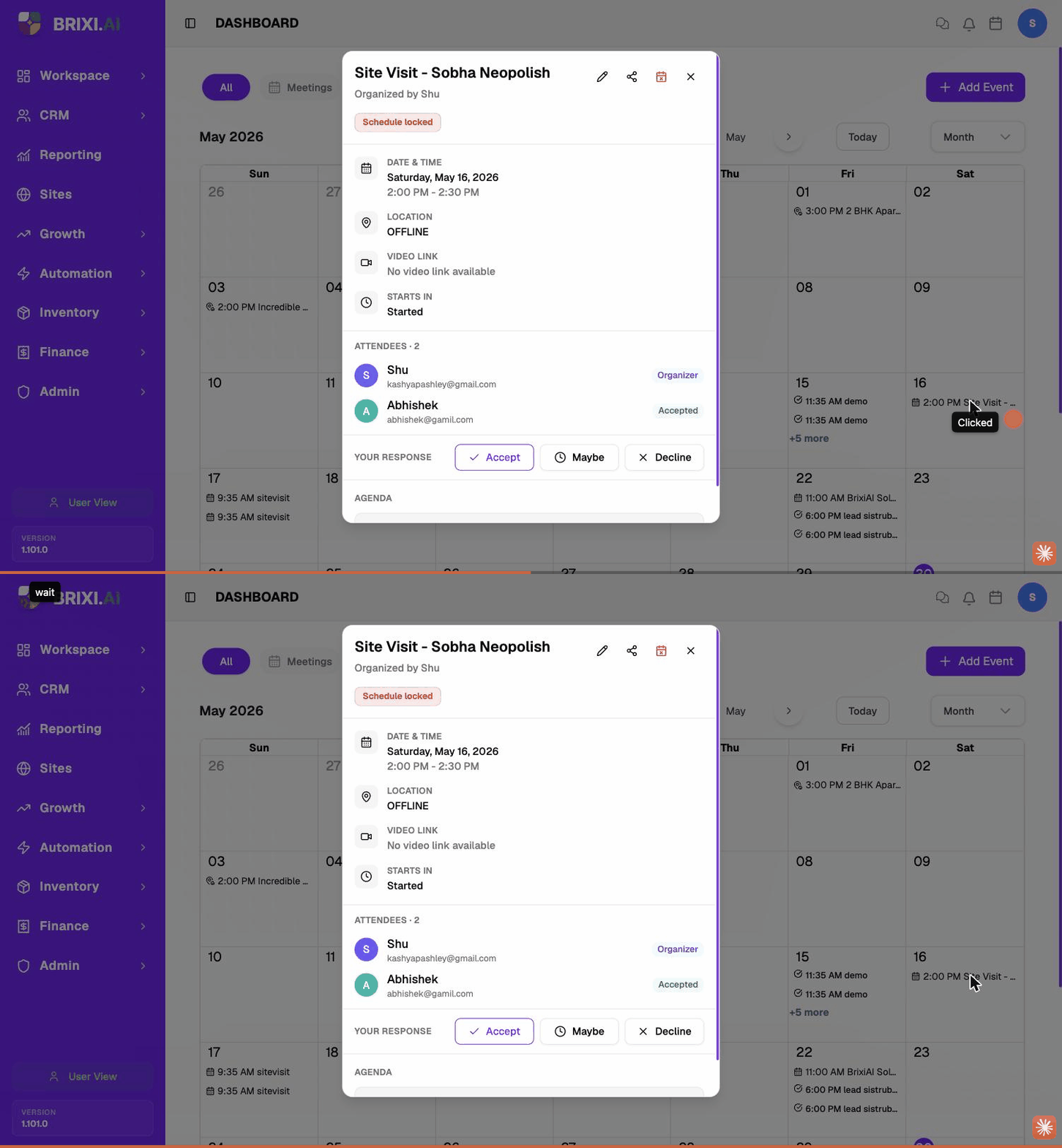
The action icons in the top-right of the popover:
| Icon | What it does |
|---|---|
| ✏️ Pencil | Open the Update Site Visit dialog. |
| 🔗 Share | Copy a shareable link to this visit. |
| 📅✕ Calendar-X | Cancel the visit. |
| ✕ Close | Close the popover without changes. |
A red Schedule locked badge means the visit has already started or passed. You can still update the title or description but not the date / time — cancel and create a new visit if it needs to move.
Update a Site Visit
To change any visit field — title, property, city, site representative, times, end-time / revisit toggles — open the visit and click the pencil icon.
- Open the visit from the calendar (click the tile).
- Click the pencil (✏️) icon in the popover. The Update Site Visit dialog opens with every field pre-filled.
- Edit any field — the form is identical to Schedule Property Visit.
- Click Save.
Changes propagate immediately to the site representative's day plan and to the linked contact's Property Visits card.
Reschedule a Site Visit
Rescheduling is just a normal update — change the date or time and save. This is the most common edit (a customer pushes the visit by a day, the exec is double-booked).
- Open the visit from the calendar.
- Click the pencil (✏️) icon.
- Change Visit Start to the new slot, and the end time if Add End Time is on.
- (Optional) Update the description to note the reason for moving.
- Click Save.
The site representative gets a notification and the visit moves on their day plan. If the customer needs to be informed, log a quick message or call from the contact detail page.
Rescheduling in Brixi notifies your team — not the customer. After saving, call or message the customer and log the conversation on their contact timeline.
Respond to an Invite
If a teammate scheduled the visit and added you as an attendee, the detail popover shows a YOUR RESPONSE row with three buttons:
| Button | Effect |
|---|---|
| Accept | Marks you as Accepted in the attendee list. |
| Maybe | Marks you as Tentative. The organiser sees the uncertain RSVP. |
| Decline | Marks you as Declined. Useful when you're double-booked. |
Your response shows up on the organiser's view of the visit under the attendees list — and tells the team whether they need to find a back-up rep.
Cancel or Delete a Site Visit
Use cancel when the visit will not happen but you want a record on the contact's timeline. Use delete only when the visit was created by mistake.
To cancel a visit:
- Open the visit from the calendar.
- Click the calendar-x (📅✕) icon in the popover.
- Confirm cancellation. The site representative is notified and the visit drops off their day plan.
The cancelled visit stays visible on the calendar (struck through) and on the contact's timeline as historical context — so managers can see the no-show or reschedule history in visit reports.
Cancellations and no-shows are tracked separately from completed visits — managers use the difference to spot drop-off patterns. Cancel rather than delete whenever the visit was real but did not happen.
Tips
Use the property search to attach the actual unit / project the customer is visiting — that way the visit shows up on the property's history and on the field executive's day plan with the right address.
They get the visit on their day plan and are accountable for the outcome — pick the executive who will actually meet the customer, not the deal owner.
If property, city, or site representative is missing, the field team can't act on the visit. Brixi requires all three before Save activates.
Troubleshooting
If Add Event or Schedule Site Visit doesn't appear for you, or the property and site-representative searches come back empty, talk to your admin — that's role access or missing inventory and team setup, not a bug.
Contact Brixi support if a saved visit doesn't show up on the calendar, the contact's Property Visits card, or the rep's day plan, or if reschedules don't notify the site representative. Include the visit title, date, and the rep's name.