Book a Meeting with a Lead
Set up an online or in-person meeting, add reminders so nobody forgets, and invite the right people. Brixi puts the meeting on the Calendar, the linked contact's Meetings card, and the activity timeline, and shares it to every participant's calendar.
Entry pointCalendar → Add Event
| Also available from | CRM → Contacts → [contact] → Meetings card → + |
|---|
Open the Schedule Meeting Dialog
- Open the Calendar from the top bar.
- Click Add Event (top-right).
- From the menu, choose Schedule Meeting. The Schedule Meeting dialog opens.
Alternatively, open a contact and click the + on the Meetings card on the summary panel — same dialog, with the contact already linked.
Fill the Meeting Details
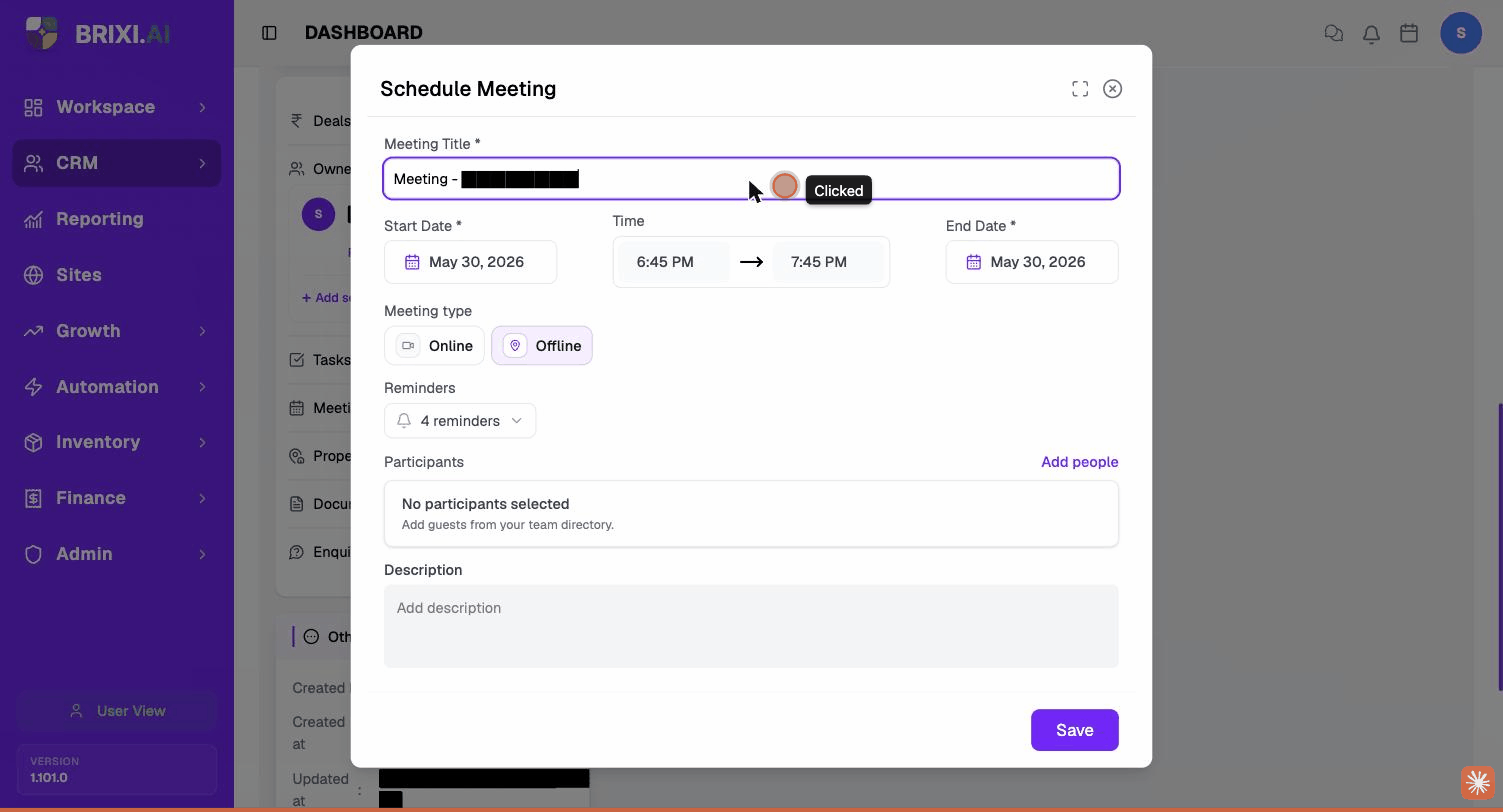
- Meeting Title * — when opened from a contact, pre-filled with Meeting - [Contact Name]; edit if needed.
- Set the Start Date *.
- Set the Time range — start time → end time.
- Set the End Date * (for single-day meetings, same as Start Date).
- Meeting type — pick Online or Offline.
- (Optional) Open Reminders and tick when you want Brixi to nudge you. Defaults to 4 reminders (typically 1 day / 1 hour / 15 min / at start).
- (Optional) Select Add people to invite team members from your directory. They appear in Participants; No participants selected shows until you add at least one.
- (Optional) Add a Description — agenda, dial-in link, location notes.
- Select Save.
Field Reference
| Field | Required | What it does |
|---|---|---|
| Meeting Title | Yes | What shows on the calendar tile. |
| Start Date | Yes | The date the meeting begins. |
| Time (start → end) | Yes | The time window. Defaults to 1 hour. |
| End Date | Yes | The date the meeting ends. Same as Start Date for most meetings. |
| Meeting type | Yes | Online or Offline. Brixi shows the matching icon on the tile. |
| Reminders | No | Up to 4 reminder triggers — 1 day before, 1 hour before, 15 minutes before, at start. |
| Participants | No | Team members invited from the directory. They see the event on their calendar. |
| Description | No | Free text — agenda, dial-in link, parking notes, anything the team needs before joining. |
After Saving
The meeting appears in three places:
- Calendar — on the selected date, under All and Meetings.
- The linked contact's Meetings card on their detail page.
- The contact's activity timeline — under Activities.
Participants see the same meeting on their calendar in Brixi too.
Open a Meeting from the Calendar
Click any meeting tile on the calendar to open its detail popover. The popover shows everything about the meeting in one place — title, organizer, date and time, location (Online or Offline), video link, "starts in" countdown, the list of attendees with their RSVP status, and the agenda. Use it to glance at the details, RSVP, or jump to the edit / reschedule / cancel actions in the top-right corner.
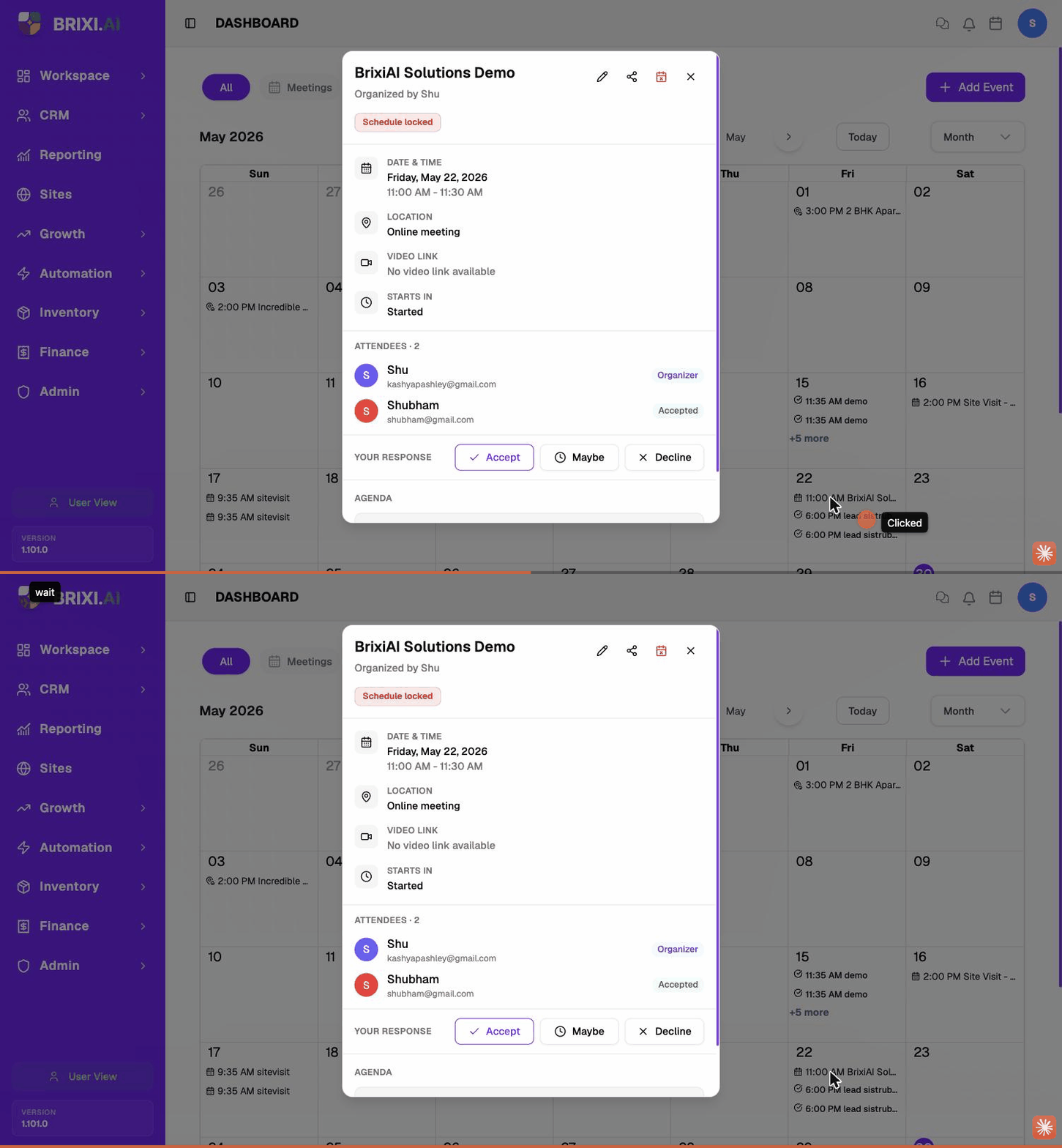
The action icons in the top-right of the popover:
| Icon | What it does |
|---|---|
| ✏️ Pencil | Open the Update Meeting dialog. |
| 🔗 Share | Copy a shareable link to this meeting. |
| 📅✕ Calendar-X | Cancel the meeting. |
| ✕ Close | Close the popover without changes. |
A red Schedule locked badge means the meeting has already started or passed. You can still update the title, agenda, or description, but Brixi won't let you reschedule a meeting that has already begun — cancel it and create a new one instead.
Update a Meeting
To change any meeting field — title, attendees, reminders, description, location type — open the meeting and click the pencil icon.
- Open the meeting from the calendar (click the tile).
- Click the pencil (✏️) icon in the popover. The Update Meeting dialog opens with every field pre-filled with the current value.
- Edit any field — the form is identical to Schedule Meeting.
- Click Save.
Changes propagate immediately to participants' calendars and to the linked contact's Meetings card.
Reschedule a Meeting
Rescheduling is just a normal update — change the date or time and save.
- Open the meeting from the calendar.
- Click the pencil (✏️) icon.
- Change Start Date, Time, and/or End Date.
- (Optional) Update the agenda / description to note why the meeting moved.
- Click Save.
Attendees see the meeting move on their calendar; their RSVP is reset to neutral so they can re-confirm.
Brixi blocks rescheduling once the meeting's start time has passed (the popover shows Schedule locked in red). Cancel the old one and create a new meeting for the new slot.
Respond to an Invite
If a teammate invited you to a meeting, the detail popover shows a YOUR RESPONSE row with three buttons:
| Button | Effect |
|---|---|
| Accept | Marks you as Accepted in the attendee list. |
| Maybe | Marks you as Tentative. The organiser sees the uncertain RSVP. |
| Decline | Marks you as Declined. The meeting stays on your calendar greyed out so you remember why. |
Your response shows up on the organiser's view of the meeting under the attendees list.
Cancel or Delete a Meeting
Use cancel when the meeting is not going to happen but you want it on record. Use delete to remove the meeting entirely (only available to the organiser, and only from the edit dialog).
To cancel a meeting:
- Open the meeting from the calendar.
- Click the calendar-x (📅✕) icon in the popover.
- Confirm cancellation. Attendees are notified.
The cancelled meeting stays visible on the calendar (struck through) and on the contact's timeline as historical context.
Cancelled meetings remain on the contact's activity timeline. If the customer needs no record at all, use Delete from inside the edit dialog instead — but only if the meeting never happened.
Tips
"Site review – Mr. Sharma – Cosmos block A" is much easier to scan on a busy week than just "Meeting".
Brixi doesn't generate meet links — paste the Zoom / Google Meet / Teams URL into the Description so participants can launch it straight from the event.
Brixi has no separate Location field for meetings — put the address in the Description so the team knows where to go.
Troubleshooting
If you can't schedule meetings at all, or Add people doesn't show the teammates you need, ask your admin to check your calendar and meeting permissions and the user directory. And remember a red Schedule locked badge isn't a bug — past meetings can't be rescheduled by design.
Contact Brixi support if invited participants don't see the meeting on their calendar, RSVP responses don't reach the organiser, or reminders don't fire. Include the meeting title and date so they can find the record.