Add a Task from the Calendar
Whatever the next step is — a follow-up call, a quote to send, a document to share — turn it into a task with a due date and a reminder. Assign it to yourself or a teammate, and Brixi puts it on the Calendar and the linked contact's Tasks card, then nudges the assignee when it's due.
Entry pointCalendar → Add Event
| Also available from | CRM → Contacts → [contact] → Tasks card → + |
|---|---|
| Also available from | Any Log Notes / Email / Message / Call dialog (tick Add a task to follow up). |
To manage and track your task list, see Manage Tasks.
Open the Schedule Task Dialog
- Open the Calendar from the top bar.
- Click Add Event (top-right).
- From the menu, choose Add Task. The Schedule Task dialog opens.
You can also open the same dialog from:
- A contact's Tasks card on the summary panel (click +).
- The Add a To-do task to follow up option inside Log Notes / Log Email / Log Message / Log Call dialogs.
Fill the Task Details
- Title — describe the action in a few words ("Call Mr. Sharma about Saturday visit").
- Set the Activity date & time — when the task is due.
- (Optional) Send reminder — pick when Brixi should ping the assignee. Defaults to No reminder.
- Task type — defaults to To-Do. Switch if the task is specifically a call, meeting prep, document, etc.
- Task assigned to — defaults to you. Pick another user if the task belongs to a teammate.
- Priority — High, Medium (default) or Low.
- (Optional) Add Notes — context the assignee needs before acting.
- Select Save.
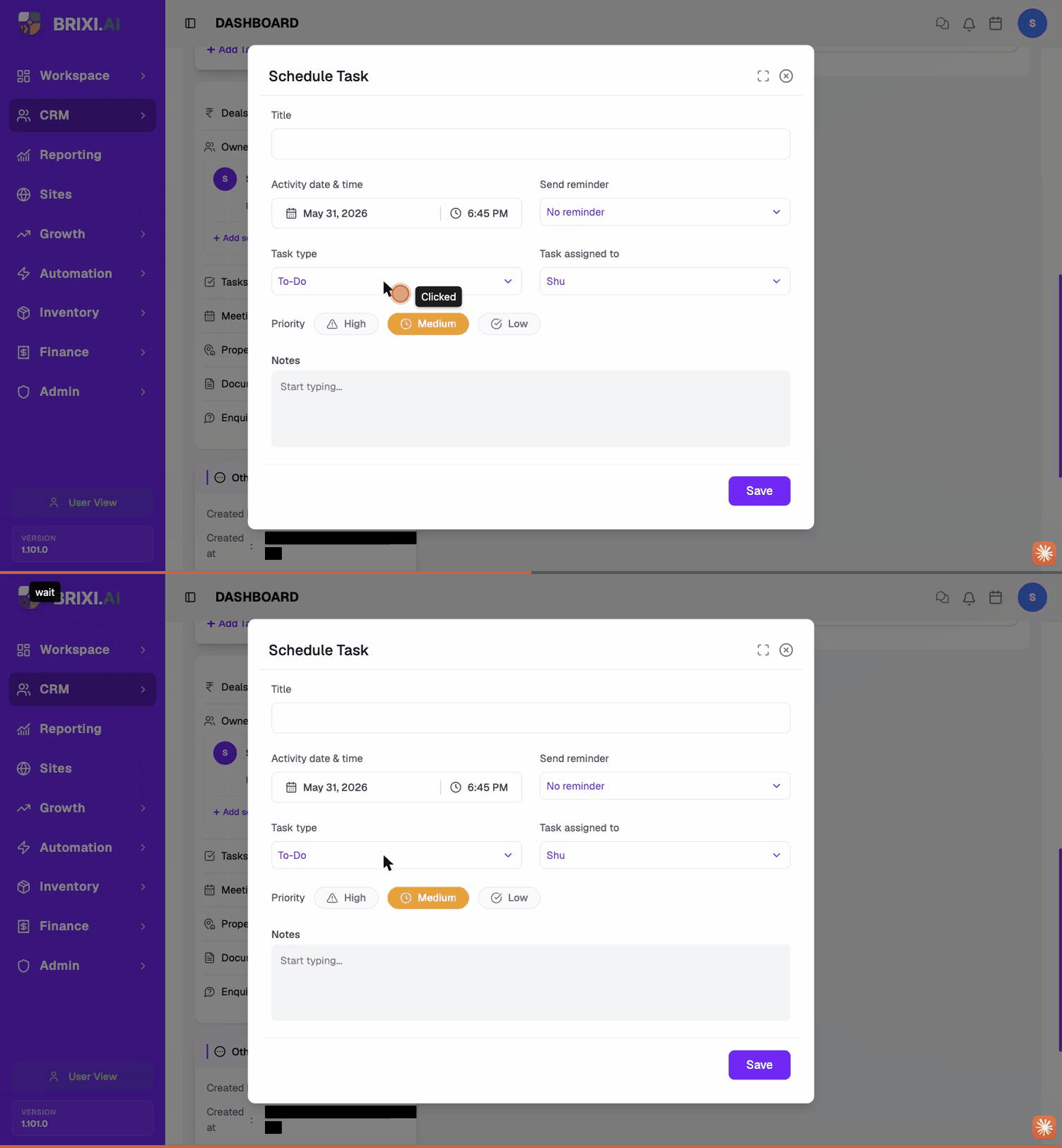
Field Reference
| Field | Required | What it does |
|---|---|---|
| Title | Yes | Shown on the calendar tile and on the contact's Tasks card. |
| Activity date & time | Yes | When the task is due. Drives sort order and overdue colour. |
| Send reminder | No | When Brixi should notify the assignee — defaults to No reminder. |
| Task type | Yes | To-Do (default), Call, etc. |
| Task assigned to | Yes | The user responsible. Defaults to you. |
| Priority | Yes | High / Medium / Low. Shown as a coloured tag. |
| Notes | No | Free text — context for whoever picks the task up. |
Task Types
Brixi supports several task types so the team can tell at a glance what kind of work is due. The exact list depends on your workspace — common types include:
- To-Do — generic follow-up work (default).
- Call — a phone call to make.
- Email — an email to send.
- Meeting prep — work to do before a scheduled meeting.
- Document — share or collect a document.
Switching the type doesn't change the form fields — it only changes the icon shown on the calendar tile and lets you filter the activity timeline by type.
After Saving
The task appears in three places:
- Calendar — on the due date, under All and Tasks.
- The linked contact's Tasks card on their detail page.
- The assignee's personal task list — and they get a notification at the Send reminder time you picked.
Open the task from the calendar to mark it done, reschedule it, or delete it. Completed tasks stay on the timeline as history.
Open a Task from the Calendar
Click any task tile on the calendar to open its detail popover. The popover is compact — just the essentials of the task and the action icons across the top.
What you see:
| Field | What it shows |
|---|---|
| Title (top) | The task title. |
| Subtitle | Task — confirms the event type. |
| DUE | The due date and time. |
| STATUS | Due, Overdue, or Completed. |
| TYPE | The task type (To-Do, Call, etc.). |
| DESCRIPTION | The notes you saved with the task. |
The action icons in the top-right of the popover:
| Icon | What it does |
|---|---|
| ✓ Check | Mark the task complete. |
| ✏️ Pencil | Open the Update Task dialog. |
| 🗑️ Trash | Delete the task. |
| ✕ Close | Close the popover without changes. |
Update a Task
To change any task field, open the task and click the pencil icon.
- Open the task from the calendar (click the tile).
- Click the pencil (✏️) icon in the popover. The Update Task dialog opens with every field pre-filled with the current value.
- Edit any field — Title, Activity date & time, Send reminder, Task type, Priority, or Notes.
- Click Save.
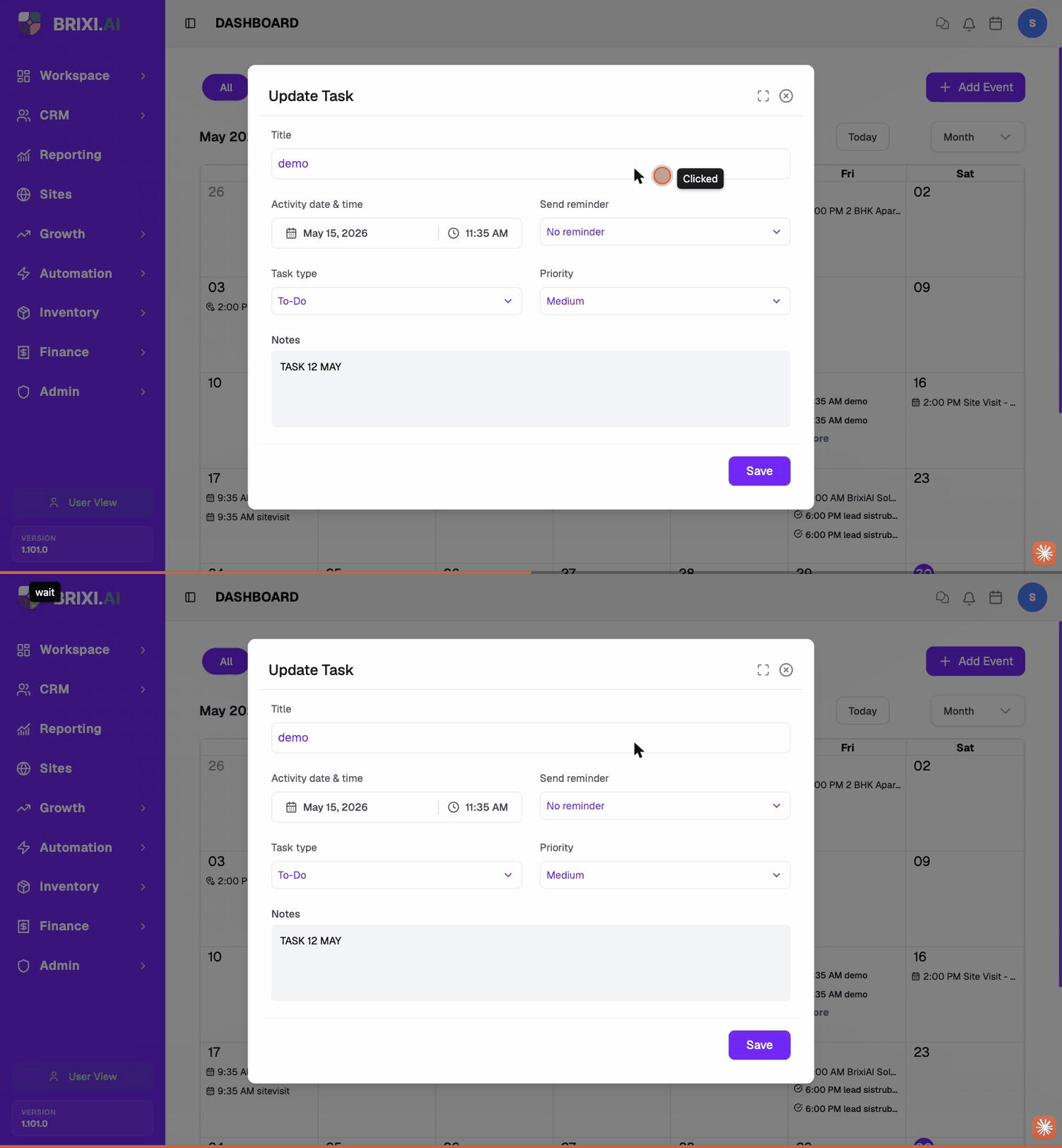
The Update Task dialog has all the same fields as Schedule Task except Task assigned to — to hand a task off to a different teammate, ask an admin to reassign it from the contact's Tasks card.
Reschedule a Task
Rescheduling is just a normal update — change the date or time and save.
- Open the task from the calendar.
- Click the pencil (✏️) icon.
- Change the Activity date & time to the new slot.
- (Optional) Update the Notes to record why the task moved (so the assignee has context).
- Click Save.
The task tile moves to the new date on the calendar; the assignee gets a fresh reminder at the new Send reminder time.
Tasks past their due date stay on the original date as Overdue until you reschedule them — they don't auto-roll over.
Mark a Task Complete
When a task is done, mark it complete so it falls off your due list and keeps the contact's history accurate.
- Open the task from the calendar (click the tile).
- Click the check (✓) icon in the popover.
- The task's STATUS flips from Due to Completed and the tile changes appearance on the calendar.
Completed tasks stay on the contact's activity timeline as a permanent record of the follow-up.
You can also mark a task complete from the contact's Tasks card — useful when you're already on the contact's page after logging the conversation.
Delete a Task
Use delete only when a task should not exist at all (created by mistake, duplicate, no longer relevant). For tasks that were done, use Mark Complete instead so the history stays.
- Open the task from the calendar.
- Click the trash (🗑️) icon in the popover.
- Confirm deletion.
The task is removed from the calendar, the assignee's task list, and the contact's Tasks card.
Unlike contacts, deleted tasks aren't soft-deleted — they're removed. If you want a paper trail, mark the task Complete with a note instead.
Tips
Add the task during the conversation, not after. Every Log Notes / Email / Message / Call dialog has an Add a task to follow up tickbox — use it so the next step is captured before you forget.
"Send brochure + schedule visit + confirm budget" should be three tasks, not one. Splitting them keeps each one quick to mark done.
If a task slips past its due date, it stays on the original date as overdue. Open it and pick a new Activity date & time to move it.
Troubleshooting
Two things on this page route through your admin: if Add Task doesn't appear under Add Event, your role may lack task-creation permission, and since Update Task has no assignee field, reassigning an existing task to someone else also needs an admin (from the contact's Tasks card).
Contact Brixi support if saved tasks don't show up on the calendar or the contact's Tasks card, or reminders never fire at the time you set. Include the task title and the reminder time you chose.