Call Your Audience with an AI Voice Agent
Put a live phone call in front of every contact without staffing a call floor — an AI voice agent dials your whole list, runs the conversation from its published script, and logs the outcome of each call. You control when it's allowed to dial and how hard it retries the calls that don't connect. This page covers the voice-specific choices: picking the AI Assistant, the no-template Content step, and the voice-only Call Schedule and Enable Retries controls on Schedule & Review.
Entry pointGrowth → Broadcasts → New Campaign
| Article summary | Details |
|---|---|
| Requires | At least one published voice agent (see Voice agents). |
| Where to go | Growth → Broadcasts → New Campaign → Setup → Voice Call. |
| Time to set up | 3-7 minutes once the agent is published and the audience is ready. |
Who Can Do This
- Growth operators and marketing managers create voice campaigns once the agent is published.
- Account admins are usually needed once — to build, voice-tune, and publish the voice agent that the campaign uses.
- Sales managers read the post-call outcomes and follow up on hot replies in CRM → Contacts.
What You Need
- A published voice agent in the workspace. The agent's published script — prompt, tools, knowledge base, voice / STT / LLM settings — drives every call. Drafts and unpublished agents do not show up in the campaign Setup picker. Build and publish an agent from Voice agents.
- A clean recipient list with first name, last name, and a valid
PhoneNumber column including the country ISD code
(
+919876543210, not9876543210). See Campaign Audience for the full CSV format. - A calling-hours decision — which days and time-of-day windows Brixi is allowed to dial.
- A retry policy — which call outcomes (Busy, Timeout, No Answer, Voicemail) should be retried, how many times, and how long to wait between retries.
Run a small test campaign (5-10 contacts) before you fire the agent at a full list. Voice is the channel where a mistake costs the most — a bad opening line burns reputation fast, and you want to hear it live on a handful of calls before it runs on thousands.
Voice Campaign Flow At A Glance
Brixi uses the same 4-step creator for every channel. Voice campaigns differ in two big ways: Content has no template, and Schedule & Review adds voice-only Call Schedule and Retry controls.
- Setup — name the campaign and pick the channel + AI Assistant (the published voice agent). Voice-specific.
- Content — no template to pick. The Content step shows a single info card: Voice campaigns use the published agent flow. Voice-specific.
- Audience — Contact List, Dynamic Segment, or File Upload. Shared — see Campaign Audience.
- Schedule & Review — shared Send Now / Schedule Later + Launch Summary, plus voice-only Call Schedule (days × time-of-day windows) and Enable Retries (Busy / Timeout / No Answer / Voicemail). See Schedule & Review for the shared bits.
Step 1 · Setup — Name the Campaign and Pick the AI Assistant
Open Growth → Broadcasts → + New Campaign. The Setup step (titled Create the campaign shell) asks for three things:
- Campaign Name — e.g.,
voice-call-campaigns. Used in the campaign list and stats view. - Delivery channel — pick Voice Call (the AI-powered voice calls card). The instant you tick Voice Call, the right-hand panel turns into AI Assistant and lists every published voice agent in the workspace with a single-letter avatar and a VOICE tag.
- AI Assistant — scroll or Search AI Assistants…, click the agent you want to run. The card highlights, the Setup ready badge appears in the top-right, and Continue lights up.
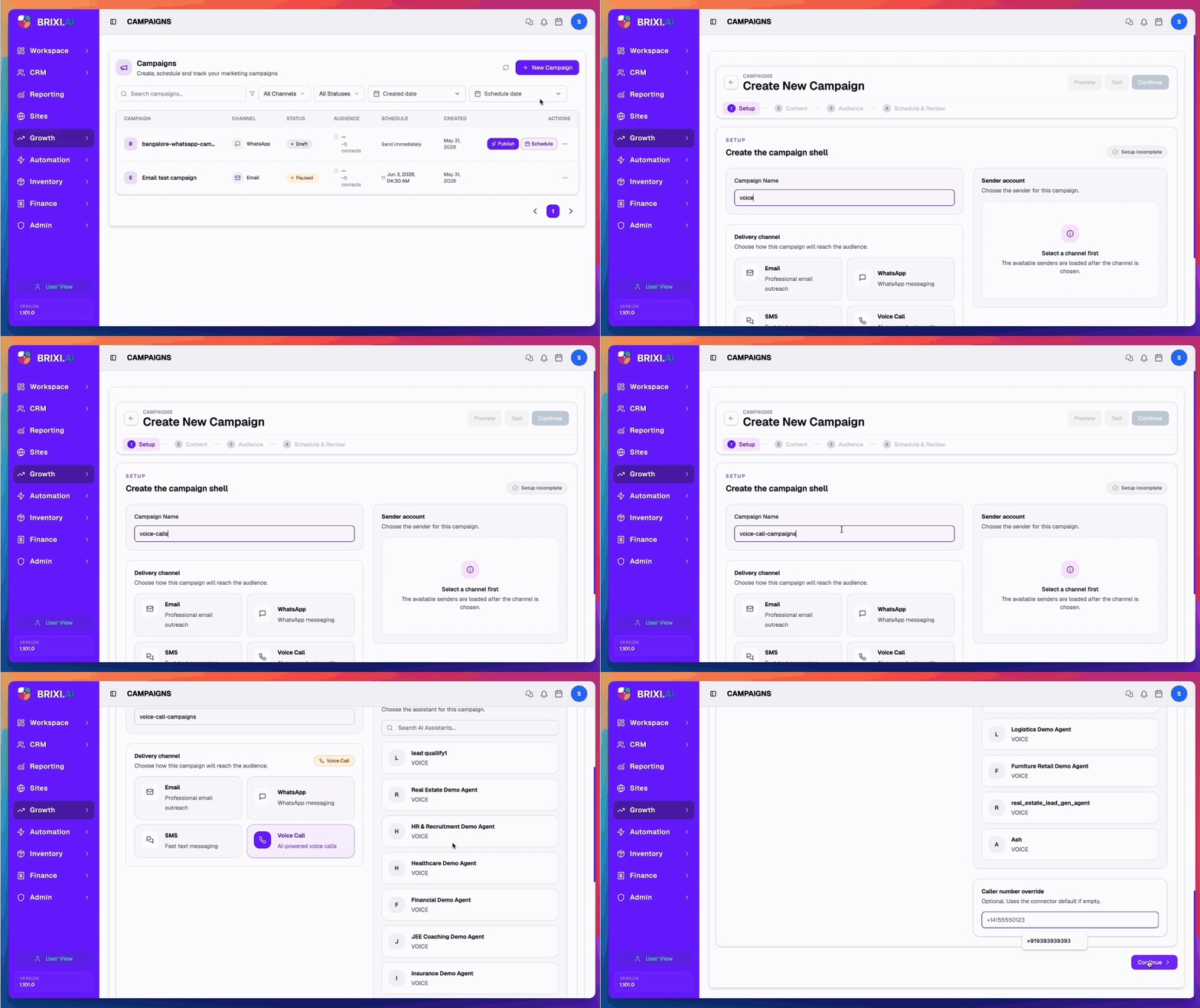
The list is empty because no voice agent has been published for this workspace. Open Voice Agents, build / finish the agent, publish it, then reload the creator.
Why the agent choice matters
| Choice | What it affects |
|---|---|
| The opening line the recipient hears | The agent's prompt drives the first second of every call — that determines whether the recipient stays on the line. |
| The voice and language | TTS voice, STT, language settings live on the agent — voice campaigns inherit them. |
| The tools available mid-call | Calendar, contact-update, payment links, and other agent tools fire from the same flow on every call. |
| The knowledge base | Agent answers from the attached KB; updating the KB before launch updates every call. |
| Post-conversation tools | Summaries, transcripts, CRM updates, and tagging that run after the call hangs up. |
Publishing the agent freezes the version used by every campaign on it. If you edit the agent after launch, the change does not affect calls already queued — you need to publish a new version and schedule a fresh campaign on it.
Step 2 · Content — No Template, the Agent Flow Runs the Call
The Content step on a voice campaign is intentionally empty. It shows a single card:
CONTENT — Voice campaigns use the published agent flow
There is no campaign template to select here. The selected voice agent and its published script will handle the conversation.
Click Continue → Audience. There is no template body, attachment, or per-campaign script to author here.
If you need to change what the call says, edit the underlying voice agent and re-publish — there is no per-campaign override.
Step 3 · Audience — Pick Your Recipients
The Audience step is shared across all four channels. Voice specifics:
- Required CSV headers:
FirstName, LastName, PhoneNumber. Phone numbers must include the country ISD code (+919876543210or+14155552671). - Rows without a valid phone are skipped — phones are the join key.
- Recipients are matched to existing CRM contacts by phone number so call outcomes thread into the contact timeline.
- The opt-in compliance checkbox must be ticked before Continue lights up.
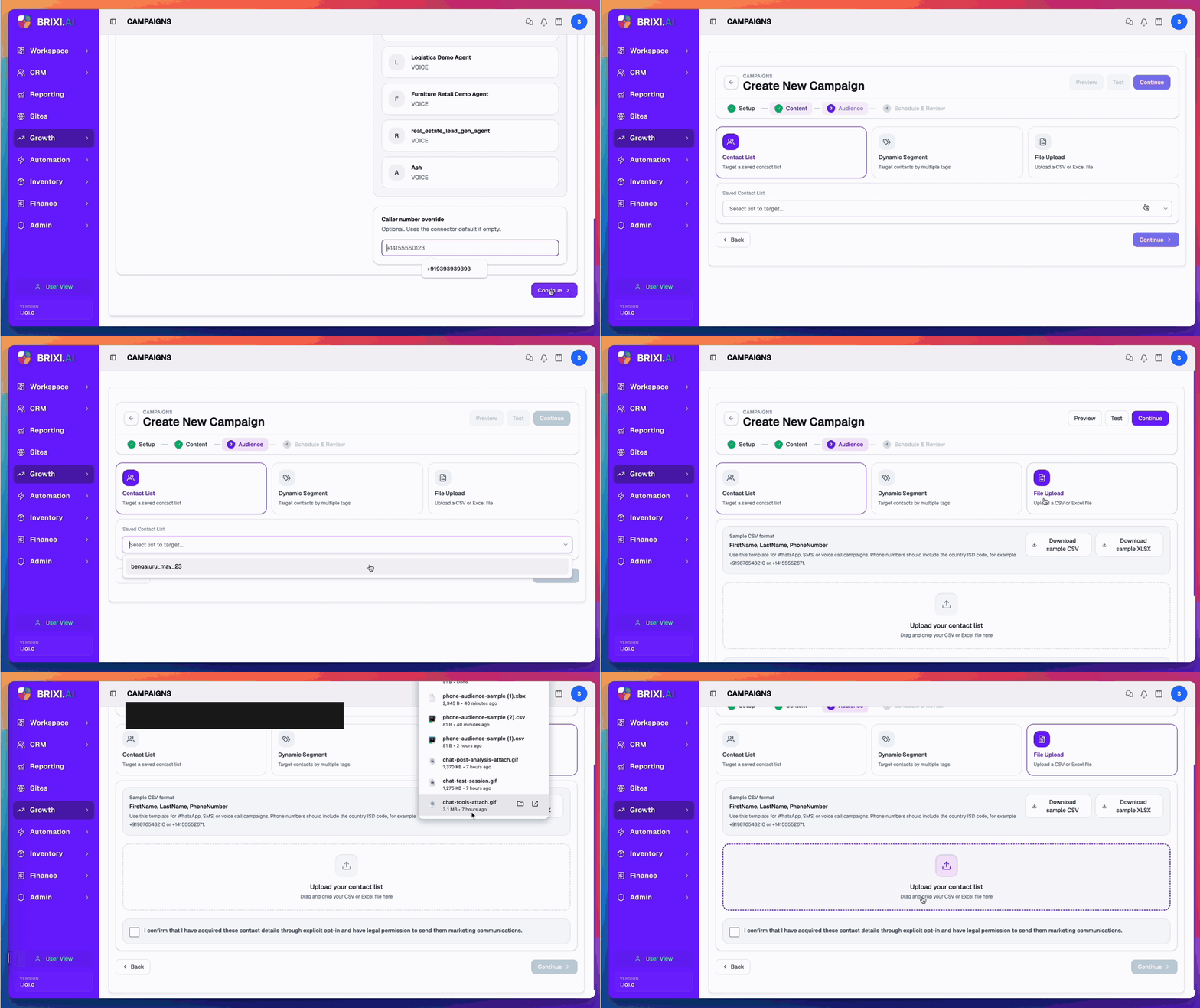
The full audience picker — Contact List, Dynamic Segment, File Upload — with the required CSV columns, the Variables detected behaviour for extra columns, and the opt-in compliance rules is documented once on:
Step 4 · Schedule & Review — Call Schedule and Retries
The Schedule & Review step is mostly shared — Send Now / Schedule Later, timezone, the Launch Summary card, Preview / Test, and the Publish / Update / Reschedule actions all behave the same as every other channel and are documented once on Schedule & Review.
Voice campaigns add two voice-only sections on top of that shared step:
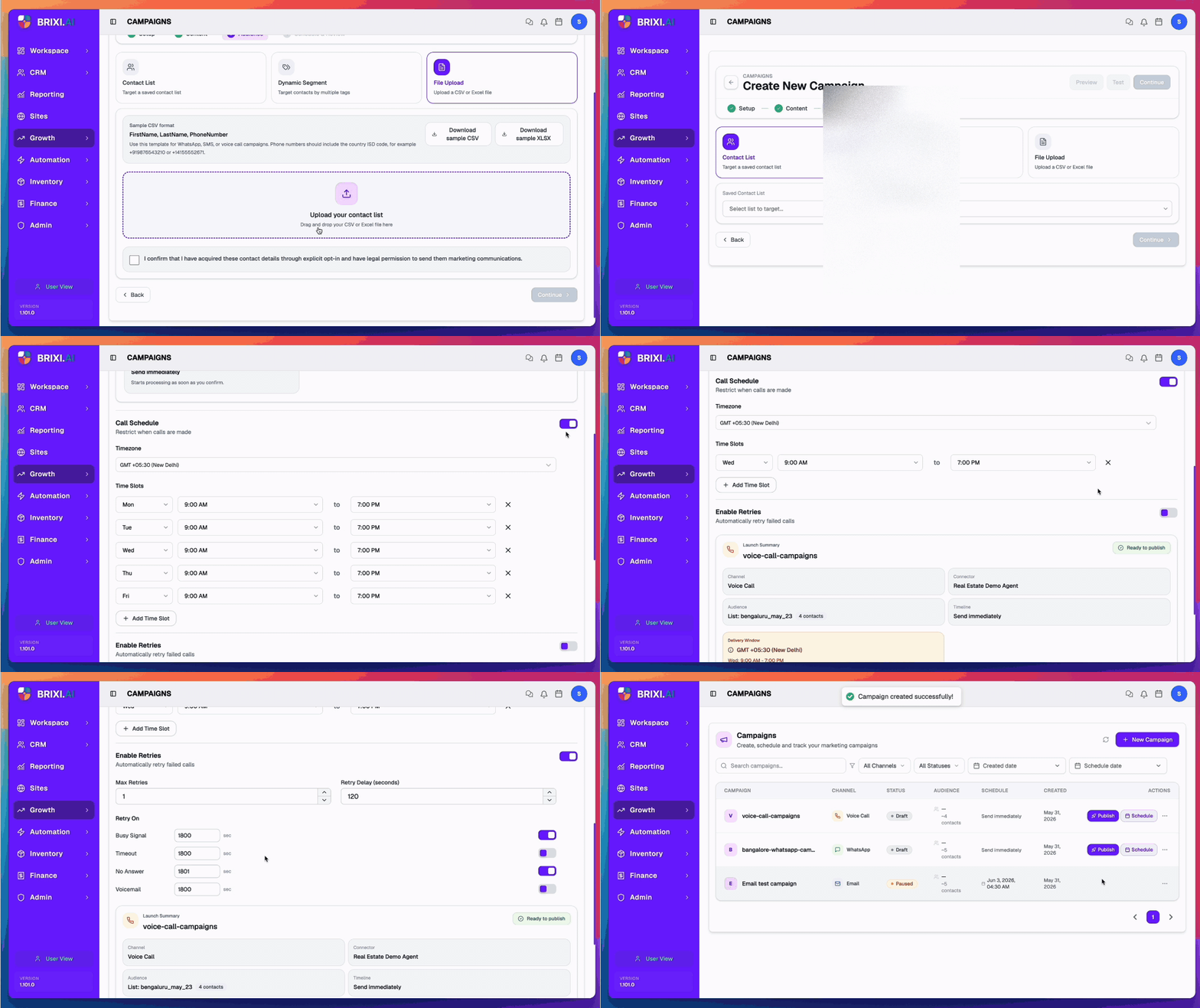
Call Schedule — restrict when calls are made
The Call Schedule section is a toggle (on by default) that restricts dialling to specific days and time windows — outside these windows the campaign pauses dialling automatically.
- Timezone — every time slot is evaluated in this timezone. The default is the workspace timezone (e.g., GMT +05:30 (New Delhi)).
- Time Slots — one row per day with a from and to picker.
Default is Mon-Fri 9:00 AM - 7:00 PM.
- Add Time Slot — add another day or a second slot in the same day (e.g., to skip the lunch hour).
xon each row — remove that day from the calling schedule.
- Off-toggle — turn the whole Call Schedule off if you want Brixi to dial 24/7 regardless of weekday (rarely correct).
Time slots are per-day, not per-window.
Remove a day from the list (with x) and Brixi will
never call on that day, no matter how many other slots exist. To
pause a single day from the campaign, remove its row.
Enable Retries — automatically retry failed calls
The Enable Retries section is a toggle (off by default). When on, Brixi retries calls that fail with certain outcomes.
- Max Retries — number of retry attempts per recipient after the
first call. Default
1. - Retry Delay (seconds) — base wait between attempts. Default
120seconds. - Retry On — four toggles, one per outcome, each with its own delay in seconds:
| Outcome | When to retry |
|---|---|
| Busy Signal | The recipient was on another call. Almost always worth retrying. |
| Timeout | The call never connected (no answer within ring window). Worth retrying once. |
| No Answer | Ringed out without pickup. Retry once with a longer delay. |
| Voicemail | Picked up by voicemail. Retry only if the agent has a voicemail-aware script. |
Each toggle has its own per-condition delay (in seconds) — the
default per-condition delay (1800 = 30 min) is independent from the
overall Retry Delay.
Launch Summary additions
The shared Launch Summary card shows two voice-only fields:
- Connector — the selected AI Assistant (the published voice agent name).
- Delivery Window — a yellow chip summarising the Call Schedule (timezone + each enabled day's time range).
When the Ready to publish badge in the top-right turns green, click Send Campaign.
Review Campaign Stats
When a voice campaign starts dialling, View Stats opens the campaign's delivery history with the same 8 status tiles every channel uses. Voice-specific interpretation:
| Tile | What it means for Voice Call |
|---|---|
| Scheduled | Recipient is queued but the Call Schedule window hasn't opened, or retries are pending. |
| Sending | The agent is currently on the phone with the recipient. |
| Sent | The call connected (whatever the outcome — answered, voicemail, hung up). |
| Delivered | The call connected and the agent ran a conversation (not just rang out). |
| Engaged | The agent had a meaningful exchange — recipient stayed on long enough for the script's success criteria (varies per agent). |
| Failed | Number is dead, line was disconnected, or the agent errored mid-call. |
| Cancelled | Skipped — Call Schedule paused, audience pruned, or Pause action mid-send. |
The per-recipient row also shows the call outcome (Busy, No Answer, Voicemail, Answered) and the underlying call recording / transcript link from the agent. Open them from the row to QA the agent's actual delivery.
The shared stats reference covers tile-by-tile definitions, the audience delivery history table, and Export Result:
Common Issues
| Issue | What to check |
|---|---|
| Voice Call card greys when picked | Page hasn't finished loading — wait a beat and click again. |
| AI Assistant panel stays empty | No published voice agent exists for this workspace. Build / publish one under Voice agents, then reload the creator. |
| Content step won't let me edit the script | Expected. Voice campaigns inherit the agent's published flow — edit and re-publish the agent itself. |
| Recipients getting voicemail dropped on retry | The Voicemail retry toggle is on but the agent doesn't have a voicemail-aware branch. Turn the Voicemail toggle off, or build a voicemail branch in the agent. |
| Calls happen outside business hours | The Call Schedule toggle is off, or the timezone is set wrong. Re-enable + double-check the timezone. |
| Calls never start | The Call Schedule window doesn't include the current time. Add the current weekday + time-of-day, or wait for the next window. |
| All calls go to Failed | The phone numbers are missing the country ISD code, or the voice provider is misconfigured. Re-export the CSV with +<country> prefixes; confirm the voice agent's provider settings. |
| Retries stop too early | Max Retries is too low. Raise it; check each per-condition toggle is on. |
| Engaged stays at 0 | Normal for the first minutes — calls accumulate. Long-term zero usually means the agent's opening line isn't keeping recipients on the line. |
| Updates to the agent don't reach in-flight campaigns | Expected — the campaign is locked to the published version active at launch. Publish a new agent version and run a new campaign. |
If the AI Assistant panel is empty, or the agent says the wrong thing on calls, that's an agent problem, not a campaign problem — ask your admin (or whoever owns the voice agents) to publish the agent or push a new version, since campaigns can't override the published script.
Contact Brixi support if the agent is published, the Call Schedule window is open, the numbers carry valid +<country> prefixes, and calls still never start — or call recordings and transcripts don't appear on completed calls. Include the campaign name, the agent name, and the schedule window.