Send an Email Campaign to Your Audience
Reach a whole list by email — a newsletter, a launch announcement, a buyer reminder — sent from your own connected mailbox so replies and reputation stay with you. This page covers the email-specific choices: which mailbox you send from and which approved template and attachments go out. The Audience, Schedule & Review, and Stats steps work the same for every channel and are linked below.
Entry pointGrowth → Broadcasts → New Campaign
| Article summary | Details |
|---|---|
| Requires | A connected email sender (Connect Gmail or another mail integration) and at least one approved email template. |
| Where to go | Growth → Broadcasts → New Campaign → Setup → Email. |
| Time to set up | 2-5 minutes for the email-specific steps, before audience selection. |
Who Can Do This
- Growth operators and marketing managers create email campaigns.
- Account admins are usually needed once — to connect the email sender and approve the templates the team uses.
- Sales managers review the audience and read the post-send stats.
What You Need
- A connected email sender under Profile → My Apps — for example, a connected Gmail account. Without a connected sender, the Email sender panel stays empty on the Setup step and you can't continue.
- At least one approved email template in the template library for the matching template type (TRANSACTIONAL or MARKETING). Brixi does not let you compose an email body in the campaign creator — every email campaign sends an approved, versioned template.
- A clean recipient list with first name, last name, and a valid email column per contact (covered on Campaign Audience).
- A schedule decision: send now, or pick a date / time / timezone.
Connect a shared service mailbox (e.g.,
marketing@yourcompany.com) as the email sender rather
than a personal Gmail. Replies, bounces, and unsubscribe handling all
land on the connected mailbox — and the campaign survives when an
individual leaves the team.
Email Campaign Flow At A Glance
Brixi uses the same 4-step creator for every campaign channel:
- Setup — name the campaign and pick the channel + sender. Email sender is email-specific, the rest is shared.
- Content — pick the message and attachments. Email templates and Email Attachments are email-specific.
- Audience — choose contact list, dynamic segment, or CSV upload. Shared across all channels — see Campaign Audience.
- Schedule & Review — review the launch summary and send now or schedule. Shared across all channels — see Schedule & Review.
Only Setup and Content are channel-specific. The rest of this page goes deep on those two, then links to the shared docs for the other two steps so the same instructions don't get repeated for every channel.
Step 1 · Setup — Name the Campaign and Pick the Email Sender
Open Growth → Broadcasts → + New Campaign. The Setup step (titled Create the campaign shell) opens with three things to fill in:
- Campaign Name — used in the campaign list and the stats view.
Keep it descriptive — e.g.,
2026-06 Buyer reminder Q2 launch. - Delivery channel — pick Email (the Professional email outreach card). The instant you tick Email, the right-hand Sender account panel turns into Email sender and lists every connected mailbox.
- Email sender — search or scroll the list, click the mailbox you want to send from. An Email sender selected badge appears, the sender row turns purple, and a Setup ready badge replaces Setup incomplete in the top-right.
When the badge says Setup ready, Continue lights up. Click it.
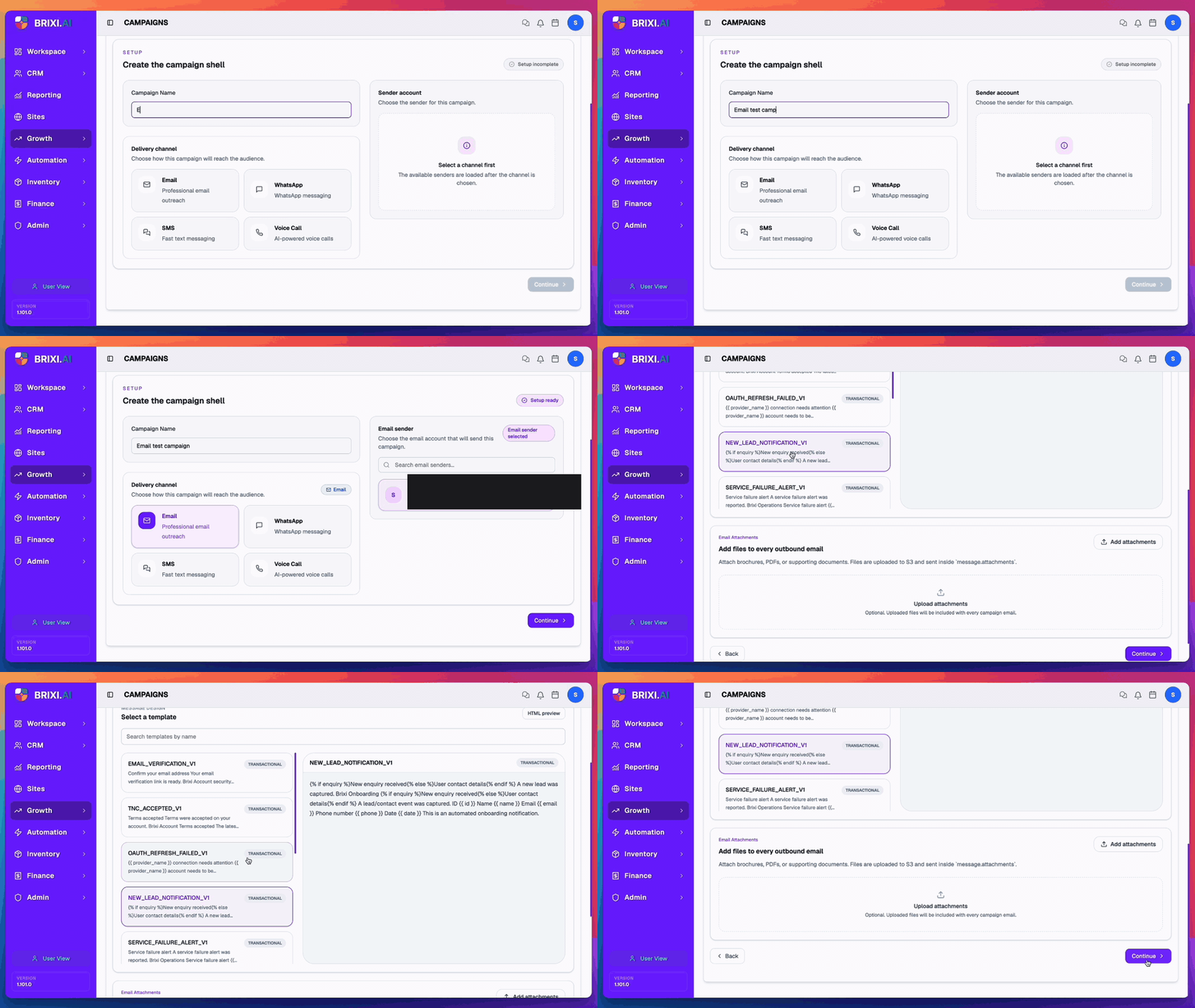
The Email channel is selected but the right-hand panel reads "The available senders are loaded after the channel is chosen" or stays empty — that means no email app is connected for this workspace. Connect one first (see Connect Gmail), reload the creator, and the sender shows up.
Why the sender choice matters
| Choice | What it affects |
|---|---|
| The From address subscribers see | The connected mailbox is the literal From: header on every send. |
| Where bounces and replies go | Bounces, auto-replies, and unsubscribe responses arrive on that mailbox, not in Brixi's inbox. |
| Whose sending reputation is used | Spam folder placement depends on the mailbox's domain / SPF / DKIM / DMARC, not Brixi's. |
| Which approved templates are usable | All approved templates the workspace owns are available regardless of sender — but you may want to gate marketing-grade templates to a marketing mailbox. |
Step 2 · Content — Pick a Template and Attach Files
The Content step (titled Message Design — Select a template) has two sections: the template picker at the top and the Email Attachments uploader at the bottom.
Pick an approved template
The template picker shows every email template the workspace owns, each card showing:
- Template name and version (e.g.,
NEW_LEAD_NOTIFICATION_V1). - Preview snippet of the first couple of lines.
- Type badge —
TRANSACTIONALorMARKETING.
Click the Search templates by name box to filter, then click a card to load it on the right. The right pane switches from "Choose a template to preview" to the rendered template with the HTML preview toggle in the top-right.
Approved templates only — Brixi does not let you compose or paste an ad-hoc HTML email in the campaign creator. Every email campaign uses a versioned, approved template.
Open the HTML preview before continuing. The preview
shows the same variables the live send will use ({{ name }},
{{ company }}, etc.). If a variable is missing in the
audience CSV, the live send falls back to whatever the template's
default expression specifies — often a blank.
Email Attachments — optional
Below the template, the Email Attachments section reads "Add files
to every outbound email — Attach brochures, PDFs, or supporting
documents. Files are uploaded to S3 and sent inside
message.attachments."
- Click Add attachments (top-right) or drag files into the Upload attachments drop zone.
- Attachments uploaded here are global to the campaign — every recipient gets the same files.
- Per-recipient attachments are not configurable in the campaign creator. For 1:1 attachments, use a template tool / workflow instead.
When the template card is highlighted and you're happy with attachments (or have left them empty), click Continue → moves to Audience.
Step 3 · Audience — Pick Your Recipients
The Audience step is shared across all four channels — the same three options (Contact List / Dynamic Segment / File Upload) appear regardless of channel. Email-specific details:
- Sample CSV header is
FirstName, LastName, Email. - A row without a valid email is skipped — emails are the join key.
- The sample-contacts preview shows a Variables detected badge if
the CSV includes columns beyond the required three (e.g.,
source,status) — those values become template variables. - The mandatory compliance checkbox — "I confirm that I have acquired these contact details through explicit opt-in and have legal permission to send them marketing communications" — must be ticked before Continue lights up.
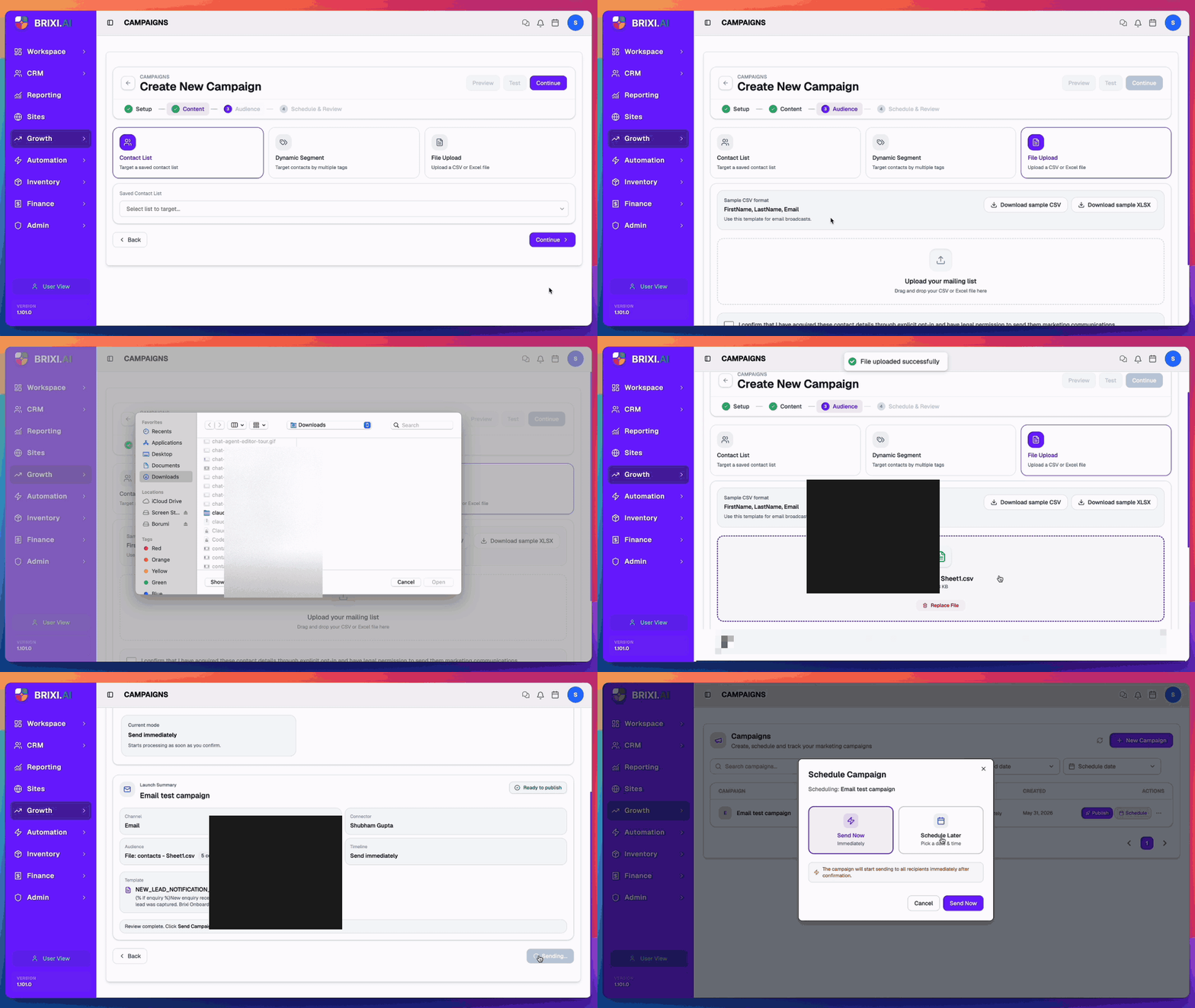
The full audience picker, dynamic segments, CSV format, and common upload errors are documented once for every channel on the shared audience page:
Step 4 · Schedule & Review
The Schedule & Review step is shared across all four channels. Email's Launch Summary shows Connector = the email sender and the Template preview block with attachments (if any).
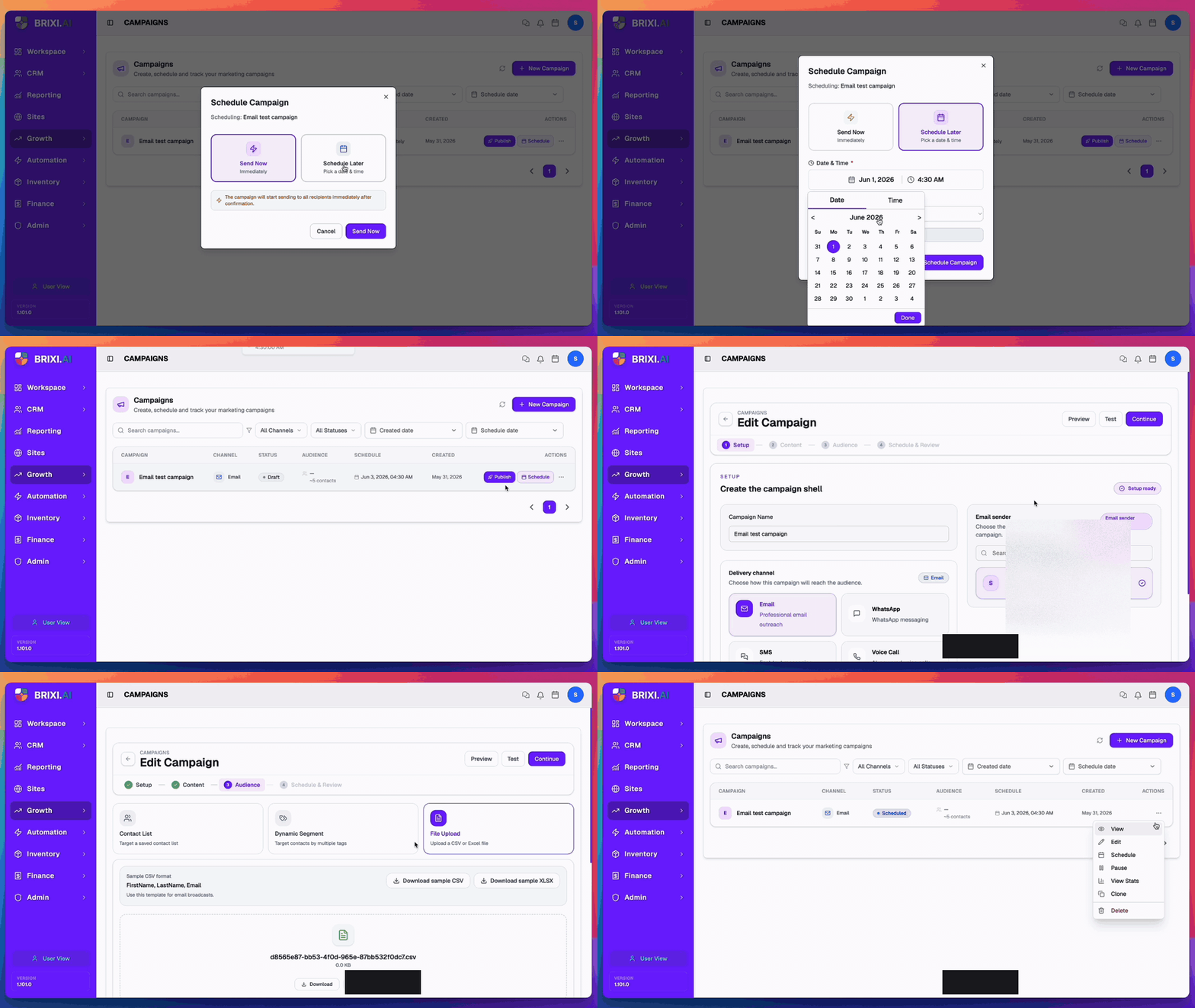
The full schedule + launch behaviour — Send Now vs Schedule Later, timezone picker, Launch Summary, Preview / Test, Publish / Update / Reschedule — is documented once on:
After the Campaign Is Created
Once the campaign is created, the Campaigns list (Growth →
Broadcasts) shows it with the right channel, status, audience count,
schedule, and an Actions menu (...) on the right of the row.
The menu changes slightly based on the current status:
| Status | Available actions |
|---|---|
| Draft | View · Edit · Publish · Schedule · Clone · Delete |
| Scheduled | View · Edit · Schedule · Pause · View Stats · Clone · Delete |
| Paused | View · Edit · Resume · View Stats · Clone · Delete |
| Sending / Sent | View · View Stats · Clone · Delete |
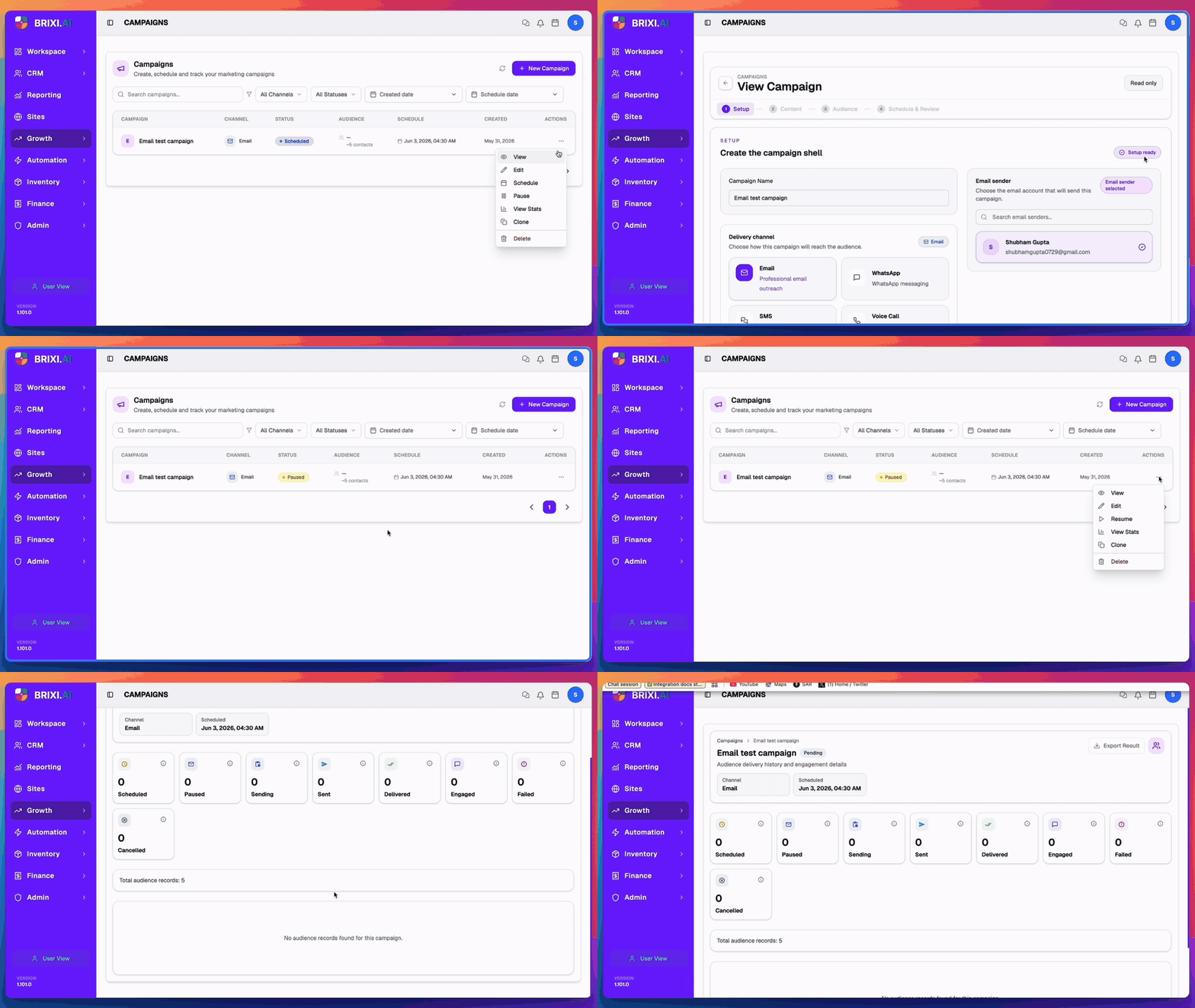
- View opens a read-only copy of the 4-step creator. Every field — sender, template, audience, schedule — is visible but the badge in the top-right reads Read only.
- Edit opens the creator with Update Campaign instead of Send / Schedule — change any step, then Update Campaign.
- Pause stops a scheduled campaign before its send time. The status changes to Paused and the action becomes Resume.
- Clone copies the campaign into a new Draft with everything prefilled.
- Delete removes the campaign. Sent campaigns keep their stats — but the campaign row disappears from the list.
Review Campaign Stats
When a campaign starts sending, View Stats opens the campaign's delivery history with 8 status tiles:
| Tile | What it counts |
|---|---|
| Scheduled | Recipients still queued, not yet attempted. |
| Paused | Recipients held by a pause action mid-send. |
| Sending | Recipients currently being handed to the email sender. |
| Sent | Successfully handed off — but not yet confirmed delivered. |
| Delivered | Confirmed delivered by the email sender. |
| Engaged | Opens / clicks / replies (depending on tracking the sender supports). |
| Failed | Hard bounces, blocks, or sender rejections. |
| Cancelled | Skipped by the user (e.g., audience pruning before send). |
Below the tiles, Total audience records confirms how many rows came in from the audience step, and the audience delivery history table breaks down each recipient's outcome. Use Export Result (top-right) to download the full delivery history as a CSV.
Email-stats specifics (open vs click tracking, bounce categories, etc.) follow the email sender's reporting — see the shared stats page for the channel-agnostic basics:
Common Issues
| Issue | What to check |
|---|---|
| Email channel card greys out as soon as I select it | Page hasn't finished loading — wait for the sender panel to render, then click again. |
| Email sender panel stays empty after picking Email | No mailbox is connected. Connect Gmail (or another email app) under Profile → My Apps, then reopen the creator. |
| Continue stays disabled on Setup | Both Campaign Name and a selected Email sender are required — confirm the Setup ready badge shows in the top-right. |
| Template list is empty | No approved email templates exist in this workspace. An admin needs to publish at least one in the template library. |
Template preview shows raw { variable `}`` placeholders | Expected — preview keeps the variable expressions visible. The live send substitutes them per-recipient from the audience CSV. |
| Attachments don't upload | Check file size and MIME type — Brixi rejects oversized files and unsupported MIME. Reload and retry on a smaller file. |
| Recipients get the email but variables are blank | The audience CSV is missing the variable column the template expects. Re-upload with the column included, or pick a template that doesn't require it. |
| Campaign moves straight to Failed | The connected email sender lost auth (e.g., Gmail token revoked) — reconnect under Profile → My Apps, then Resume or Reschedule the campaign. |
| Sent count is lower than audience count | Rows without a valid email were skipped at send time. Open View Stats → Failed to see which rows. |
| Engaged stays at 0 | Engagement (opens / clicks) depends on the connected sender supporting open-tracking pixels. Some corporate mailboxes strip them. |
The two things most likely to block you here are an empty Email sender panel and an empty template list — both are admin jobs. Ask your admin to connect a mailbox under Profile → My Apps and to publish at least one approved email template before you retry.
Contact Brixi support if the sender is connected, the template is approved, and the campaign still fails to send — especially if it jumps straight to Failed after a fresh reconnect. Include the campaign name, the sender mailbox, and the time of the attempt.