Send and Track Email from Gmail
Connect your Gmail mailbox and Brixi keeps the email history with each lead in one place — incoming and outgoing messages attach to the right contact automatically, and you can send replies without leaving the CRM. Setup is a single Google sign-in where you approve the Gmail permissions.
Entry pointProfile → My Apps
What You Need
- The business Google account whose mailbox you want to sync.
- Permission to sign in to that Google account — you complete the Google sign-in window yourself.
- A modern browser with pop-ups allowed for
brixi.aiso the Google consent window opens cleanly.
Use a shared service account (e.g.,
sales@yourcompany.com) rather than a personal Gmail
whenever you can — when the person leaves, the connection survives
and reports stay continuous.
Connect Gmail
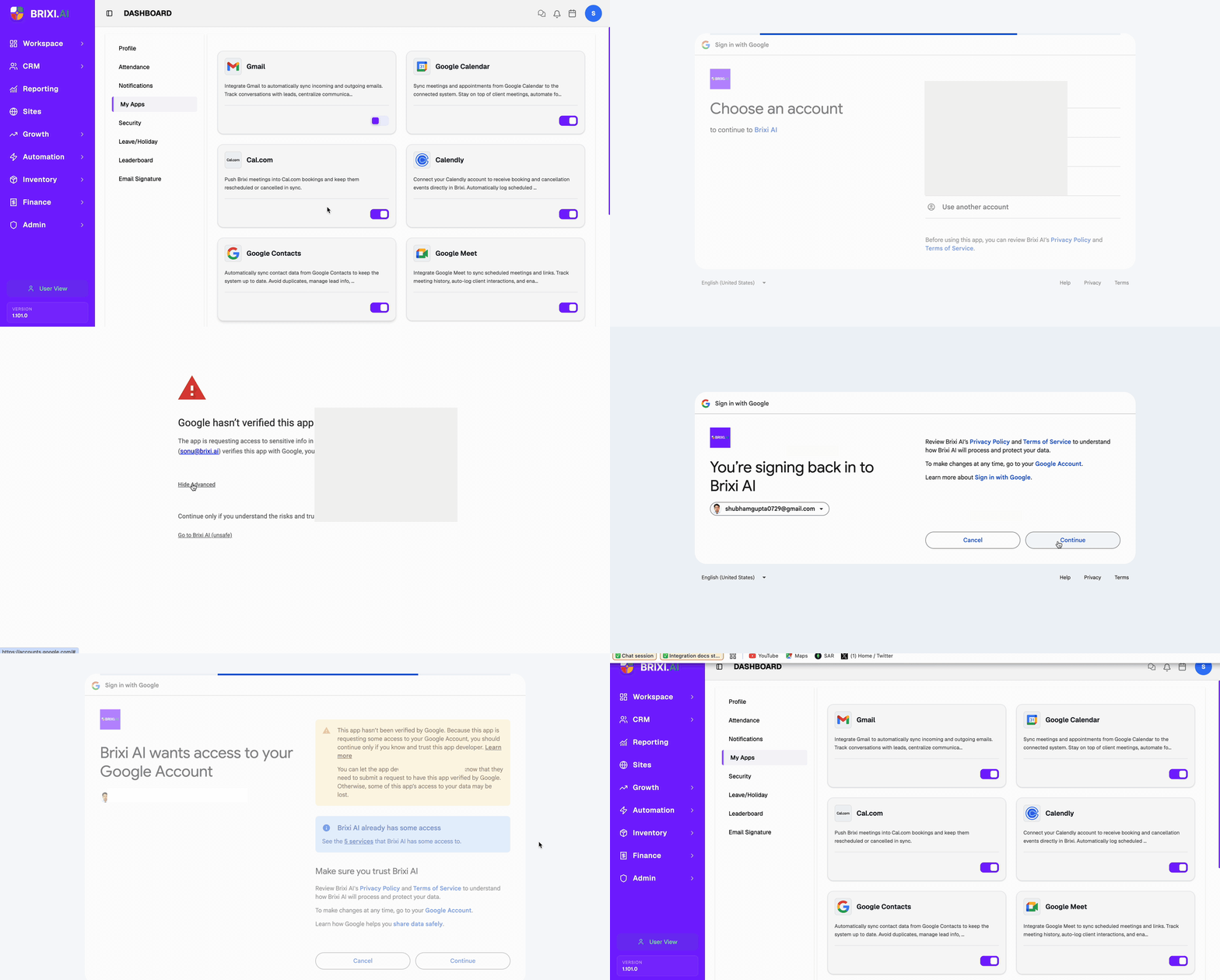
- Open Profile → My Apps. The list of available apps appears.
- Find the Gmail card and turn on its toggle. A Connecting to Gmail… banner appears and a Google sign-in window opens in a new tab.
- In the Google window, choose the Google account to connect (or pick Use another account to sign in fresh).
- If Google shows "Google hasn't verified this app," select Advanced, then Go to Brixi AI (unsafe) — this warning is expected for your own workspace and clears once Google completes app verification.
- On the consent screen titled Brixi AI wants access to your Google Account, review the permissions (see below) and select Continue.
- Google returns you to Brixi. The Gmail card now shows as connected and the toggle stays on.
Don't reload Brixi or close the Google window until you're returned to the My Apps page — the connection may not save otherwise.
Permissions You'll Grant
On the Google consent screen, approve every permission (use Select all if shown) — Gmail sync will not work fully if any permission is unchecked.
| Permission | Why Brixi needs it |
|---|---|
| Manage drafts and send emails | Compose, draft, and send emails from Brixi on your behalf. |
| Read, compose, and send emails from your Gmail account | Sync your inbox and sent mail so conversations attach to the matching contact. |
Brixi does not request offline access to your contacts list or calendar from this connector — those have their own apps (see Google Contacts and Google Calendar).
What Syncs After Connecting
Once the connection is live, Brixi will:
- Pull incoming emails from the connected mailbox and attach them to the matching contact by email address.
- Capture outgoing emails you send from Gmail and log them on the same contact record.
- Track email history in the contact's Activities timeline under the Emails tab.
- Let you send replies from Brixi that show up in the connected Gmail's Sent folder.
Sync runs on a short interval — most messages appear within a minute of being sent or received.
Disconnect Gmail
To stop syncing, turn the Gmail toggle off in My Apps.
- Disconnect stops new mail from syncing immediately.
- Email history already synced into Brixi stays (subject to your workspace's normal access permissions).
- Reconnecting later re-runs the OAuth flow — your previous mappings are restored if you sign in with the same Google account.
Common Issues
| Issue | What to check |
|---|---|
| The connection didn't save | Reconnect and let the Connecting to Gmail… window finish without reloading or closing the Google tab. |
| Wrong mailbox connected | Disconnect, then reconnect and pick the correct Google account in the picker. |
| Toggle is missing from My Apps | Ask your admin to review your access to integrations. |
| Sync seems delayed | Sync runs every minute; longer gaps usually mean Google revoked the token — disconnect and reconnect. |
| "Google hasn't verified this app" warning | Expected for your workspace. Select Advanced → Go to Brixi AI (unsafe) to continue. |
| Sent emails don't appear in Brixi | Confirm you signed in with the same Gmail you're sending from, and that both permissions were approved. |
| Synced emails aren't visible to teammates who should see them | That's a role and visibility setting — ask your admin to review it. |
| Still stuck after checking with your admin | See Getting Help — include the connected mailbox address, an example message (subject and time sent), and where you expected it to appear. |