Keep Your Google Address Book and Brixi Aligned
Connect Google Contacts and your address book and Brixi stay aligned on their own — new and updated contacts flow into Brixi, duplicates stay under control, and lead information matches on both sides. Setup is one Google sign-in: pick the account whose contacts you want to sync and approve the contact permissions.
Entry pointProfile → My Apps
| Article summary | Details |
|---|---|
| Requires | Sign-in access to the Google account whose contacts you want to sync. |
| Where to go | Profile → My Apps → Google Contacts. |
What You Need
- The business Google account whose contacts you want to sync.
- Permission to sign in to that Google account — you complete the Google sign-in window yourself.
- A modern browser with pop-ups allowed for
brixi.aiso the Google consent window opens cleanly.
Use a shared service account (e.g.,
sales@yourcompany.com) whenever you can — when the
person leaves, the connection survives and the address book keeps
syncing.
Google Contacts sync can move large numbers of records in both directions. Run a small test connection first on a sub-account or a workspace with a clean address book before connecting your primary business account.
Connect Google Contacts, Step by Step
The full process — from turning on the toggle to a connected address book — looks like this:
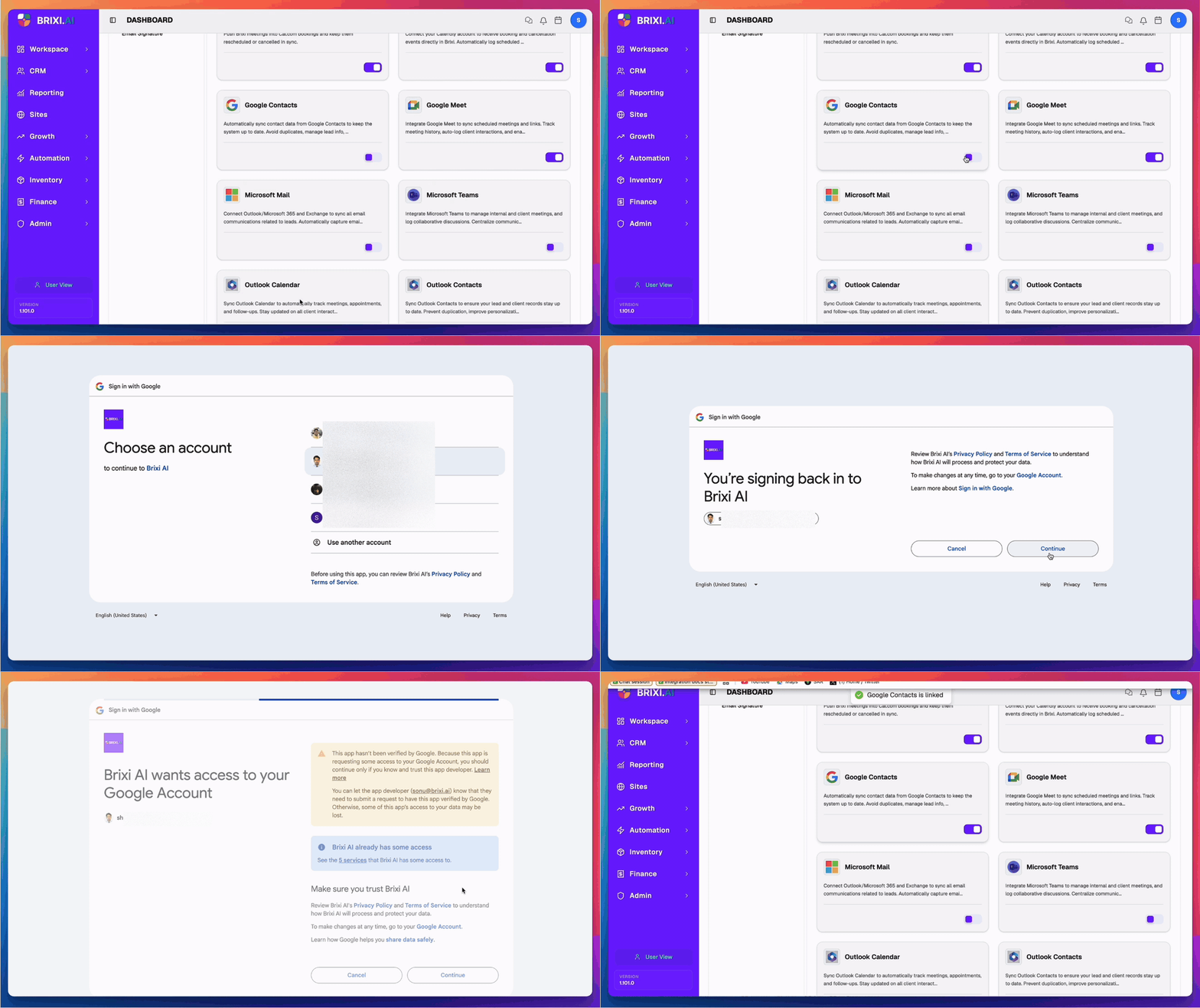
- Open Profile → My Apps. Find the Google Contacts card.
- Turn on the Google Contacts toggle. A Connecting to Google Contacts… dialog appears asking you to Finish authorizing in the popup window to continue, and a Google sign-in tab opens.
- Choose the Google account you want to connect (or use Use another account to sign in fresh).
- If Google shows "Google hasn't verified this app," select Advanced, then Go to Brixi AI (unsafe) — this warning is expected for your own workspace and clears once Google completes app verification.
- On the "You're signing back in to Brixi AI" screen, select Continue.
- On "Brixi AI wants access to your Google Account," review the permissions and select Continue.
- Google returns you to Brixi. The Google Contacts card shows as connected and the toggle stays on.
Don't reload Brixi or close the Google window until the Connecting to Google Contacts… dialog moves past Authorizing and Installing — the connection may not save otherwise.
Permissions You'll Grant
Approve every permission Brixi requests — contact sync will not work fully if any is left unchecked.
| Permission | Why Brixi needs it |
|---|---|
| See and download contact info automatically saved in your "Other contacts" | Pull people you've interacted with from Gmail / Calendar so they can become Brixi contacts. |
| See, edit, download, and permanently delete your contacts | Keep contact records aligned between Google and Brixi — including updates, merges, and deletes. |
Brixi does not request access to your Gmail messages or Calendar events from this connector — those have their own apps (see Connect Gmail and Connect Google Calendar).
What Syncs After Connecting
Once the connection is live, Brixi will:
- Pull contacts and "Other contacts" from the connected Google account and create matching Brixi contacts.
- Push new contacts created in Brixi (lead capture, form submits, manual adds) back into Google Contacts.
- Match by email / phone to keep duplicates collapsed into a single record on both sides.
- Sync updates (renames, new numbers, new emails) in both directions on a short interval.
- Honour deletes — removing a contact in one system removes it in the other (use disconnect first if you don't want this).
Sync typically completes within a minute of a change.
Disconnect
To stop syncing, turn the Google Contacts toggle off in My Apps.
- Disconnect stops new contacts and updates from flowing in either direction immediately.
- Contacts already synced into Brixi stay (subject to your workspace's normal access permissions). They will no longer receive Google-side updates.
- Reconnecting later re-runs the OAuth flow — your previous mappings are restored if you sign in with the same Google account.
Before disconnecting from a primary business account, export the Brixi contacts list as a CSV — Disconnect doesn't delete the contacts, but if you accidentally delete one in Google while the sync is live, the deletion will replicate to Brixi.
Common Issues
| Issue | What to check |
|---|---|
| The connection didn't save | Reconnect and let the Connecting to Google Contacts… dialog finish (it cycles through Authorizing and Installing) without reloading or closing the Google tab. |
| Stuck on "hasn't verified this app" | Select Advanced, then Go to Brixi AI (unsafe) — it's your own workspace. |
| Wrong account connected | Disconnect, then reconnect and pick the correct Google account in the picker. |
| Toggle is missing from My Apps | Ask your admin to review your access to integrations. |
| Contacts come in without phone numbers | Confirm both permissions were approved — partial-permission grants pull names and emails only. |
| Duplicate contacts after sync | Brixi matches by email and phone — contacts that have neither (Other contacts) may arrive as new records. Merge them manually or skip the Other contacts import. |
| New contacts in Brixi don't push to Google | The sync needs See, edit, download, and permanently delete your contacts — re-run the OAuth flow if you only granted read access. |
| Sync seems delayed | Sync runs every minute; longer gaps usually mean Google revoked the token — disconnect and reconnect. |
Because this sync moves whole address books — and honours deletes in both directions — talk to your admin before connecting or disconnecting a primary business account, and ask them first if the Google Contacts card is missing from My Apps. Duplicates after a sync are usually a matching question (contacts with no email or phone), which you can resolve by merging — no ticket needed.
Contact Brixi support if contacts were deleted or overwritten unexpectedly, or the sync stalls with both permissions approved. Include the connected Google account, roughly when the problem started, and a couple of example contact names so support can trace what happened.