See Your Meetings Alongside Your CRM Work
Sync Google Calendar into Brixi and your meetings and appointments show up right next to your CRM work — with follow-ups automated around them. You'll sign in once to the Google account whose calendar you want to sync and approve the calendar permissions; that's the whole setup.
Entry pointProfile → My Apps
What You Need
- The business Google account whose calendar you want to sync.
- Permission to sign in to that Google account — you complete the Google sign-in window yourself.
- A modern browser with pop-ups allowed for
brixi.aiso the Google consent window opens cleanly.
Use a shared service account (e.g.,
sales@yourcompany.com) whenever you can — when the
person leaves, the connection survives and meetings keep syncing.
Connect Google Calendar, Step by Step
The full process — from turning on the toggle to a connected calendar — looks like this:
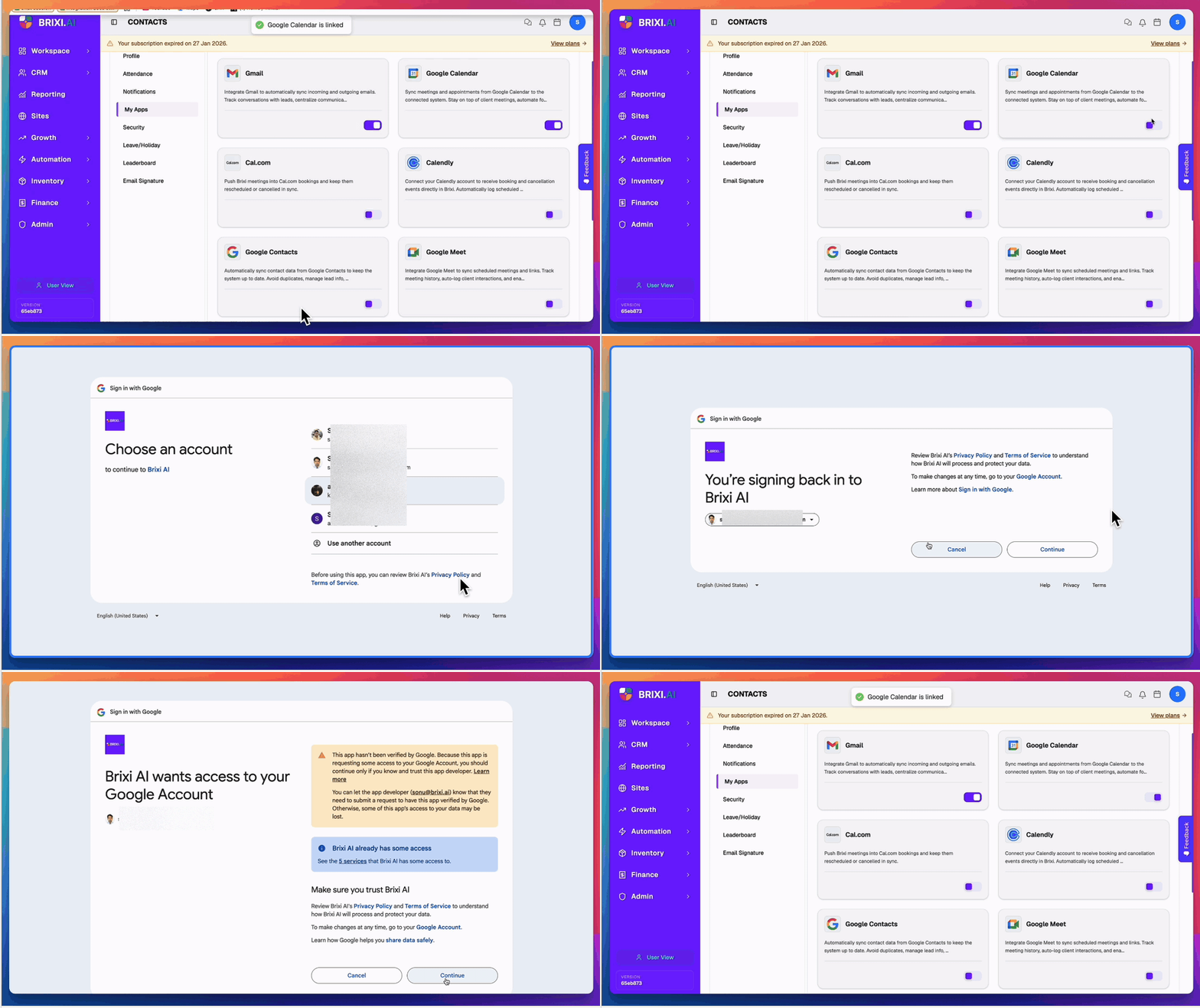
- Open Profile → My Apps. Find the Google Calendar card.
- Turn on the Google Calendar toggle. A Connecting to Google Calendar… banner appears and a Google sign-in tab opens.
- Choose the Google account you want to connect (or use Use another account to sign in fresh).
- If Google shows "Google hasn't verified this app," select Advanced, then Go to Brixi AI (unsafe) — this warning is expected for your own workspace and clears once Google completes app verification.
- On the "You're signing back in to Brixi AI" screen, select Continue.
- On "Brixi AI wants access to your Google Account," review the permissions and select Continue.
- Google returns you to Brixi. The Google Calendar card shows as connected, the toggle stays on, and a Google Calendar is linked toast appears.
Don't reload Brixi or close the Google window until you're returned to the My Apps page — the connection may not save otherwise.
Permissions You'll Grant
Approve every permission Brixi requests — calendar sync will not work fully if any is left unchecked.
| Permission | Why Brixi needs it |
|---|---|
| View and edit events on all your calendars | Create, update, and sync meetings between Brixi and Google Calendar. |
| View your calendars | Read your calendars and existing events so meetings show up on the right contact. |
Brixi does not request access to your Gmail or Contacts from this connector — those have their own apps (see Connect Gmail and Connect Google Contacts).
What Syncs After Connecting
Once the connection is live, Brixi will:
- Pull meetings and appointments from the connected calendar and show them on the Calendar view and the matching contact's timeline.
- Push new meetings created in Brixi (site visits, follow-up calls, demos) into the connected Google Calendar.
- Capture reschedules, cancellations, and updates in either direction.
- Surface upcoming meetings inside Tasks and Reminders so follow-ups land before the meeting begins.
Sync runs on a short interval — most events appear within a minute of being created or changed.
Disconnect
To stop syncing, turn the Google Calendar toggle off in My Apps.
- Disconnect stops new events from syncing immediately.
- Events already synced into Brixi stay (subject to your workspace's normal access permissions).
- Reconnecting later re-runs the OAuth flow — your previous mappings are restored if you sign in with the same Google account.
Common Issues
| Issue | What to check |
|---|---|
| The connection didn't save | Reconnect and let the Connecting to Google Calendar… banner finish without reloading or closing the Google tab. |
| Stuck on "hasn't verified this app" | Select Advanced, then Go to Brixi AI (unsafe) — it's your own workspace. |
| Wrong calendar connected | Disconnect, then reconnect and pick the correct Google account in the picker. |
| Toggle is missing from My Apps | Ask your admin to review your access to integrations. |
| Meetings sync to Brixi but not the other way | Reconnect — Brixi needs View and edit events on all your calendars, not just View your calendars. |
| Sync seems delayed | Sync runs every minute; longer gaps usually mean Google revoked the token — disconnect and reconnect. |
| Still stuck after checking with your admin | See Getting Help — include the connected Google account, an example event (title and time), and which direction failed. |