Log Calendly Bookings Against the Right Contact
When someone books (or cancels) through your Calendly link, Brixi can log it against the matching contact automatically. You sign in to Calendly once, approve the requested access, and events start flowing in on their own.
Entry pointProfile → My Apps
What You Need
- A Calendly account you can sign in to (sign up at calendly.com if you don't already have one).
- Permission to authorize the connection in Calendly — you complete the Calendly sign-in window yourself.
- A modern browser with pop-ups allowed for
brixi.aiso the Calendly authorisation window opens cleanly.
Use the Calendly account whose booking links your customers see. Booking events arrive on the account that authorised the connection — switching accounts later splits the booking history across two records.
Connect Calendly
- Open Profile → My Apps. Find the Calendly card.
- Turn on the Calendly toggle. A Connecting to Calendly… banner appears and a Calendly authorisation window opens.
- Sign in to Calendly in the popup if you're not already signed in.
- On the Calendly Connect to Calendly screen, review the requested permissions (see below) and select Approve.
- Calendly returns you to Brixi. The Calendly card shows as connected, the toggle stays on, and a Calendly is linked toast appears.
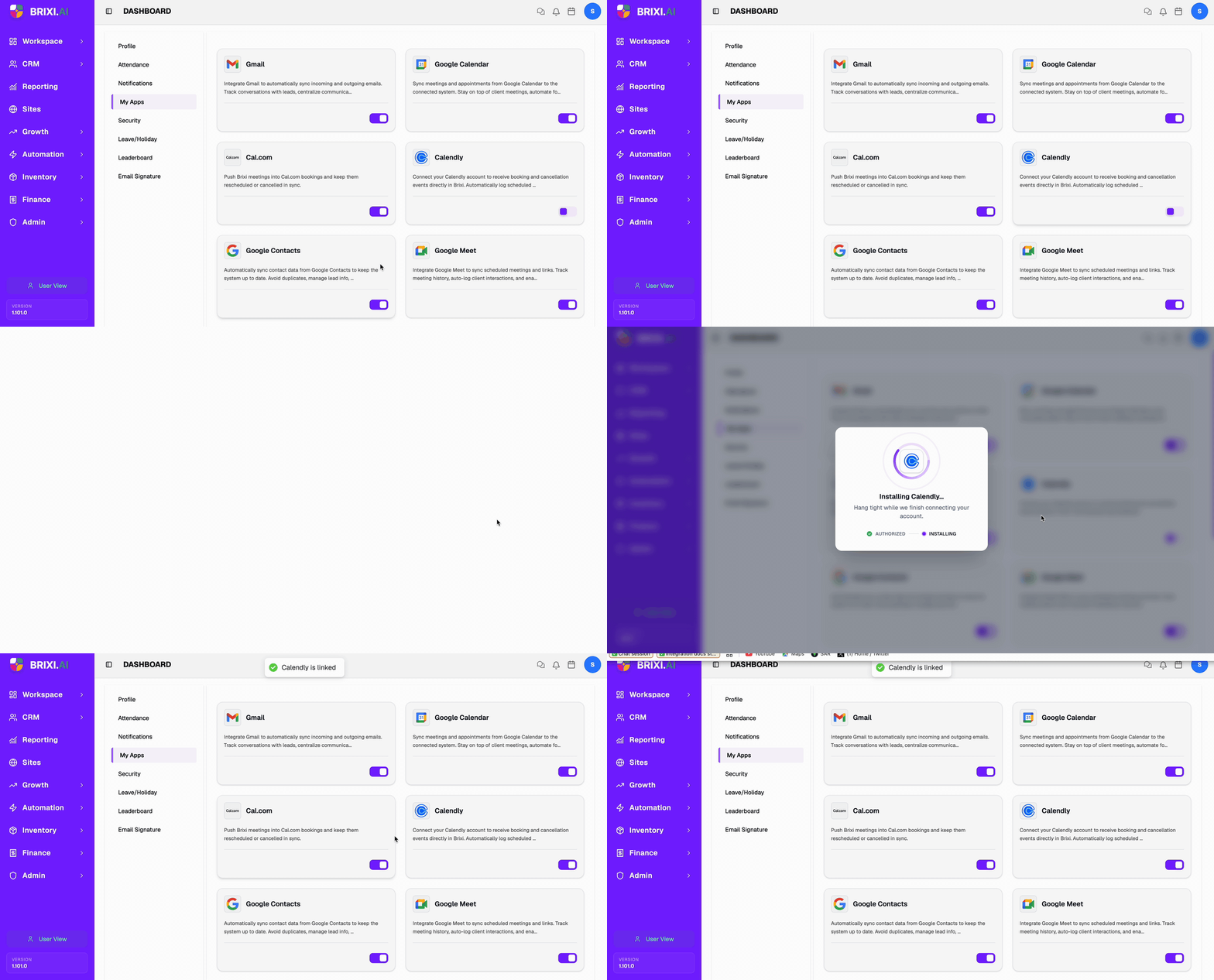
Don't reload Brixi or close the Calendly popup until you're returned to the My Apps page with the Calendly is linked toast — the connection may not save otherwise.
Permissions You'll Grant
On the Calendly Connect to Calendly screen, select Approve to grant all the access below — booking events will not flow in if you cancel. Calendly requests:
| Group | Permission | Why Brixi needs it |
|---|---|---|
| Scheduling | Retrieve event type details and available times | Know your meeting types and current availability. |
| Scheduling | View and manage scheduled events and invitees | Receive bookings and cancellations and log them on the matching contact. |
| User management | Retrieve your user information | Identify your Calendly account so events land on the right user. |
What Syncs After Connecting
Once the connection is live, Brixi will:
- Receive booking events from Calendly and log them on the matching contact's timeline.
- Receive cancellation events and mark the linked meeting as cancelled in Brixi.
- Receive reschedule events and update the meeting time on both sides.
- Match bookings to contacts by invitee email — new invitees that don't match an existing contact are created automatically.
Events typically reach Brixi within seconds of being created in Calendly.
Disconnect
To stop receiving events, turn the Calendly toggle off in My Apps.
- Disconnect stops new bookings and cancellations from reaching Brixi immediately.
- Bookings already logged in Brixi stay on the matching contact — they don't disappear when you disconnect.
- Reconnecting later re-runs the OAuth flow — your previous mappings are restored if you sign in with the same Calendly account.
Common Issues
| Issue | What to check |
|---|---|
| The connection didn't save | Reconnect and let the Connecting to Calendly… banner finish without reloading or closing the Calendly popup. |
| Calendly popup didn't open | Allow pop-ups for brixi.ai in your browser, then turn the toggle off and on again. |
| Stuck on Calendly sign-in | Use Calendly's password reset or magic-link flow. Brixi never sees your Calendly password. |
| Wrong Calendly account connected | Disconnect, sign out of Calendly in your browser, then reconnect with the correct account. |
| Toggle is missing from My Apps | Ask your admin to review your access to integrations. |
| Bookings arrive but not on the right contact | Brixi matches by invitee email — verify the email Calendly sent matches the Brixi contact's email. Merge or update the contact if needed. |
| Cancellations don't reflect in Brixi | Confirm both View and manage scheduled events and invitees was approved — partial-permission grants only push the initial booking. |
| Events delayed | Calendly events normally arrive within seconds; long delays usually mean Calendly revoked the token — disconnect and reconnect. |
| Still stuck after checking with your admin | See Getting Help — include the connected Calendly account, the time a test booking was made, and the invitee email so support can trace the event. |