Sync Brixi Meetings to Cal.com Bookings
Push your Brixi meetings into Cal.com bookings and keep the two sides aligned — when a meeting is rescheduled or cancelled in one system, the other follows. Setup is a one-time OAuth sign-in to Cal.com; after that, the sync runs on its own.
Entry pointProfile → My Apps
What You Need
- A Cal.com account you can sign in to (sign up at cal.com if you don't already have one).
- Permission to authorize the connection in Cal.com — you complete the Cal.com sign-in window yourself.
- A modern browser with pop-ups allowed for
brixi.aiso the Cal.com consent window opens cleanly.
Use the same Cal.com account your team books from. Cal.com bookings are owned by the account that authorized the connection — switching accounts later splits the booking history across two records.
Connect Cal.com
- Open Profile → My Apps. Find the Cal.com card.
- Turn on the Cal.com toggle. A Connecting to Cal.com… banner appears and a Cal.com sign-in tab opens.
- Sign in to Cal.com if you're not already signed in.
- On the Cal.com consent screen titled Brixi wants to access your Cal.com account, review the requested permissions (see below) and select Allow.
- Cal.com returns you to Brixi. The Cal.com card shows as connected, the toggle stays on, and a Cal.com is linked toast appears.
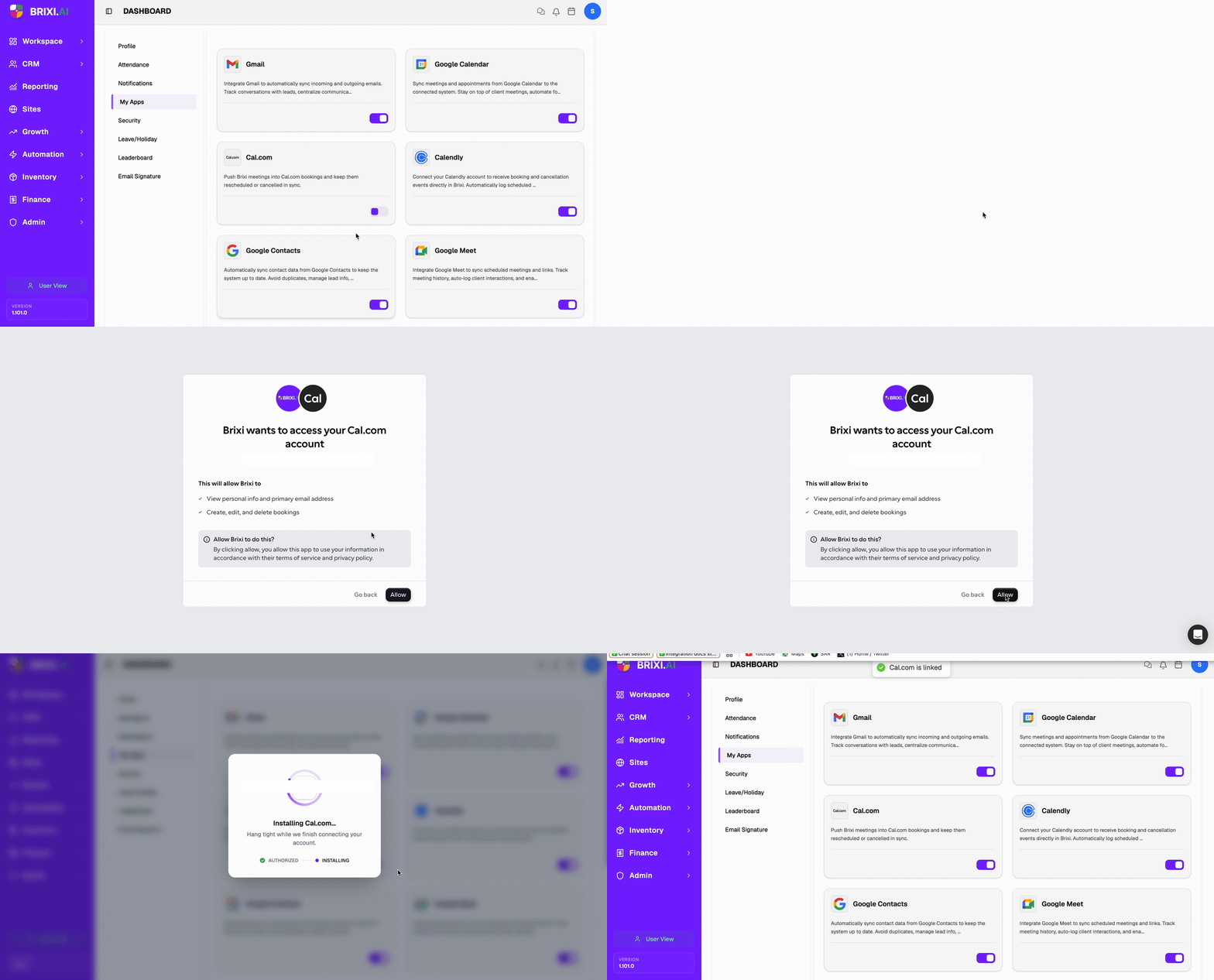
Don't reload Brixi or close the Cal.com window until you're returned to the My Apps page with the Cal.com is linked toast — the connection may not save otherwise.
Permissions You'll Grant
When you authorize in Cal.com, approve the requested access — bookings won't sync otherwise. Cal.com requests:
| Permission | Why Brixi needs it |
|---|---|
| View personal info and primary email address | Identify your Cal.com account so bookings land on the right calendar. |
| Create, edit, and delete bookings | Push Brixi meetings into Cal.com as bookings, and keep reschedules and cancellations in sync. |
Brixi does not read your existing Cal.com booking history — only new bookings created via Brixi (and updates to them) are written.
What Syncs After Connecting
Once the connection is live, Brixi will:
- Push new Brixi meetings (site visits, demos, follow-up calls) into Cal.com as bookings.
- Mirror reschedules — if a meeting moves in Brixi, the Cal.com booking moves too (and vice versa).
- Mirror cancellations — if a meeting is cancelled in either system, the other follows.
- Track booking status (confirmed / cancelled / rescheduled) on the linked Brixi meeting.
Sync runs on a short interval — most changes propagate within a minute.
Disconnect
To stop pushing bookings, turn the Cal.com toggle off in My Apps.
- Disconnect stops new bookings from flowing immediately.
- Bookings already created in Cal.com via Brixi stay — they're owned by Cal.com, not Brixi.
- Reconnecting later re-runs the OAuth flow — your previous mappings are restored if you sign in with the same Cal.com account.
Common Issues
| Issue | What to check |
|---|---|
| The connection didn't save | Reconnect and let the Connecting to Cal.com… banner finish without reloading or closing the Cal.com tab. |
| Stuck on Cal.com sign-in | Use the Cal.com password reset flow or sign in via the magic link. The Cal.com window is fully managed by Cal.com — Brixi doesn't see your password. |
| Wrong Cal.com account connected | Disconnect, sign out of Cal.com in your browser, then reconnect and sign in with the correct account. |
| Toggle is missing from My Apps | Ask your admin to review your access to integrations. |
| Bookings sync but reschedules don't | Confirm both View personal info… and Create, edit, and delete bookings were approved — partial-permission grants only push the initial booking. |
| Bookings push to the wrong Cal.com calendar | Cal.com routes by the connected account's primary booking calendar — switch the default in Cal.com settings, then reconnect. |
| Sync seems delayed | Sync runs every minute; longer gaps usually mean Cal.com revoked the token — disconnect and reconnect. |
| Still stuck after checking with your admin | See Getting Help — include which Cal.com account is connected, when the last booking synced successfully, and what you expected to happen. |