Reach Customers on WhatsApp
Reach customers where they actually reply — WhatsApp earns far higher open and reply rates than email, so it's the channel for site-visit invites, project nudges, and anything that should start a conversation. Send an approved WhatsApp Business template from your own number, and optionally pair it with a personalised microsite per recipient. This page covers the WhatsApp-specific choices: which sender number and which approved template plus microsite. Audience, Schedule & Review, and Stats work the same for every channel and are linked below.
Entry pointGrowth → Broadcasts → New Campaign
| Article summary | Details |
|---|---|
| Requires | A connected WhatsApp sender (a WABA / Cloud API phone number) and at least one Meta-approved WhatsApp template. |
| Where to go | Growth → Broadcasts → New Campaign → Setup → WhatsApp. |
| Time to set up | 2-5 minutes for the WhatsApp-specific steps, before audience selection. |
Who Can Do This
- Growth operators and marketing managers create WhatsApp campaigns.
- Account admins are usually needed once — to connect the WABA sender and to get marketing templates approved by Meta.
- Sales managers handle the replies that the campaign generates; WhatsApp campaigns usually drive replies, not just opens.
What You Need
- A connected WhatsApp sender — a WABA / Cloud API phone number registered for your workspace. Without a connected sender the WhatsApp sender panel on Setup stays empty and you can't continue.
- At least one Meta-approved WhatsApp template in the MARKETING category (or whichever category matches your message). WhatsApp Business does not allow ad-hoc copy — Meta has to approve the template before it can ever be sent.
- A clean recipient list with first name, last name, and a
valid PhoneNumber column including the country ISD code
(
+919876543210, not9876543210). See Campaign Audience for the full CSV format. - A schedule decision: send now, or pick a date / time / timezone.
Use the WhatsApp sender whose number your customers are most likely to recognise. WhatsApp delivery treats unknown senders as cold contacts — recognisable numbers earn higher open and reply rates and avoid quality-rating drops.
WhatsApp Campaign Flow At A Glance
Brixi uses the same 4-step creator for every channel. Only Setup and Content differ for WhatsApp:
- Setup — name the campaign and pick the channel + WhatsApp sender. WhatsApp-specific.
- Content — pick an approved WhatsApp template with its variables, and optionally Attach a dynamic microsite. WhatsApp-specific.
- Audience — Contact List, Dynamic Segment, or File Upload. Shared — see Campaign Audience.
- Schedule & Review — Send Now or Schedule Later. Shared — see Schedule & Review.
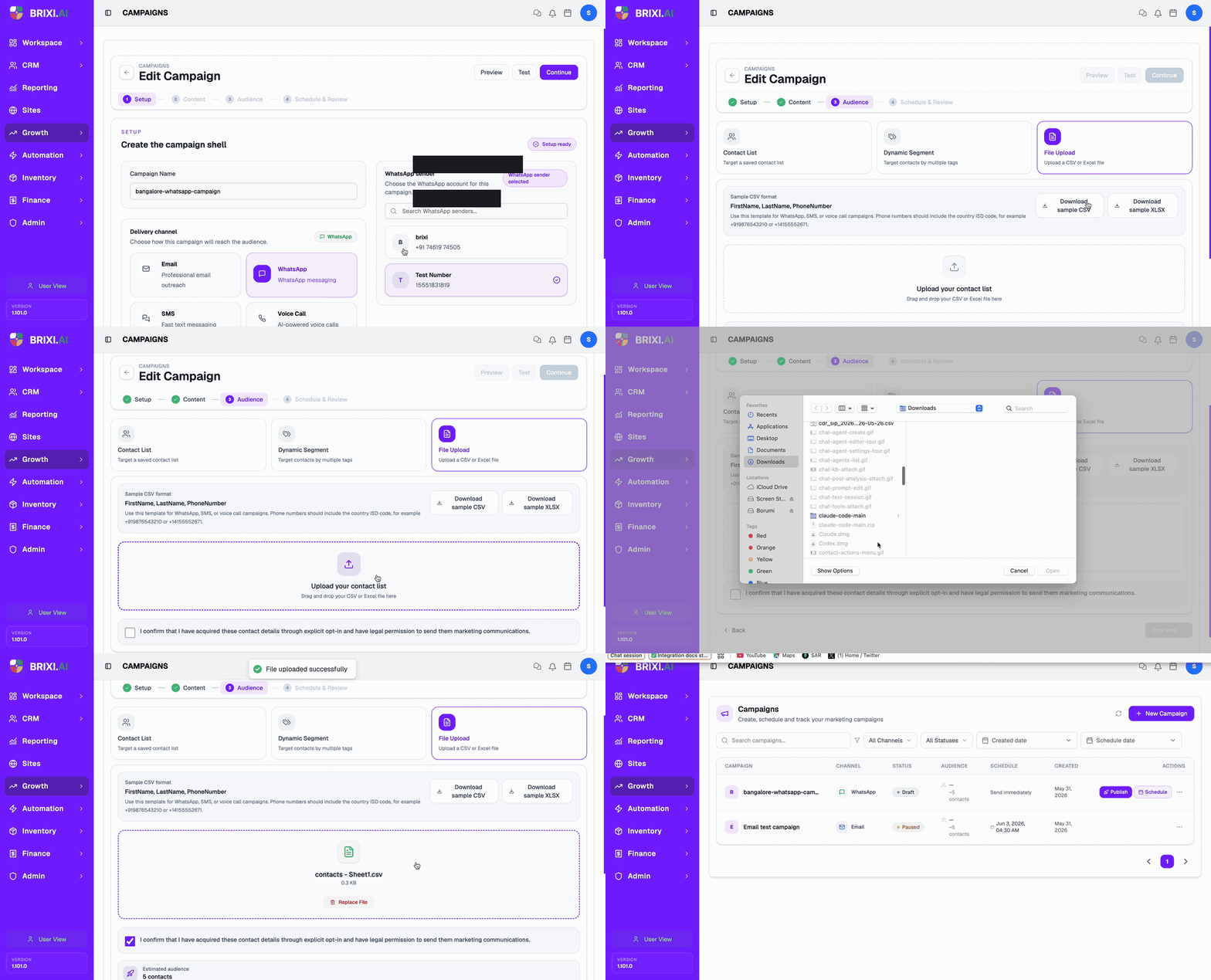
Step 1 · Setup — Name the Campaign and Pick the WhatsApp Sender
Open Growth → Broadcasts → + New Campaign. The Setup step (titled Create the campaign shell) asks for three things:
- Campaign Name — e.g.,
bangalore-whatsapp-campaign. Used in the campaign list and stats view. - Delivery channel — pick WhatsApp (the WhatsApp messaging card). When you tick WhatsApp, the right-hand panel turns into WhatsApp sender and lists every connected WhatsApp number with its display name + phone number and a single-letter avatar.
- WhatsApp sender — scroll or Search WhatsApp senders…, click the number you want to send from. The card turns purple, a WhatsApp sender selected badge appears, and the Setup ready badge in the top-right replaces Setup incomplete.
When the badge says Setup ready, Continue lights up. Click it.
The right-hand panel is empty because no WABA / Cloud API number is connected for this workspace. Get one connected first (Meta Business Manager → WABA → register a number), then reload the creator. The number shows up after registration completes.
Why the sender choice matters
| Choice | What it affects |
|---|---|
| The From number subscribers see | The connected WABA phone is what shows up in the recipient's WhatsApp. |
| Quality rating | Meta tracks block-rate and spam-flags per sender — a bad campaign affects that sender's rating, not the workspace as a whole. |
| Reply routing | Replies land on the connected number's WABA inbox (and in Inbox → WhatsApp inside Brixi for the connected workspace). |
| Rate limits | Daily-send limits and template-message tiers are per WABA — pick the sender with enough quota for the campaign size. |
Step 2 · Content — Pick a Template and Attach a Microsite
The Content step (titled Message Design — Select a template) has two sections: the template picker at the top and the Enriched Experience — Attach a dynamic microsite toggle below.
Pick an approved template
The picker shows every Meta-approved WhatsApp template owned by the workspace. Each card shows:
- Template name (e.g.,
templae_message,welcome_template45,new_year,nudge_hello_template,microsite_template). - Preview snippet of the first couple of lines, with variables
inline (
Hi {{1}}, We're coming up with a good project…). - Category badge —
MARKETING,UTILITY, orAUTHENTICATION.
Click Search templates by name to filter, then click a card to
load it in the right preview pane. The pane shows the full
template body with every variable placeholder ({{1}}, {{2}},
{{3}}, links like https://site.brixi.ai/p/{{2}}) and the
template's signature.
Approved templates only — Brixi does not let you compose ad-hoc WhatsApp message text in the campaign creator. WhatsApp Business requires Meta-approved templates for any template-message send.
{{1}} is the first variable column
after FirstName, LastName, PhoneNumber;
{{2}} is the second; and so on.
Order matters — re-arranging columns in your CSV re-maps the
variables.
Enriched Experience — Attach a dynamic microsite
Below the template, the Enriched Experience section reads:
Attach a dynamic microsite — Pair the template with a personalised microsite when you need a richer landing experience for the recipient.
Toggle this on when:
- The template includes a
https://site.brixi.ai/p/{{n}}link. - You want each recipient to land on a personalised page (their name, the project they're interested in, photos, a booking link).
- The list is long and you don't want to maintain 100 separate landing URLs.
When the toggle is on, Brixi generates a unique microsite URL per recipient at send time and substitutes it into the template's link variable. The microsite template comes from the Library (see your admin) — the campaign just picks which template's variable should receive it.
Click Continue → moves to Audience.
Step 3 · Audience — Pick Your Recipients
The Audience step is shared across all four channels. WhatsApp's specifics:
- Required CSV headers:
FirstName, LastName, PhoneNumber. The sample format panel reads "Use this template for WhatsApp, SMS, or voice call campaigns. Phone numbers should include the country ISD code, for example +919876543210 or +14155552671". - Rows without a valid phone are skipped — phones are the join key.
- WhatsApp recipients are matched to existing CRM contacts by phone number, so replies thread into the right contact timeline.
- The opt-in compliance checkbox is mandatory before Continue lights up.
You can choose any of three audience modes (Contact List, Dynamic Segment, or File Upload). They are documented once for every channel:
→ Campaign Audience — full details on Contact List, Dynamic Segment, and File Upload, including the required CSV headers, variables detection, sample preview, and common upload errors.
Step 4 · Schedule & Review
The Schedule & Review step is shared across all four channels. WhatsApp's Launch Summary shows Connector = the WhatsApp sender label, Template preview = the selected template body with variables inline.
The full schedule + launch behaviour — Send Now vs Schedule Later, timezone picker, Launch Summary, Preview / Test, Publish / Update / Reschedule — is documented once on:
Review Campaign Stats
When a WhatsApp campaign starts sending, View Stats opens the campaign's delivery history with the same 8 status tiles as every channel. WhatsApp-specific signals to look at:
| Tile | What it means for WhatsApp |
|---|---|
| Sent | Brixi handed the template to the WABA sender. |
| Delivered | The recipient's WhatsApp app received the message (two grey ticks). |
| Engaged | The recipient opened (two blue ticks) and / or replied. WhatsApp replies are extra-valuable signal — they flow into the workspace inbox. |
| Failed | Phone not on WhatsApp, blocked your number, opted out, or template / category mismatch. |
| Cancelled | Skipped by the user (e.g., the row was deduplicated or pruned before send). |
Hot reply tip: filter the workspace Inbox → WhatsApp by campaign name to read every reply the campaign created and assign owners quickly.
The shared stats reference covers tile-by-tile definitions, the audience delivery history table, and Export Result:
Common Issues
| Issue | What to check |
|---|---|
| WhatsApp channel card is greyed | Page hasn't finished loading — wait a beat and click again. |
| WhatsApp sender panel stays empty | No WABA / Cloud API number is registered for this workspace. Register one with Meta, reload the creator, then it appears. |
| Template list is empty | No Meta-approved templates exist. An admin needs to submit + get one approved before campaigns can run. |
Template preview shows raw {{1}} / {{2}} | Expected — preview keeps the variable placeholders visible. Live sends substitute them per-recipient from the audience CSV in the order the columns appear. |
| Wrong text fills a variable | CSV column order is wrong. {{1}} = first variable column after the required three, {{2}} = second, and so on. Reorder the CSV columns. |
| Microsite link goes 404 | The Enriched Experience toggle isn't on, or the underlying microsite template is unpublished. Toggle on; ask an admin to publish the microsite template. |
| All recipients skipped | Phones are missing the country ISD code. Re-export the CSV with +<country> prefixes. |
| Campaign moves straight to Failed | The connected sender lost auth or its quality rating dropped — reconnect / contact Meta support, then Resume the campaign. |
| Recipients delivered but Engaged = 0 | Normal for short windows after send. WhatsApp engagement (opens + replies) accumulates over a few minutes; refresh stats. |
| Quality rating drops mid-campaign | Pause the campaign, review template clarity / audience fit, and resume when the rating recovers. Frequent drops on the same sender lead to lower template tiers. |
An empty WhatsApp sender panel or an empty template list means the WABA setup isn't done — ask your admin to register the number in Meta Business Manager and submit templates for approval. Quality-rating drops and template rejections also sit on the Meta side, where your admin (or Meta support) has to act.
Contact Brixi support if the sender is connected, the template is Meta-approved, and sends still fail — or delivered messages generate replies that never reach Inbox → WhatsApp. Include the campaign name, sender number, and template name.