Send India DLT-Compliant SMS through MSG91
Send transactional and marketing SMS, OTP messages, and campaign / workflow SMS to India through your own MSG91 account on a DLT-registered sender ID. MSG91 is a supported bulk SMS gateway under the SMS integration, built for India DLT-compliant sending. Adding the account is two phases — Add (enter credentials, save as a Draft) and Verify (Brixi calls MSG91 to confirm the credentials work and the account flips to Verified).
Entry pointAutomation → Integrations
| Article summary | Details |
|---|---|
| Requires | An MSG91 account with a DLT-registered Sender ID, the matching sender_id value, Auth Key, and optionally the DLT Entity ID. |
| Where to go | Automation → Integrations → SMS → Manage → + Add account. |
| Provider type | Bulk SMS gateway (REST API). |
Who Can Do This
- Account admins add and verify the MSG91 account.
- Growth operators and marketing managers use the verified account inside SMS campaigns and workflow SMS actions.
- Sales managers read replies and delivery outcomes once messages are sent.
What You Need from MSG91
Sign in to the MSG91 Control Panel and have these four pieces ready:
| What | Where in the MSG91 panel | What it looks like |
|---|---|---|
| Sender ID (DLT-registered) | SMS → Sender ID | A 6-character alphanumeric string (e.g., BRXSFT, MYSHOP) that's been registered on the DLT portal |
| sender_id (MSG91 internal) | SMS → Sender ID (the same row, copy the sender_id column) | Usually the same 6-character string as the DLT Sender ID |
| Auth Key | Account → API → Auth Key | A 30-character alphanumeric secret (treat as a password) |
| DLT Entity ID | DLT portal → Principal Entity | A 19-digit number issued by the DLT registrar |
| Base URL (default) | n/a — MSG91's API endpoint | Leave the form blank if you want Brixi's default, or paste https://control.msg91.com/api/v5/ |
You also need:
- At least one DLT-approved template for the messages you intend to send (transactional, promotional, or service-implicit). Without this, sends will reach MSG91 but be rejected by the carrier.
- A modern browser signed in to Brixi as an admin user with access to Automation → Integrations.
Treat it like a password — never paste it into chat, never store it in plain text outside Brixi or the MSG91 panel. If it's ever exposed, rotate it in MSG91 first, then update the value here.
Add the MSG91 Account
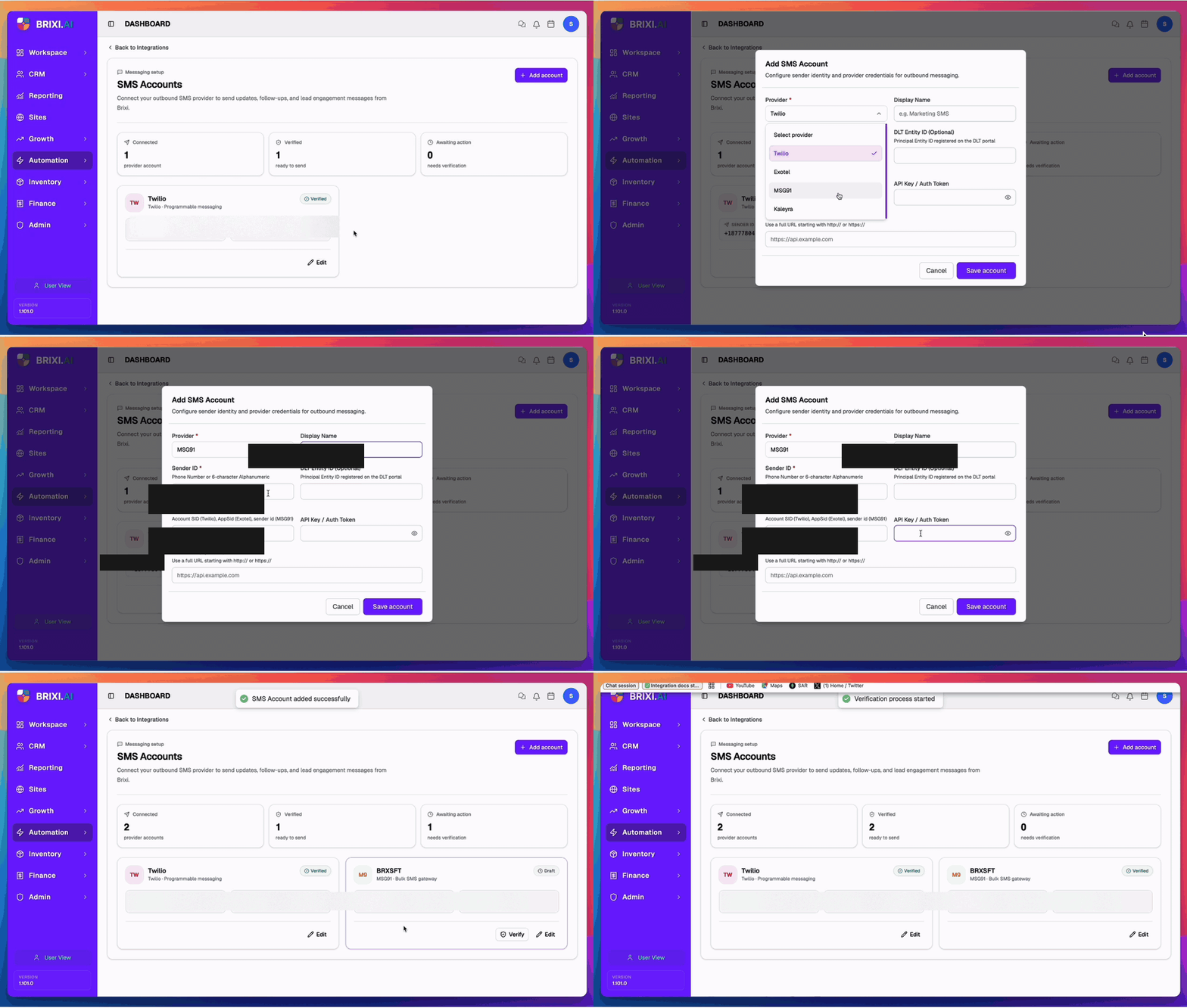
- Open Automation → Integrations. On the Communication tab find the SMS card and turn its toggle on (or confirm it's already on), then click Manage.
- The SMS Accounts page opens, showing a stat row (Connected / Verified / Awaiting action) and one card per existing provider account. Click + Add account in the top-right.
- The Add SMS Account dialog opens. Pick MSG91 in the Provider dropdown — the dialog's hint text shifts to MSG91's required values.
- Fill the form (see Field Reference below). Sender ID, sender_id (Client ID), and Auth Key values shown in the recording are masked for privacy — yours will be the actual strings from the MSG91 panel.
- Click Save account. An SMS Account added successfully
toast appears, the dialog closes, and the new MSG91 card shows
on the SMS Accounts page with a grey Draft badge and an
M9avatar / "MSG91 · Bulk SMS gateway" subtitle. The stat row updates — Connected goes up by one, Awaiting action goes up by one. The new card has both an Edit and a Verify button.
Field Reference
The MSG91 form has four required fields (*) and three optional
fields:
| Field | Required | MSG91 value to paste |
|---|---|---|
| Provider | ✓ | Pick MSG91. |
| Display Name | — | A label for your team — e.g., India transactional, Promo gateway. Shows up in the campaign sender picker, not in the carrier message. |
| Sender ID | ✓ | Your DLT-approved Sender ID (6-character alphanumeric, e.g., BRXSFT). This is the string the recipient sees as the From on the SMS. |
| DLT Entity ID | — | The 19-digit Principal Entity ID registered on the DLT portal. Required for India sends; leave blank only if MSG91 has whitelisted your account. |
| Client ID | ✓ | MSG91's sender_id value (from the same row in the MSG91 SMS Sender ID list). Usually matches the DLT Sender ID. The hint reads Account SID (Twilio), AppSid (Exotel), sender id (MSG91). |
| API Key / Auth Token | ✓ | The MSG91 Auth Key from the API section of the MSG91 panel. The field is masked (••••) with an eye-toggle to reveal briefly. |
| Base URL | — | Leave the pre-filled https://api.example.com/ placeholder blank, or paste https://control.msg91.com/api/v5/ if you want to be explicit. Must start with http:// or https://. |
Sender ID and the MSG91 sender_id are often the same
6-character string (e.g., BRXSFT) — MSG91
uses one value internally and externally. If your panel shows them
as different values, paste them exactly as MSG91 lists them.
Verify the MSG91 Account
An MSG91 account in Draft status is not yet usable — campaigns and workflows skip Draft accounts. Verification calls MSG91 with the Auth Key + sender_id you saved and flips the account to Verified.
- On the MSG91 card in SMS Accounts, click Verify.
- A Verification process started toast appears at the top of the page.
- Brixi calls MSG91's authentication endpoint with the Auth Key. On success the card refreshes to Verified (green badge), the Verify button disappears (only Edit remains), and the stat row shifts (Verified up by one, Awaiting action down by one).
- On failure the card stays in Draft and the badge changes to Failed. See Common Issues for what to fix.
Verification typically completes in under five seconds. If the toast appears but the card doesn't move within 30 seconds, refresh the page — the card was likely updated server-side but the UI hasn't re-fetched.
DLT Compliance (India)
MSG91 routes Indian SMS through DLT-registered carriers, so every piece of metadata needs to line up before the carrier accepts a message:
| Piece | Where | Notes |
|---|---|---|
| Sender ID | Brixi Sender ID field | Must exactly match a sender registered on the DLT portal. |
| DLT Entity ID | Brixi DLT Entity ID field | The 19-digit Principal Entity ID issued by the DLT registrar. |
| DLT Template ID | Inside each MSG91 template, registered on the DLT portal | The carrier rejects sends with a Template ID that doesn't match the registered template body. |
| Category | DLT portal + MSG91 template | Transactional, Service Implicit, Service Explicit, or Promotional. Promotional sends are honoured only between 09:00 and 21:00 IST. |
When DLT Entity ID is missing or wrong, the verify step usually still succeeds (the Auth Key is valid) — but real sends fail at the carrier. Always send a test message to a real number after verifying to confirm the end-to-end path works.
What You Can Do Once Verified
A Verified MSG91 account is immediately usable from:
- SMS campaigns — the verified account shows up in the sender picker on Setup → SMS sender. Campaigns can send to any audience type (Contact List, Dynamic Segment, File Upload).
- Workflow SMS actions — under Automation → Workflows, every SMS action lists the verified account as a sender option.
- One-off SMS from a contact page (where SMS is enabled for the workspace).
- Reminders and follow-up tasks that send an SMS to the contact.
Every send is billed to the underlying MSG91 account — Brixi is a passthrough. Open the MSG91 panel for the usage / wallet / delivery report breakdown.
Edit or Remove an MSG91 Account
- Edit — click Edit on the MSG91 card. The same dialog re-opens with the current values. Update any field (e.g., rotate the Auth Key after rotating it in MSG91 first), then Save account. Changes to the Auth Key automatically flip the card back to Draft — re-run Verify.
- Remove — there is no per-card delete button on the SMS Accounts page in this release. Disable the SMS card from Integrations to stop using every connected SMS account at once, or open a support request to remove a single account.
Mid-flight changes (renames, category swaps, template updates) cause carrier rejections that show up as Failed in campaign stats with no obvious cause. Pause the campaign, update the DLT registration, re-Verify in Brixi, then resume.
Common Issues
| Issue | What to check |
|---|---|
| + Add account button missing | Check you're an admin and that the SMS integration card is toggled on under Communication. |
| Provider dropdown doesn't show MSG91 | Reload the dialog — the provider list loads after the dialog opens. If it still doesn't show, contact support. |
| Save account stays disabled | One of the four required fields (Provider, Sender ID, Client ID, API Key / Auth Token) is empty. |
| Verify flips the card to Failed | The Auth Key is wrong or the MSG91 account is suspended. Sign in to the MSG91 panel, copy the Auth Key fresh, Edit the Brixi card, save, and re-Verify. |
| Verify works but sends fail at the carrier | The DLT registration doesn't match — sender ID, entity ID, or template ID is wrong. Cross-check the DLT portal with the values in Brixi and the MSG91 template. |
| Verify returns Failed: Invalid sender | The Sender ID isn't approved on this MSG91 account, or the Client ID (sender_id) doesn't match. Both must come from the same MSG91 sender row. |
| Promotional sends rejected during certain hours | Indian DLT promotional sends are gated to 09:00-21:00 IST. Schedule the campaign inside that window or use a transactional template. |
| Verify works but campaigns still skip the account | Workflow / campaign caches refresh every few seconds. Wait a minute, then reload the campaign creator. |
| OTP-style messages not delivered | Confirm the template type is Service Explicit / Service Implicit and registered with the carrier — promotional templates are throttled or rejected for OTP-shaped flows. |
| Auth Key leaked / exposed | Rotate it in MSG91 first, then Edit the Brixi card to the new value, save, and re-Verify. Old workflows will resume automatically once verified. |
Only admins see + Add account, so if the button or the SMS card is missing, that's a question for your admin, not support. Likewise, most "verified but sends fail" cases are DLT mismatches — sender ID, entity ID, or template ID out of line with the DLT portal — which only your DLT registrar or MSG91 account manager can correct.
Contact Brixi support when verification keeps failing with credentials you've confirmed fresh from the MSG91 panel, or you need a single SMS account removed (there's no per-card delete in this release). Include the Display Name of the account and the badge state you're seeing.