Capture Facebook Page Leads and Conversations
Capture leads from Facebook Lead Ads, view and reply to page conversations from the Brixi Inbox, and let an AI agent handle inbound messages automatically — all from one connected Facebook Page.
The connection uses Facebook OAuth to authorize Brixi, then lets you choose which pages to sync.
Entry pointAutomation → Integrations
Who Can Do This
Account admins only. Connecting a Facebook Page affects lead flow, inbox conversations, and AI agent assignment for the entire account. Only admins can connect, edit, or remove Facebook pages.
Sales users can view synced leads and reply to conversations only after a page is connected and their role permits it.
What You Need Before Starting
Gather these before starting the connection:
- Admin access to the Facebook Page you want to connect. You must be a Page admin in Meta Business Manager — editor or analyst roles cannot authorize the connection.
- A Facebook account logged in to the browser where you will complete the OAuth flow.
- The page must have Lead Ads enabled if you want to sync form submissions as leads.
What Facebook Enables
| Area | What you can do |
|---|---|
| Lead Ads | Automatically sync leads from Facebook Lead Ad forms into Brixi as contacts. |
| Inbox | View and reply to Facebook page conversations from the Brixi Inbox. |
| Contacts and deals | See Facebook as the lead source on contact pages for attribution. |
| Campaigns | Target Facebook-sourced contacts in follow-up campaigns. |
| Workflows | Trigger automated actions when a new Facebook lead arrives. |
| AI Agents | Assign an agent to auto-reply to inbound Facebook page messages. |
| Reports | Track lead volume, source quality, and conversion from Facebook. |
Connect a Facebook Page
Go to Automation → Integrations, open the Social Media tab, and select Facebook. If no pages are connected yet you'll see the empty state with the setup checklist.
Step 1 — Open Facebook Integrations and Start the Connection
On the Facebook Integrations page, click + Connect Facebook Page in the top-right corner.
This opens a Facebook OAuth window in a new browser tab where you'll authorize Brixi to access your Facebook pages.
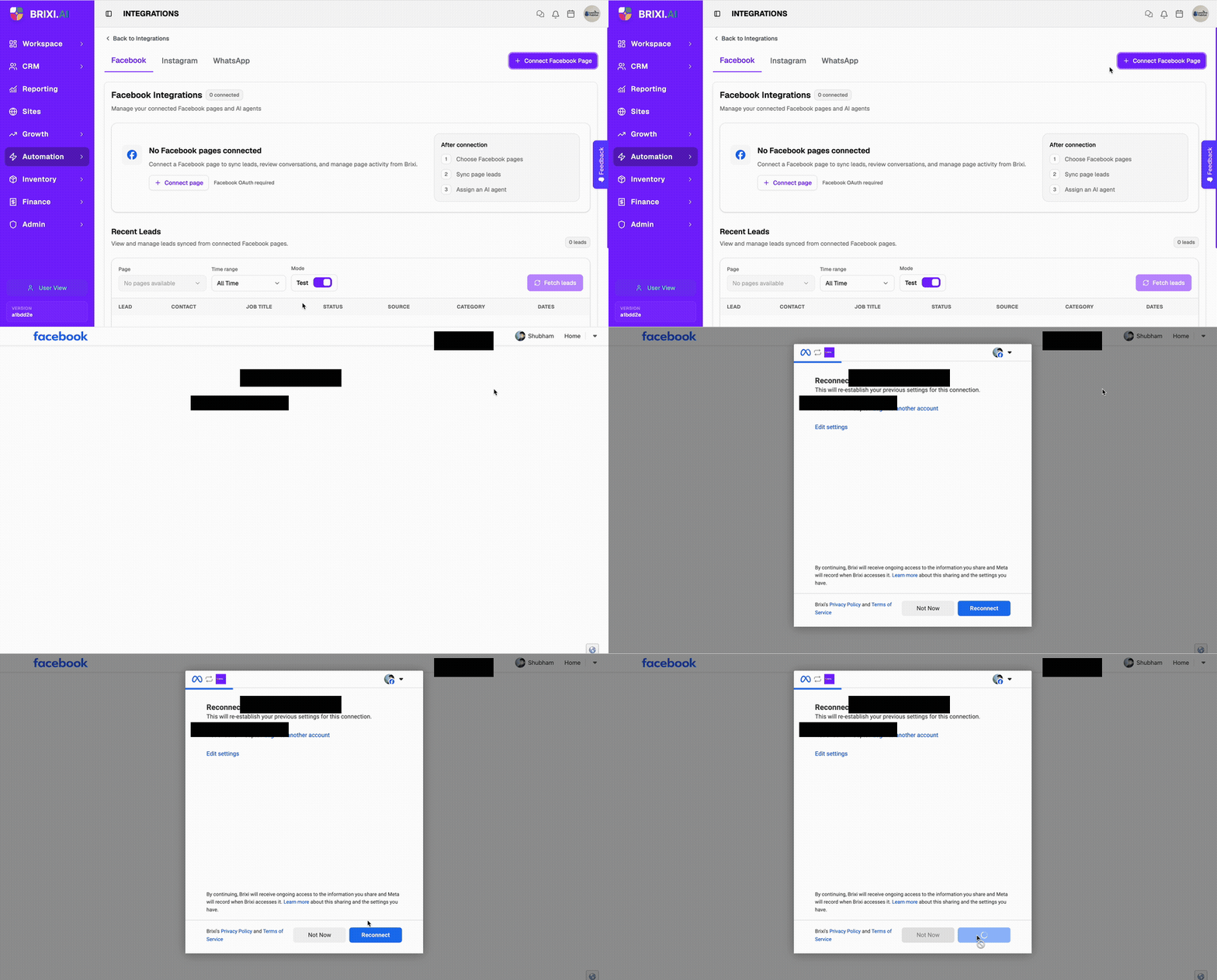
Make sure you are logged in to Facebook in the same browser before clicking Connect. If you are logged in to multiple Facebook accounts, Facebook will ask you to pick one.
Step 2 — Authorize Brixi on Facebook
Facebook opens an authorization screen asking you to reconnect (or connect for the first time) your Facebook account to Brixi.
- Confirm the Facebook account shown is the one that manages the pages you want to connect.
- If it is the wrong account, click Log into another account and sign in with the correct one.
- Click Edit settings if you want to review which pages and permissions Brixi will receive.
- Click Reconnect (or Continue) to authorize.
After authorization, Facebook redirects you back to Brixi automatically.
If this is your first time connecting, the button will say Continue instead of Reconnect. The flow is the same.
Step 3 — Select and Sync Pages
After returning to Brixi, a Select Facebook Pages modal appears listing every page your Facebook account manages.
Each row shows:
| Column | What it means |
|---|---|
| Page Name | The name of the Facebook Page as it appears on Facebook. |
| Page ID | The unique Meta identifier for the page. |
| Status | Whether the page is currently synced (Active) or not (Inactive). |
To sync pages:
- Check the box next to each page you want to connect.
- Click Sync Pages to save your selection.
Brixi will begin syncing leads and conversations from the selected pages immediately.
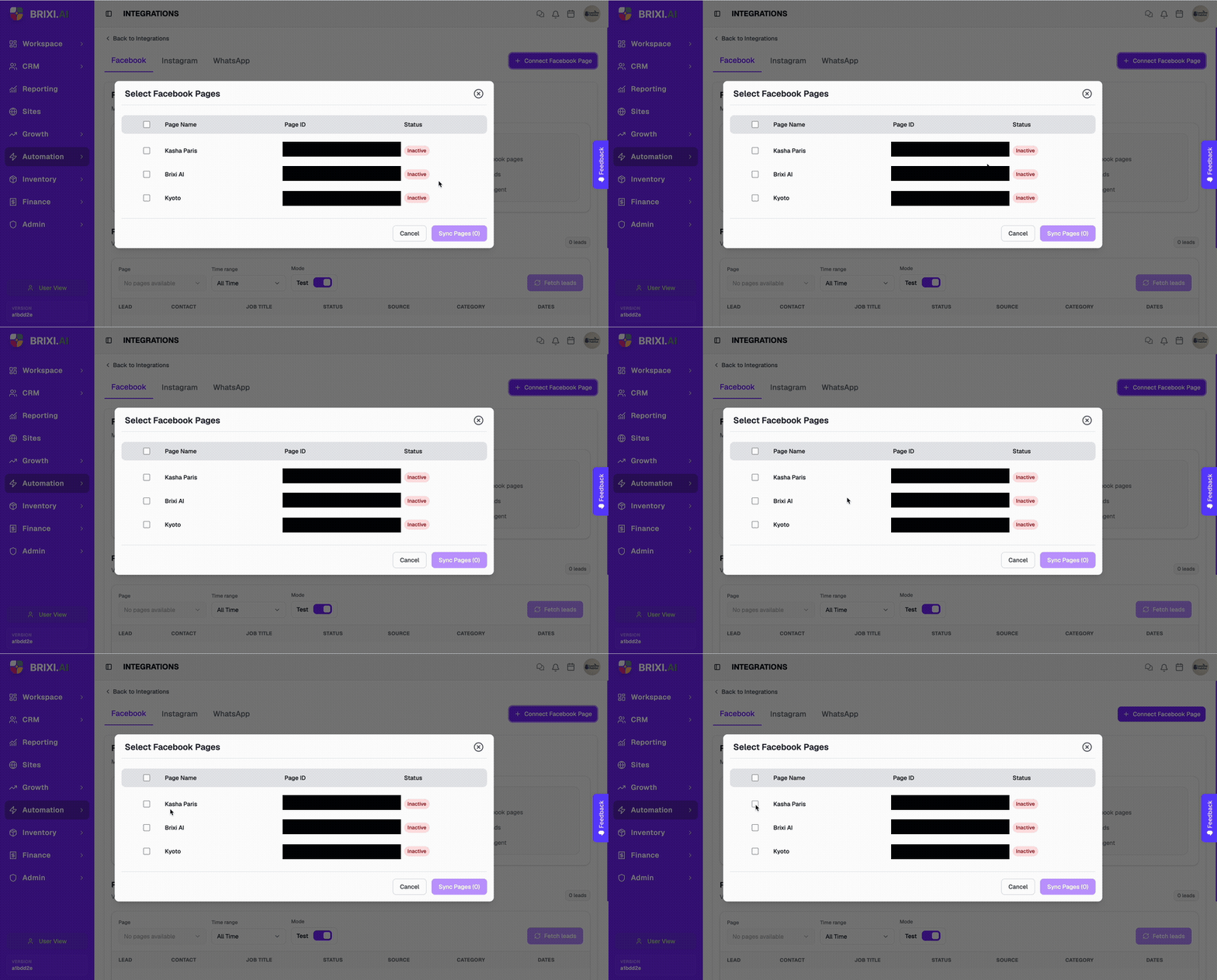
You can return to this modal at any time to add or remove pages:
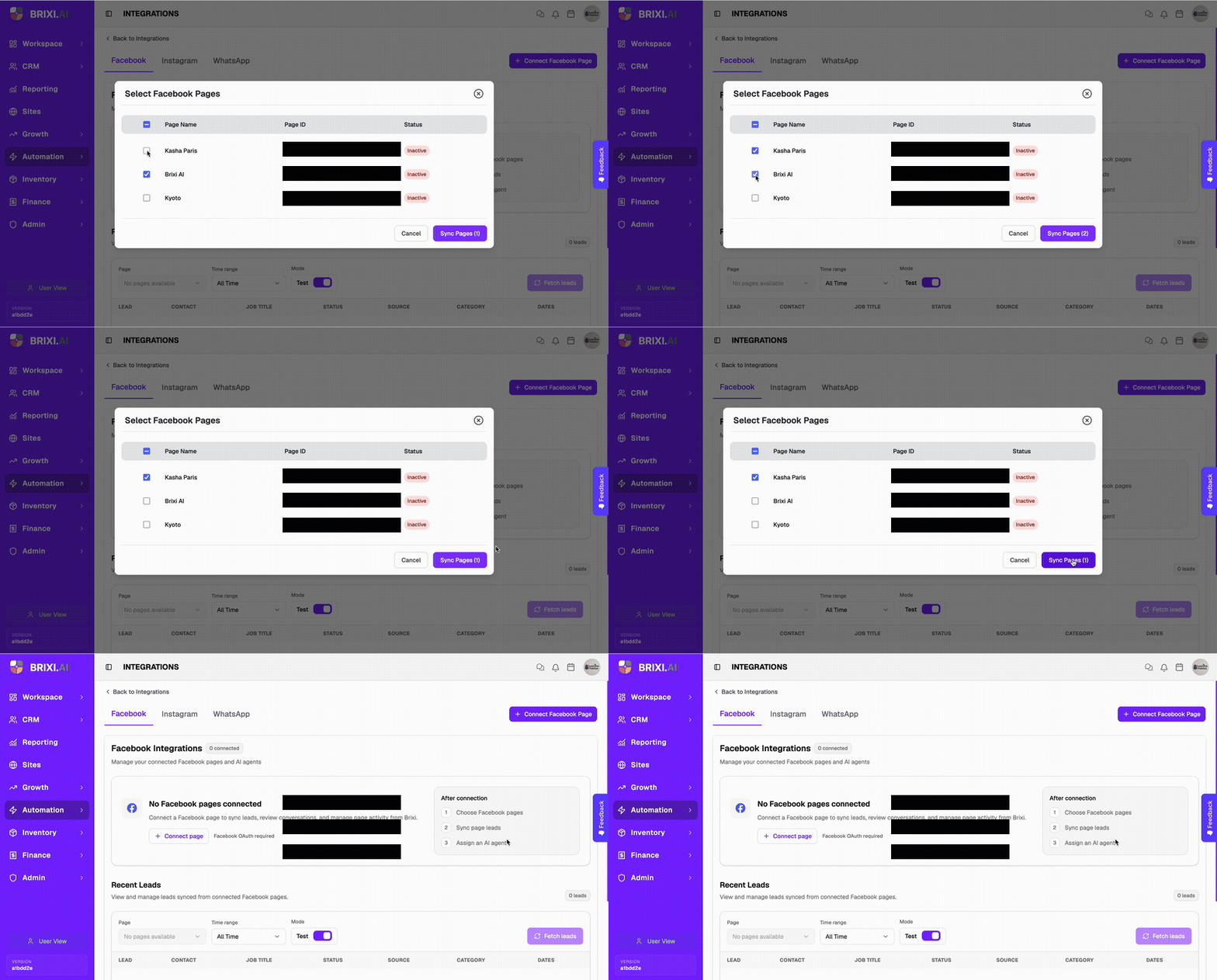
Only pages where you have admin access will appear in this list. If a page is missing, check your role in Meta Business Manager.
After Connecting
Once pages are synced, the Facebook Integrations page shows:
- Connected page count — the number of active pages in the header.
- Recent Leads — a filterable table showing leads synced from your connected pages.
- Page filter — switch between pages to view leads for a specific page.
- Time range and Mode — filter leads by date range and toggle between live and test modes.
- Fetch leads — manually pull the latest leads if you need an immediate refresh.
Synced leads appear as contacts in CRM → Contacts with Facebook as the source.
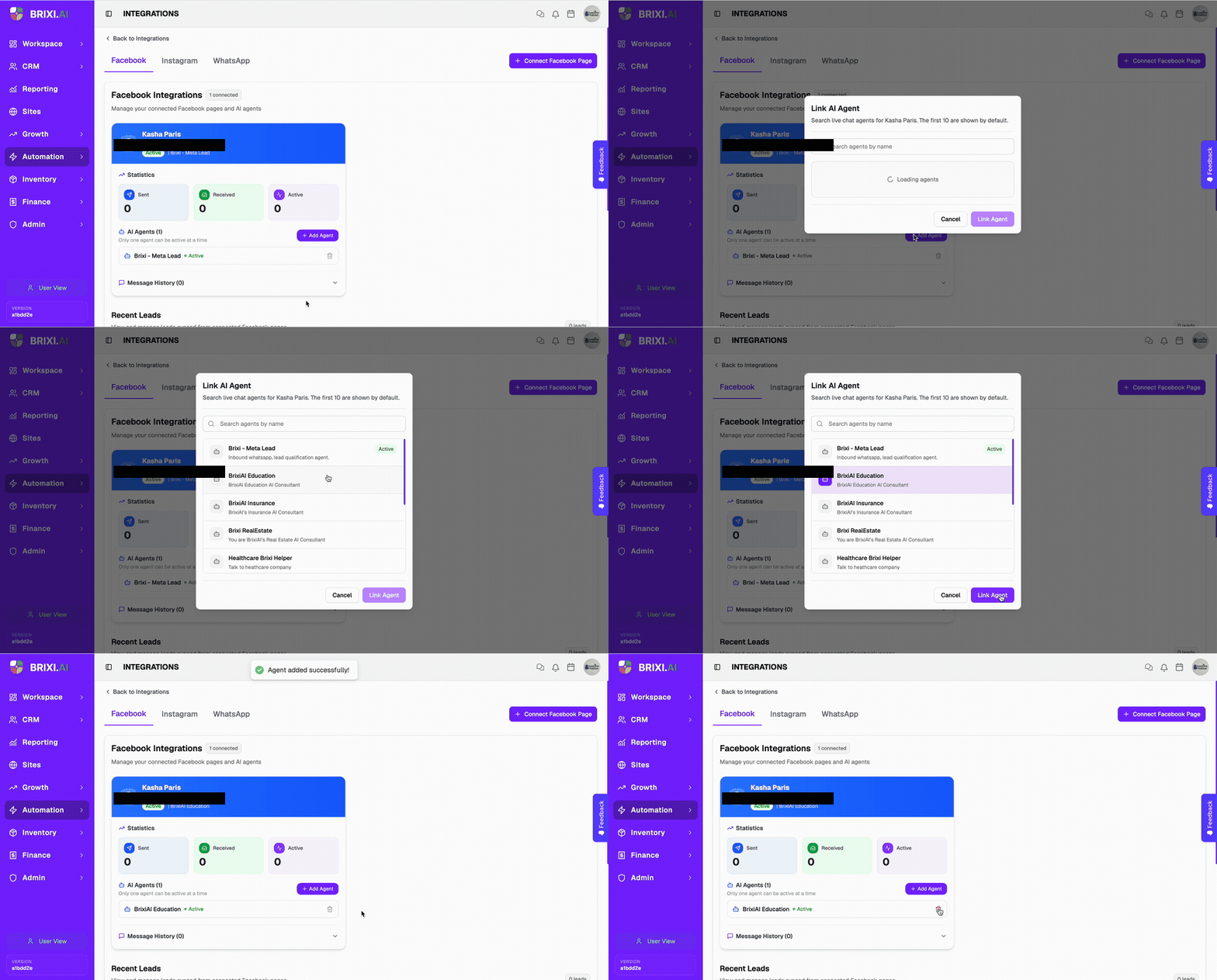
Add an AI Agent to a Facebook Page
An AI agent can automatically reply to inbound Facebook page messages based on a conversation flow you configure in Automation → AI Assistants → Agents.
To assign an agent:
- Go to Automation → Integrations → Facebook.
- Scroll to the AI Agents section under your connected page.
- Click + Add Agent.
- The Link AI Agent modal appears showing all available agents.
- Select the agent you want to assign.
- Click Link Agent to confirm.
The agent status changes to Active and it immediately begins handling inbound messages for that page.
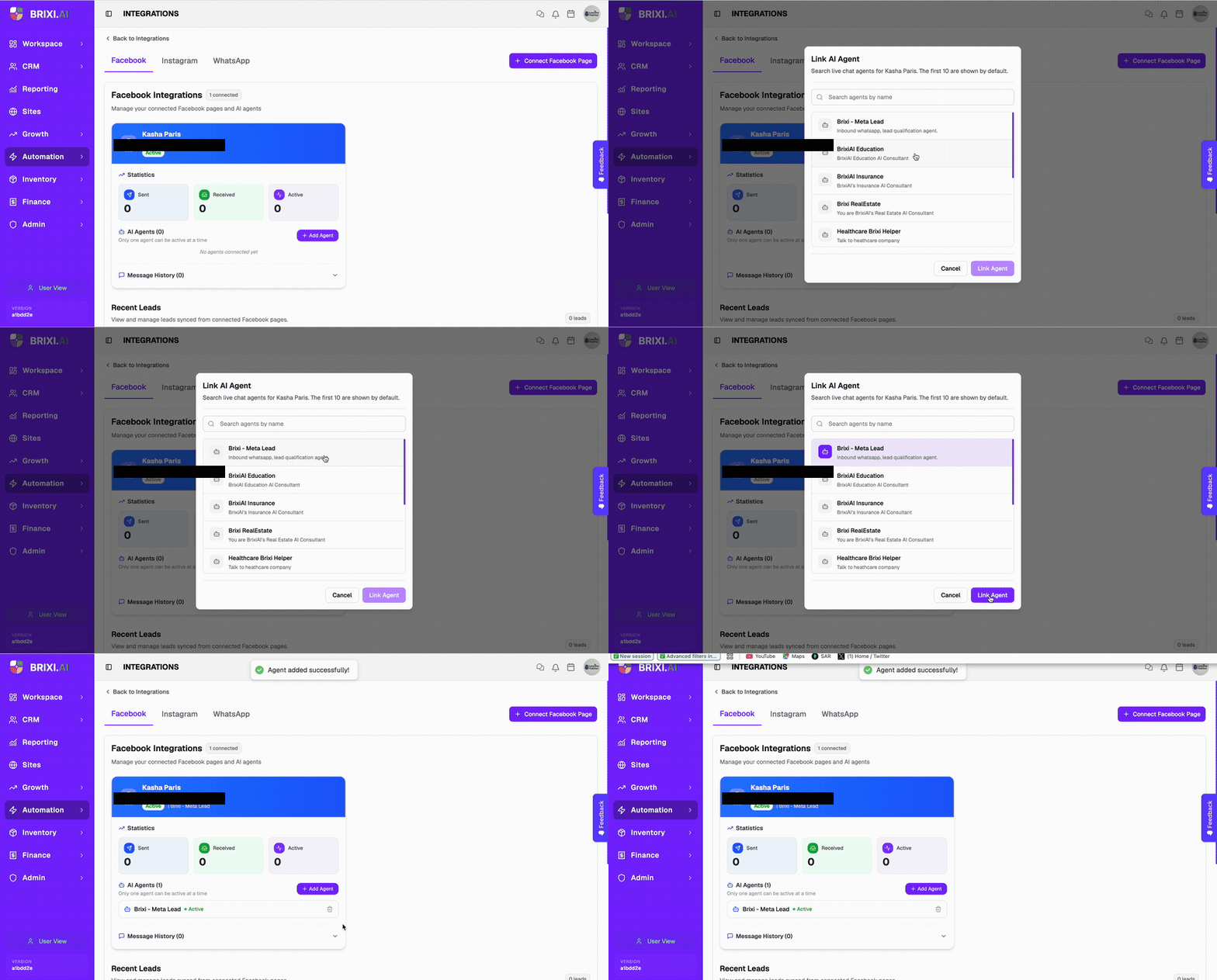
Only one agent can be active on a page at a time. You must build the agent in Automation → AI Assistants → Agents before you can attach it here.
Change the AI Agent on a Facebook Page
To switch to a different agent without removing the current one first:
- Go to Automation → Integrations → Facebook.
- Scroll to the AI Agents section under your connected page.
- Click + Add Agent (even though one is already active).
- Select the new agent from the list.
- Click Link Agent.
The new agent replaces the previous one and becomes active immediately. The previous agent is deactivated automatically.
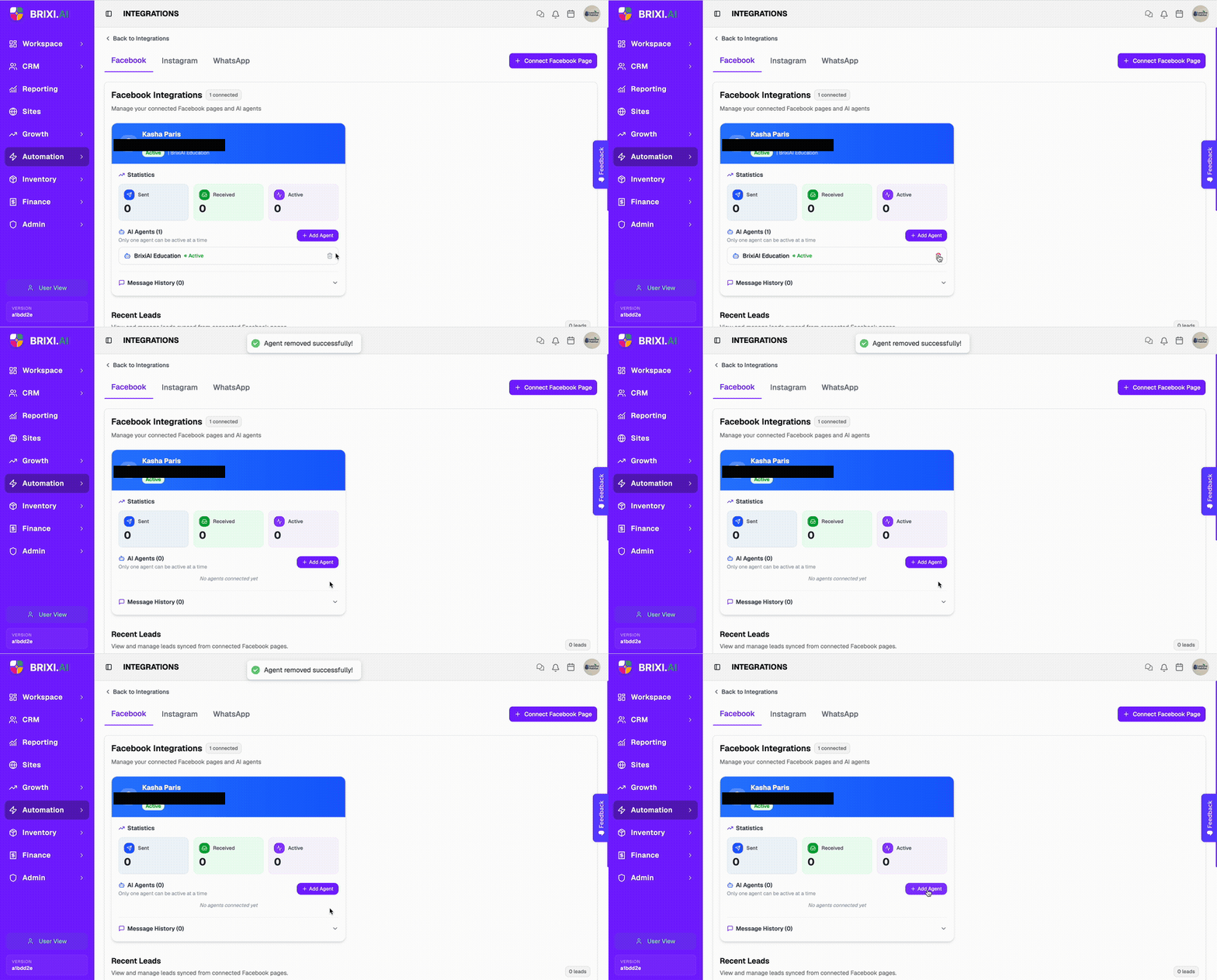
Remove an AI Agent from a Facebook Page
- Go to Automation → Integrations → Facebook.
- Scroll to the AI Agents section under your connected page.
- Click the trash icon next to the active agent.
- The agent is removed and an Agent removed successfully confirmation appears.
After removal, inbound Facebook messages will no longer receive automated replies. The AI Agents section will show No agents connected yet until you assign a new one.
Disconnect a Facebook Page
- Go to Automation → Integrations → Facebook.
- Click + Connect Facebook Page to reopen the page selection modal.
- Uncheck the page you want to disconnect.
- Click Sync Pages to save.
After disconnecting, new leads from that page will no longer sync. Leads already imported remain in Contacts.
Common Issues
| Issue | What to check |
|---|---|
| Facebook OAuth window does not open | Check that your browser allows pop-ups for the Brixi domain. Try again in a different browser. |
| Authorization fails or loops back to the login screen | Clear your Facebook session cookies, log in to Facebook directly, then retry the connection from Brixi. |
| No pages appear in the Select Facebook Pages modal | Confirm you are a Page admin in Meta Business Manager. Editor and analyst roles cannot authorize page connections. |
| A specific page is missing from the list | The page may be managed by a different Facebook account. Log out and reconnect with the correct account. |
| Leads are not syncing after connection | Confirm the page has active Lead Ad forms. Open the Recent Leads table and click Fetch leads to trigger a manual sync. |
| Duplicate leads appear | Check whether the same lead form is connected to multiple systems. Review duplicate handling rules in Brixi. |
| Old leads are not imported | Brixi syncs leads going forward from the connection date. Historical leads before the connection are not pulled automatically. |
The most common dead ends here aren't Brixi-side: a page missing from the selection modal means your Facebook role isn't admin, and that's fixed in Meta Business Manager, not by support. If you can't see the Facebook integration in Brixi at all, ask your admin — only account admins can connect pages.
Contact Brixi support if authorization succeeds but no pages appear, or if leads stop syncing from a page that was previously working. Share the Facebook Page name, your Brixi account, and roughly when the issue started.