Import LinkedIn Lead Gen Form Leads
Leads from your LinkedIn Lead Gen Form campaigns can flow into Brixi automatically. You authorize Brixi against your LinkedIn account, choose which ad account to sync, then link the Lead Gen Forms you want to import.
Entry pointAutomation → Integrations
Who Can Do This
Account admins or marketing admins connect LinkedIn. The person connecting must be able to sign in to a LinkedIn account that has access to the ad account you want to sync.
What You Need Before Starting
- Admin access to Integrations in Brixi.
- LinkedIn sign-in for an account with access to the relevant ad account.
- At least one Lead Gen Form running (or ready) on that ad account.
Connect a LinkedIn Ad Account
Go to Automation → Integrations, open LinkedIn Leads, and choose Manage to open the LinkedIn Lead Sync page.
Step 1 — Start the Connection
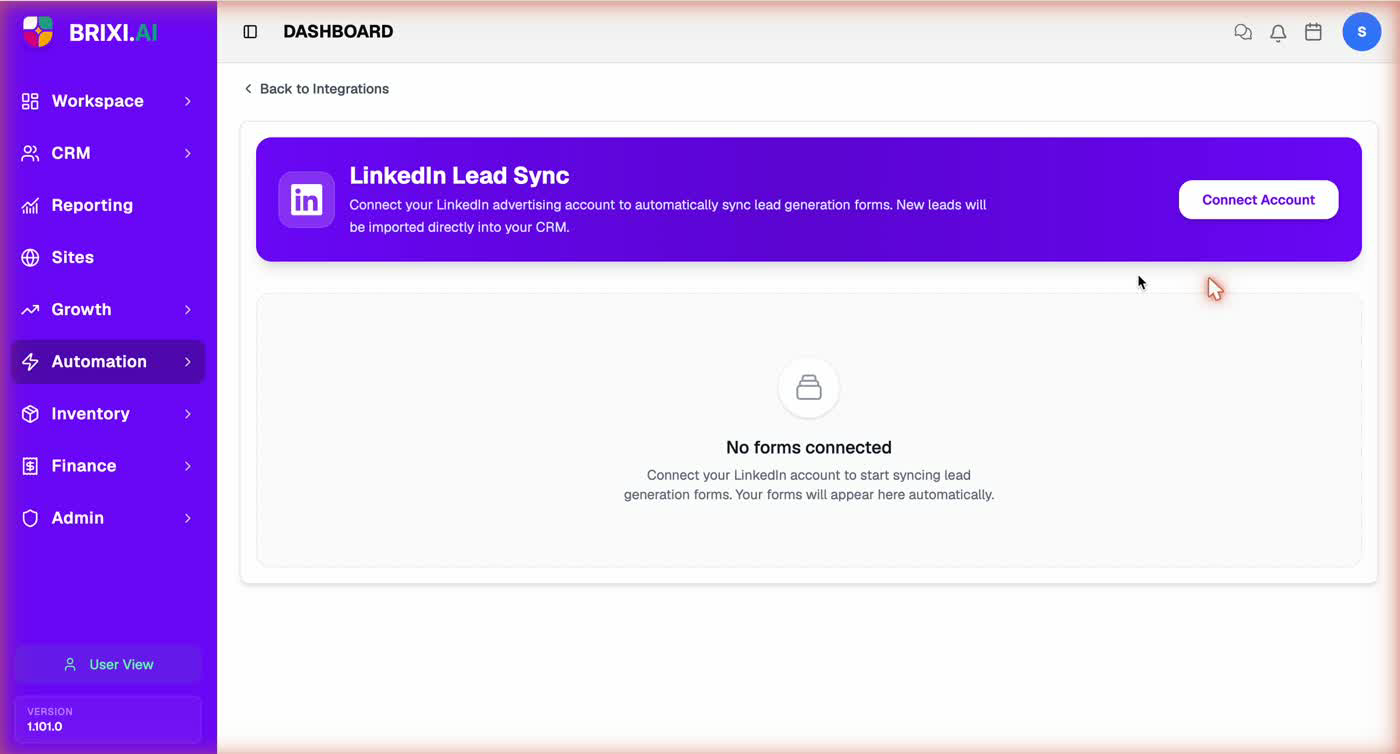
On the LinkedIn Lead Sync page, click Connect Account in the top-right. If nothing is connected yet, the page shows a "No forms connected" empty state.
Step 2 — Sign In and Authorize on LinkedIn
A LinkedIn window opens. Sign in to the LinkedIn account that manages your ad account — you can use your email and password, or Continue with Google / Sign in with Apple — then approve the authorization so Brixi can read your Lead Gen Forms.
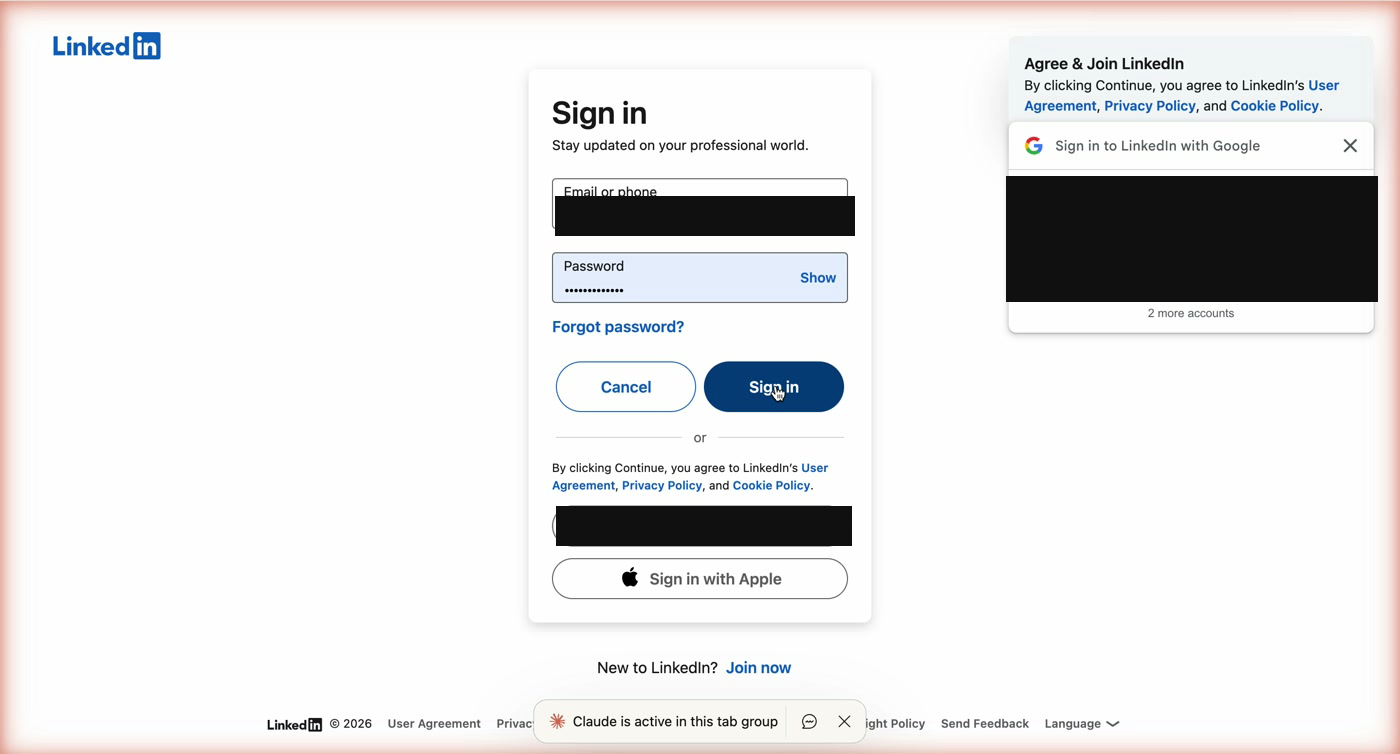
After you approve, LinkedIn returns you to Brixi and a short Installing LinkedIn… screen confirms the steps: Authorized → Installing.
Make sure you sign in with the LinkedIn account that actually has access to the ad account. If you manage several accounts, pick the right one during sign-in.
Step 3 — Choose the Ad Accounts to Sync
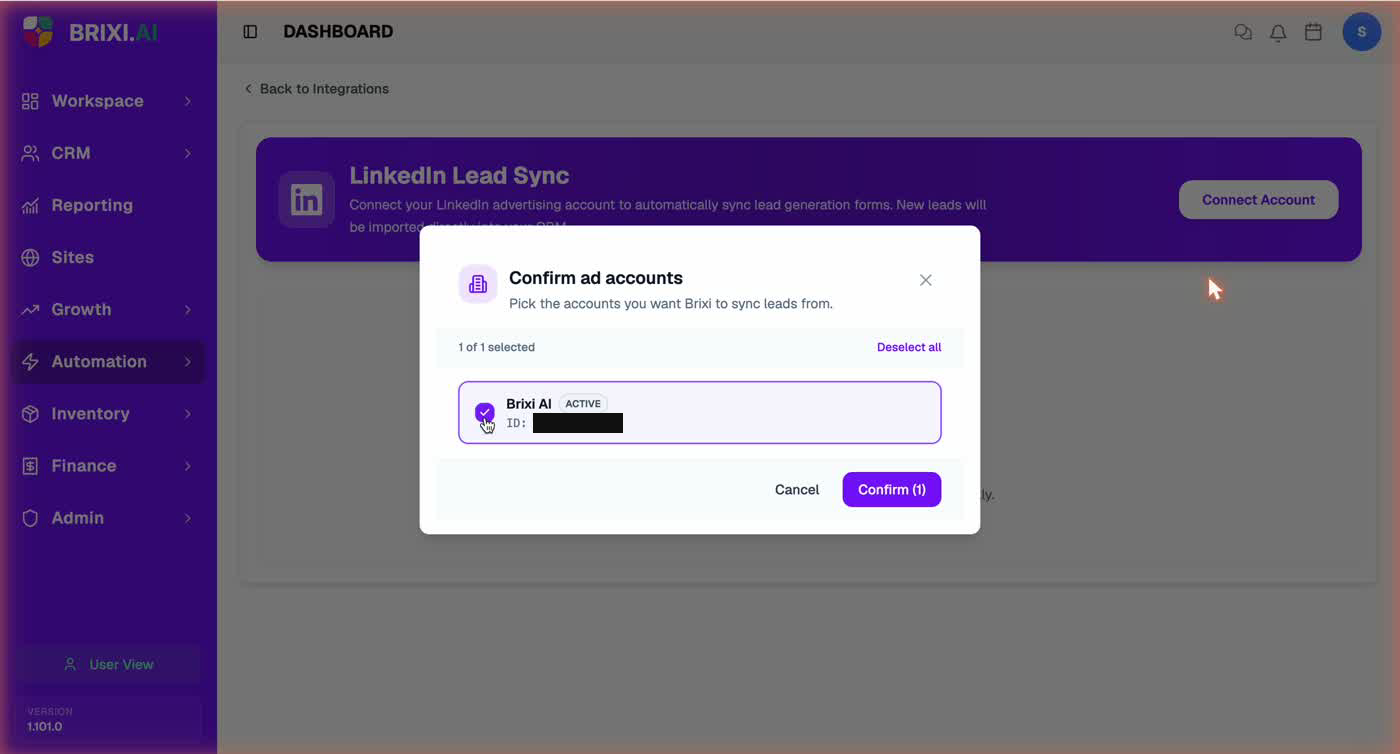
Brixi shows a Confirm ad accounts dialog listing the ad accounts your LinkedIn login can access. Check the account(s) you want Brixi to sync leads from, then click Confirm. You can use Select all if you want every account.
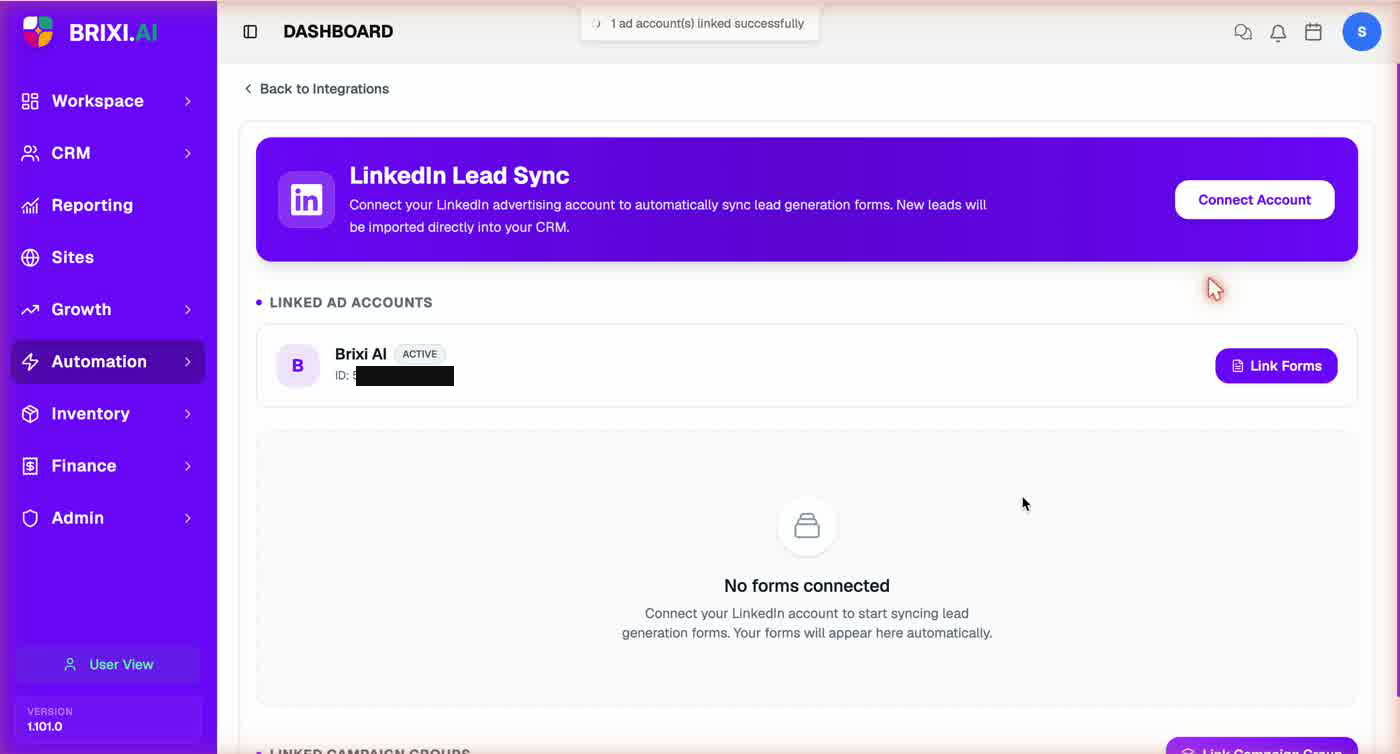
Brixi links the account and shows 1 ad account(s) linked successfully. The account now appears under Linked Ad Accounts with a Link Forms button.
Step 4 — Link Your Lead Gen Forms
The ad account is connected, but leads only start syncing after you link forms. On the linked ad account, click Link Forms. Brixi fetches the Lead Gen Forms on that account — check the ones you want to import and click Confirm.
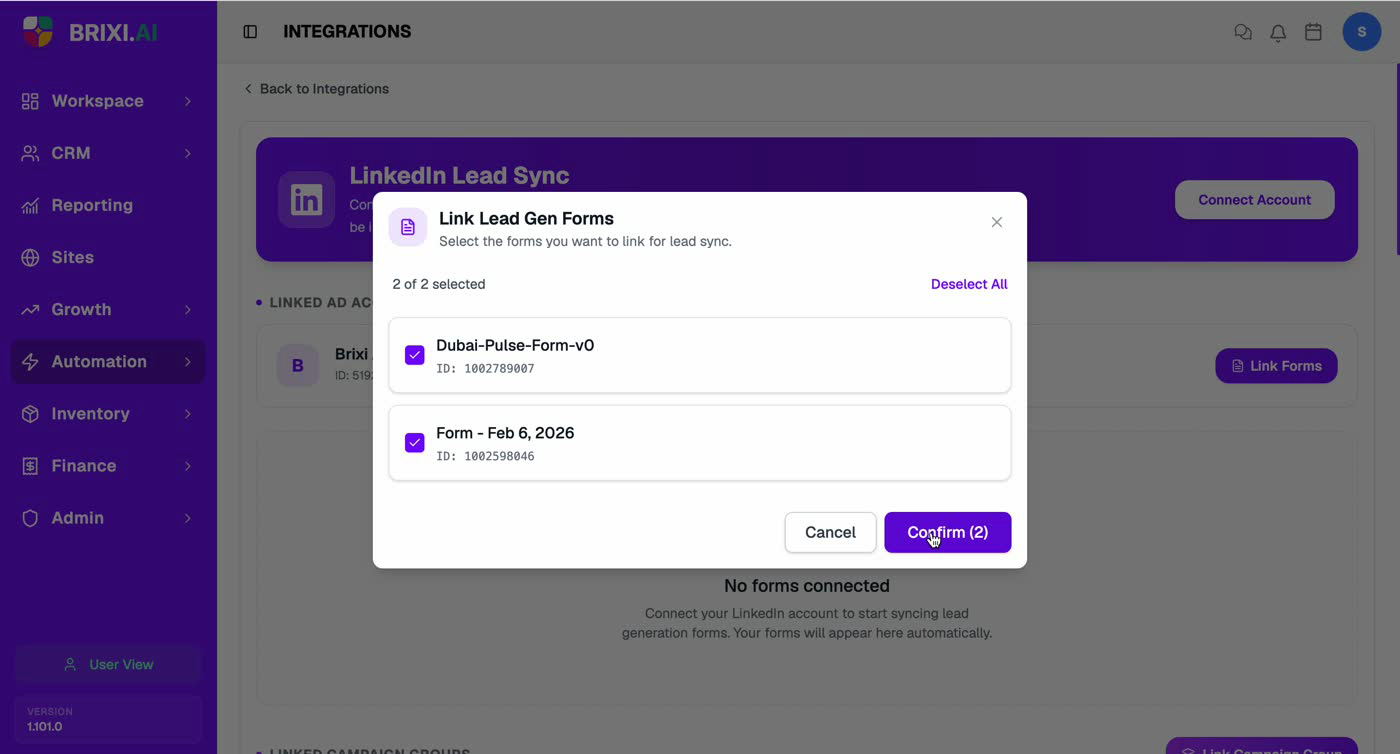
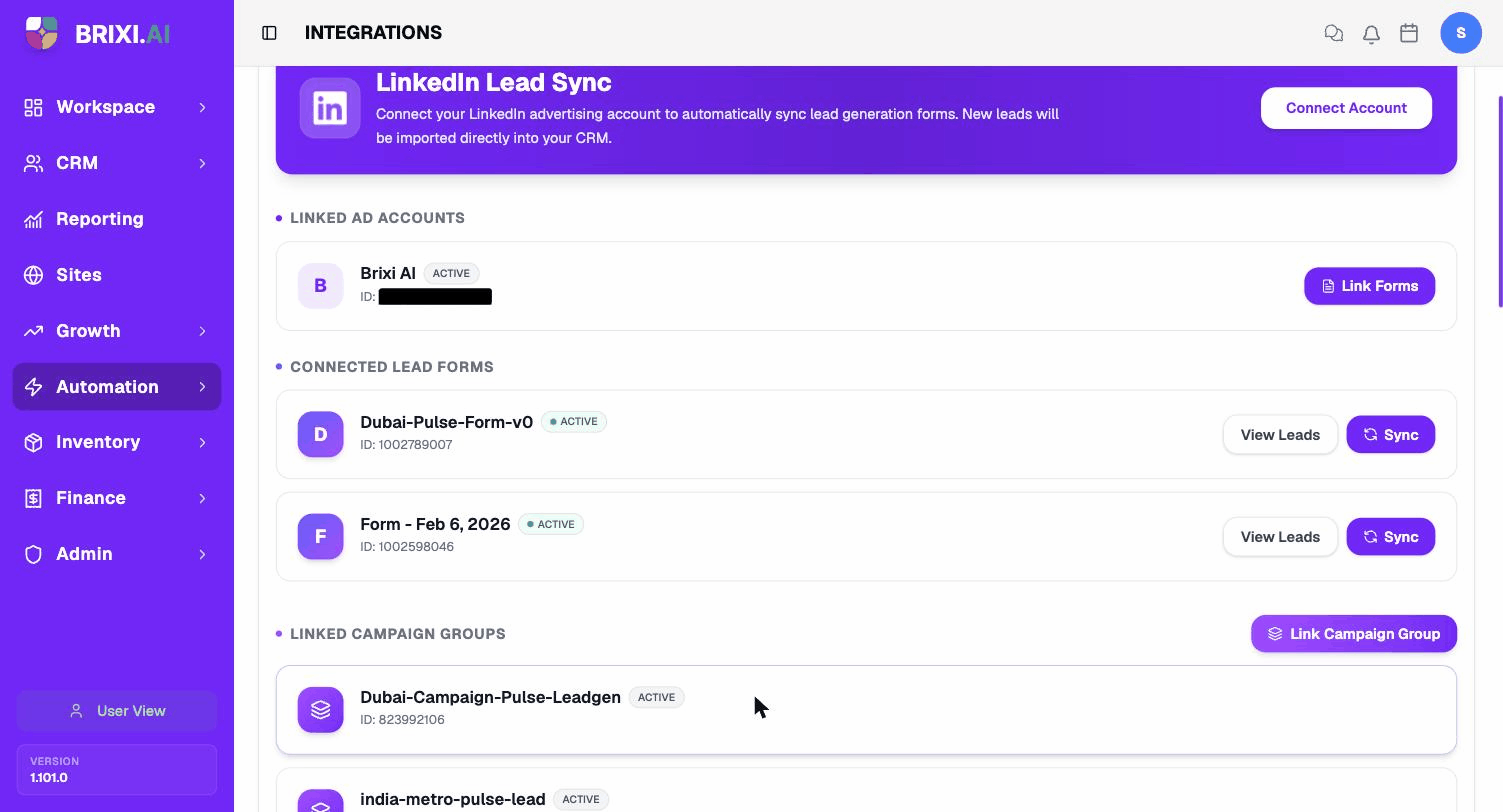
The selected forms move to a Connected Lead Forms list, each marked Active. Every form has two actions:
- Sync — pull the latest leads for that form now. New submissions also import automatically going forward, but Sync lets you fetch on demand (for example, right after linking, to backfill recent leads).
- View Leads — open the leads already imported from that form.
Imported leads become contacts in CRM → Contacts with LinkedIn as the source.
Campaign Groups, Campaigns, and Ads Sync Automatically
You do not need to run a separate sync for campaign data. As soon as the ad account is connected, Brixi automatically pulls in that account's campaign groups, campaigns, and ads and lists them — already marked Active — under Linked Campaign Groups, Linked Campaigns, and Linked Ads.
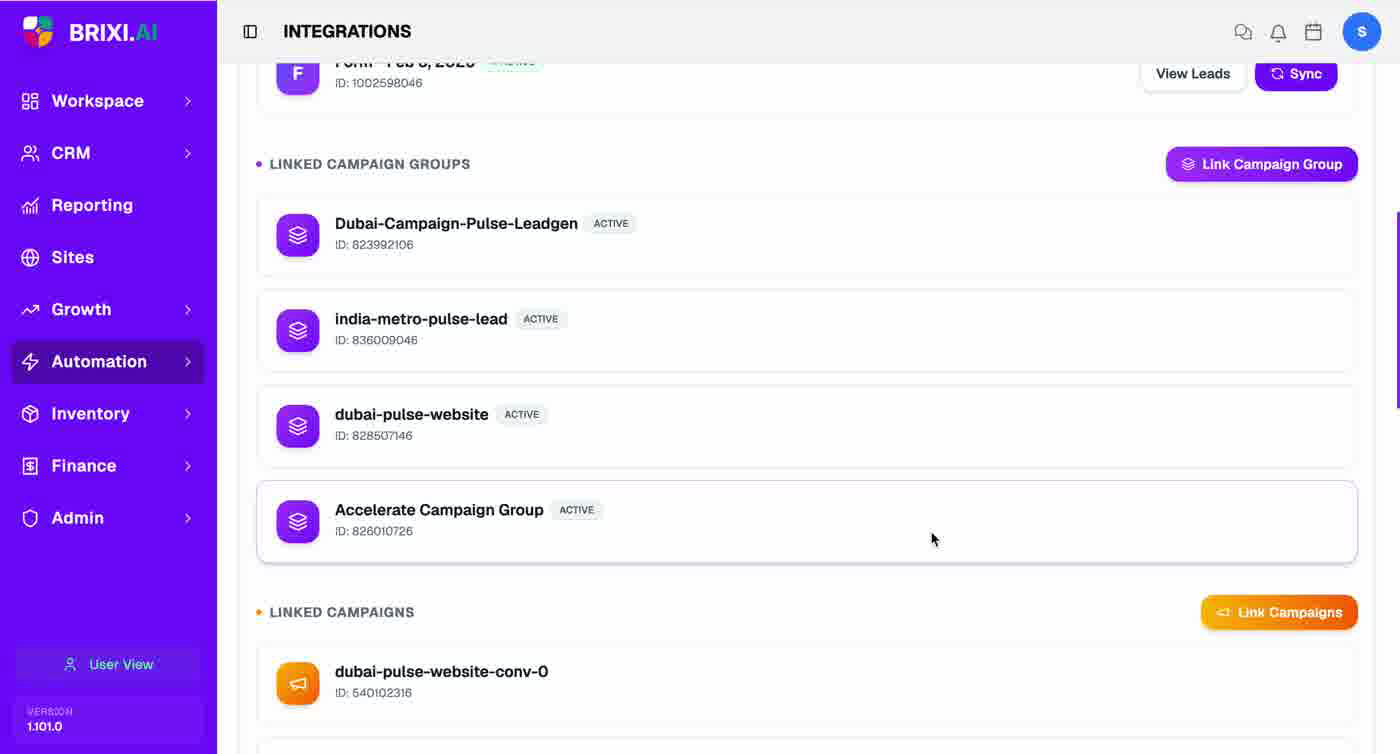
In short:
| Item | How it syncs |
|---|---|
| Campaign groups, campaigns, ads | Automatic — pulled in and kept current once the ad account is connected. No manual step. |
| Lead Gen Forms | You choose them with Link Forms. After that, leads import automatically; use the per-form Sync to fetch on demand. |
The Link Campaign Group, Link Campaigns, and Link Ads buttons are only there if you want to scope or manage which items are tracked — they are not required for the campaign hierarchy to appear.
What You Can Review
After connecting, the LinkedIn page can show:
- Linked Ad Accounts
- Connected Lead Forms
- Campaign groups, campaigns, and ads
- Leads synced from your forms
Common Issues
| Issue | What to check |
|---|---|
| No lead forms appear | Confirm the right ad account is connected, then use Link Forms to add them. |
| Account cannot connect | Confirm you signed in with a LinkedIn account that has access to the ad account, and that you approved the authorization. |
| Leads are missing | Check that the form is linked and review the time range. |
| Wrong ad account linked | Open Connect Account again and confirm the correct account, or deselect the wrong one. |
| Data looks old | Refresh or re-sync the relevant forms or campaign data. |
Remember the one easy-to-miss step on this page: leads only sync after you Link Forms on the connected ad account. If forms are missing from that dialog, the LinkedIn login you used probably doesn't have access to the right ad account — that's fixed in LinkedIn Campaign Manager, not in Brixi. If the LinkedIn Leads connector is hidden entirely, ask your admin about your role.
Contact Brixi support if authorization succeeds and the forms are linked, but ad accounts, forms, or leads still don't sync. Share roughly when you connected and which ad account you expected to see.