Pull Housing.com Leads into Brixi
Pull buyer inquiries and listing leads straight from your Housing.com account into Brixi as contacts. The connection runs through a short OTP flow: enter the phone number on your Housing.com account, confirm the OTP Housing sends you, and Brixi links the account and starts receiving leads.
Entry pointAutomation → Integrations
Who Can Do This
- Account admins install Housing.com and verify the account.
- Sales managers review incoming Housing leads and assignment behaviour.
- Sales users work the leads after they land in CRM → Contacts.
What You Need
- A Housing.com account you can sign in to (sign up at housing.com if you don't already have one).
- Access to the phone number registered on the Housing.com account — Housing sends the verification OTP to that number.
- Admin access to Automation → Integrations in Brixi.
Verify with the phone number that owns your Housing.com account — Brixi binds the connection to that account, so the leads, listings, and 90-day backfill all come from the right place. Switching numbers later means re-verifying from scratch.
Connect Housing.com
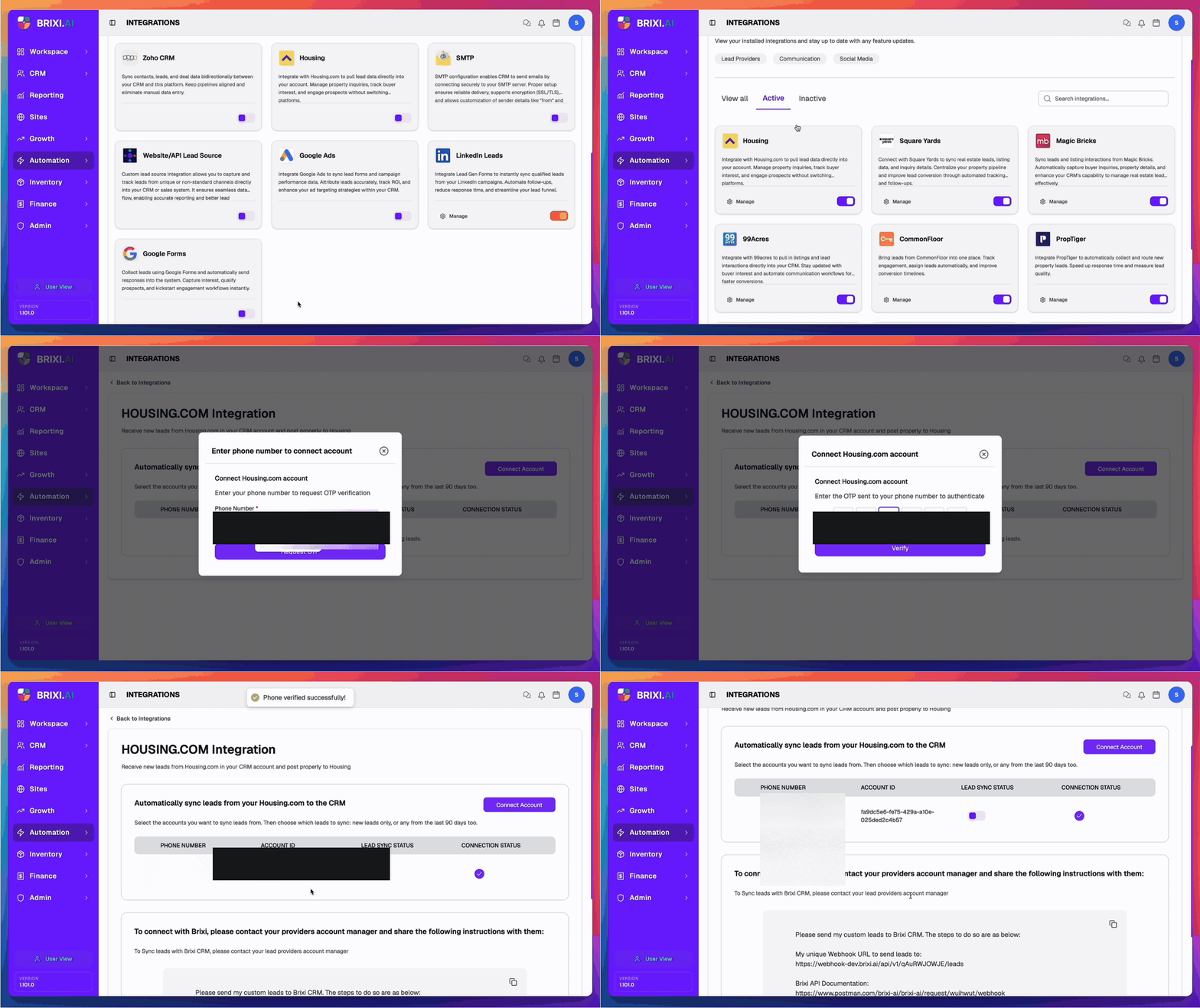
- Open Automation → Integrations and find the Housing card. Turn on the toggle to install the connector, then select Manage.
- On the HOUSING.COM Integration page, select Connect Account. An Enter phone number to connect account dialog opens.
- Enter the phone number registered on your Housing.com account and select Request OTP.
- Housing sends a 6-digit OTP to that number. Enter the code in the Connect Housing.com account dialog and select Verify.
- A Phone verified successfully! toast appears, the dialog closes, and the page now shows your Account ID, Lead Sync Status, and a green Connection Status dot — Housing.com is linked.
If you reload the page or close the dialog before the Phone verified successfully! toast appears, the OTP is consumed and you'll need to request a fresh one.
What Syncs After Connecting
Once the account is verified, Brixi will:
- Receive new buyer inquiries from Housing.com and create them as contacts in CRM → Contacts with Housing as the source.
- Backfill up to the last 90 days of inquiries from the connected Housing account, so historical leads are searchable in Brixi from day one.
- Match by phone / email so the same buyer inquiring on multiple listings collapses to a single contact.
- Run assignment and follow-up workflows on each new Housing lead — owner routing, tasks, and reminders fire automatically.
Inquiries typically arrive in Brixi within a minute of being raised on Housing.com.
After connecting, the integration page also shows a ready-to-send instructions message with your unique Webhook URL and Brixi API documentation links — share that with your Housing.com account manager if Housing needs to confirm or re-route the lead delivery from their side.
Disconnect
To stop receiving leads, open Automation → Integrations → Housing → Manage and remove the connected account, or turn the Housing toggle off on the Integrations page.
- Disconnect stops new inquiries from reaching Brixi immediately.
- Leads already created in Brixi stay on the matching contact — they don't disappear when you disconnect.
- Reconnecting later re-runs the OTP flow — your previous lead mappings are restored if you verify with the same Housing account.
Common Issues
| Issue | What to check |
|---|---|
| OTP didn't arrive | Confirm the number you entered is the one registered on Housing.com. Wait 30 seconds and request a fresh OTP. |
| OTP says "invalid" | Re-check the digits, then request a new OTP — codes expire quickly. |
| Verification stuck on Requesting… | Don't reload — let the request finish. If it doesn't return in 30 seconds, close the dialog and retry. |
| Wrong Housing.com account connected | Disconnect, then reconnect using the phone number on the correct Housing account. |
| Toggle is missing on Integrations | Ask your admin to review your access to Automation → Integrations. |
| New leads aren't reaching Brixi | Confirm Housing.com still recognises the registered number. Share the ready-to-send instructions message (with your unique Webhook URL) with your Housing.com account manager so they can re-route delivery from their side. |
| Leads arrive without owner | Add a lead distribution policy or default owner so new Housing leads route automatically. |
| Duplicate leads | Brixi matches by phone and email — confirm both fields are present on the incoming inquiry. Merge contacts manually if Housing sent the same lead twice with different details. |
| OTP verification fails repeatedly, or the Account ID doesn't appear after the Phone verified successfully! toast | See Getting Help — include the registered Housing phone number. |
| Housing.com confirms leads are being delivered but they don't land in Brixi | See Getting Help — include the approximate time of a test lead and the registered Housing phone number. |