Pull Magic Bricks Leads into Brixi
Magic Bricks delivers buyer inquiries and listing interactions to Brixi through a PUSH integration. You give their team a unique webhook URL from Brixi along with a few account details, they point lead delivery at it, and every new inquiry lands in your CRM as a contact.
Entry pointAutomation → Integrations
Who Can Do This
Installing the connector and dealing with Magic Bricks is an admin or sales-ops job. Sales users pick up from there — the contacts, assignments, and follow-up tasks appear on their side automatically.
What You Need Before Starting
- Admin access to Integrations in Brixi.
- A contact at Magic Bricks (your account manager) who can configure lead delivery, and your Magic Bricks login ID.
- A decision on who should own or review new Magic Bricks leads.
Connect Magic Bricks
Go to Automation → Integrations and find the Magic Bricks card. You'll install the connector, copy your webhook URL, and send it across with the account details Magic Bricks asks for.
Step 1 — Install Magic Bricks
On the Integrations page, search for Magic Bricks and turn on the toggle on its card. Brixi installs the connector and a Manage link appears.

The install itself is instant — once the toggle is on and Manage appears, Brixi has already generated a unique webhook URL for your account.
Step 2 — Copy Your Webhook URL
Open Manage on the Magic Bricks card. The integration page shows a ready-to-send message that includes your unique Webhook URL and a link to the Brixi API documentation. Click the copy icon to copy the full message.
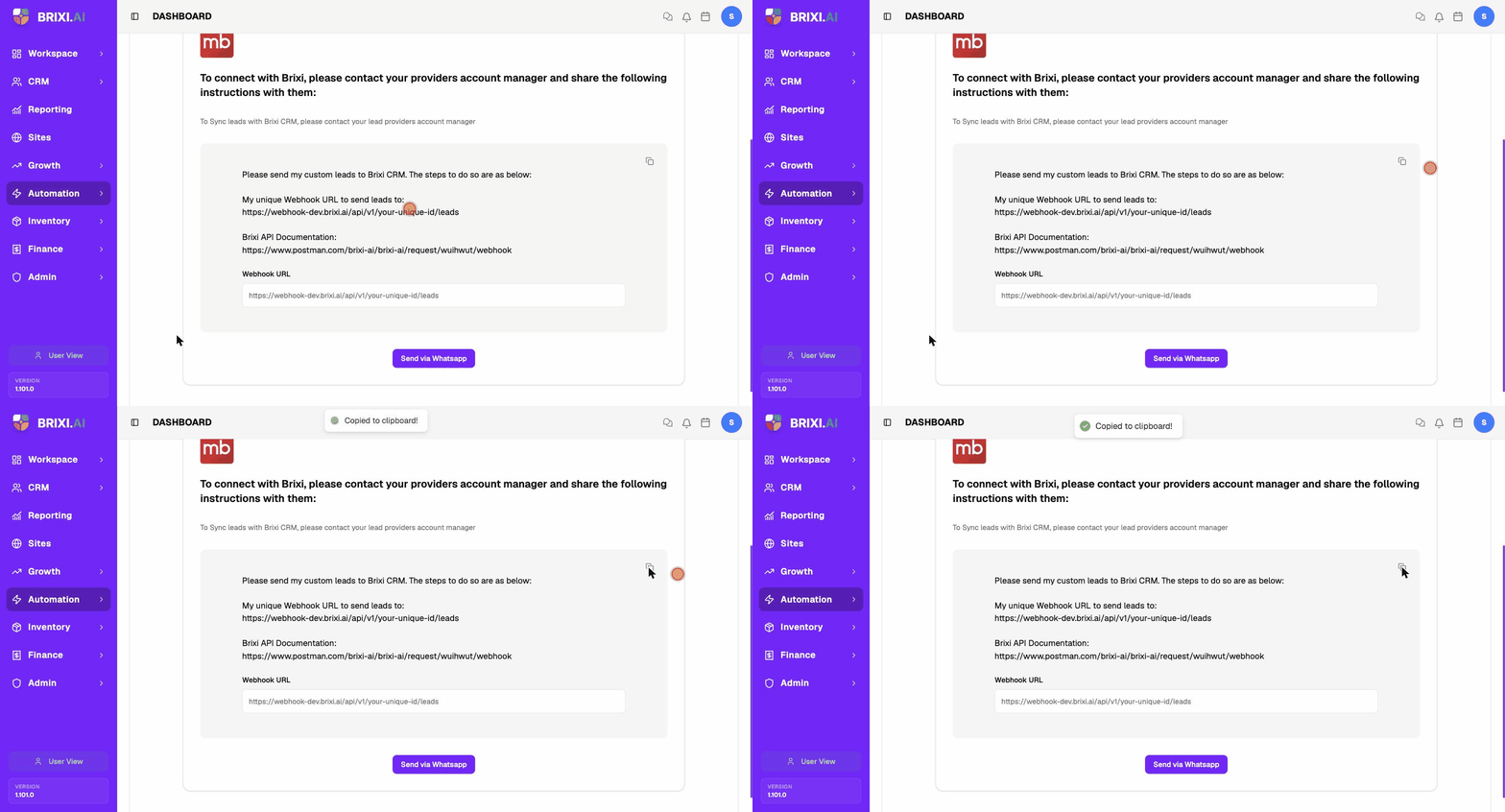
Your webhook URL looks like this, with a unique ID for your account:
https://webhook.brixi.ai/api/v1/your-unique-id/leads
Anyone with this URL can post leads into your CRM. Only share it with your Magic Bricks account manager.
Step 3 — Send the Details to Magic Bricks
Magic Bricks turns on lead delivery from their end, so your job is to get them the webhook URL. The Manage screen gives you two ways:
- Send via WhatsApp — opens WhatsApp with the instructions and webhook URL ready to send.
- Copy the message and email or message it to your Magic Bricks account manager.
When you contact Magic Bricks, they usually ask for a few details to set up a PUSH integration. Use these:
| Field | Value |
|---|---|
| CRM service provider name | Brixi CRM |
| Integration type | PUSH integration |
| Working endpoint / URL | Your unique webhook URL (above) |
| Magic Bricks login ID | Your Magic Bricks account login ID |
| API key / URL parameters | Not needed — the key is already part of the webhook URL |
After Connecting
Each inquiry Magic Bricks delivers becomes a contact in CRM → Contacts with Magic Bricks as the source. Ask their team for a test lead, check that the name, phone, and property context came through, and confirm your assignment and follow-up workflows fired.
Common Issues
| Issue | What to check |
|---|---|
| Leads are not appearing | Confirm Magic Bricks is sending to the exact webhook URL and that the integration is still active. Ask them to resend a test lead. |
| Leads are duplicated | Review duplicate matching by phone or email. The same inquiry sent twice can create duplicates. |
| Lead has no owner | Add a lead distribution policy or default owner so new Magic Bricks leads route automatically. |
| Wrong source on contacts | Confirm the lead is arriving through the Magic Bricks webhook, not another connected source. |
| Webhook URL was shared by mistake | Reinstall the integration to generate a fresh URL, then re-send it to Magic Bricks. |
| Delivery never started | Magic Bricks builds the PUSH integration on their side — the usual failure is a detail in the handoff. Have your admin confirm the connector toggle is still on and that the webhook URL and Magic Bricks login ID you sent match what's on the Manage screen. |
| Magic Bricks confirms the PUSH integration is live and pointed at the right URL but inquiries still aren't appearing | See Getting Help — include the time of a test lead and the phone or email used. |