Pull PropTiger Leads into Brixi
PropTiger delivers property leads to Brixi through a webhook you set up once. Install the connector, share your unique webhook URL with your PropTiger account manager, and from then on each new lead arrives as a contact.
Entry pointAutomation → Integrations
Who Can Do This
Setup belongs to an account admin or sales-ops user. Sales users don't need to do anything — new contacts, assignments, and follow-up tasks arrive ready to work.
What You Need Before Starting
- Admin access to Integrations in Brixi.
- A contact at PropTiger (your account manager) who can configure lead delivery.
- A decision on who should own or review new PropTiger leads.
Connect PropTiger
Go to Automation → Integrations and find the PropTiger card. Install the connector, copy the webhook URL Brixi generates, send it to PropTiger — that's the whole flow.
Step 1 — Install PropTiger
On the Integrations page, search for PropTiger and turn on the toggle on its card. Brixi installs the connector and a Manage link appears.

The install is instant. The moment the toggle is on and Manage appears, your unique webhook URL has been generated.
Step 2 — Copy Your Webhook URL
Open Manage on the PropTiger card. The integration page shows a ready-to-send message that includes your unique Webhook URL and a link to the Brixi API documentation. Click the copy icon to copy the full message.
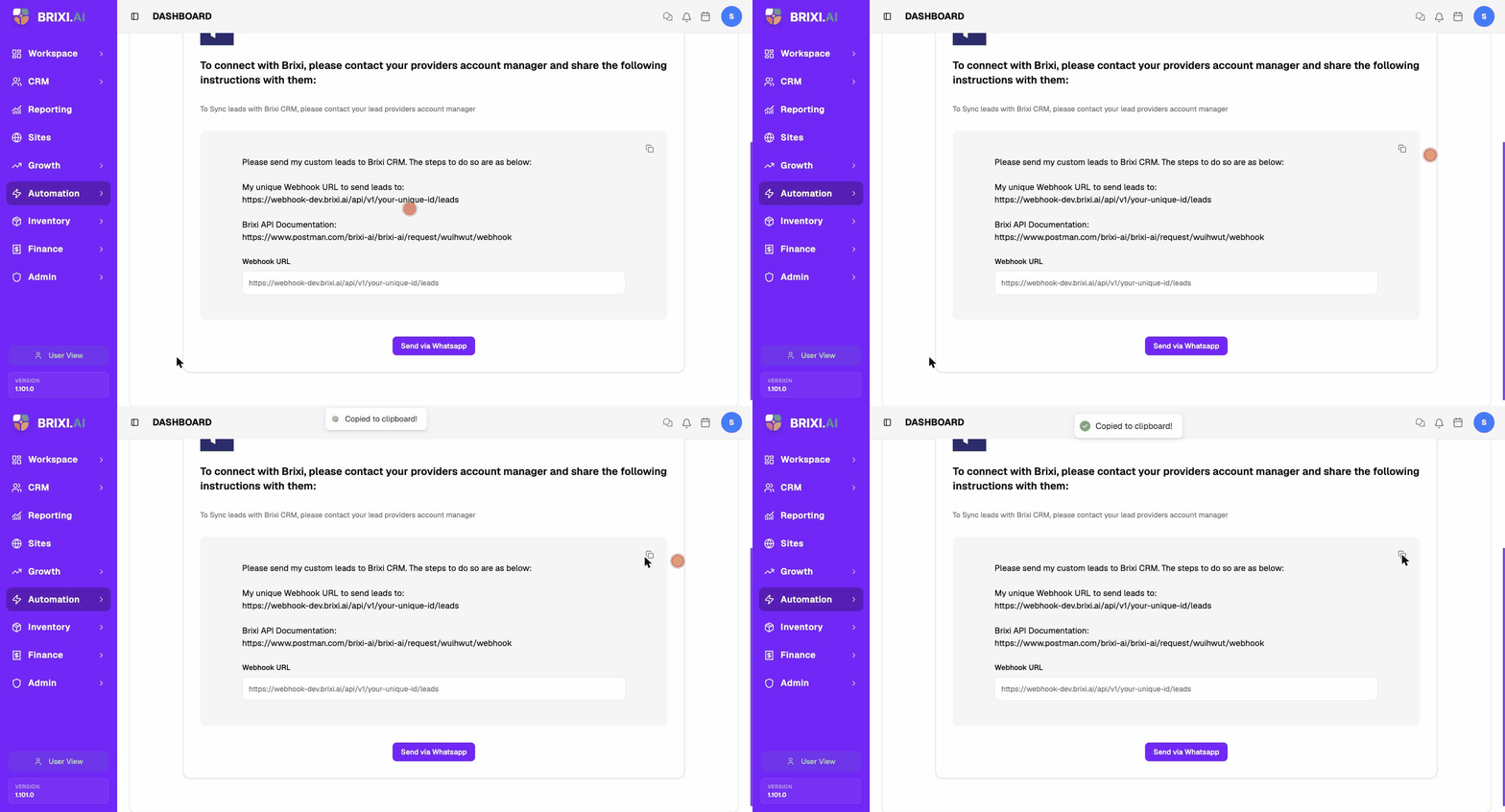
Your webhook URL looks like this, with a unique ID for your account:
https://webhook.brixi.ai/api/v1/your-unique-id/leads
Anyone with this URL can post leads into your CRM. Only share it with your PropTiger account manager.
Step 3 — Send the Details to PropTiger
PropTiger needs the webhook URL to configure delivery on their end. From the Manage screen you can:
- Send via WhatsApp — opens WhatsApp with the instructions and webhook URL ready to send.
- Copy the message and email or message it to your PropTiger account manager.
Ask PropTiger to set up a PUSH integration that delivers your leads to the webhook URL.
After Connecting
Once PropTiger points lead delivery at your webhook, every lead becomes a contact in CRM → Contacts with PropTiger as the source. Ask them for a test lead so you can verify the name, phone, and details — and that your assignment and follow-up workflows fired.
Common Issues
| Issue | What to check |
|---|---|
| Leads are not appearing | Confirm PropTiger is sending to the exact webhook URL and that the integration is still active. Ask them to resend a test lead. |
| Leads are duplicated | Review duplicate matching by phone or email. The same lead sent twice can create duplicates. |
| Lead has no owner | Add a lead distribution policy or default owner so new PropTiger leads route automatically. |
| Wrong source on contacts | Confirm the lead is arriving through the PropTiger webhook, not another connected source. |
| Webhook URL was shared by mistake | Reinstall the integration to generate a fresh URL, then re-send it to PropTiger. |
Before contacting anyone, have your admin check two things: the PropTiger toggle is still on, and the URL you shared matches the one on the Manage screen exactly. If you reinstalled the connector at any point, the URL changed — PropTiger would still be sending to the old one.
If PropTiger confirms delivery to the correct URL and leads still don't appear, contact Brixi support with the time of a test lead and the phone or email used so the delivery can be traced.