Write a Voice Agent's Prompt
The prompt is where a voice agent learns its job — how to open the call, what to ask, which details to capture, and when to stop or hand off to a human. Get it right and the agent reads like a short call playbook a trained sales or support rep could follow; get it wrong and the agent rambles, skips questions, or guesses. This page shows you how to write that playbook and wire in live variables.
Entry pointAutomation → AI Assistants → Agents → [agent] → Build → Prompt
Editing the prompt requires permission to edit the agent.
Open the Prompt Tab
- Open Automation → AI Assistants → Agents and select the agent you want to edit.
- Make sure you're on the Build tab.
- In the left sidebar, select Prompt.
The Prompt editor opens on the right. A list of All Variables appears on the far right.
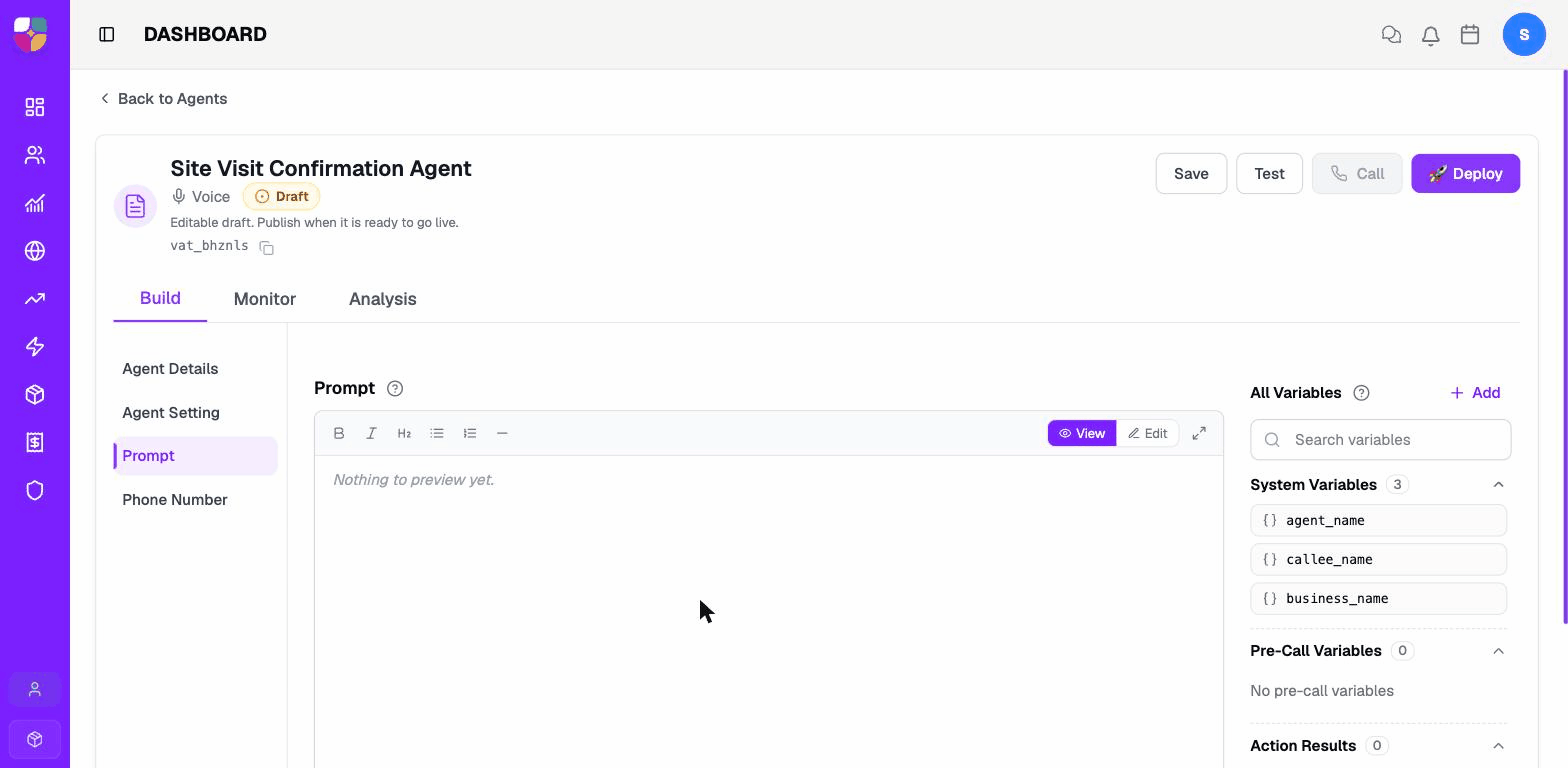
Write or Update the Prompt
The editor has two modes:
- View — formatted preview. Use it to read the prompt as the agent will see it.
- Edit — Markdown editor. Use it to write or change the prompt.
- Select Edit in the top-right of the editor.
- Write the prompt in Markdown. The toolbar covers bold, italic, H2, bulleted lists, numbered lists, and a horizontal divider.
- Insert a variable by clicking it in the right-hand All Variables panel
— it inserts at the cursor as
{{variable_name}}. - Switch back to View to preview, or expand to full screen with the arrows icon at the top-right of the editor.
- Select Save in the agent header to persist the change.
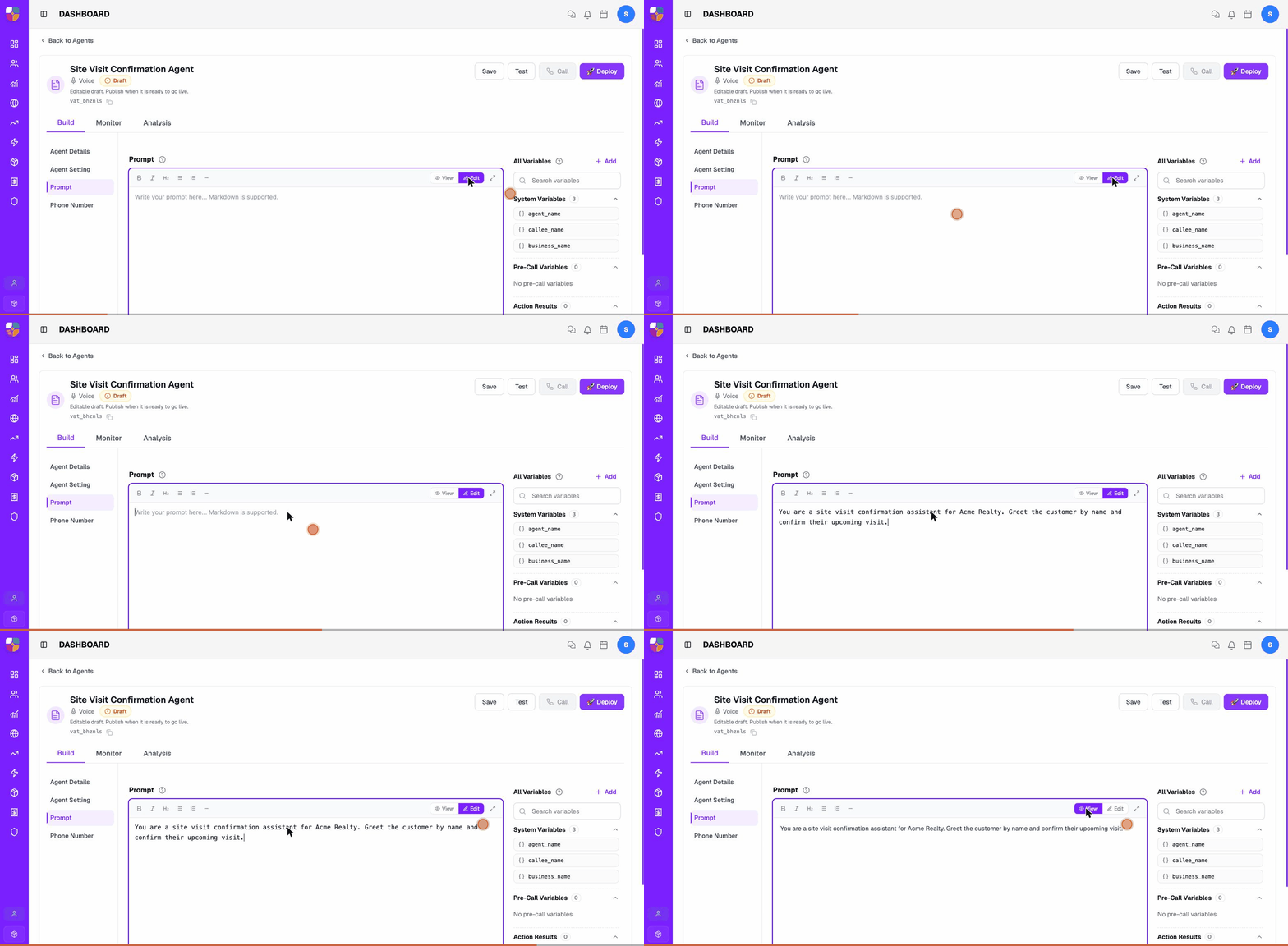
Markdown is supported, including headings, lists, and bold/italic. Keep the prompt scannable — short paragraphs and bulleted rules behave better than long blocks of prose.
Use Variables
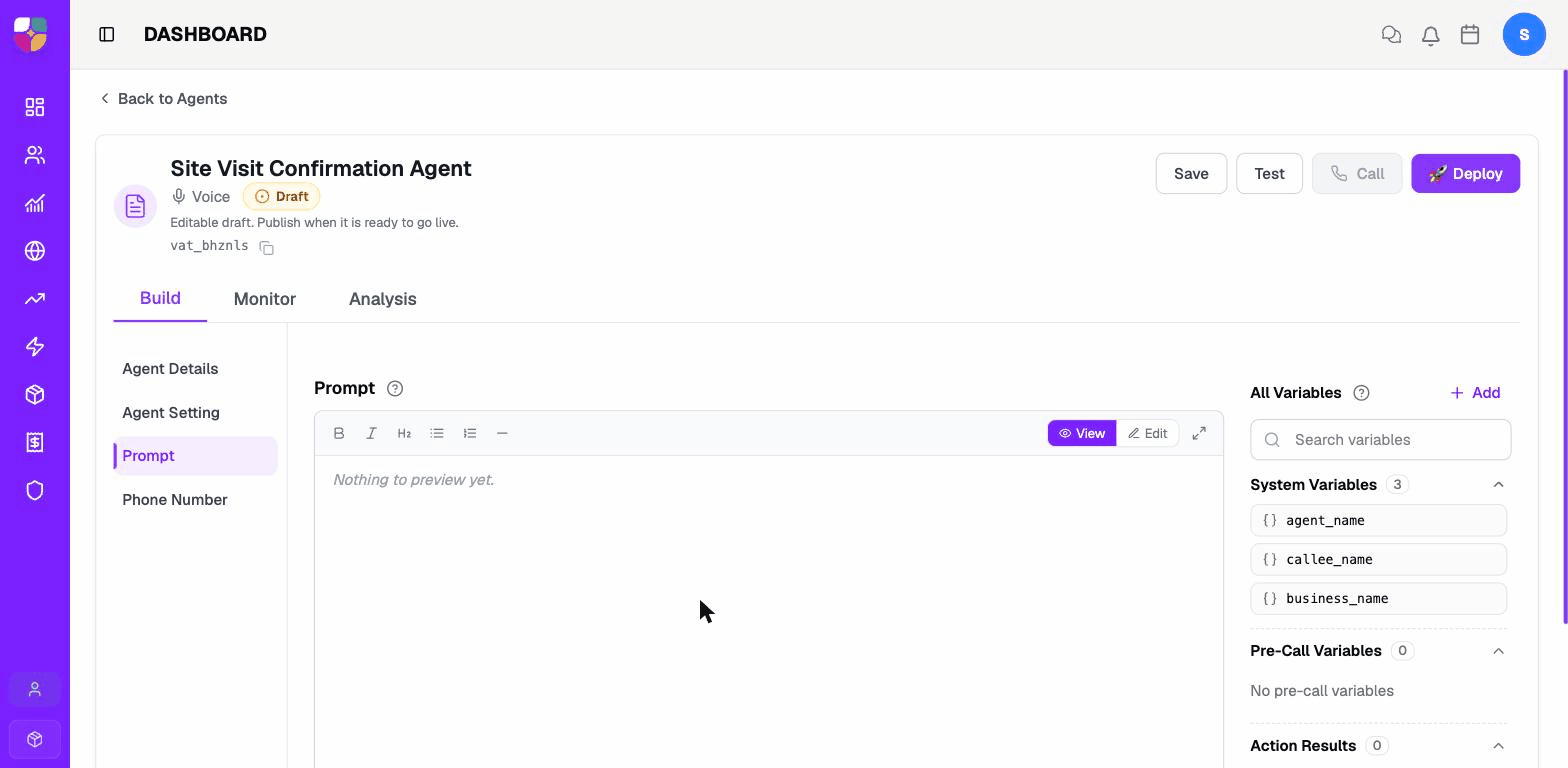
The right-hand All Variables panel lists every value you can drop into the prompt. They're grouped into three blocks.
| Group | Variables | When the value is set |
|---|---|---|
| System Variables | agent_name, callee_name, business_name | Pre-filled automatically per call from the agent record and the dialed contact. |
| Pre-Call Variables | Custom — you define them. | Passed in when the call is started (from a campaign, a CRM trigger, or an API call). |
| Action Results | Returned by tools the agent runs. | Filled mid-call by tool outputs — useful for downstream tool steps or the post-call analysis. |
Reference a variable in the prompt with double curly braces, for example
Hi {{callee_name}}, this is {{agent_name}} from {{business_name}}.
Add a Pre-Call Variable
Use pre-call variables when you need the same agent to handle different campaigns, sources, or customer segments without writing a new prompt.
- In the All Variables panel, select + Add.
- Enter the variable name, type, and an optional default value.
- Save the variable. It appears under Pre-Call Variables.
- Reference it in the prompt with
{{variable_name}}. - Pass the value in when the call starts — from a campaign config, a workflow step, or an API call.
Use pre-call variables for the few details that genuinely change call to call (source, offer name, follow-up reason). Put fixed business facts in the prompt or a knowledge base.
Prompt Structure That Works
A working voice prompt usually has four sections.
1. Role and goal
State who the agent is, who it represents, and what counts as success.
You are {{agent_name}}, a voice assistant for {{business_name}} calling leads who showed interest in residential properties. Your job is to confirm interest, capture qualification details, and book a follow-up when the customer is ready.
2. Conversation rules
Direct rules. Voice moves fast and the agent should not need to infer critical behavior.
- Greet the customer and state why you're calling.
- Confirm the customer has time to talk.
- Ask one question at a time.
- Keep answers short unless the customer asks for more detail.
- Use the attached knowledge base for facts. Do not invent prices, inventory, legal terms, payment, or policy details.
- Offer a human handoff when the customer asks for something outside scope.
- End politely when the customer is not interested, says they are the wrong person, or asks not to be contacted.
3. Required qualification questions
List the exact fields to capture before the call counts as qualified.
| Ask | Why it matters |
|---|---|
| What are you looking for? | Product or project fit. |
| Where (city, locality)? | Routing to the right team. |
| Approximate budget? | Lead quality. |
| Timeline to buy / decide? | Priority. |
| Site visit or callback? | Next action. |
4. Handoff and stop conditions
When to hand off:
- The customer asks for a person.
- The customer is angry, confused, or raises a complaint.
- The customer asks for negotiation, custom pricing, or a legal commitment.
- The agent cannot answer after checking knowledge.
- The customer gives a strong intent signal (I want to book today).
When to stop:
- The number is wrong.
- The customer asks not to be contacted.
- The customer says they are not interested.
- The customer asks for a later callback.
- The call hits the configured silence or duration limit.
Prompt Quality Checklist
- The first lines explain who the agent is and why it is calling.
- The agent asks one question at a time.
- The agent knows which fields or outcomes to capture.
- The agent has explicit handoff and stop rules.
- The agent has a rule against guessing.
- The agent knows which topics belong to the knowledge base.
- The agent has a polite closing line for every outcome.
Troubleshooting Prompt Issues
| Problem | What to change |
|---|---|
| Agent talks too much | Add a rule to answer in two or three short sentences unless the customer asks for detail. |
| Agent skips qualification questions | List the required questions in the exact order they should be asked. |
| Agent gives unapproved answers | Add restricted topics and attach a reviewed knowledge base. |
| Agent does not transfer soon enough | Add clearer handoff triggers and attach the right transfer or handoff tool. |
| Agent ends without an outcome | Add explicit outcome labels and use post-conversation analysis to capture them. |
Variable shows as {{...}} on the live call | Confirm the variable is in All Variables, the name matches exactly, and pre-call variables are passed in when the call starts. |
| Prompt is missing from the Build sidebar, or the editor is read-only | You don't have edit rights on this agent — ask your admin. |
Saved prompt doesn't take effect on calls, or a correctly passed variable still renders as {{...}} in live audio | See Getting Help — include the agent ID, the variable name, and a call transcript that shows the problem. |