Set Up Chat Agent Tools
A chat agent that can only talk is half a teammate. Tools let it act while the conversation is still live — hand off to a human, route to a specialist agent, book an appointment, hit an API for a lookup, or close the chat cleanly. Build each tool once at the workspace level, then attach it to any chat agent that needs it.
Entry pointAutomation → AI Assistants → In-Conversation Tools
| Article summary | Details |
|---|---|
| Requires | Permission to manage tools and edit agents. |
| Where to go | Automation → AI Assistants → Agents → In-Conversation Tools (to create), or Build → Agent Details → Chat Tools card (to attach). |
Tool Types Relevant to Chat
Brixi's tool library is shared with voice agents but only some types make sense for chat. The Tool Type dropdown on the create form lists every type Brixi supports.
| Tool | Use it for | Chat-friendly? |
|---|---|---|
| User Handoff | Hand the conversation to a human owner or team — used when AI should stop driving it. | Yes — primary handoff path. |
| Route To | Hand the conversation to another agent that is better suited to continue it (for example, route a buyer and a seller to different specialist agents). | Yes — to hand off to a specialist agent. |
| API Tool (HTTP) | Call an internal or external HTTP endpoint mid-conversation — lookup, status check, create or update a record. | Yes — most flexible action. |
| Appointment Scheduler | Book an appointment or visit while chatting with the customer. | Yes — for booking flows. |
| End Conversation | Close the conversation path when the agent should stop engaging. | Yes — for clean exits. |
| Call Transfer | Transfer a live phone call to another number. | No — voice only. |
| End Call | End the live phone call. | No — voice only. |
| Voicemail | Drop a voicemail message. | No — voice only. |
If a Call Transfer / End Call / Voicemail tool is attached to a chat agent, it will simply never fire — chat conversations have no phone line. Detach unused tools to keep the agent's Chat Tools card clean.
Create a Chat Tool
- Open Automation → AI Assistants → Agents and switch to the In-Conversation Tools tab.
- Select + Create Tool in the top-right. The create form opens under Back to Tools.
- Fill the Basics section:
- Tool Type — pick one of the chat-friendly types above. The Configuration section below changes to match the type.
- Name — the machine-readable name (snake_case is fine, e.g.
user_handoff). This is what the LLM sees in the prompt. - Display Name — the human-readable label shown in lists.
- Description — when the agent should use this tool, in plain English. The LLM reads this to decide whether to invoke the tool.
- Fill the Configuration section. The fields depend on the tool type — see the examples below.
- Select Create Tool at the bottom of the form. The tool appears under the In-Conversation Tools list.
Write the Description in agent-facing language. "When the customer asks to speak to a human, hand off the conversation" works better than "trigger handoff endpoint". The LLM uses this string to decide when to call the tool.
Attach a Tool to a Chat Agent
A tool only runs when it's attached to an agent.
- Open the chat agent at Automation → AI Assistants → Agents → [agent name].
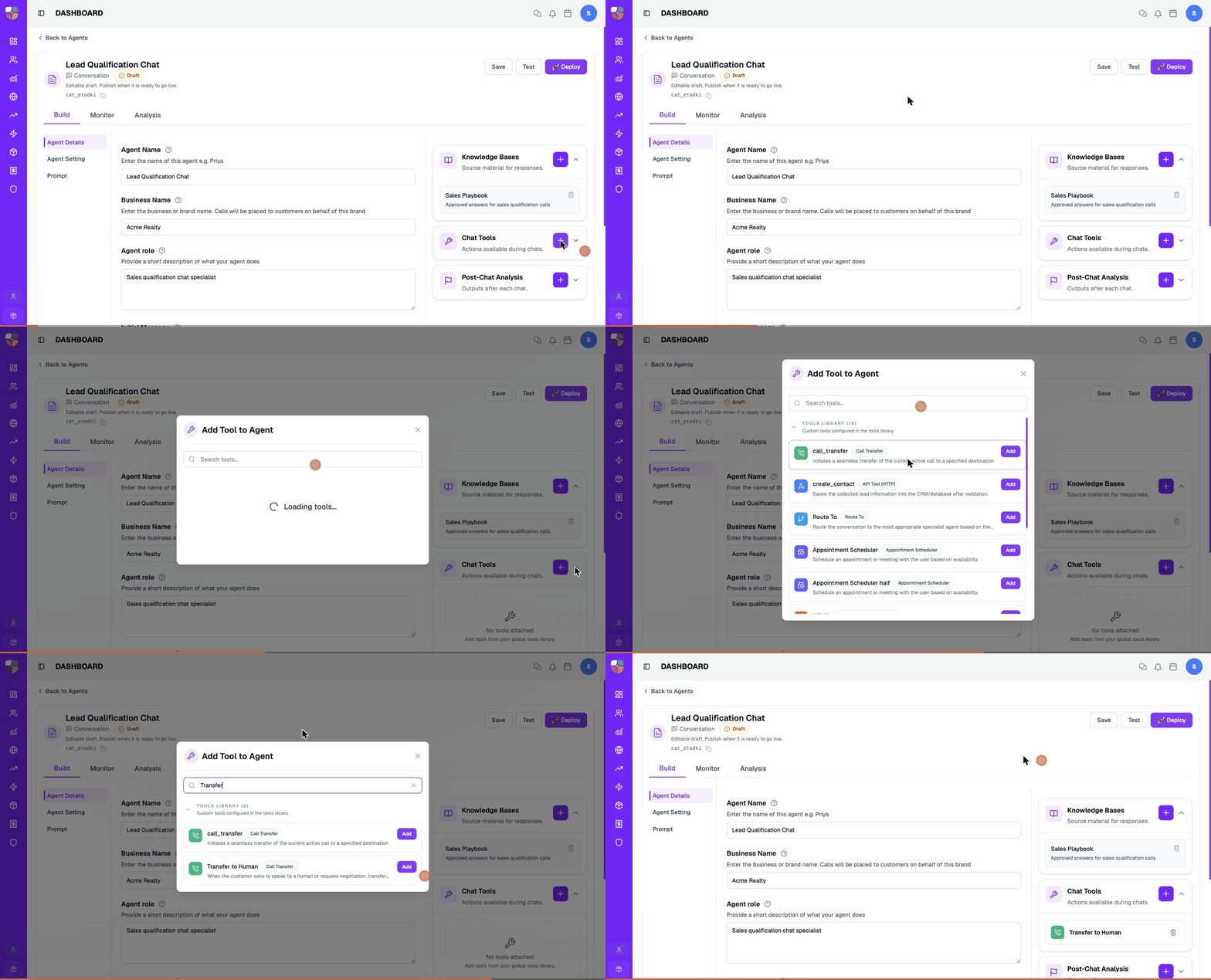
- On the Build → Agent Details view, find the Chat Tools card on the right rail. Its subtitle reads "Actions available during chats."
- Select the + button on the card. The Add Tool to Agent picker opens.
- Optionally type into the search to narrow it.
- Select Add next to the tool you want. It moves into the card's attached list and a success toast appears.
- Select Save in the agent header.
Update the prompt at the same time. The agent will only invoke a tool when the prompt explains the trigger condition. A tool attached without matching prompt rules either never runs or runs too often.
Remove a Tool from a Chat Agent
- Open the agent and expand the Chat Tools card on Agent Details.
- Find the tool row and select the remove (×) control next to it.
- Confirm.
- Select Save.
The tool stays in the workspace's In-Conversation Tools list — it's only detached from this chat agent.
Example: User Handoff
A qualification chat agent should hand off to a sales owner when a customer is ready to buy or asks for a human.
Tool configuration
- Tool Type — User Handoff.
- Name —
user_handoff. - Display Name — User Handoff.
- Description — When the customer asks to speak to a human, asks for negotiation, or signals strong intent (e.g. "I want to book today"), hand off the conversation to the assigned sales owner.
- Configuration — destination user or team, and the message the agent sends just before handoff (e.g. "I'll connect you to a teammate now.").
Prompt rule to add
If the customer says they want to speak to a person, asks for negotiation, asks for a custom payment, or says they want to book today, say "I'll connect you to a teammate now" and call the
user_handofftool.
Example: API Tool (HTTP)
Use an API tool when the chat agent needs to look something up mid-conversation — order status, the next available slot, eligibility.
Tool configuration
- Tool Type — API Tool (HTTP).
- Name —
check_order_status. - Display Name — Check Order Status.
- Description — When the customer asks about the status of their order, call this tool with the order ID they provide.
- Configuration — method (
GET/POST), URL, headers, body, and the Credential to use (see Manage Credentials). The response is returned to the agent as an Action Result the prompt can reference.
Do not point an API tool at a production endpoint until you have tested it with safe data. A misconfigured tool that creates, updates, or deletes records will do so on every matching conversation.
Example: Appointment Scheduler
Use the appointment scheduler tool when a chat agent should book a site visit, demo, or call slot directly in chat.
Tool configuration
- Tool Type — Appointment Scheduler.
- Name —
schedule_appointment. - Display Name — Schedule Appointment.
- Description — When the customer agrees to a site visit or a follow-up, propose a slot from the available calendar and confirm the booking.
- Configuration — calendar source, slot rules (working hours, duration), default location.
Prompt rule to add
When the customer confirms they're interested in a site visit, ask for their preferred day. Then call the
schedule_appointmenttool with the day and propose two time slots. Confirm the booking once the customer picks one.
Tool Design Rules
- One tool, one action. Don't fold handoff and end-conversation into the same tool.
- Name tools in business language. The LLM reads the name and description.
- Keep handoff destinations easy to audit — a real team or user beats a generic alias.
- Match prompt rules to the tool's description. The two have to agree.
- Test every tool from the chat agent's Test session before publishing.
Troubleshooting
| Problem | What to check |
|---|---|
| Tool doesn't appear in agent behaviour | Confirm the tool is attached on Build → Agent Details → Chat Tools and the prompt has a rule for it. |
| Handoff goes to the wrong user | Re-open the tool, check the destination in Configuration. |
| Appointment booking fails | Confirm required fields, calendar setup, and team availability. |
| API call fails | Check the credential selection, required parameters, and that the endpoint is reachable from Brixi. |
| Agent uses a tool too often | Tighten the prompt rule and the tool's Description. |
| Agent never invokes a tool that should run | Make the Description more specific and add a clearer trigger to the prompt. |
| Voice-only tool attached but doesn't fire | Expected — phone-only tools won't run in chat. Detach them. |
If the In-Conversation Tools tab or the + Create Tool button is missing, you don't have the tool-management permission — ask your admin. API tools have a second admin dependency: the Credential dropdown only lists credentials someone has already created, so a missing credential goes to whoever manages credentials in your workspace.
Contact Brixi support if a correctly attached tool with a matching prompt rule still never fires, or an API tool fails even though the same request works outside Brixi (curl, Postman). Include the tool name, the agent ID, and a test conversation where it should have triggered.