Set Up AI Chat Agents
Hand your inbound WhatsApp, Email, SMS, and Web Chat messages to an AI chat agent that qualifies leads and answers questions in the Omnichannel Inbox — so customers get an instant reply even when no one's at the desk. Configure each agent once on the Agents page, then put it on conversations manually (from the inbox owner picker) or automatically (via workflows).
This page is the overview — the agents list, statuses, and the publish / toggle controls that decide whether an agent is live. For the full create-and-configure walkthrough, see Create and Configure a Chat Agent.
Entry pointAutomation → AI Assistants → Agents
| Article summary | Details |
|---|---|
| Requires | Permission to view or manage agents. |
| Where to go | Automation → AI Assistants (/assistant). |
Chat Agents vs Voice Agents
Brixi has two kinds of AI agents and they share the same Agents page, prompt editor, knowledge base, tools, and post-conversation analysis — but they handle different channels.
| Chat agent | Voice agent | |
|---|---|---|
| Channel | Inbox messages — WhatsApp, Email, SMS, Web Chat. | Phone calls — inbound to a connected number or outbound dialled by the agent. |
| Where it's assigned | In the inbox: Owner → Assign → Chat agents tab, or by workflow. | Auto-answers calls to its attached Phone Number; can be used in a voice campaign. |
| Reply latency | Conversational — waits for the next customer message. | Real-time — the agent speaks during the call. |
| Editor sidebar | Agent Details, Agent Setting, Prompt. | Same three, plus a Phone Number section. |
| Model pickers (in Agent Details) | LLM Model. | LLM Model, Voice (TTS), Speech-to-Text (STT). |
| Right-rail card | Chat Tools, Post-Chat Analysis. | Call Tools, Post-Call Analysis. |
| Header buttons | Save, Test, Deploy. | Save, Test, Call, Deploy. |
For voice-specific configuration — TTS voice, STT model, call settings, and phone numbers — see the dedicated Voice Agent Guide. This section focuses on chat.
The Agents Page
The Agents page (Automation → AI Assistants) lists every agent in the workspace — both Chat and Voice.
Layout:
- Top tabs — Agents (the list, default), Phone Number, Knowledge Base, Conversation Flow, In-Conversation Tools, Post-Conversation Tools, View more (Credentials, Test Phone Number).
- Top-right — + Create an Agent with a dropdown for Voice / Chat.
- Search by name, prompt, or tool.
- Filters — Any type (Voice / Conversation), Any status (Draft / Published).
- Recent agents strip — four quick-access cards (last opened, last edited).
- Agent cards below — one card per agent showing:
- Agent name + type icon (📞 Voice or 💬 Conversation).
- A one-line description (the Agent role field).
- The Published or Draft badge.
- Inline action icons (analytics, clone).
- A toggle to turn the agent on / off.
Filter by type to Conversation to see only chat agents.
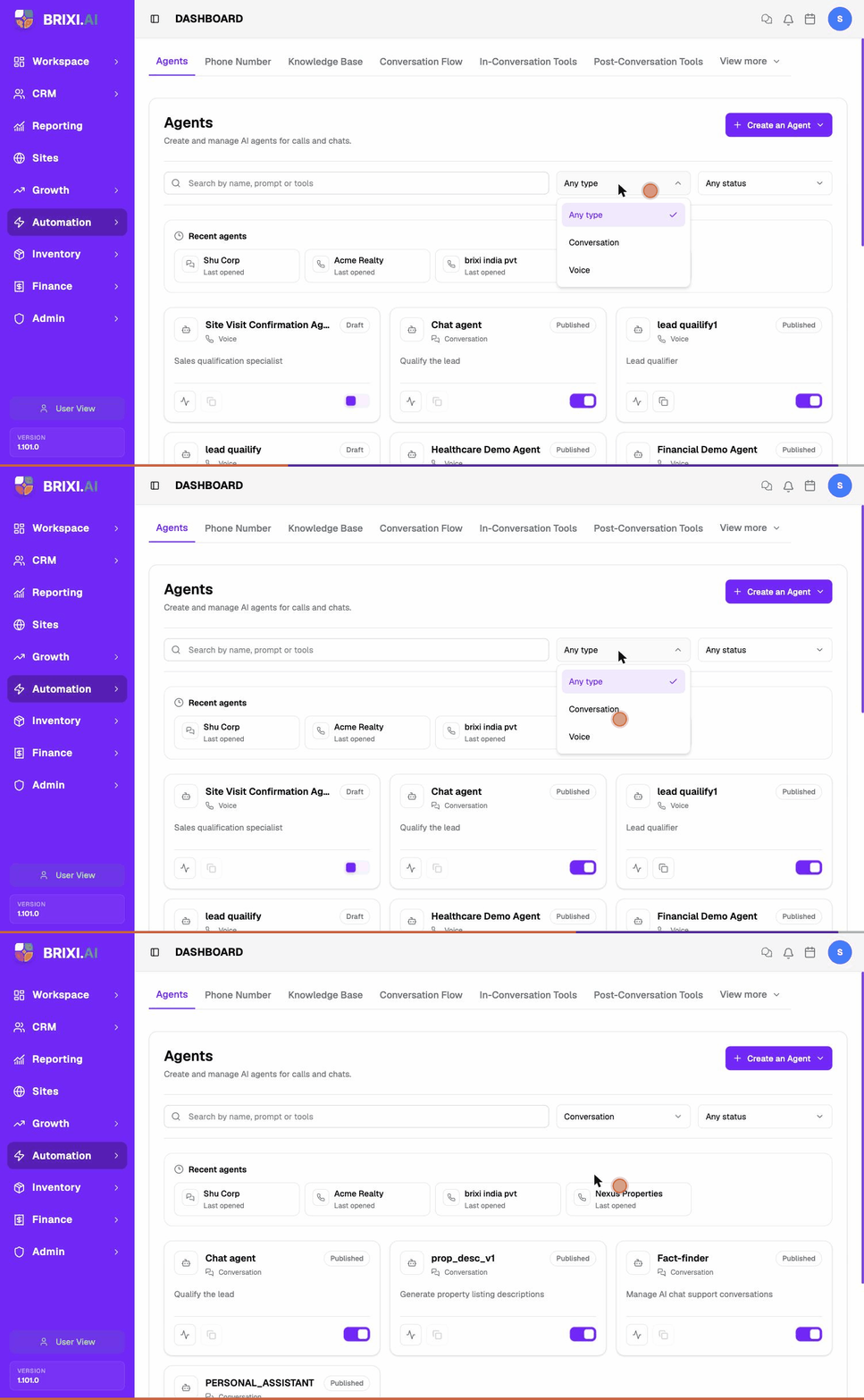
Agent Statuses
Agents have two independent statuses you should always check:
| Status | Where it's set | What it means |
|---|---|---|
| Draft | The header badge inside the editor. | Being configured. Won't appear in the inbox picker, won't accept assignments. |
| Published | Clicked from the editor. | Visible to inbox users and workflows. Can be assigned. |
| On (toggle on the card) | The card toggle on the Agents list. | Will accept new conversations. |
| Off (toggle off) | The card toggle. | Even if Published, it won't receive new conversations. |
An agent must be Published and toggled On to accept conversations. If you can't find an agent in the inbox's Chat agents picker, check both — Draft agents and toggled-off agents are hidden.
Publish & Toggle an Agent
Publish a draft:
- Open the agent from the Agents list.
- Confirm the prompt, knowledge base, and any attached tools are ready (see Test a Chat Agent Before Launch).
- Select Save to save any unsaved changes.
- Select Test to run at least one happy-path conversation against the draft.
- Once Test conversations behave correctly, select 🚀 Deploy in the editor header — the status badge flips from Draft to Published.
Toggle on / off:
- On the Agents card, click the small switch to flip it to On (purple) or Off (grey).
- Use Off to pause an agent during a content change, an investigation, or while you swap its knowledge base — without un-publishing it.
Unpublish or archive (when an agent is no longer needed):
- Turn the agent Off first so no new conversations land on it.
- Use the agent menu's archive / delete action.
Clone an Existing Agent
The fastest way to spin up a similar agent is to clone a working one rather than start fresh.
- On the Agents list, find the agent card.
- Click the clone icon (📋) on the card's bottom toolbar.
- The clone opens in Draft with the prefix
Copy of …. - Rename it, tweak the prompt, and re-attach knowledge bases or tools as needed.
Clone instead of starting from scratch when you only need to change the prompt, the initial message, or the language. The knowledge base and tool selections carry over automatically.
Use a Chat Agent in the Inbox
Once a chat agent is Published and On, it shows up in the inbox's owner picker.
- Open a conversation in the Omnichannel Inbox.
- In the right rail, select Owner → Assign.
- Switch to the Chat agents tab.
- Pick the agent.
- The agent will reply to the next customer message using its prompt, knowledge base, and attached tools.
See Assign an AI Agent (Chat agent) for the full inbox-side flow, including handover etiquette.
Common Issues
| Issue | What to check |
|---|---|
| Agent missing from the inbox picker | Agent is Draft (publish it), or toggled Off (turn it on). Confirm both. |
| Agent replies but skips qualification questions | Prompt doesn't list the required questions in order. See Write the Chat Agent Prompt. |
| Agent picks the wrong knowledge base answer | Outdated source, conflicting sources, or wrong KB attached. See Knowledge Base for Chat Agents. |
| Agent's tool action doesn't run | Tool isn't attached on the Chat Tools card or the prompt doesn't trigger it. See Chat Tools. |
| Agent stops mid-conversation | Maximum number of messages a conversation is too low, or the prompt has a hard stop condition. Open Agent Setting and review the limit. |
| Agent replies in the wrong language | The Languages selection on Agent Setting is missing the language the customer used. Add it and re-test. |
| Post-conversation outputs missing | The agent ended on an error path before reaching the Post-Chat Analysis step. Review prompt exit conditions. |
Most "the agent isn't working" reports on this page come down to the two statuses: the agent must be Published and toggled On before it appears in the inbox picker or takes conversations. Check both before raising anything. If you can see the Agents page but can't publish, toggle, or clone an agent, that's a permission your admin needs to grant.
Contact Brixi support if an agent that's Published and On still never appears in the inbox's Chat agents tab, or accepts an assignment but never replies. Include the agent name, the channel (WhatsApp, Email, SMS, or Web Chat), and a link to an affected conversation.