Set Up Post-Chat Analysis
Every chat your agent handles is full of usable data — budget, location, timeline, outcome — that shouldn't be left buried in a transcript. Post-chat analysis reads the conversation once it ends and writes structured outputs (a summary, an outcome label, qualification fields, a lead score) straight into the contact record, your reports, and any downstream workflow waiting on them.
Entry pointAutomation → AI Assistants → Post-Conversation Tools
| Article summary | Details |
|---|---|
| Requires | Permission to manage post-conversation tools and edit agents. |
| Where to go | Automation → AI Assistants → Agents → Post-Conversation Tools (to create), or Build → Agent Details → Post-Chat Analysis card (to attach). |
What Post-Chat Analysis Extracts
A post-chat analysis tool defines what to pull from the conversation and where to put it. Typical extractions:
| Output | What it captures |
|---|---|
| Conversation summary | A short paragraph the next human can read in 10 seconds. |
| Outcome label | Single category — Qualified, Not interested, Wrong number, Handoff requested, Spam. |
| Qualification fields | The structured answers — budget, location, timeline, preferred next step. |
| Lead score | Numeric or banded score (Hot / Warm / Cold) based on prompt-defined criteria. |
| Customer sentiment | Positive / Neutral / Negative for QA tracking. |
| Custom fields | Any other structured field your CRM cares about. |
The exact list is per-tool — define one or many outputs, and the LLM fills them after the conversation closes.
Create a Post-Chat Tool
- Open Automation → AI Assistants → Agents and switch to the Post-Conversation Tools tab.
- Select + Create Tool in the top-right.
- Fill the Basics section:
- Name — snake_case, e.g.
lead_qualification_output. - Display Name — human-readable label.
- Description — what this tool extracts and why, in plain English.
- Name — snake_case, e.g.
- Fill the Configuration section:
- Outputs — add each output field one by one. For each:
- Name (snake_case identifier).
- Type (text / number / single-choice / multi-choice / boolean).
- Description — what the LLM should extract for this field.
- Choices — if single- or multi-choice.
- Mapping (optional) — where each output writes back: contact custom field, deal field, tag, lead status.
- Outputs — add each output field one by one. For each:
- Select Create Tool. The tool appears under the Post-Conversation Tools list.
Keep the output list tight — 3 to 6 fields. The LLM's accuracy drops as the list grows, and downstream consumers (reports, workflows) prefer a small, consistent schema.
Attach to a Chat Agent
A post-chat tool only runs when it's attached to an agent.
- Open the chat agent at Automation → AI Assistants → Agents → [agent name].
- On the Build → Agent Details view, find the Post-Chat Analysis card on the right rail. Its subtitle reads "Outputs after each chat."
- Select the + button on the card. A picker opens listing every post-conversation tool in the workspace.
- Select Add next to the tool. It moves into the card's attached list.
- Select Save in the agent header.
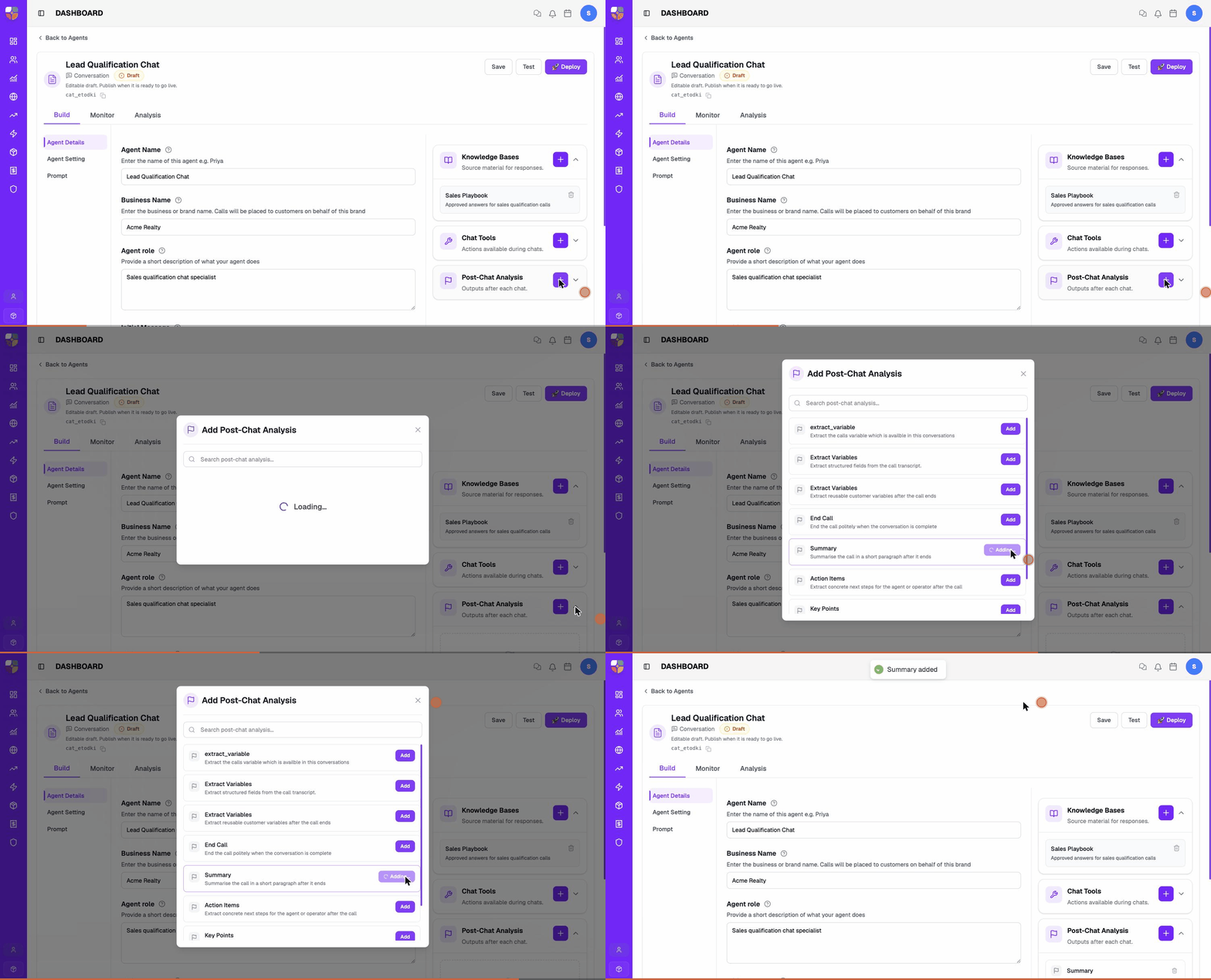
Multiple post-chat tools can be attached to one agent if you need different extractions for different downstream consumers.
Remove from a Chat Agent
- Open the agent and expand the Post-Chat Analysis card.
- Find the tool row and select the remove (×) control.
- Confirm.
- Select Save.
The tool stays in the workspace's Post-Conversation Tools list — it's only detached from this chat agent.
Example: Qualification Output
A lead-qualification chat agent should capture the answers needed for the sales handoff.
Tool configuration
- Name —
lead_qualification_output. - Display Name — Lead Qualification.
- Description — Extract the qualification details captured during the conversation: budget, location, timeline, and the customer's preferred next step.
- Outputs:
| Name | Type | Description |
|---|---|---|
budget | text | The budget the customer mentioned, in lakhs / crores. Empty if not provided. |
location | text | City and locality. Empty if not provided. |
timeline | single-choice | One of: Within 1 month, 1–3 months, 3–6 months, 6+ months, Unknown. |
next_step | single-choice | One of: Site visit, Callback, Email follow-up, No follow-up. |
qualified | boolean | True if budget, location, and timeline are all captured. |
Mapping
budget→ contact custom fieldbudget_band.location→ contactcityand tag.timeline→ deal fieldexpected_close.next_step→ triggers a workflow to schedule the action.qualified→ updates the contact's lead status.
Example: Outcome Label
A second tool tags every conversation with one outcome category for reporting.
Tool configuration
- Name —
conversation_outcome. - Display Name — Conversation Outcome.
- Description — Categorize every conversation with a single outcome label for reporting.
- Outputs:
| Name | Type | Description |
|---|---|---|
outcome | single-choice | One of: Qualified, Not interested, Wrong contact, Handoff requested, Stop requested, Inconclusive. |
summary | text | One-sentence summary of why the conversation ended this way. |
Mapping
outcome→ contact tag (so the reports table can group by it).summary→ contact note (visible to whoever follows up).
Where Outputs Show Up
Once attached and running, post-chat outputs appear in:
| Where | What's visible |
|---|---|
| Contact detail page | Custom fields, tags, notes that the tool wrote. |
| Deal detail page | Deal fields the tool mapped to. |
| Inbox conversation footer | A short summary card if the tool produced one. |
| Agent Activity Reports | Outcome distribution per chat agent, per period. |
| Workflows | The mapped outputs are available as workflow trigger conditions. |
Design Rules
- One tool, one purpose. A qualification output and an outcome label belong in two tools, not one.
- Few outputs per tool (3–6). More than that, LLM accuracy drops.
- Use enums (single-choice) wherever you can. Free-text outputs are harder to filter on in reports.
- Always include a fallback — e.g., Inconclusive, Unknown, empty string — so the LLM has somewhere to put answers it didn't catch.
- Test extraction with
Testbefore relying on the outputs in workflows. See Test a Chat Agent.
Troubleshooting
| Problem | What to check |
|---|---|
| Outputs are blank | Conversation ended too early, or the agent didn't capture the underlying answer. Run a test session and confirm. |
| Output is wrong | Description is ambiguous — rewrite it to be more specific. Add explicit examples in the description. |
| Outputs aren't reaching the contact | Mapping isn't set. Re-open the tool config and assign each output to a destination. |
| Free-text output varies wildly | Switch to a single-choice enum and list the categories. |
| Lead status not updated | Mapping for the boolean / outcome field isn't pointing at the right contact field. |
| Reports group everything as "Unknown" | The agent isn't reaching the end of the conversation. Check Maximum number of messages and the prompt's exit conditions. |
Mapping outputs to contact and deal fields depends on those custom fields existing — if a field you want to write to isn't in the mapping picker, your admin needs to create it in the CRM first. The same admin owns the Post-Conversation Tools permission if the tab itself is hidden.
Contact Brixi support if outputs extract correctly (you can see them on the conversation) but the mapped values never land on the contact, deal, or workflow trigger. Include the tool name, one affected conversation, and which destination field stayed empty.