Test a Chat Agent Before Launch
Catch the problems before your customers do. Before you publish, run the chat agent through a handful of scripted test conversations from the editor's Test session — happy path, confused customer, handoff, and opt-out. The session talks to the draft agent with no live customers and no inbox involvement, so you can shake out prompt, knowledge base, and tool issues without risk.
Entry pointAutomation → AI Assistants → Agents → [agent] → Test
| Article summary | Details |
|---|---|
| Requires | Permission to edit the agent. |
| Where to go | Automation → AI Assistants → [agent name] → Test (top-right). |
Open the Test Session
- Open the chat agent from Automation → AI Assistants.
- In the top-right of the editor, select Test.
- A chat panel opens, ready to send messages to the draft agent.
The panel works just like the inbox composer: you type a message, the agent replies, and you can keep going until the conversation ends.
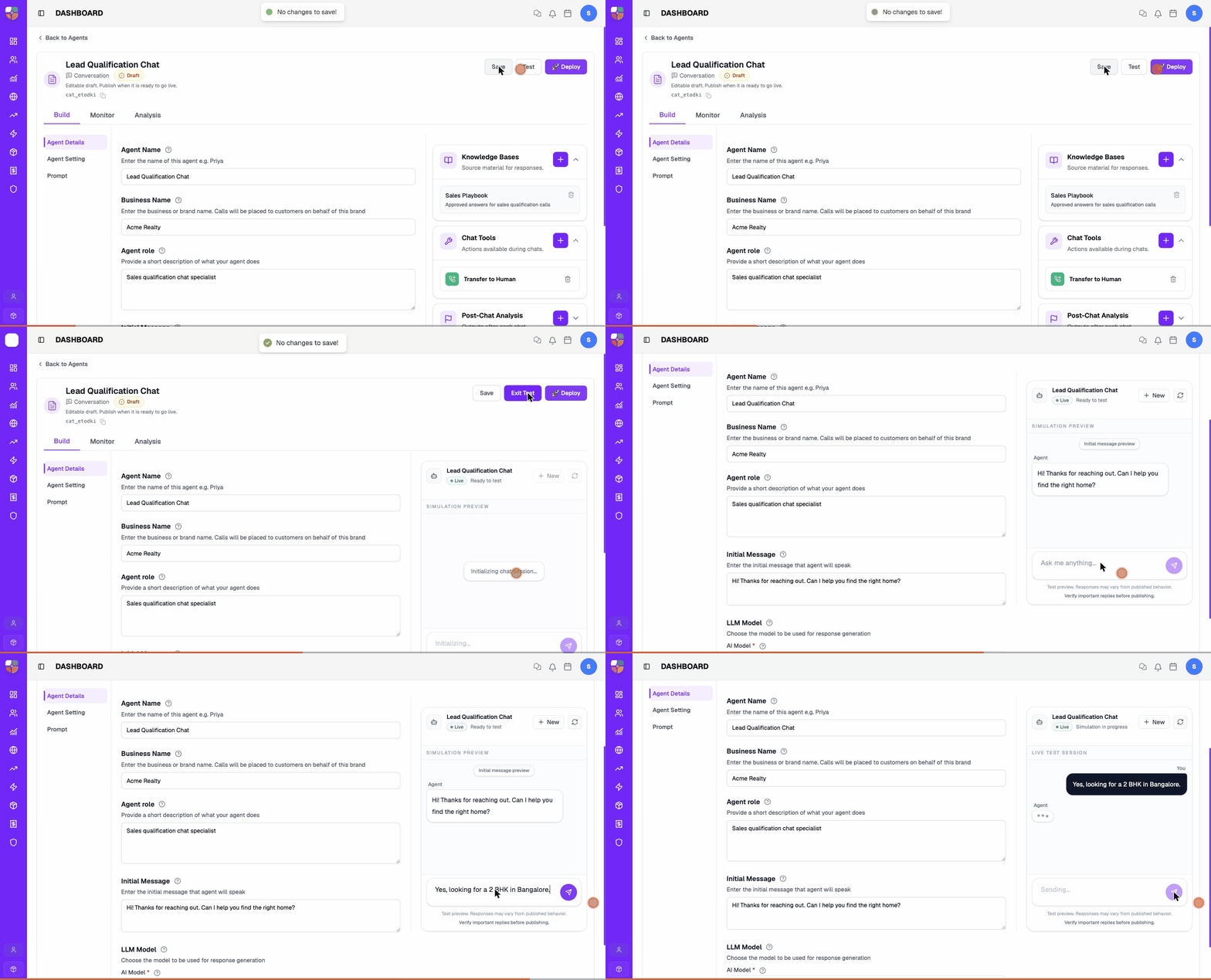
Tests run against the currently saved draft. If you changed the prompt or settings, select Save first, then Test — otherwise you're testing the previous version.
Test Paths to Run
A minimum viable test plan covers four paths. Run each as a separate test session.
1. Happy path
Pretend to be the ideal customer. Answer every question, give a clear buying signal, and let the agent finish the qualification.
Pass criteria:
- The agent greets you correctly and uses your name when offered.
- It asks one question at a time and respects the prompt's order.
- It captures the required fields (budget, location, timeline, next step).
- It ends with a clear next-step message (booking, callback, handoff).
2. Confused customer
Reply with vague answers — "not sure", "depends", "maybe later".
Pass criteria:
- The agent doesn't accept ambiguity as a final answer.
- It rephrases the question or offers options.
- It eventually disqualifies politely if the customer can't engage.
3. Handoff path
Ask to speak to a human, or signal strong intent like "I want to book today", "can you connect me to someone", "I'd rather call".
Pass criteria:
- The agent acknowledges the request.
- It triggers the User Handoff or Route To tool.
- The transcript shows a tool invocation, not just a text reply.
4. Stop / opt-out path
Say "not interested", "please don't message me", "wrong number", or simply "stop".
Pass criteria:
- The agent ends politely on the first try — no follow-up nag.
- It does not repeat its qualification questions.
- Post-chat analysis (if configured) tags the conversation with the right outcome.
Always test the stop path before publishing. An agent that keeps pushing after a customer says "stop" is the fastest way to a compliance complaint.
What to Look For in the Transcript
After each test session, scroll the transcript and check:
| Look at | What's wrong if … |
|---|---|
| Reply length | Replies are paragraphs long — add a length cap to the prompt. |
| Order of questions | The agent skips required fields — put them in the prompt in the exact order. |
| Tone | The agent is overly formal or overly casual — adjust the prompt's tone rule. |
| Knowledge cites | The agent invents a fact (price, availability) — add a "do not invent" rule and attach the relevant knowledge base. |
| Tool invocations | A tool fires when it shouldn't, or doesn't fire when it should — tighten the tool's Description and the prompt rule. |
| Variables | A {{variable}} appears literally in a reply — confirm the variable exists in All Variables and is passed in. |
| Language | The agent replies in the wrong language — add the language under Agent Setting → Languages. |
Test Tools and Knowledge Base
Each attached tool and knowledge base should be exercised in at least one test path.
Knowledge base — ask a question whose answer is in the KB. The reply should match the KB phrasing (or close to it). If the agent says "I don't know", the source is missing, outdated, or worded ambiguously.
Tools — trigger each attached tool at least once:
- User Handoff — say "I want to speak to a person".
- Route To — answer in a way that should branch the flow.
- API Tool (HTTP) — ask for the data the API returns (e.g., "What's the status of order 1234?").
- Appointment Scheduler — agree to a site visit and pick a slot.
- End Conversation — say goodbye explicitly.
The transcript should show each tool firing in the right place. If it doesn't, see Chat Tools → Troubleshooting.
Pre-Publish Checklist
Don't publish until every item below is true. Bookmark this list.
- The agent has a single primary purpose.
- The prompt has explicit qualification questions, handoff triggers, and stop conditions.
- At least one knowledge base is attached and contains the answers to common questions.
- At least one handoff tool is attached (User Handoff or Route To).
- All four test paths (happy, confused, handoff, stop) pass.
- Replies stay under the configured length cap.
- The agent ends every test conversation cleanly — no infinite loop,
no
{{variable}}placeholders, no internal tool name leaking. - Post-chat analysis is configured if you need structured outputs.
- Languages under Agent Setting includes every language a real customer might use.
- Maximum number of messages a conversation is set conservatively.
- A teammate other than you has reviewed the transcripts.
After Publishing
Testing doesn't stop at publish. For the first few days:
- Watch the Agent Activity Reports daily.
- Read 5–10 real transcripts at random and compare them to the test paths above.
- Watch the Common Issues rows in chat-agents.md.
- If a regression appears, toggle the agent Off while you fix the prompt or KB rather than publishing broken changes.
Schedule a recurring weekly review for the first month after launch. Real customers are creative — the test plan can't cover everything they'll try.
Troubleshooting
| Problem in test | What to change |
|---|---|
| Test session won't start | Confirm the draft is saved. Reload the editor. |
| Agent replies are slow | Memory window size is at max (64) and the prompt is long — trim the prompt or reduce memory window. |
| Tool fires but doesn't complete | The tool's external endpoint is down, or required parameters are missing. Open the tool config and re-test. |
| KB answer is right in test but wrong on live conversations | A workflow or campaign is passing a pre-chat variable that conflicts. Audit pre-chat variables. |
| Test passes, live conversations fail | The agent isn't getting the variables it expects from the inbox or workflow. Check the channel's pre-chat payload. |
A missing Test button means you don't have edit rights on this agent — ask your admin. Failed test paths themselves rarely need escalation: they're exactly what testing is for, and the transcript checks above point to the prompt, KB, or tool change that fixes each one.
Contact Brixi support if the test session won't open even after saving the draft and reloading the editor, or the panel hangs with no reply on a freshly created agent. Include the agent ID and a screenshot of the stuck session.