Review Chat Agent Reports
Find out at a glance whether the team — and the AI agents — are actually working the leads they were handed. The Agent activity report compares how many leads each person or bot was assigned against the calls, messages, emails, tasks, site visits, and deals they produced, so a queue of 56 leads with zero follow-up jumps out immediately. It's the single page managers open at end-of-week to review workload and catch a stalled AI agent.
Entry pointReporting → Agent activity
| Where to go | Reporting → Agent activity. |
|---|
Open the Report
- Click Reporting in the left navigation.
- Across the top, click the Agent activity tab (between Site Visits and Calls).
The report has two main sections — the Statistics cards at the top and the Agent Engagements table below.
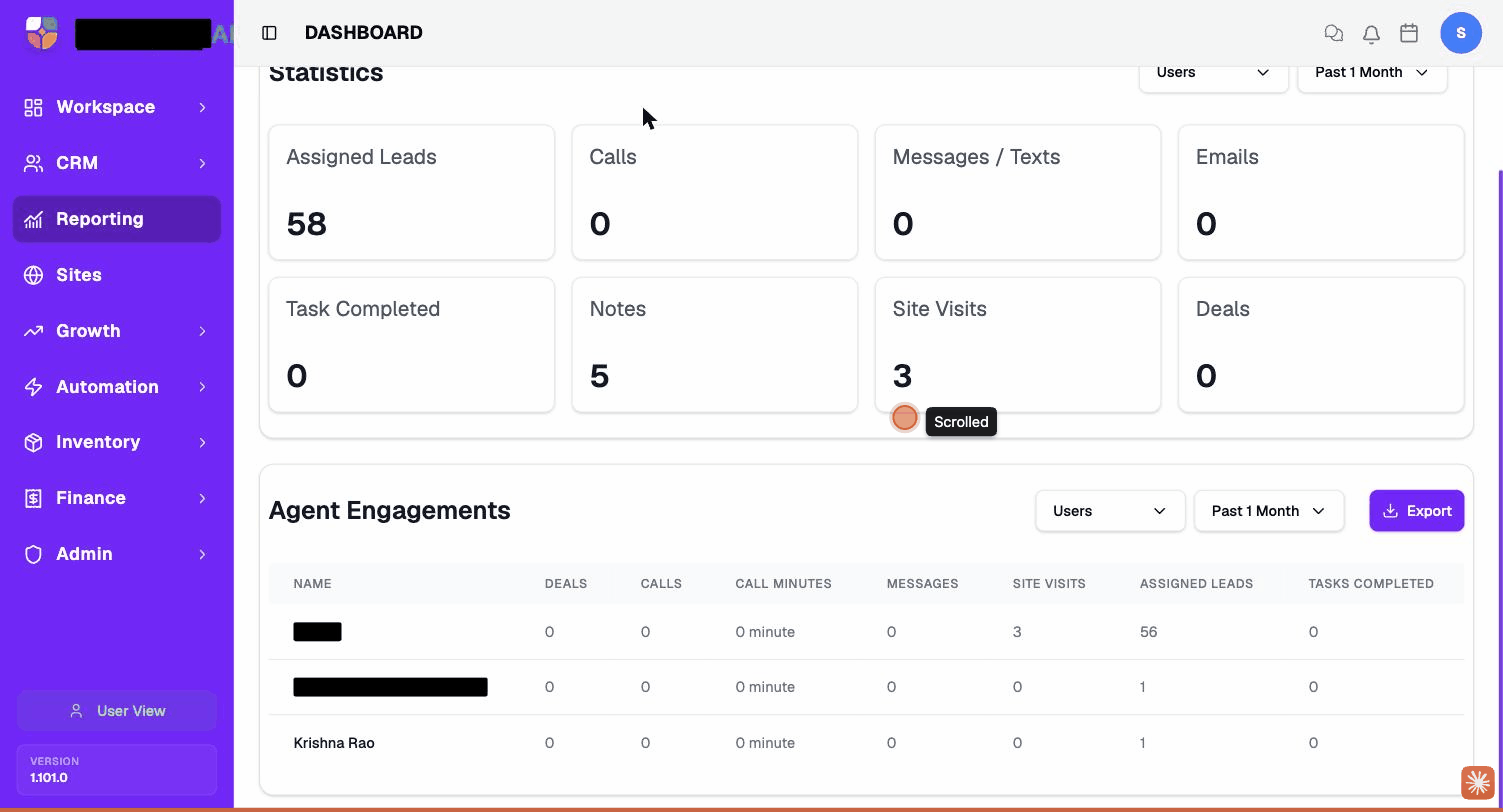
Statistics (Cards)
The top block summarises the entire selected period and user type as eight headline numbers:
| Card | What it counts |
|---|---|
| Assigned Leads | New contacts assigned to a user / agent in the period. |
| Calls | Calls placed or answered by the user / agent. |
| Messages / Texts | WhatsApp / SMS / chat messages sent. |
| Emails | Emails sent. |
| Task Completed | Tasks marked complete in the period. |
| Notes | Notes logged on contacts. |
| Site Visits | Property visits whose date falls in the period. |
| Deals | Deals created or moved by the user / agent in the period. |
The two filters above the cards — Users and Past 1 Month — control which data feeds these numbers.
Agent Engagements (Table)
Below the cards, the Agent Engagements table breaks the same counts out per user / agent. One row per teammate or AI agent.
| Column | What it shows |
|---|---|
| Name | The user or AI agent. |
| Deals | Deals touched in the period. |
| Calls | Calls handled. |
| Call Minutes | Total minutes on calls. |
| Messages | Messages sent / received. |
| Site Visits | Visits scheduled or completed. |
| Assigned Leads | Leads sitting in their queue. |
| Tasks Completed | Tasks finished. |
Click any column header to sort the table. A user with Assigned Leads: 56 / Tasks Completed: 0 for a month is the signal to dig in.
Filter by Period & User Type
Three filters control the data:
| Filter | Options |
|---|---|
| Users / AI Agents (dropdown above the cards) | Pick Users to see only humans, or switch to AI Agents to see only chat / voice bots. The numbers update. |
| Past 1 Month (period picker) | Past 1 Day / Past 7 Days / Past 1 Month / Past 3 Months / Custom range. Drives both Statistics and Agent Engagements. |
| Engagements period (second period picker, next to the Engagements title) | Independent period for the table — useful when you want the cards on Past 1 Month but the table on Past 7 Days. |
The filters persist while you're on the page but reset when you navigate away.
Export
The Export button (top-right of Agent Engagements) downloads the table as a CSV — one row per user / agent, the same columns shown on screen, for the selected period and user type.
Use this for managers' spreadsheets, payroll incentive calculations, or quarterly reviews.
Export to CSV at the end of each month and keep a copy — the dashboard always shows current data, so historical comparison needs you to save the snapshot.
Weekly Manager Review
A reliable 10-minute end-of-week routine:
- Open Reporting → Agent activity.
- Set the period to Past 7 Days.
- Look at the Statistics cards — Assigned Leads up but Calls / Messages flat means the team isn't following up.
- Sort the Agent Engagements table by Assigned Leads descending. The top row with the lowest Tasks Completed is your one-on-one topic.
- Switch the user filter to AI Agents and confirm the AI is doing what it's supposed to (a chat agent with Assigned Leads: 50 / Messages: 0 is broken — check it's Published and toggled On).
- Export the table and drop the CSV into the team channel.
Common Issues
| Issue | What to check |
|---|---|
| Numbers all show 0 | The period is too narrow, or you're on AI Agents but the workspace has no AI agents running. |
| A user is missing from the table | They had zero activity in the period — not a bug. |
| The numbers don't match the inbox | The inbox shows current state; this report shows activity completed in the period. A reply sent today appears next day in the report. |
| Export downloads an empty CSV | The current filter has no rows — widen the period or change the user-type filter. |
If Reporting or the Agent activity tab isn't visible to you, your role doesn't include reporting access — ask your admin. Before escalating odd-looking numbers, also remember the timing quirk in the table above: this report counts activity completed in the period, so it can lag the inbox by a day.
Contact Brixi support if the numbers stay wrong after you've checked the period and user-type filters — for example, a published agent that's clearly sending messages shows zero across a full month. Include the agent name, the period you selected, and an exported CSV showing the gap.