Build a Knowledge Base for a Chat Agent
Keep your chat agents accurate. A knowledge base is a library of approved answers — project details, FAQs, policies, scripts — that the agent cites mid-conversation instead of inventing prices, inventory, or policy. Build the library once from short, customer-safe FAQs, files, and web pages, then attach it to every chat agent that needs it; update it in one place and every attached agent stays current.
Entry pointAutomation → AI Assistants → Knowledge Base
| Article summary | Details |
|---|---|
| Requires | Permission to manage knowledge bases and edit agents. |
| Where to go | Automation → AI Assistants → Knowledge Base (to create), or Build → Agent Details → Knowledge Bases card (to attach). |
Open the Knowledge Base Tab
- Open Automation → AI Assistants.
- Switch to the Knowledge Base tab.
The tab header reads "Organize the documents, answers, and links your agents use as trusted context." Three counters sit below the header:
- LIBRARIES — total knowledge bases in this workspace.
- SOURCES — total sources across all libraries.
- DOCUMENTS / LINKS — total uploaded documents and crawled links.
Knowledge bases are workspace-wide — the same library can be attached to multiple chat agents and to voice agents.
Create a Knowledge Base
- From the Knowledge Base tab, select + New knowledge base in the top-right.
- In the New Knowledge Base dialog, fill:
- Name — short, descriptive. Examples: Sales Playbook, Project Inventory, Support Answers.
- Description — short scope or use case so other admins know what belongs in here.
- Read the Sources you can add next panel — it lists the three source types you'll add after creation (Web pages, FAQs, Files).
- Select Create knowledge base.
A success toast appears and the new library shows in the list with
0 sources. The card surfaces Links and Files counters so you
can see at a glance how it's growing.
Source Types
| Source | Use when | Limits |
|---|---|---|
| Web pages | You want the agent to use trusted public web content. Crawl and sync a URL on a schedule. | Public pages only. |
| FAQs | You want predictable, short answers for common questions. Add Q&A pairs by hand. | None — but keep answers customer-safe. |
| Files | You want the agent to learn from documents you already have. Upload PDF, TXT, Markdown, DOC, or DOCX. | Each file up to 10 MB. |
Only add content that is ready for customer conversations. Draft marketing notes, internal pricing sheets, unreleased product details, and unapproved legal commitments should not be in a chat agent's knowledge base.
Add Sources to a Library
- On the Knowledge Base tab, select the library card to open its sources view.
- Select + Add source (top-right). A dropdown opens with Web pages, FAQ, File upload.
- Pick the source type:
- Web pages — paste the URL, configure crawl behavior, save.
- FAQ — enter the Question and the approved Answer, save.
- File upload — drag a file into the upload area or browse. Wait for the status to move from Processing to Ready.
- Repeat for every source. The SOURCES counter on the top of the Knowledge Base tab increments.
Good chat FAQ entries are short, specific, and operational. "What sizes do you offer?" with a one-line answer works better than "Tell about the product."
Attach a Library to a Chat Agent
A library only affects conversations when it's attached to an agent.
- Open the agent at Automation → AI Assistants → [agent name].
- On Build → Agent Details, find the Knowledge Bases card on the right rail. Its subtitle reads "Source material for responses."
- Select the + button on the card. A picker opens listing every knowledge base in the workspace.
- Optionally type into the search to narrow it.
- Select Add next to the library you want. It moves into the card's attached list and a success toast appears.
- Select Save in the agent header.
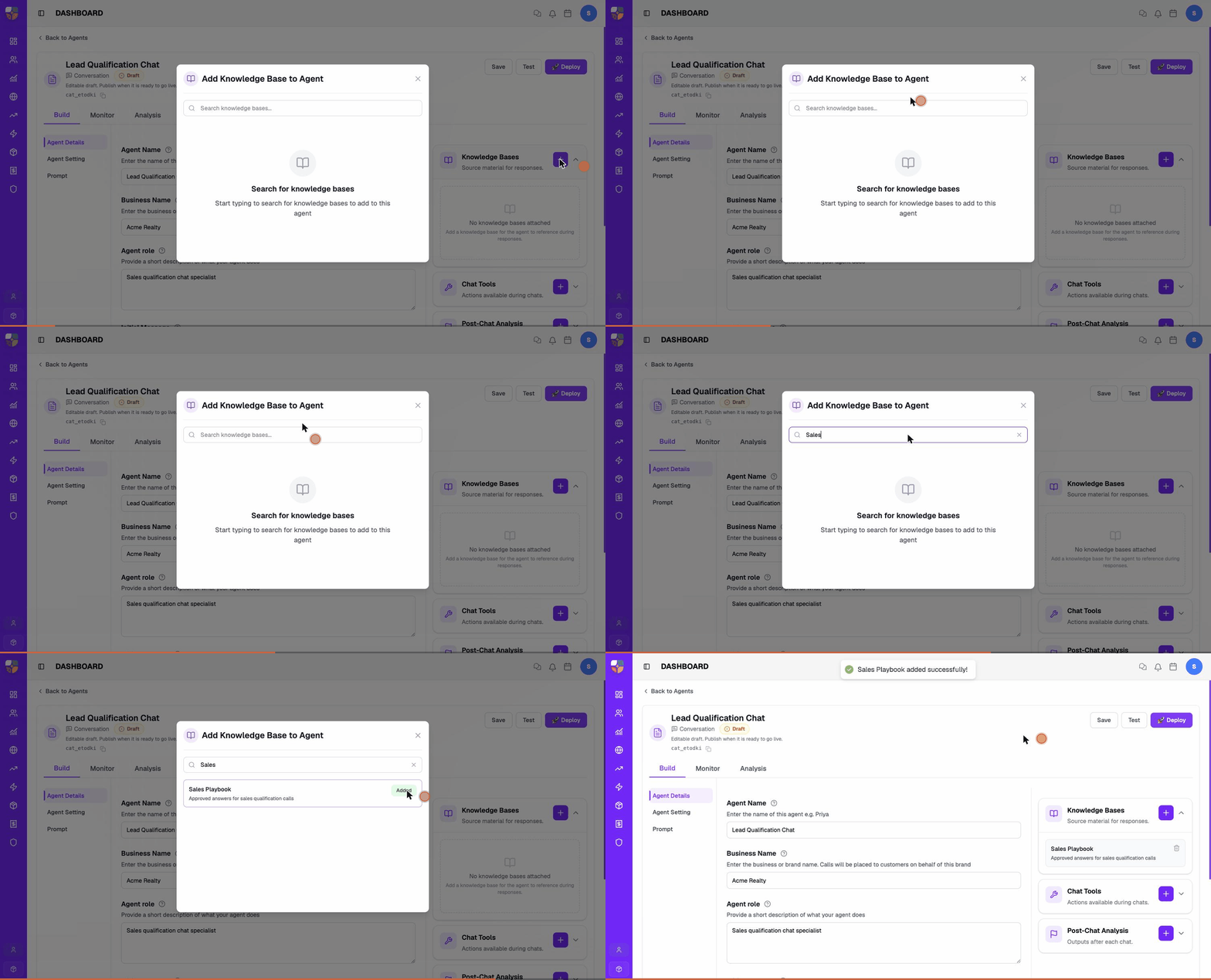
You can attach more than one library if a single agent needs multiple domains (e.g., Sales Playbook and Project Inventory).
Don't attach every library to every chat agent. Extra unrelated content reduces answer precision. A site-visit chat agent usually needs project details and reschedule policy — it does not need billing or partner onboarding.
Remove a Library from a Chat Agent
- Open the agent and expand the Knowledge Bases card on Agent Details.
- Find the library row and select the remove (×) control next to it.
- Confirm.
- Select Save.
The library stays in the workspace's Knowledge Base tab — it's only detached from this agent.
What Good Chat KB Content Looks Like
Chat replies are short, so knowledge base content should be short too.
| Do | Don't |
|---|---|
| One question per FAQ entry. | Lump three questions into one. |
| Answers under 50 words where possible. | Paste a 2-page PDF section as the answer. |
| Customer-facing language. | Internal jargon, product code names, abbreviations. |
| Specific facts (prices, times, locations). | Vague phrasing the agent has to interpret. |
| Linked deep article on the website for "read more". | Force the chat reply to contain everything. |
When you have a long answer (a multi-step policy, a refund process), break it into a summary FAQ and a web-page source. The agent quotes the summary in chat and links to the web page for full detail.
Maintain Knowledge
Review libraries when:
- Pricing or availability changes.
- A campaign, offer, or calling run begins or ends.
- A new project, product, or policy is launched.
- Reports show repeated unanswered questions.
- Sales agents report incorrect chat agent answers.
- Legal, compliance, or brand owners update approved language.
Updates flow to every agent the library is attached to — there's no per-agent copy to sync.
Troubleshooting
| Problem | What to check |
|---|---|
| Chat agent says it does not know | Confirm the library is attached on Agent Details → Knowledge Bases and the answer exists in clear language. |
| Agent gives an outdated answer | Update or remove the old source, then retest. Recrawl Web pages sources if a URL changed. |
| Agent mixes two projects | Split into one library per project and attach only the relevant one to each chat agent. |
| Agent uses internal jargon | Rewrite the source in customer-facing terms. |
| FAQ answer is too long for chat | Shorten the answer or split it into smaller FAQs; add a prompt rule for concise replies. |
| File upload fails | Check the file is one of PDF, TXT, Markdown, DOC, DOCX and 10 MB or less. |
| Source stuck on Processing | Wait a minute — large PDFs can take time. If it persists, remove and re-upload. |
| Answer is right but tone is wrong | The KB has the fact; rewrite the prompt's tone rule rather than rewriting the KB. |
If the Knowledge Base tab is missing or you can't create or attach libraries, ask your admin — managing knowledge bases and editing agents are separate permissions, and you may have one without the other. Wrong or stale answers, though, are almost always content problems; work through the troubleshooting table before assuming anything is broken.
Contact Brixi support if a file under 10 MB in a supported format repeatedly fails to upload, or a source stays stuck on Processing even after you remove and re-upload it. Mention the library name, the file type and size, and roughly when you uploaded it.