Create a Voice Agent (Full Walkthrough)
Stand up an AI agent that handles live phone calls for your team — qualifying leads, answering questions, booking site visits, and transferring to a human at the right moment. This is the end-to-end guide that takes you from an empty workspace to a deployed agent answering or placing calls on its own number. It ties together every part of setup — the language model, voice, prompt, telephony and phone numbers, knowledge base, in-call (in-conversation) tools, and post-call (post-conversation) analysis — and points to the detailed reference page for each part when you need to go deeper.
Build one agent per clearly defined use case — lead qualification, missed-call recovery, site-visit confirmation — so reports and troubleshooting stay easy to read. Each agent bundles its own purpose, prompt, LLM, voice (TTS), speech recognition (STT), knowledge, tools, phone number, and reports.
Entry pointAutomation → AI Assistants → Agents
| Article summary | Details |
|---|---|
| Best for | Sales managers, CRM admins, and operations users setting up phone-based AI. |
| Main outcome | A tested, deployed voice agent answering or placing live calls on its own phone number. |
| Roles | Users with agent, telephony, knowledge, and admin permissions. |
| Requires | Access to Automation → AI Assistants, at least one enabled LLM provider, and a phone number. |
| Related reports | Voice Agent calls, duration, phone number performance, outcomes, and transcripts. |
Before You Start
- Decide the single use case. Lead qualification, missed-call recovery, site-visit confirmation, outbound list calling, or FAQ handling — pick one. An agent with one job is easier to prompt, test, and report on.
- Confirm an LLM provider is enabled. If the model picker later shows "No models available," an admin must enable a provider for the workspace first.
- Have a phone number ready. You need at least one number to take or place live calls, plus a verified test number for trial calls.
- Gather trusted answers. Collect the FAQs, files, and approved pages the agent should rely on so the knowledge base is ready when you reach Step 5.
- Know your compliance rules. Decide up front whether recording and transcription are allowed for this use case.
Everything below lives under Automation → AI Assistants. The workspace opens on the Agents tab, with sibling tabs across the top for Phone Number, Knowledge Base, Conversation Flow, In-Conversation Tools, Post-Conversation Tools, Credentials, and Test Phone Number.
The Creation Journey at a Glance
| Step | You do this | Where | Reference |
|---|---|---|---|
| 1 | Create the agent (scratch or template) | Agents tab | Create and Configure |
| 2 | Pick the LLM, voice (TTS), and speech-to-text (STT) | Build → Agent Details | Create and Configure |
| 3 | Write the prompt (role, rules, questions, handoff) | Build → Prompt | Write the Agent Prompt |
| 4 | Connect telephony and attach a phone number | Phone Number tab / Build → Phone Number | Telephony and Phone Numbers |
| 5 | Build and attach a knowledge base | Knowledge Base tab / Agent Details | Build a Knowledge Base |
| 6 | Add in-conversation (in-call) tools | In-Conversation Tools tab / Call Tools card | In-Conversation Tools |
| 7 | Configure post-conversation analysis | Post-Conversation Tools tab / Post-Call Analysis card | Post-Conversation Tools and Analysis |
| 8 | Test, deploy, and monitor | Agent header / Test Phone Number tab | Test an Agent |
Knowledge bases and tools are workspace-level — you build them once and attach them to any agent that needs them. You can create them ahead of time on their own tabs, or inline from the agent's right-rail cards in Steps 5–7.
Step 1: Create the Agent
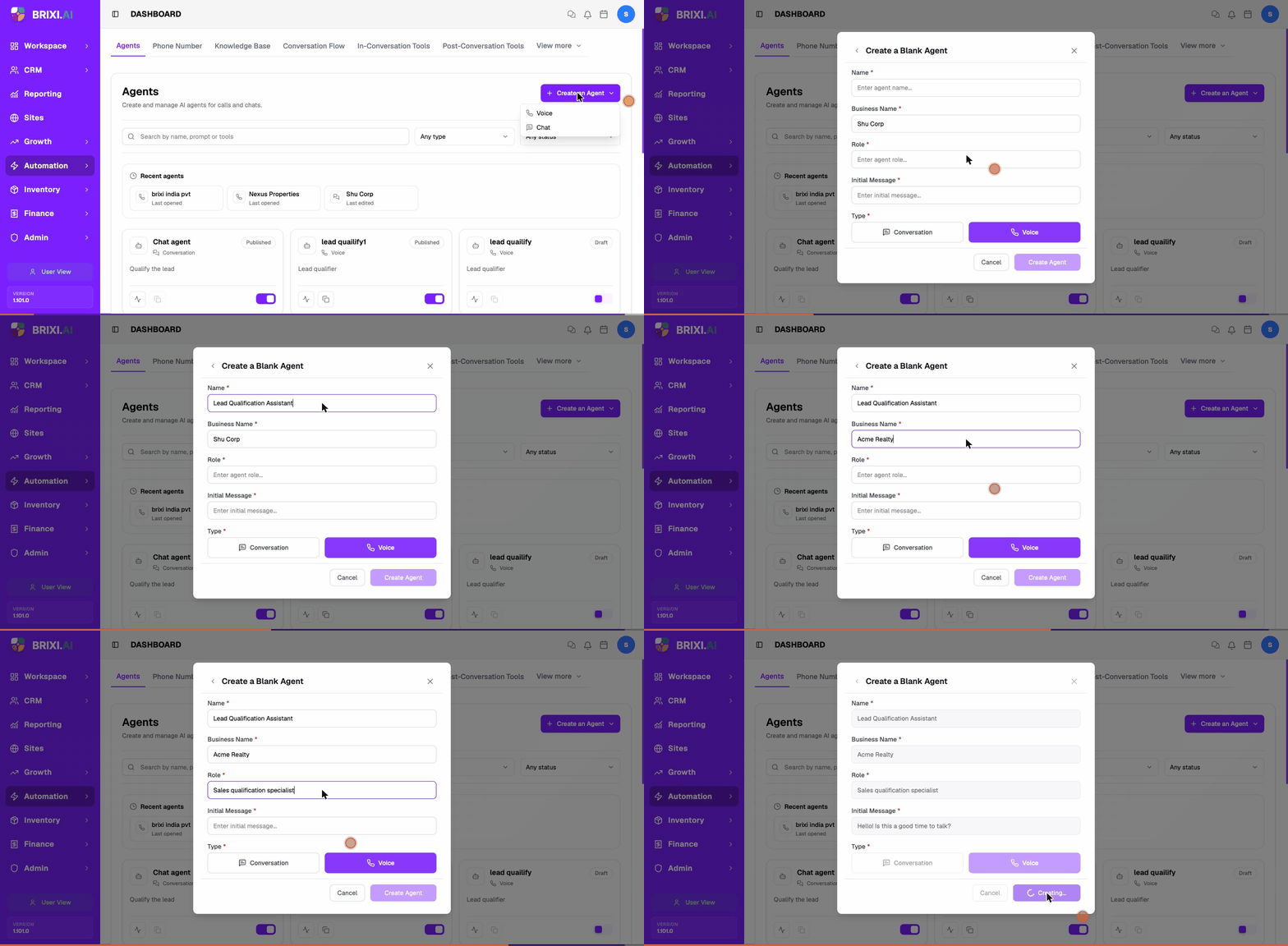
- Open Automation → AI Assistants. The Agents tab opens by default.
- Select + Create an Agent in the top-right, then choose Voice (for phone calls).
- In the Create a Voice Agent dialog, pick one:
- Start from scratch — a blank agent you configure field by field.
- Use a Voice Template — a pre-built agent for a common use case that you then edit.
- For Start from scratch, fill the Create a Blank Agent form:
- Name — describe the job, not the team (Lead Qualification Assistant, not Sales Bot).
- Business Name — the brand the agent represents on the call.
- Role — a short description, e.g. Sales qualification specialist.
- Initial Message — the first line spoken when the call connects.
- Type — keep Voice selected.
- Select Create Agent. The agent saves as a Draft and the agent editor opens.
The editor has a header (name, Voice badge, Draft/Published status, agent ID, and Save / Test / Call / Deploy buttons), the Build / Monitor / Analysis tabs, a left Build sidebar (Agent Details, Agent Setting, Prompt, Phone Number), and a right rail with Knowledge Bases, Call Tools, and Post-Call Analysis cards plus a per-minute rate breakdown.
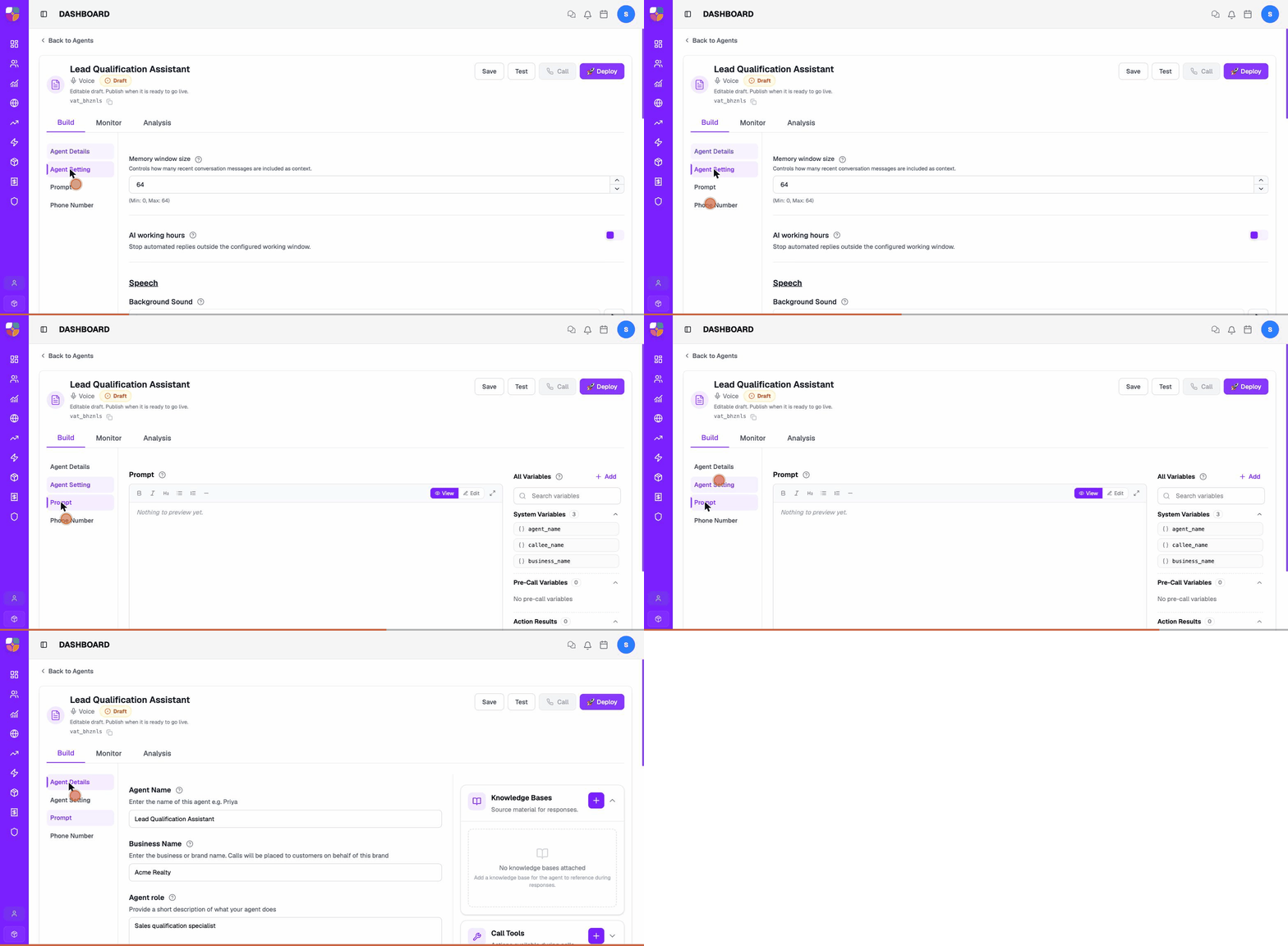
(for example vat_…)
is what you reference from logs, reports, and the Test Phone
Number tab. Use the copy icon next to it.
Step 2: Configure the Models
On Build → Agent Details, set the three models that decide how the agent hears, thinks, and speaks. Each choice updates the per-minute rate card on the right.
| Model | Section | What it controls |
|---|---|---|
| LLM | LLM Model | The language model that generates every reply. Filter the AI Model dropdown and pick one (e.g. gpt-4o). |
| Voice (TTS) | Voice (TTS) | The text-to-speech engine, Speed, Primary/Secondary Language, and the specific Voice. |
| Speech-to-Text (STT) | Speech-to-Text (STT) | The model that transcribes the caller before the LLM sees the words (e.g. nova-2). |
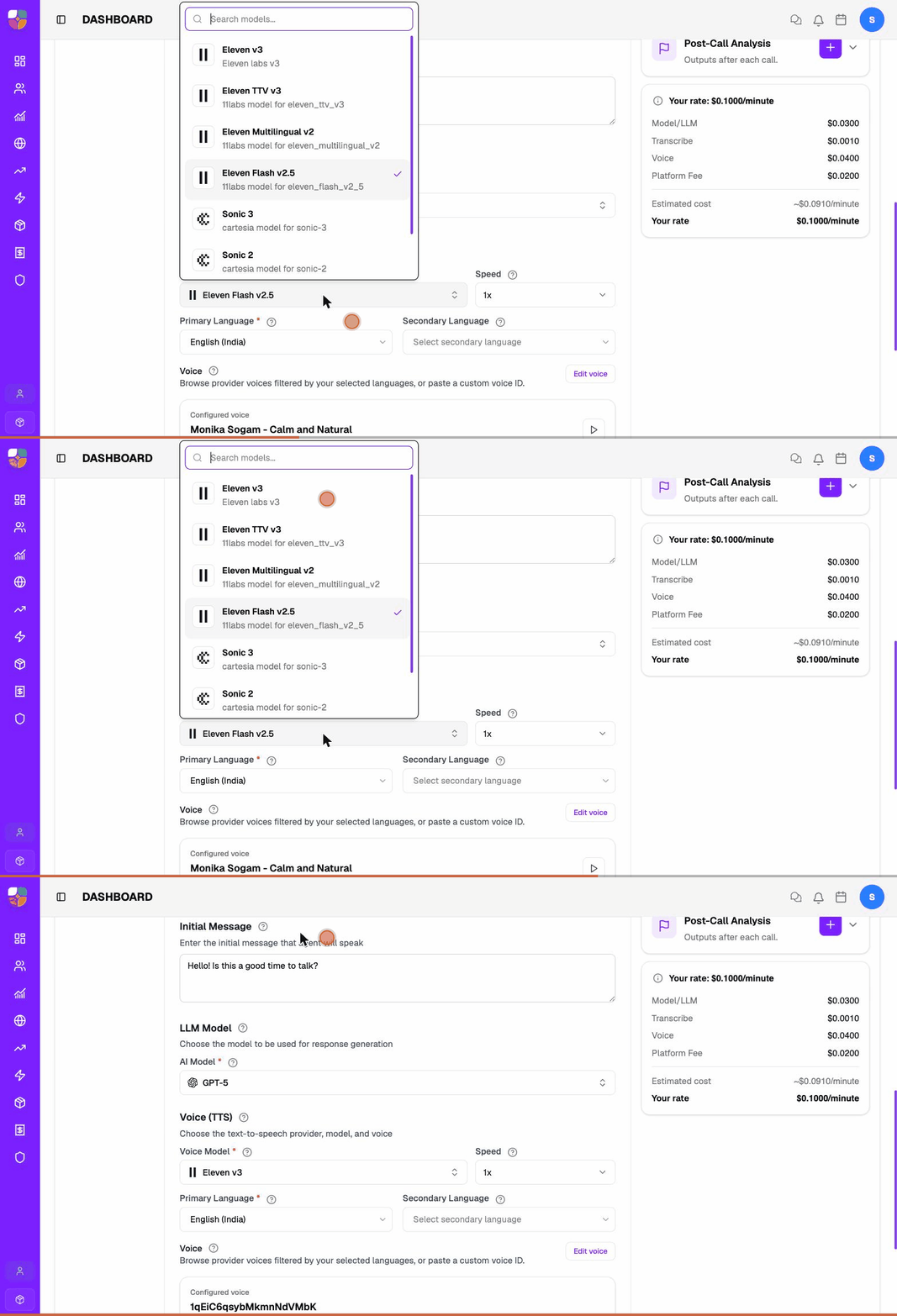
Select Save after each change, then re-test — a different model can change how the agent paces, pronounces names, and follows the prompt. For accuracy on names, projects, and jargon, add Boost Words under Build → Agent Setting.
The Agent Setting view groups every non-model behavior: memory window, working hours, background sound and backchanneling, max silence and call duration, ring duration, transcription, denoising, DTMF keypad input, and recording.
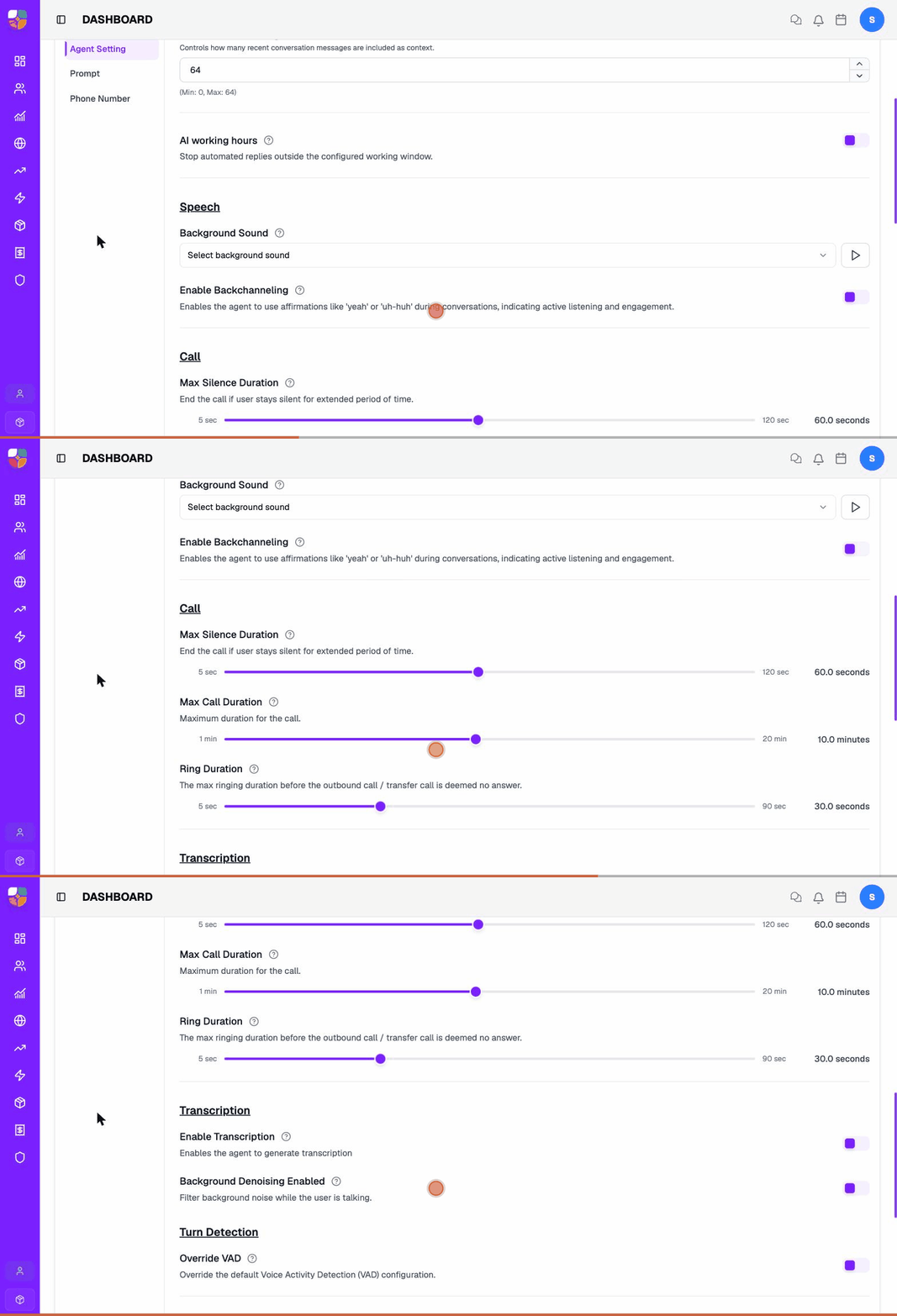
Confirm your compliance policy before enabling them in production.
See Create and Configure a Voice Agent for the full field reference.
Step 3: Write the Prompt
Open Build → Prompt. The prompt is the agent's instructions: its role, the rules it must follow, the questions it asks, and the conditions that trigger a handoff or a tool.
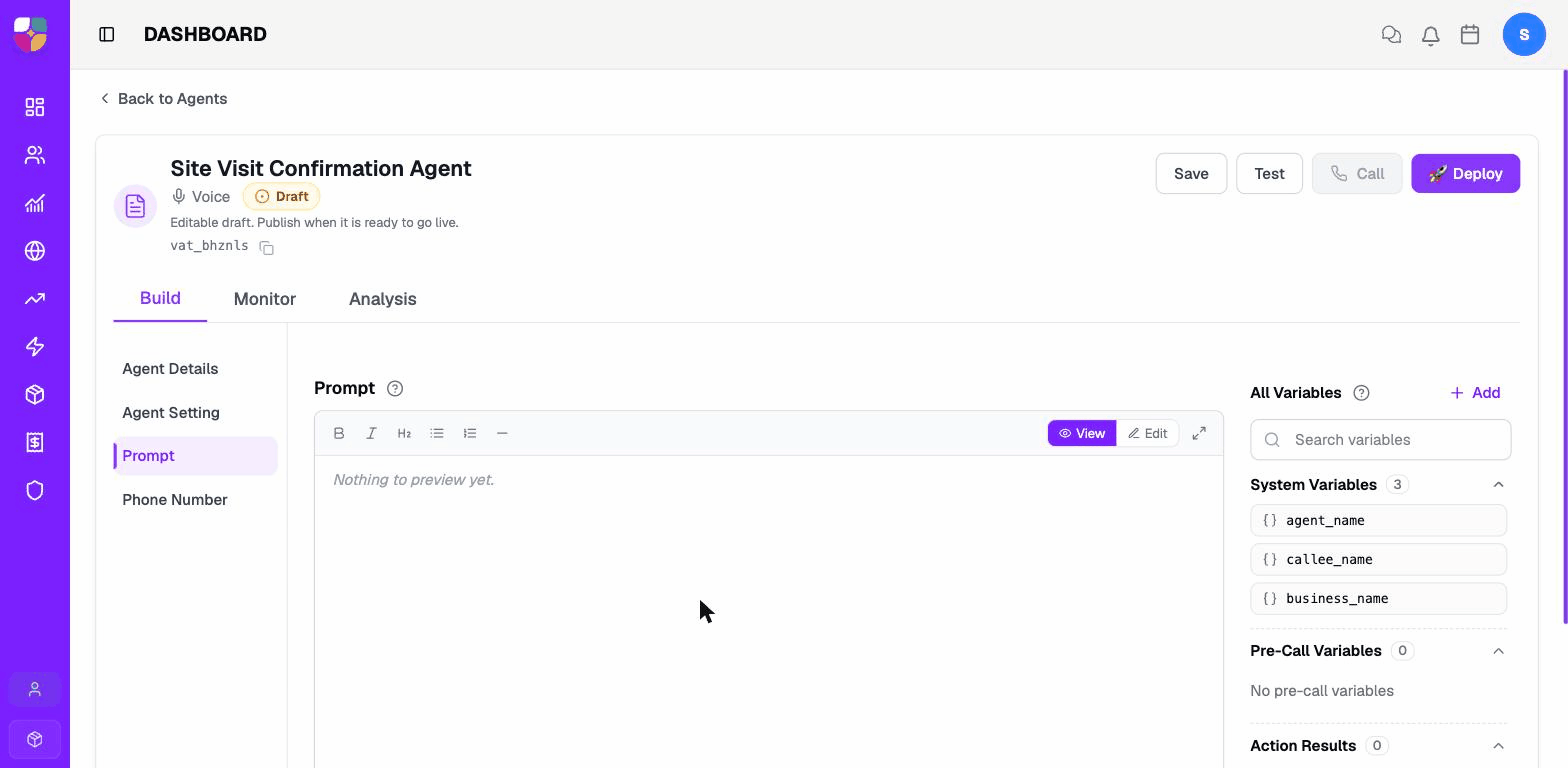
Write it in plain, operational language and reference variables (system, pre-call, and action-result values) where the agent should drop in live data. Keep one instruction per line, spell out every tool's trigger condition, and state a clear stop/opt-out path. Full guidance — including the variable catalog — is in Write the Agent Prompt.
Every tool you attach later must have a matching prompt rule. The agent only invokes a tool when the prompt explains when to use it.
Step 4: Connect Telephony and a Phone Number
A voice agent can only handle live calls once a phone number is attached. The number decides which agent answers an inbound caller, or which line an outbound call comes from.
Where telephony lives
The Phone Number tab (subtitle "Manage phone providers and route numbers to inbound and outbound agents") has two parts:
- Phone Number Providers — the telephony accounts your numbers belong to. Add Phone Provider offers two options: Twilio (a managed account — enter the Account SID and Auth Token) or BYO SIP Trunk (your own SIP infrastructure — enter a name, username, password, domain/IP, optional inbound domain and proxy, port, and transport: UDP, TCP, or TLS). Save the provider first, then attach numbers to it.
- Phone Numbers — the individual numbers, each showing its provider, Routing (the inbound and outbound agent it maps to), 30-day In / Out usage, and Active status. Use Add Phone Number to register a number you already have, or Buy Phone Number to get a new one.
You also work with numbers in two other places:
- Build → Phone Number (agent level) — attach a number to this agent and confirm routing.
- Test Phone Number tab — verified numbers you place trial calls from before going live.
Attach a number and confirm routing
- Open the Phone Number tab and review existing providers and numbers before adding anything.
- Connect a provider with Add Phone Provider if you don't have one, then Add Phone Number or Buy Phone Number. Give each a recognizable name such as Inbound Sales — Mumbai or Project Callback.
- Set the number's Routing — which agent answers Inbound calls and which agent places Outbound calls. You can also attach the number from Build → Phone Number in the editor.
- Confirm business-hours handling and the fallback path for unanswered or failed calls.
- Save, then place a test call and confirm it appears in the number's usage and the agent report.
The Phone Number tab should show the provider, available numbers, routing status, and whether each number can handle inbound calls, outbound calls, or both.
If two projects use different scripts, knowledge, or follow-up owners, give each its own number so Project A calls are never mixed with Project B in reports.
Routing problems, provider checks, and the full setup workflow are covered in Set Up Telephony and Phone Numbers.
Step 5: Attach a Knowledge Base
A knowledge base is a workspace-level library of trusted answers the agent can quote during a call — project details, FAQs, policies, scripts. Build the library first, then attach it to the agents that need it.
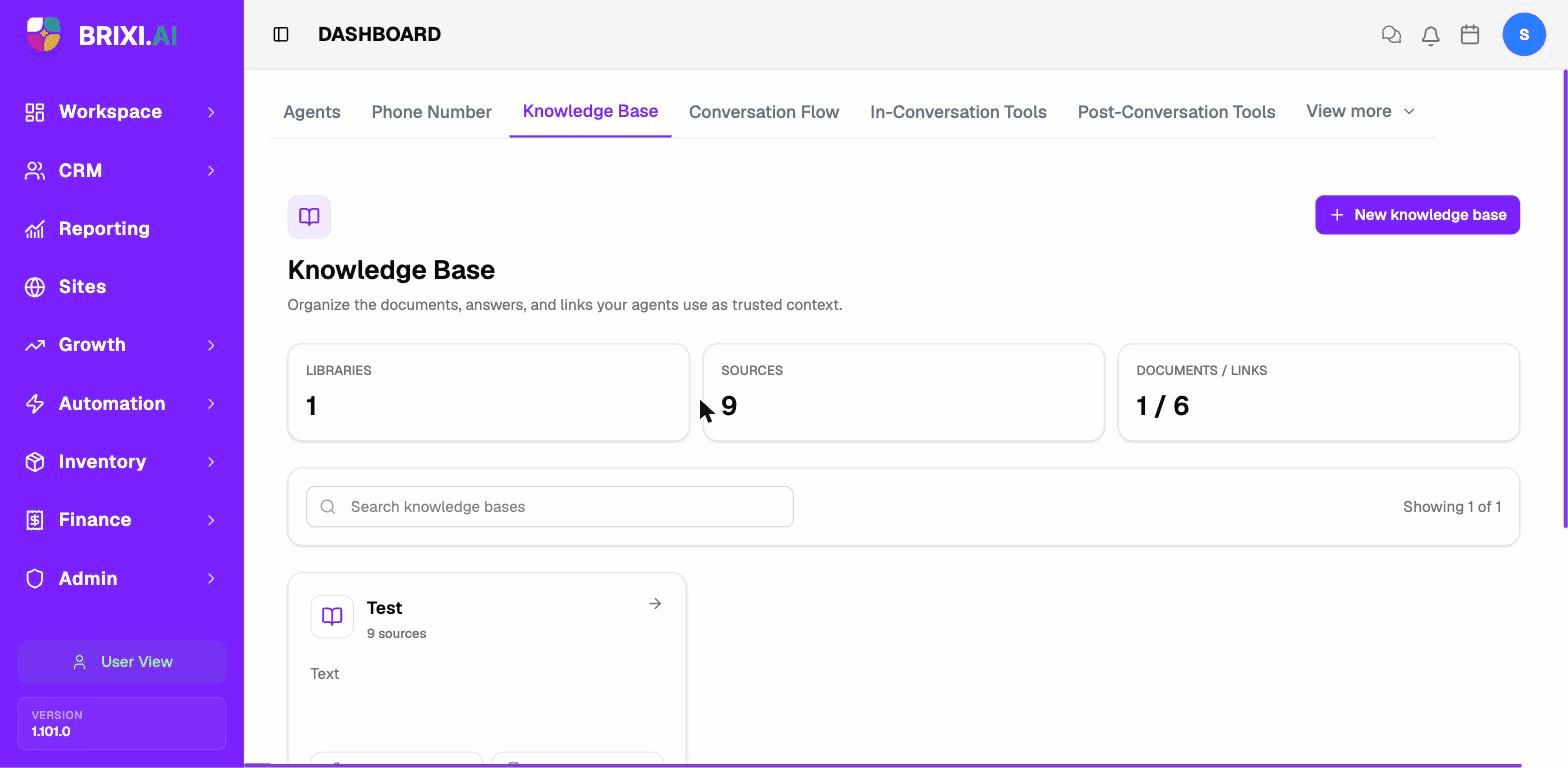
Build the library (Knowledge Base tab → + New knowledge base), then add sources. Three source types are supported:
| Source | Use when | Limits |
|---|---|---|
| Web pages | You want the agent to use trusted public content, crawled and synced. | Public pages only. |
| FAQs | You want predictable answers to common questions. | Keep answers short and customer-safe. |
| Files | You want the agent to learn from documents you have. | PDF, TXT, Markdown, DOC, or DOCX, each up to 10 MB. |
Attach it to the agent: on Build → Agent Details, find the Knowledge Bases card on the right rail, select +, choose the library, and Save.
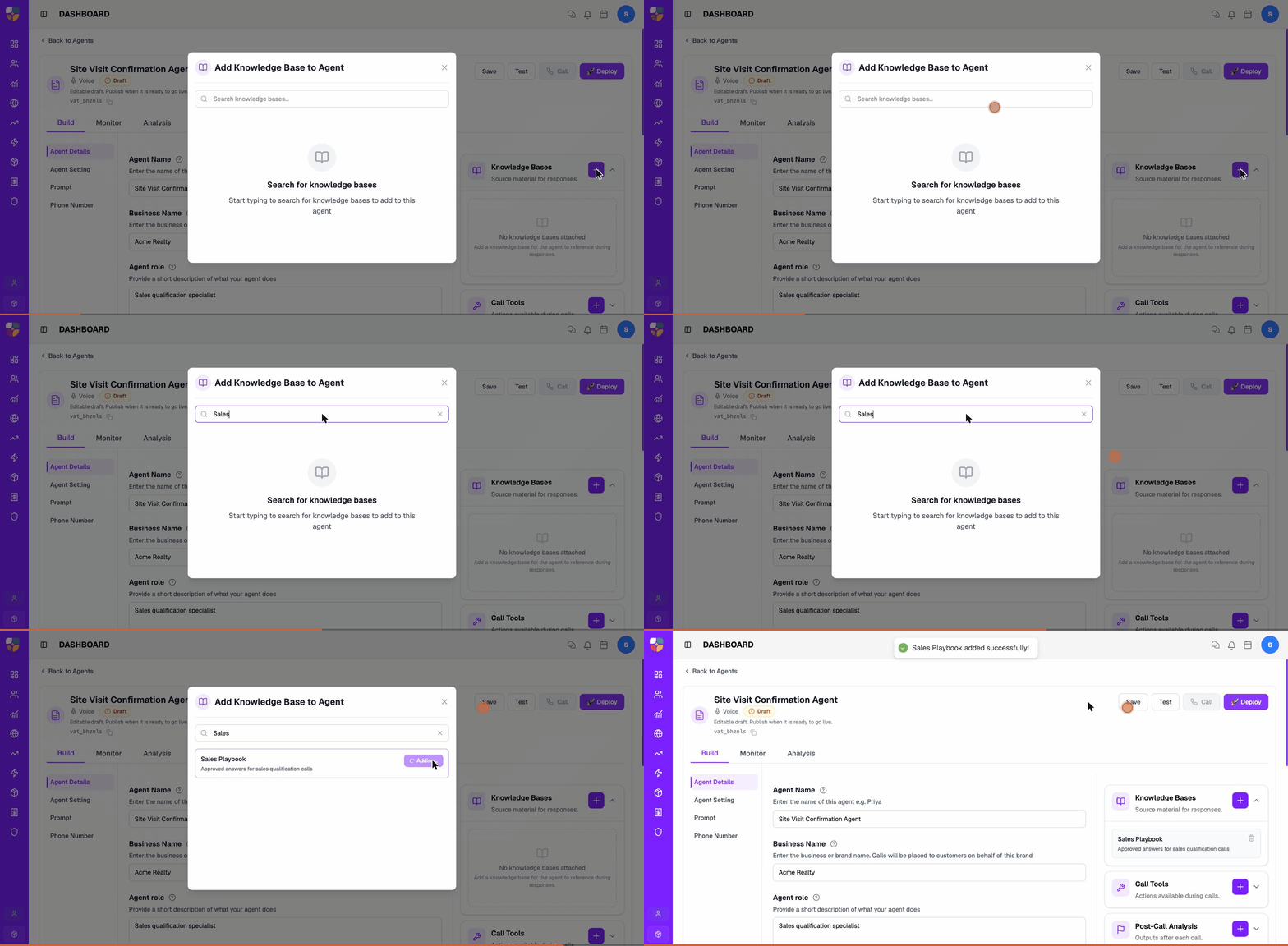
Do not attach every library to every agent. Extra unrelated content reduces answer precision — attach only what this use case needs.
Full instructions are in Build a Knowledge Base.
Step 6: Add In-Conversation Tools
In-conversation tools (in-call tools) let the agent take an action while the call is still happening — transfer to a human, hit an API, book an appointment, or end the call. They are workspace-level objects: create one, then attach it to any agent.
| Tool | Use it for |
|---|---|
| Call Transfer | Hand the live call to a phone number or team. |
| End Call | End the phone call cleanly when the process is complete. |
| API Tool (HTTP) | Call an internal or external endpoint mid-call — lookup, status check, create/update a record. |
| Voicemail | Leave or handle a voicemail when the call isn't answered live. |
| Route To | Send the conversation down a specific path in a conversation flow. |
| Appointment Scheduler | Book a visit or appointment while talking to the customer. |
| User Handoff | Hand the conversation to a human owner or team. |
| End Conversation | Close the conversation path without necessarily ending the phone line. |
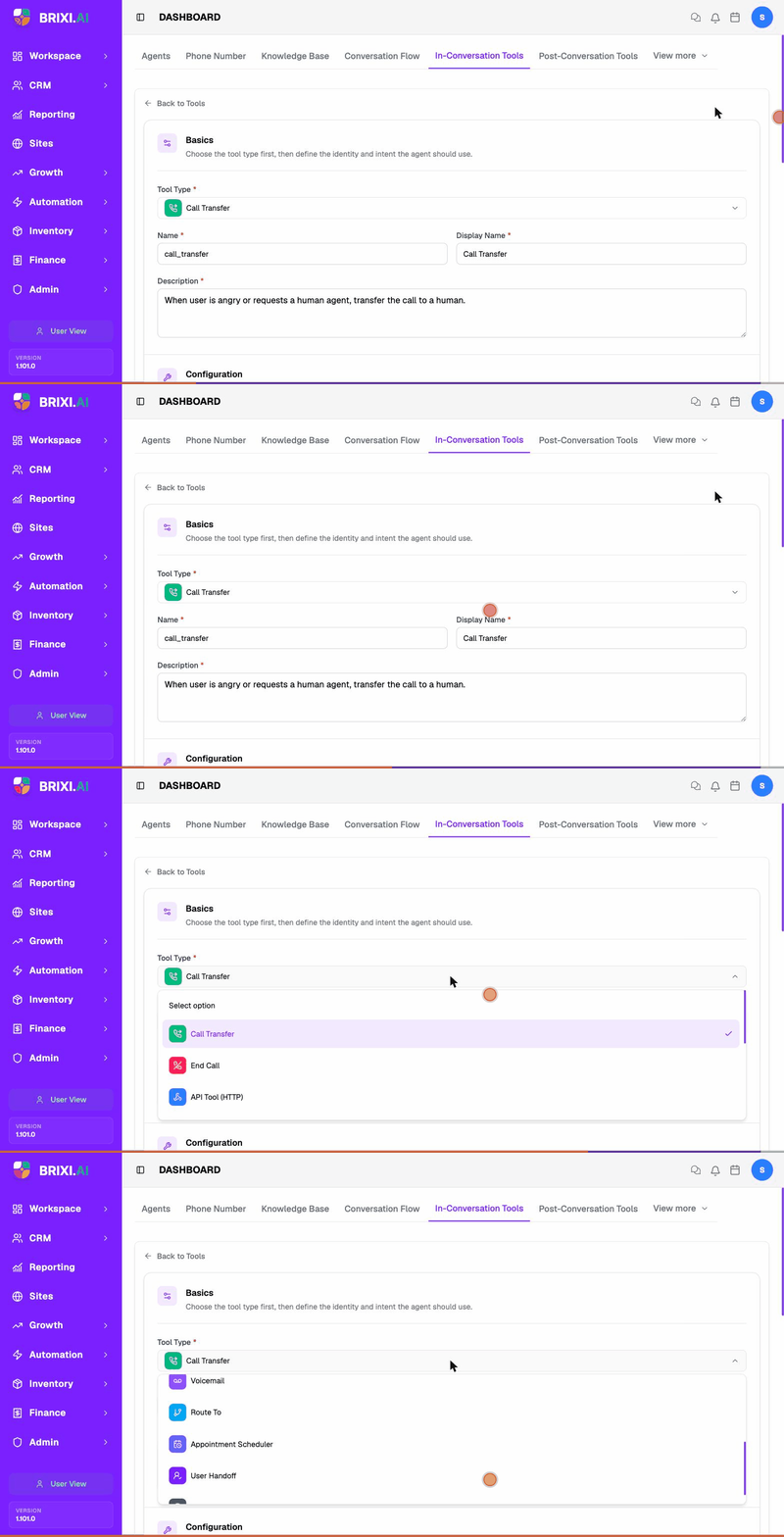
Attach a tool from the Call Tools card (subtitle "Actions available during calls") on Build → Agent Details, then Save.
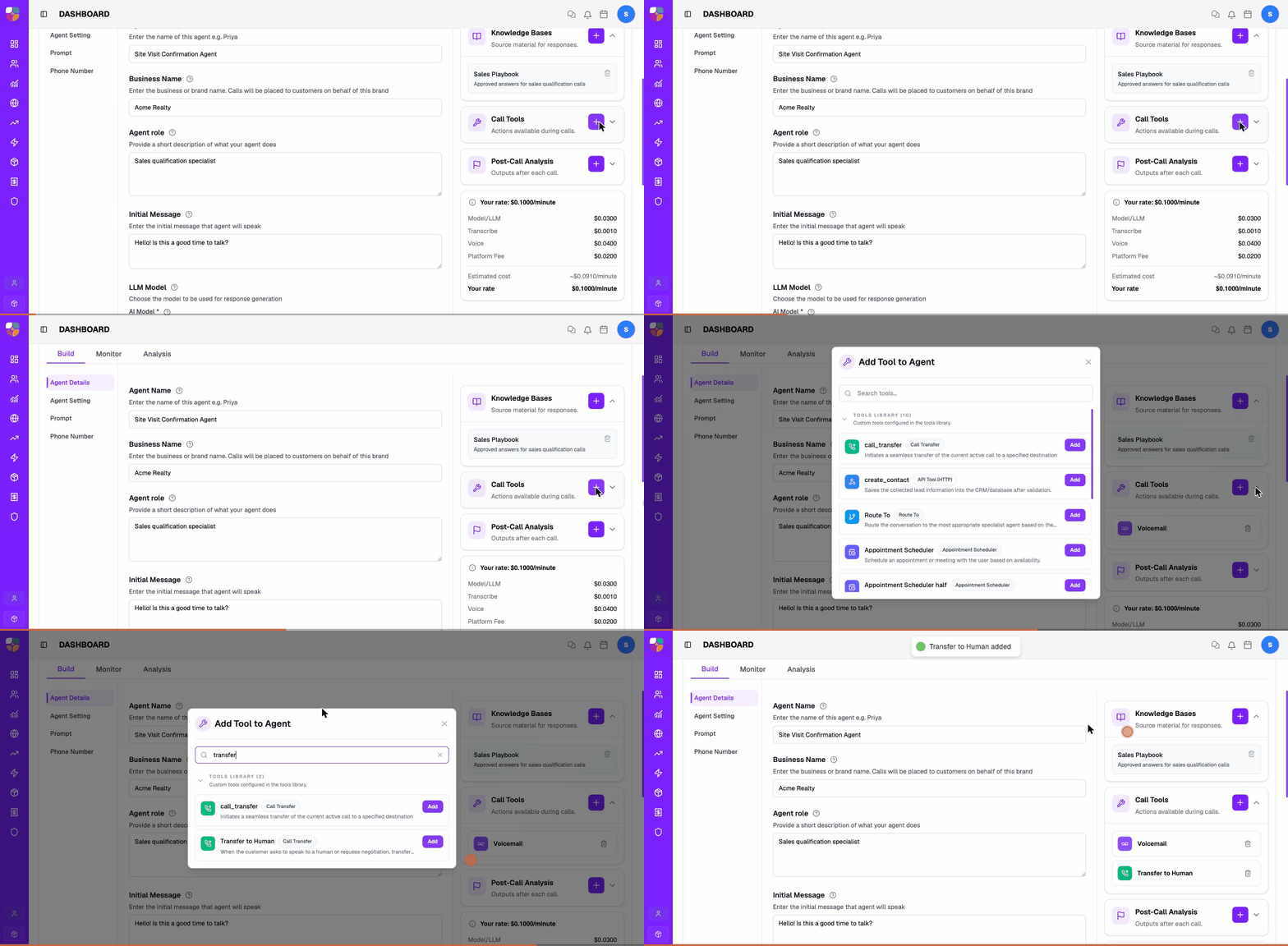
Update the prompt at the same time. A tool attached without a matching prompt rule tends to either never run or run too often.
Give the agent only the tools its use case truly needs. Full configuration — including Call Transfer and API Tool examples — is in Configure In-Conversation Tools.
Step 7: Configure Post-Conversation Analysis
Post-conversation tools (post-call / analysis tools) run after the call ends. They don't change the call — they turn it into usable CRM context: extracted fields and structured outputs your team and reports can rely on. The tab describes them as "post-conversation structured outputs to extract data automatically."
On the Post-Conversation Tools tab, select + Create Tool and choose how the output is shaped:
| Option | Use it for |
|---|---|
| Use Template | Start from a ready-made structured output and adjust it before saving. |
| Multiple Variable | Build a structured output with several fields at once — for example interest level, budget, location, and outcome. |
| Single Variable | Extract one value using the LLM or a regex — for example the preferred callback time. |
| Voice Rescheduler | Detect callback requests and schedule another voice call automatically. |
Attach the result from the Post-Call Analysis card on Build → Agent Details (the same right rail as Knowledge Bases and Call Tools), then Save.
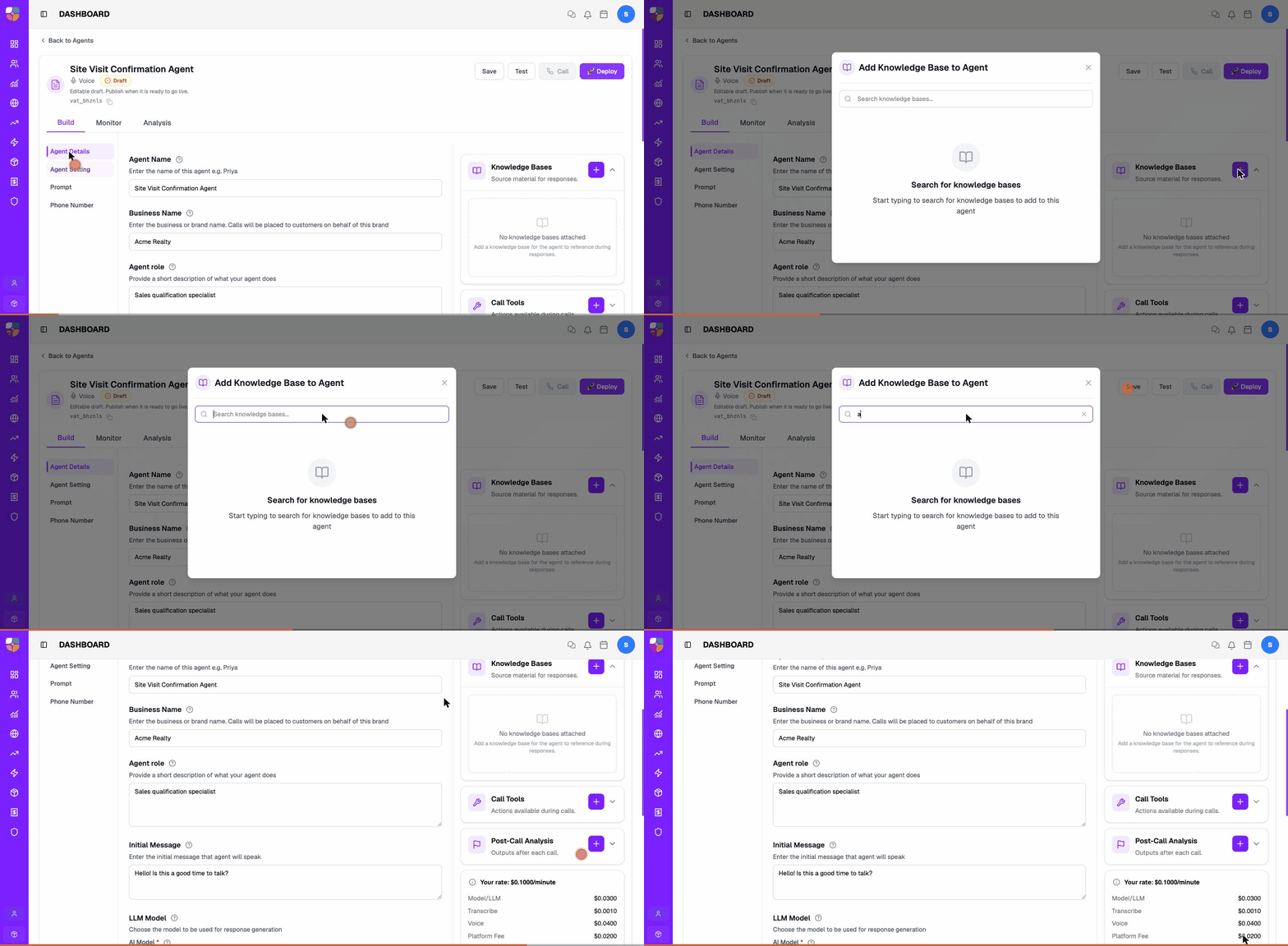
When you create a post-conversation tool, choose the output shape that matches the follow-up data you need: a template, several fields, one field, or a voice rescheduler.
Keep extracted field names and outcome labels stable so managers can compare reports over time. Details are in Configure Post-Conversation Tools and Analysis.
In-Conversation vs Post-Conversation Tools
This is the distinction that trips up most new builders. Both are attached to the agent, but they do opposite jobs.
| In-Conversation (in-call) tools | Post-Conversation (analysis) tools | |
|---|---|---|
| When they run | Live, during the call | After the call ends |
| What they change | The call itself — they take real actions in real time | Nothing on the call — they produce data about it |
| Goal | Help the agent act (transfer, schedule, look up, end) | Help your team follow up (summarize, extract, score) |
| Examples | Call Transfer, API Tool (HTTP), Appointment Scheduler, Voicemail, End Call | Multiple Variable, Single Variable, Voice Rescheduler, templates |
| Attached on | Call Tools card | Post-Call Analysis card |
| Needs a prompt rule? | Yes — the prompt must say when to invoke it | No — they run automatically after the call |
| If it fails | The caller feels it (e.g. a transfer that doesn't connect) | A report or CRM field is missing or wrong |
if it must happen while the customer is on the line, it's an in-conversation tool. If it only matters once the customer hangs up, it's a post-conversation tool.
A typical qualification agent uses a small set of each: Call Transfer and maybe Appointment Scheduler in-call, plus a Multiple Variable output (interest level, budget, callback time, outcome) after the call.
Step 8: Test, Deploy, and Monitor
The agent header has four actions:
| Button | What it does |
|---|---|
| Save | Save the current draft. Nothing goes live. |
| Test | Talk to the draft before exposing it to live numbers. |
| Call | Place an outbound test call (available once a number is attached). |
| Deploy | Publish the draft so it handles live traffic on its number. |
Before you deploy, run at least four scenarios: a happy path, a confused customer, a transfer/handoff path, and an opt-out/stop path. Review the transcript, confirm tools fired correctly, and check that the post-call summary and extracted fields are accurate. See Test an Agent Before Launch.
Deploy only after the draft passes those test calls, then watch Voice Agent Reports and Analytics closely for the first day or two and keep the prompt and knowledge current.
When the job changes, edit the existing agent rather than cloning it. Reports stay continuous as long as the agent ID does.
Common Issues
| Issue | What to check |
|---|---|
| Model picker shows "No models available" | An admin must enable an LLM provider for the workspace. |
| Caller hears no agent | Phone number assignment, the agent's Published status, provider status, and routing. |
| Wrong agent answers | Phone number mapping and the agent attached to that number. |
| Agent says it doesn't know something | Confirm the knowledge base is attached on Agent Details and the answer exists in clear language. |
| A tool never fires | The tool is attached on Call Tools and the prompt has a matching rule. |
| Transfer goes to the wrong place | The Call Transfer destination in the tool's configuration and the number's routing. |
| Summary or fields are missing | Confirm the post-conversation tool is attached and the prompt asks for those details explicitly. |
| Phone number report is empty | The time range, the phone number filter, and whether the test call actually completed. |
This walkthrough crosses several permission areas — agents, telephony, knowledge, and tools — so if any tab or button is missing along the way, ask your admin which of those your role covers. The two most common admin-side blockers are an empty model picker ("No models available") and a missing phone provider connection.
Contact Brixi support when calls fail despite correct setup: a number that's attached and routed but callers hear nothing, an attached tool that never fires even with a matching prompt rule, or test calls that never connect. Include the agent ID (vat_…), the phone number, and the approximate time of a failed call so it can be traced.