Set Up a Voice Agent's Model and Voice
Tune how your phone AI thinks, hears, and speaks — pick its language model, voice, and speech recognition, then dial in call behavior so it sounds natural and follows the script on every call. Create one agent per clearly defined use case so reports and troubleshooting stay easy to read; each agent bundles its own purpose, prompt, LLM, voice (TTS), speech recognition (STT), knowledge, tools, phone number, and reports.
Entry pointAutomation → AI Assistants → Agents
You need permission to create or edit agents on the Automation → AI Assistants → Agents workspace.
Create an Agent
- Open Automation → AI Assistants → Agents. The Agents tab opens by default.
- In the top-right corner, select + Create an Agent. A small menu appears.
- Choose Voice (for phone calls) or Chat (for messaging). This article covers Voice; the Chat flow is similar.
- In the Create a Voice Agent dialog, pick one:
- Start from scratch — open a blank agent and configure every field yourself.
- Use a Voice Template — start from a pre-built agent for a common industry or use case and edit from there.
- For Start from scratch, the Create a Blank Agent form opens. Fill:
- Name — describe the job, not the team. Lead Qualification Assistant, not Sales Bot.
- Business Name — the brand the agent represents on calls. Defaults to your workspace name.
- Role — a short description of what the agent does, for example Sales qualification specialist.
- Initial Message — the first line the agent speaks when the call connects, for example Hello! Is this a good time to talk?
- Type — keep Voice selected (Conversation is the chat variant).
- Select Create Agent. The agent saves as a Draft and the agent editor opens.
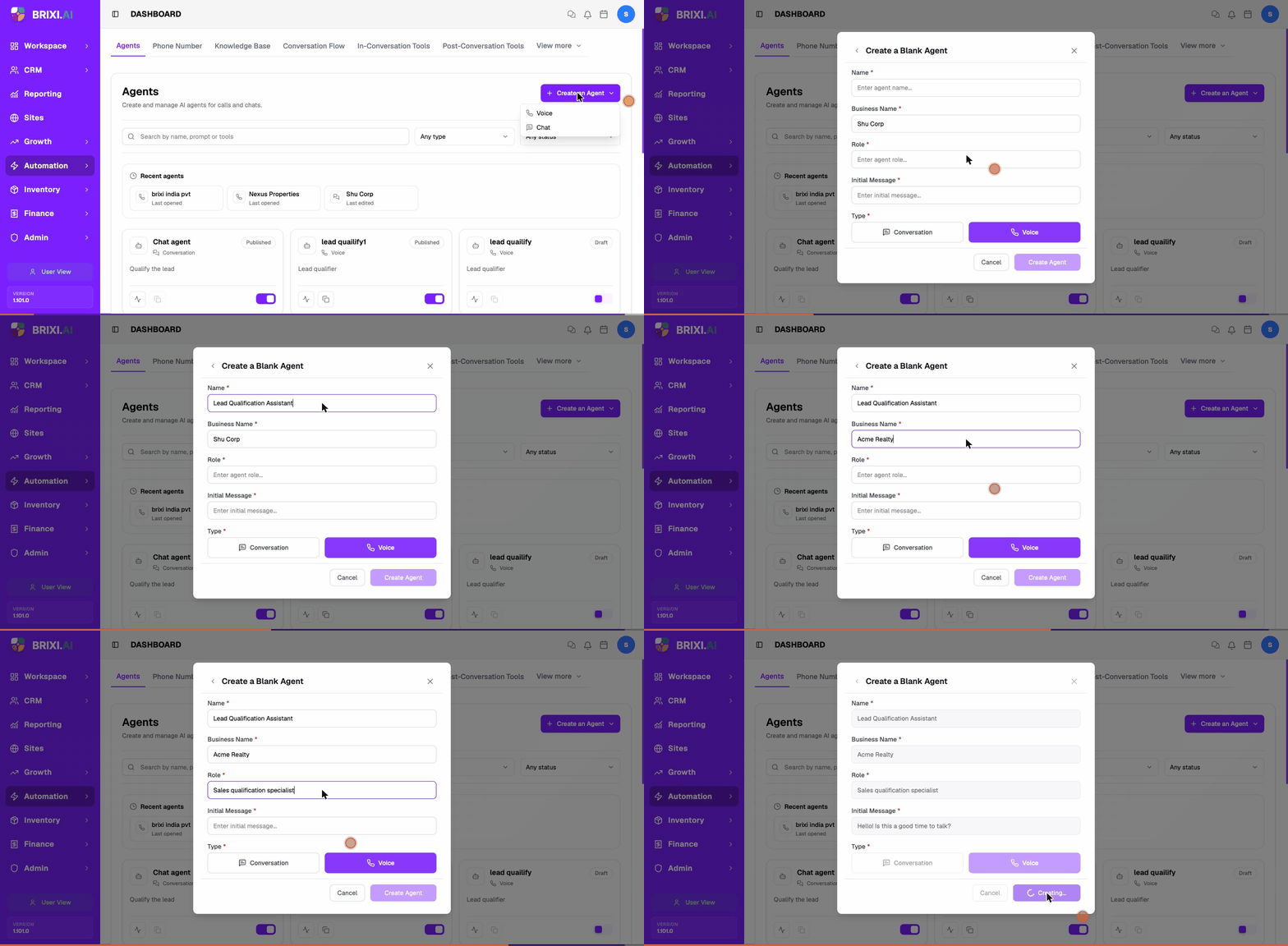
The form will not save until each of these fields is filled.
Agent Editor Overview
After creating an agent you land on its editor at Automation → AI Assistants → Agents → [agent name].
The page has three areas:
- Header (top) — agent name, Voice badge, Draft / Published status, agent ID (next to the small copy icon), and the Save / Test / Call / Deploy action buttons.
- Tabs — Build (default), Monitor, Analysis. Most setup work happens under Build.
- Build sidebar (left) — Agent Details, Agent Setting, Prompt, Phone Number. These four sections cover everything you can configure on an agent.
- Right rail (Agent Details view only) — Knowledge Bases, Call Tools, Post-Call Analysis cards with a + button on each, plus an estimated per-minute Your rate breakdown (Model/LLM, Transcribe, Voice, Platform Fee).
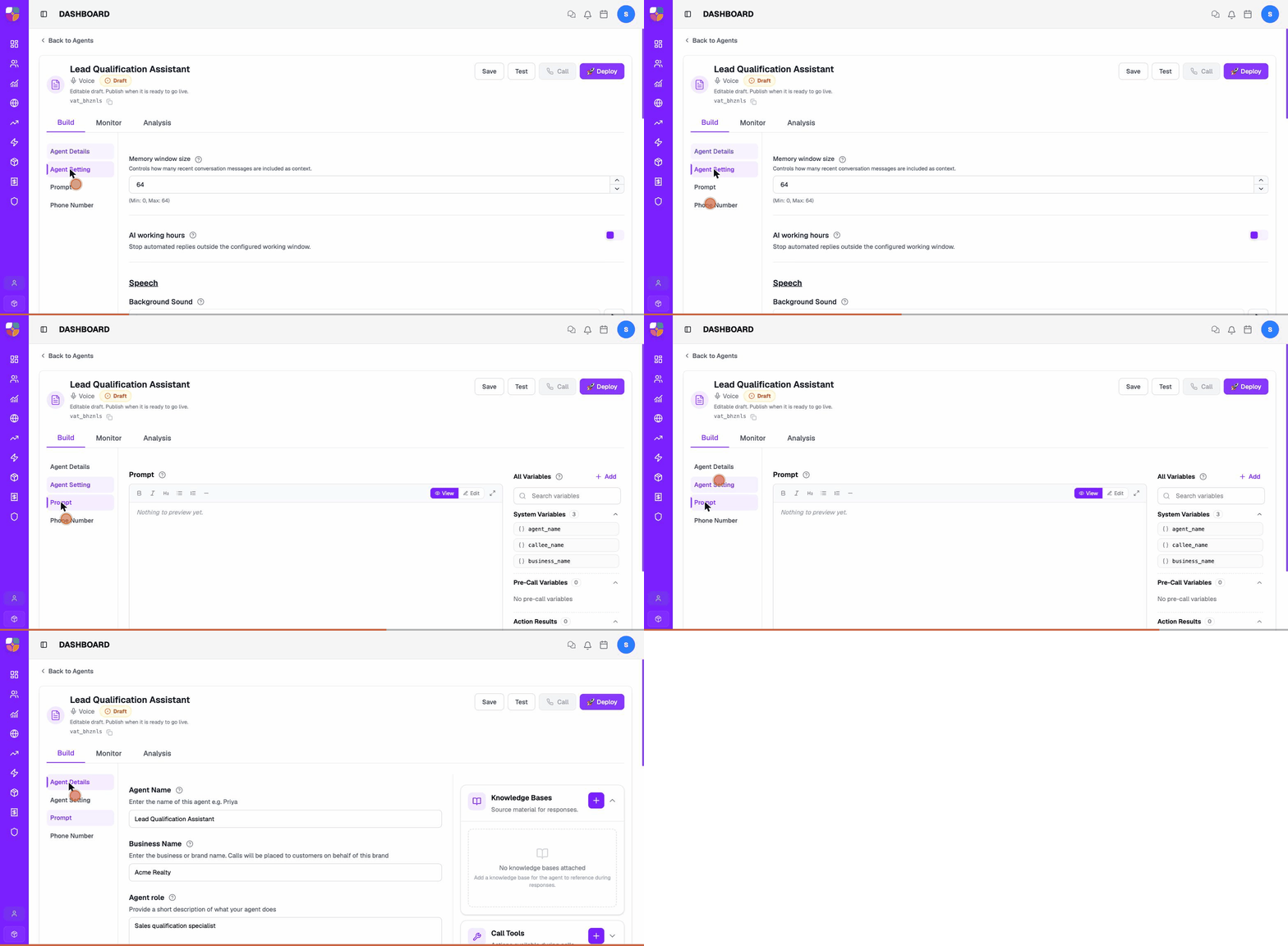
The agent ID under the name (for example, vat_uasdtf) is what
you reference from logs, the API, and the Test Phone Number
tab. Use the copy icon next to it.
Update Agent Details
The Build → Agent Details view holds every field you set during creation, plus the model pickers. Edit any field and select Save in the top-right.
| Field | What it does |
|---|---|
| Agent Name | The internal name. Visible in lists and reports. |
| Business Name | The brand the agent speaks on behalf of. Used in the prompt's business_name variable. |
| Agent role | Short description of the agent's job. |
| Initial Message | The exact greeting the agent speaks when the call connects. |
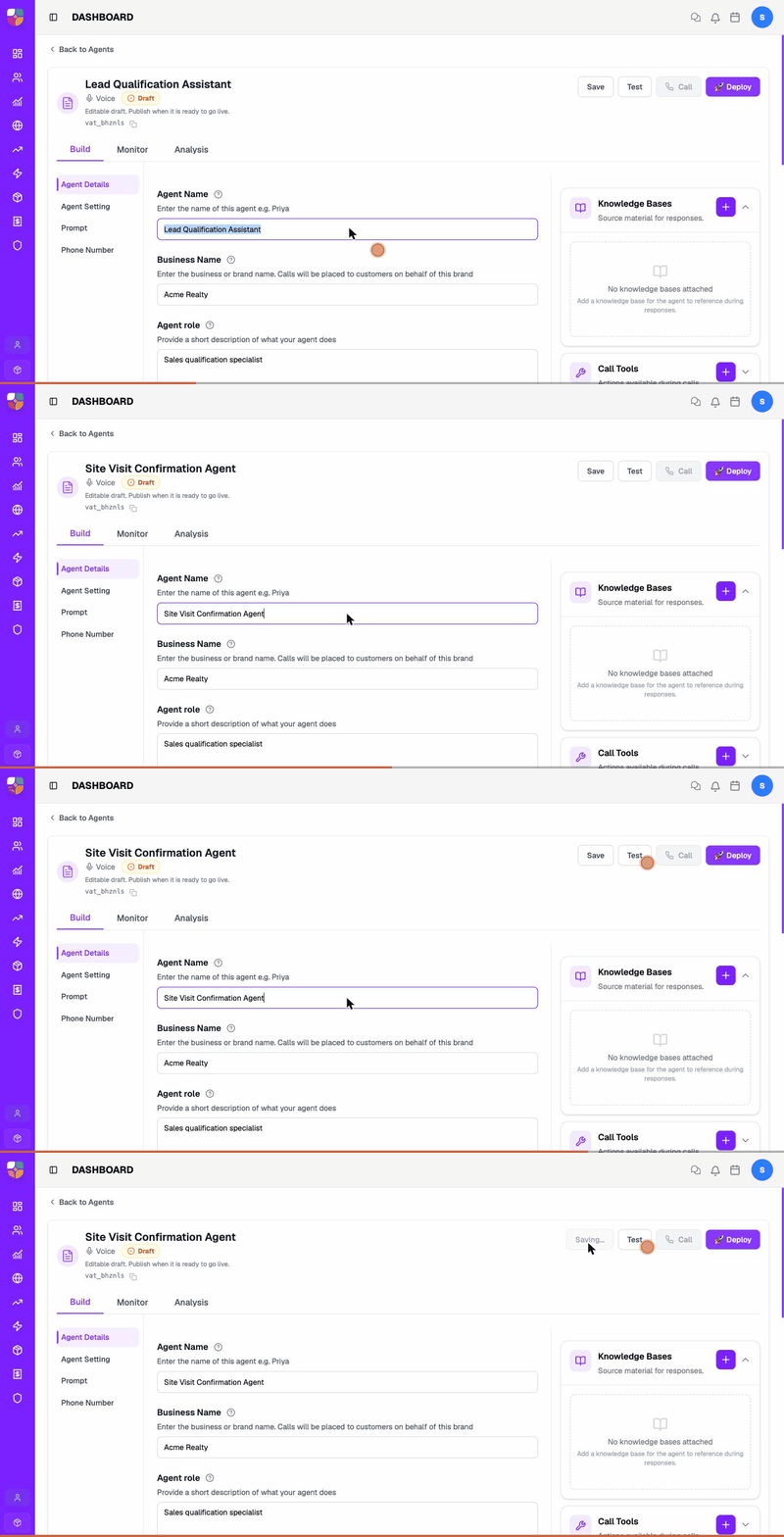
Always update the existing agent when its job changes — don't clone it for minor edits. Reports stay continuous when the agent ID does.
Add or Change the LLM
The LLM Model section on Build → Agent Details picks the language model the agent uses to generate every reply.
- Scroll to LLM Model ("Choose the model to be used for response generation").
- Select the AI Model dropdown.
- Type a few characters in the search box to filter, then pick a model (for example, gpt-4o).
- Select Save in the top-right.
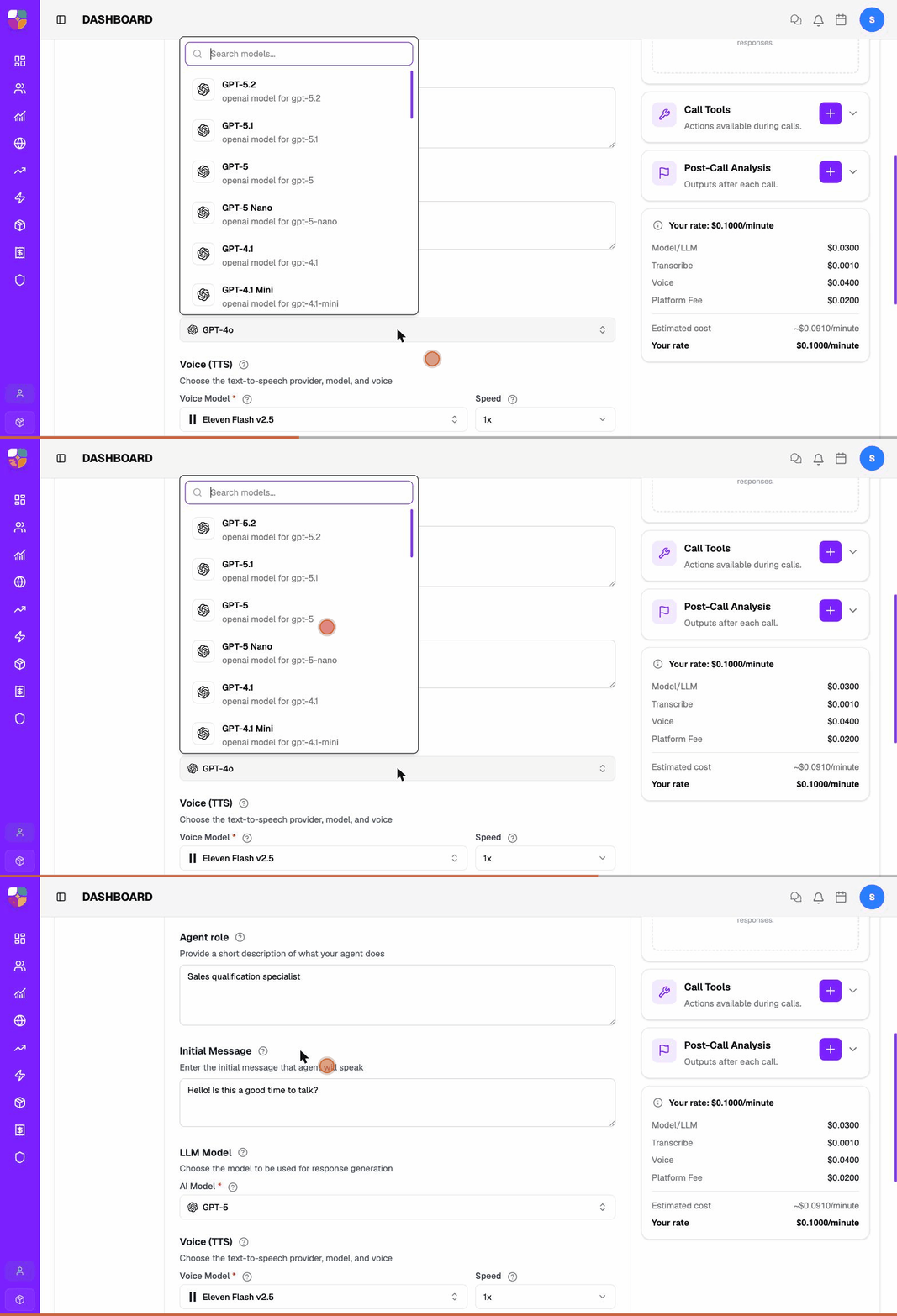
If the dropdown shows No models available — Add an active model for this category before selecting one, your workspace has no enabled LLM provider yet. An admin must enable a provider before agents can pick a model.
Picking a different model changes the Model/LLM line on the per-minute rate card on the right. Re-run a test call after switching — a new model can change the way the agent paces, summarizes, and follows the prompt.
Change the Voice (TTS)
The Voice (TTS) section controls the text-to-speech voice the agent speaks with.
- Scroll to Voice (TTS) ("Choose the text-to-speech provider, model, and voice").
- Voice Model — pick the TTS engine (for example, eleven_flash_v2_5).
- Speed — slow the agent down or speed it up (default 1x).
- Primary Language — the main language the agent speaks (for example, English (India)).
- Secondary Language (optional) — a second language the agent can switch into mid-call.
- Voice — select Edit voice to browse provider voices filtered by your chosen languages, or paste a custom Voice ID.
- Select Save.
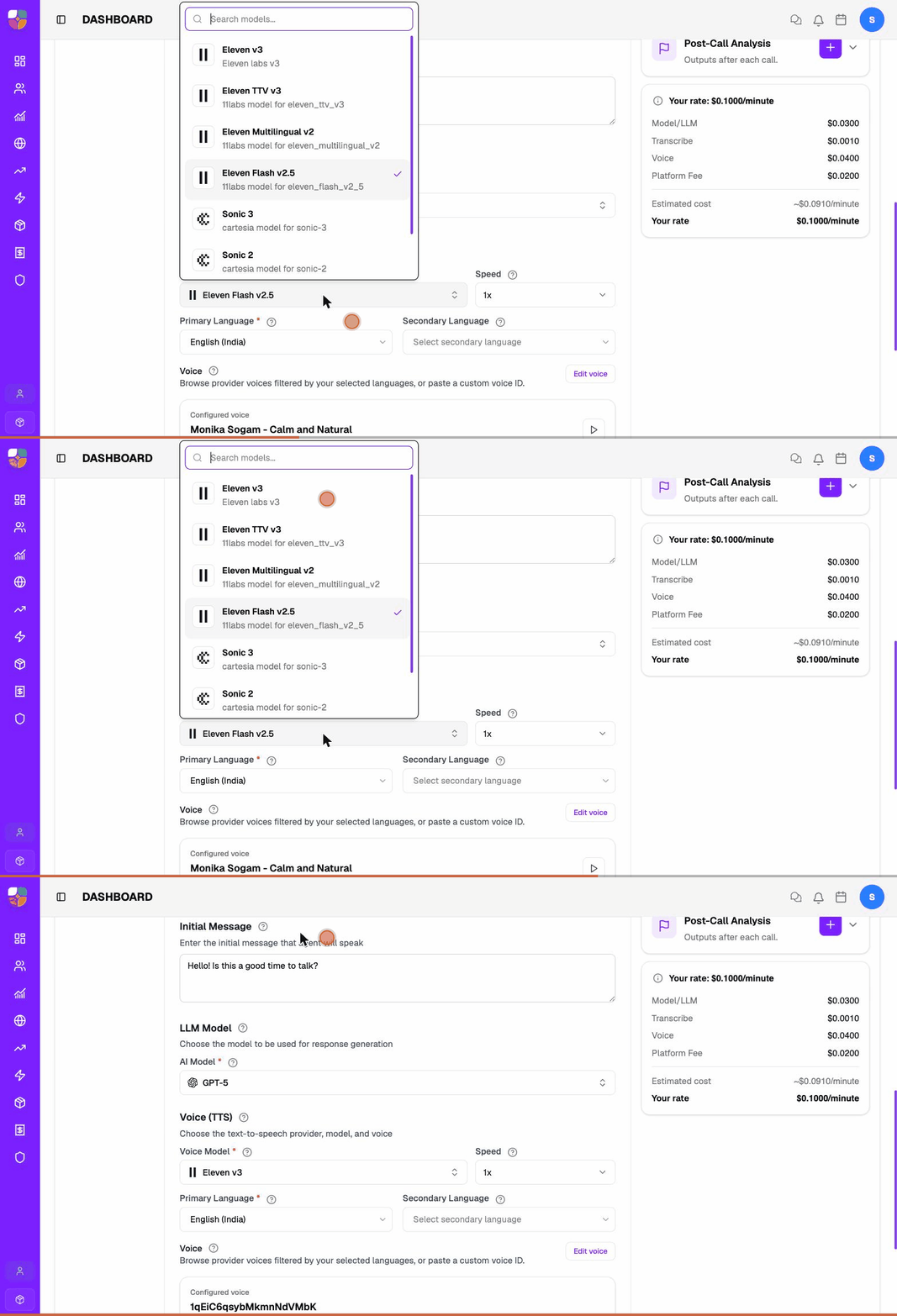
The configured voice ID is shown in the Configured voice card. Copy it for support tickets when a voice sounds off — it pins down exactly which provider voice produced the audio.
Change the Speech-to-Text (STT) Model
The Speech-to-Text (STT) section sets how customer audio is transcribed to text before the LLM sees it.
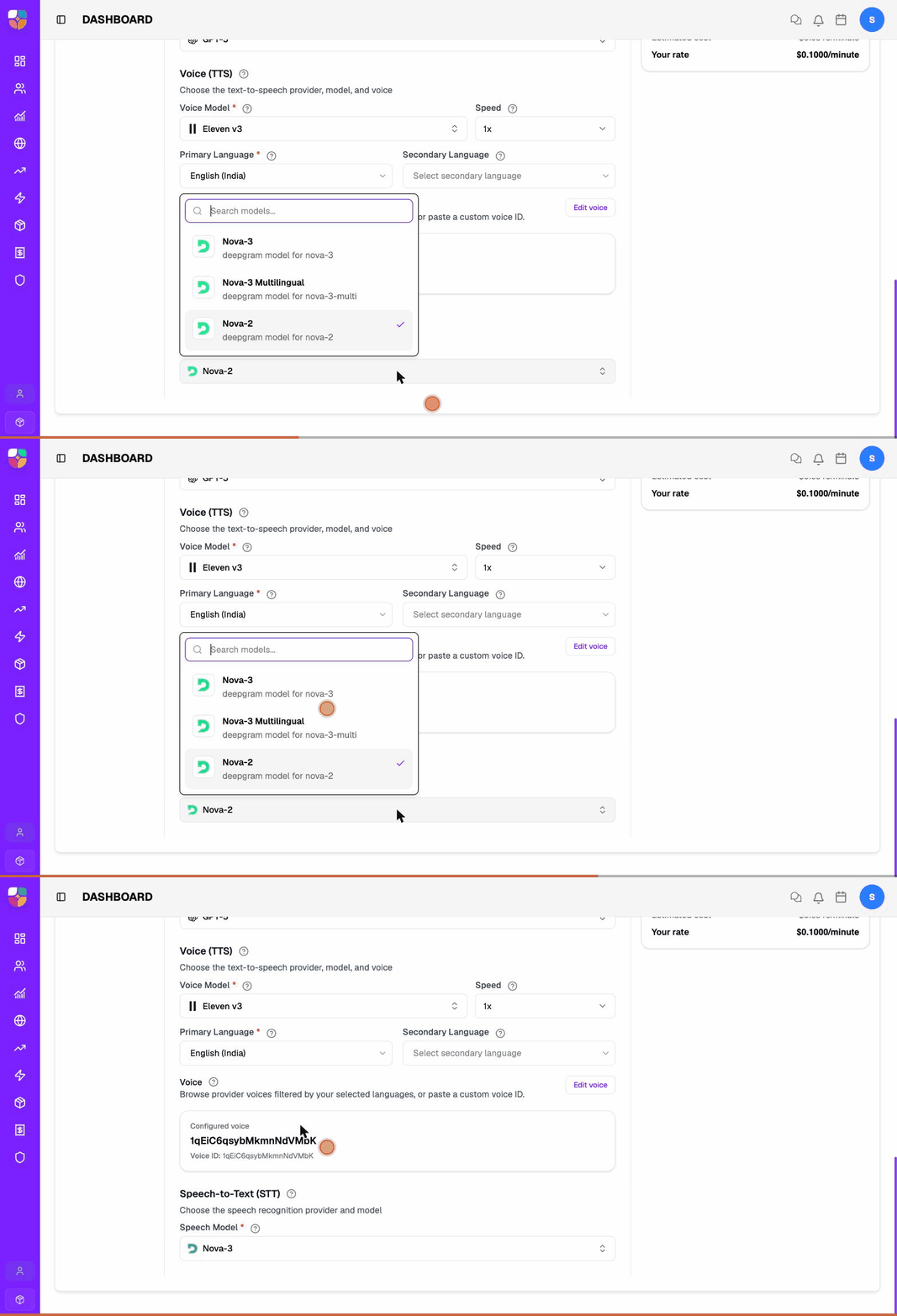
- Scroll to Speech-to-Text (STT) ("Choose the speech recognition provider and model").
- Select the Speech Model dropdown (default nova-2) and pick a model.
- Select Save.
A different STT model changes the Transcribe line on the rate card and can change accuracy on accents, names, and domain words. Use Boost Words to bias recognition toward names and jargon the model misses.
Tune Agent Settings
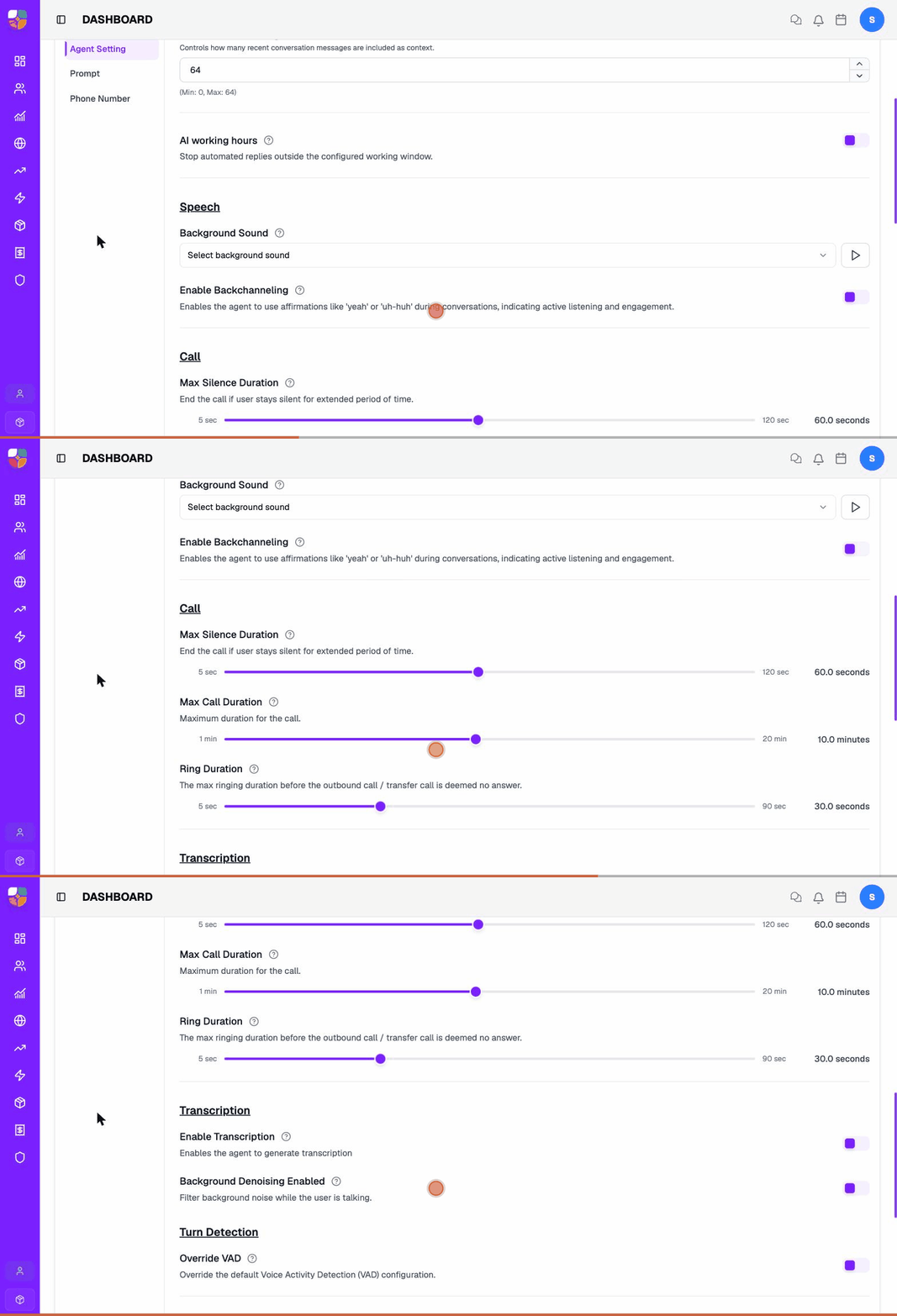
The Build → Agent Setting view groups every behavior setting that isn't a model pick. Use it after the agent talks correctly but you need to control how it talks.
| Section | Setting | What it controls |
|---|---|---|
| (top) | Memory window size | How many recent messages the LLM sees as context. Range 0–64. Larger windows give the agent more memory but use more tokens. |
| (top) | AI working hours | If on, the agent stops automated replies outside the configured window. |
| Speech | Background Sound | Optional ambient sound played behind the agent. |
| Speech | Enable Backchanneling | Lets the agent say short affirmations like yeah, uh-huh during the conversation. |
| Call | Max Silence Duration | End the call if the customer stays silent. Range 5–120 seconds (default 60). |
| Call | Max Call Duration | Hard cap on a single call. Range 1–20 minutes (default 10). |
| Call | Ring Duration | How long an outbound or transferred call rings before it's marked no answer. Range 5–90 seconds (default 30). |
| Transcription | Enable Transcription | Save a text transcript of every call. |
| Transcription | Background Denoising Enabled | Filter background noise on the caller's side. |
| Turn Detection | Override VAD | Override the default Voice Activity Detection configuration. Leave off unless you know you need it. |
| DTMF | Enable DTMF | Allow keypad input (Dual Tone Multi-Frequency) during the call — useful for IVR navigation and verification flows. |
| Recording | Enable | Record every call this agent handles. |
| Boost Words | + Add word | Words to bias the STT model toward — names, product names, addresses, jargon. |
Call recording is governed by local consent law. Confirm your compliance policy before enabling Recording → Enable in production.
Attach Knowledge, Tools, and Analysis
The right rail on Build → Agent Details exposes three attachments:
| Card | What it adds | Read more |
|---|---|---|
| Knowledge Bases | Trusted source material the agent can quote during a call. | Build a Knowledge Base |
| Call Tools | Actions the agent can take mid-call (transfer, schedule, route, HTTP, end). | Configure In-Conversation Tools |
| Post-Call Analysis | Structured outputs extracted after the call ends (outcomes, summaries, fields). | Configure Post-Conversation Tools and Analysis |
Each card has a + button — select it to attach an existing knowledge base or tool, or to create one inline. The card then lists what's attached and lets you remove items.
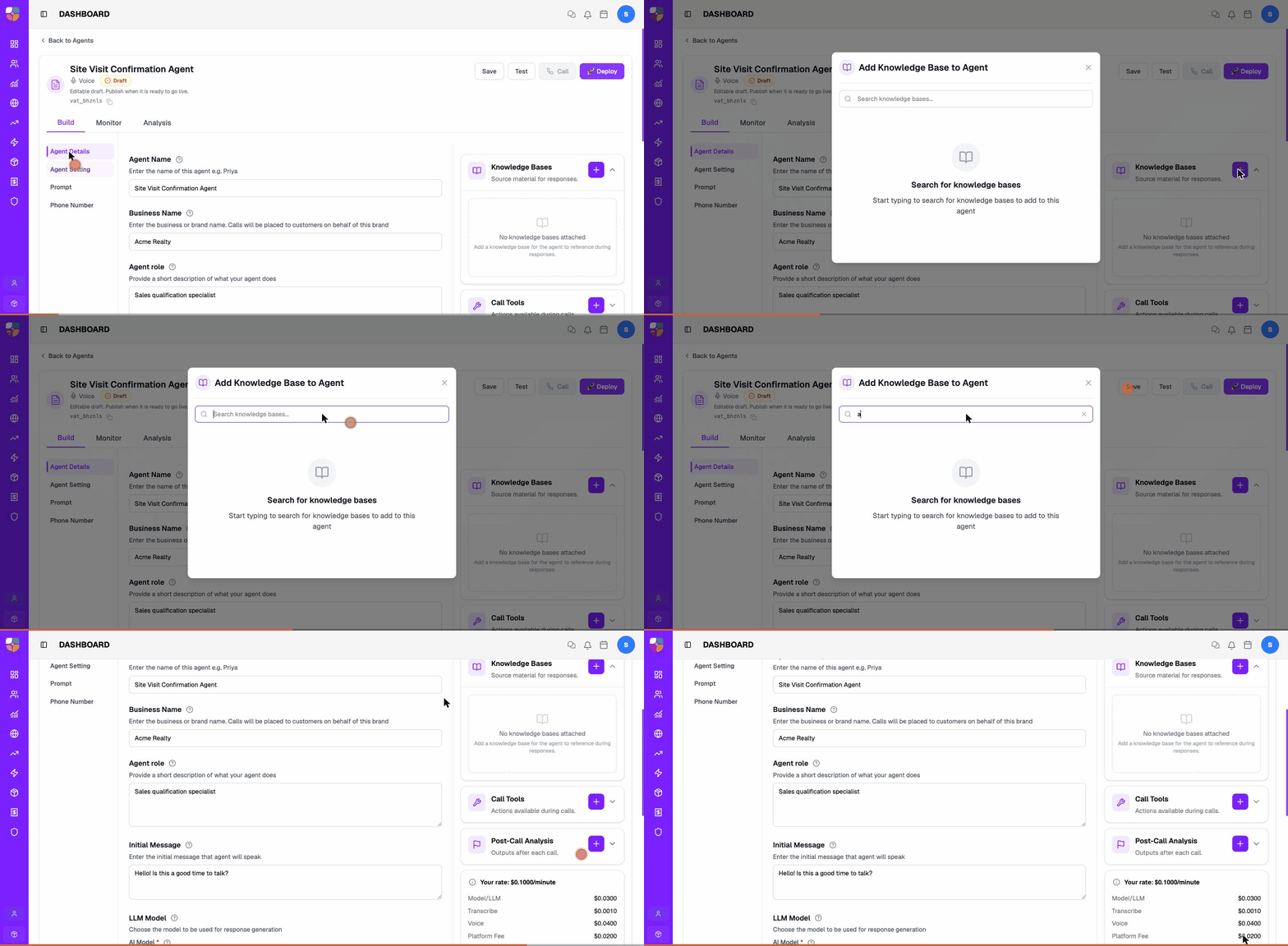
Treat tools like permissions — give the agent only the actions its use case truly needs. A qualification agent rarely needs End Call and API Tool (HTTP) at the same time.
Save, Test, Deploy
The top-right of the editor has four buttons:
| Button | What it does |
|---|---|
| Save | Save the current draft. Nothing goes live yet. |
| Test | Open a test session against the current draft so you can talk to it before exposing it to live numbers. See Test an Agent Before Launch. |
| Call | Available once a phone number is attached. Place an outbound test call from the editor. |
| Deploy | Publish the draft so it handles live traffic on its attached number. |
Deploy only after the draft passes test calls — review the transcript, the handoff path, and at least one stop path before going live. See Test an Agent Before Launch.
Agent Statuses
| Status | What it means | Recommended action |
|---|---|---|
| Draft | Being configured. Not handling live calls. | Finish the prompt, knowledge, tools, and at least one test call. |
| Published | Live and able to handle calls on its attached phone number. | Watch reports for the first day; keep the prompt and KB current. |
| Paused / Unpublished | Temporarily stopped. | Use when content, routing, or tool behavior needs review. |
| Archived | No longer part of active operations. | Keep historical reports; remove operational references first. |
Troubleshooting
| Problem | What to check |
|---|---|
| AI Model dropdown is empty ("No models available") | No LLM provider is enabled for the workspace — an admin must enable one. |
| + Create an Agent button is missing | Your role can't create agents — ask your admin. |
| A saved change doesn't stick — the voice still sounds wrong after switching, or the rate card doesn't update after a model change | See Getting Help — include the agent ID and the configured voice ID from the Configured voice card. |