Manage Channel Templates and Assets
Stop rewriting the same replies and re-uploading the same files. The Library keeps everything your team reuses when replying to customers — email layouts, approved WhatsApp templates, SMS messages, short text snippets, brand assets, and call recordings — in one approved place, ready to drop into the inbox composer and into campaigns.
Entry pointGrowth → Library
The Six Tabs
Across the top of the Library, six tabs split the content by type. Each tab has its own create / sync / import flow.
| Tab | What it holds |
|---|---|
| Email Templates | Reusable email bodies with a subject line, optionally grouped into folders. |
| Whatsapp Templates | Approved WhatsApp Business templates, synced from your connected WhatsApp accounts. |
| SMS Templates | SMS message bodies tied to a connected SMS account. |
| Snippets | Short reusable text blocks for quick replies in the inbox. |
| Assets | Approved files (images, PDFs, brochures) used in communication. |
| Recordings | Call recordings — view, manage, attach to deals. |
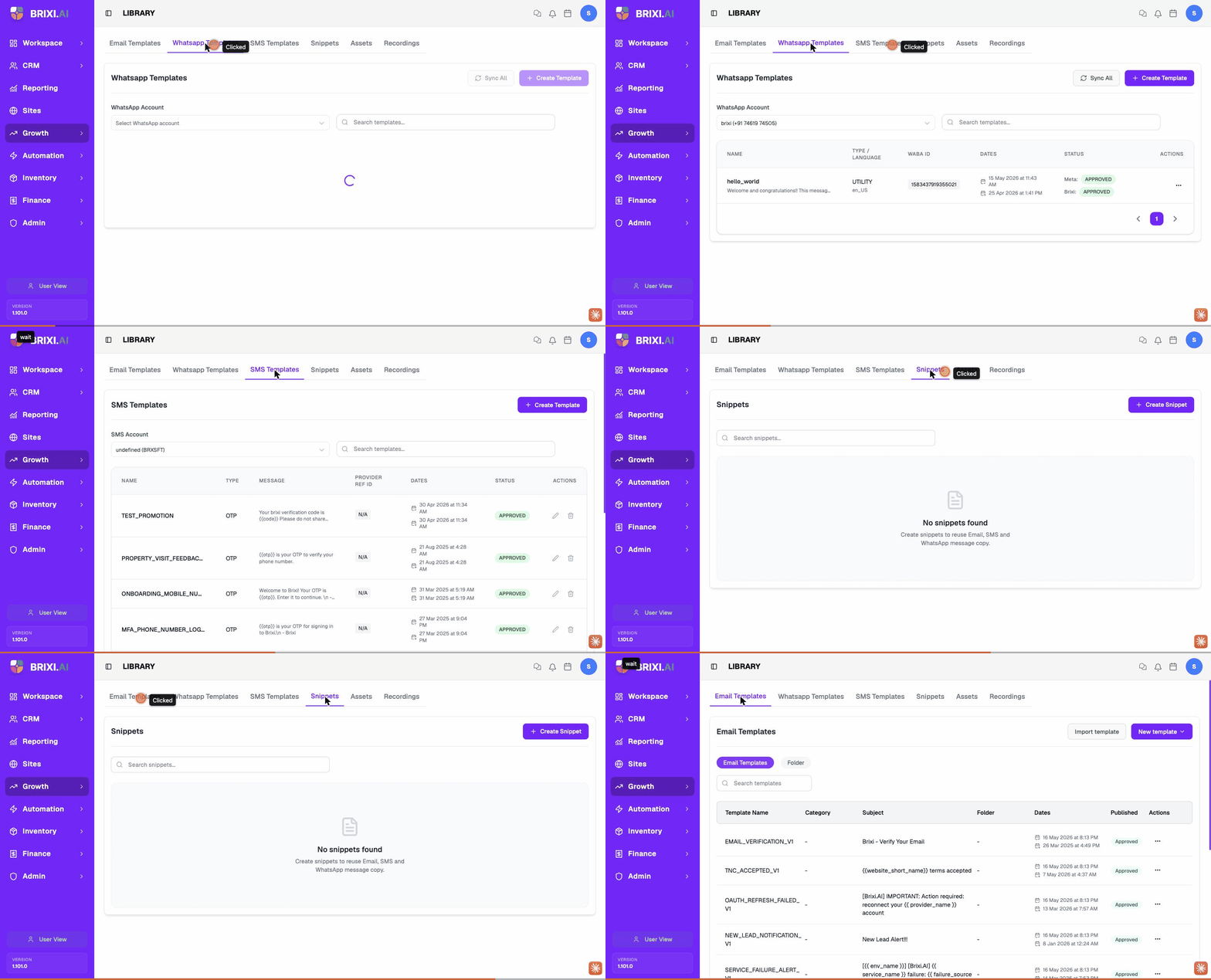
Email Templates
Email templates are the most flexible — full HTML / rich-text bodies with a subject line, optional folder grouping, and a publishing / approval status.
Page layout:
- Top-right — Import template and New template buttons.
- Toggle below the title — Email Templates view (single list) vs Folder view (grouped).
- Search templates input.
- Table with columns: Template Name, Category, Subject, Folder, Dates (created / updated), Published (status), Actions (⋯ menu).
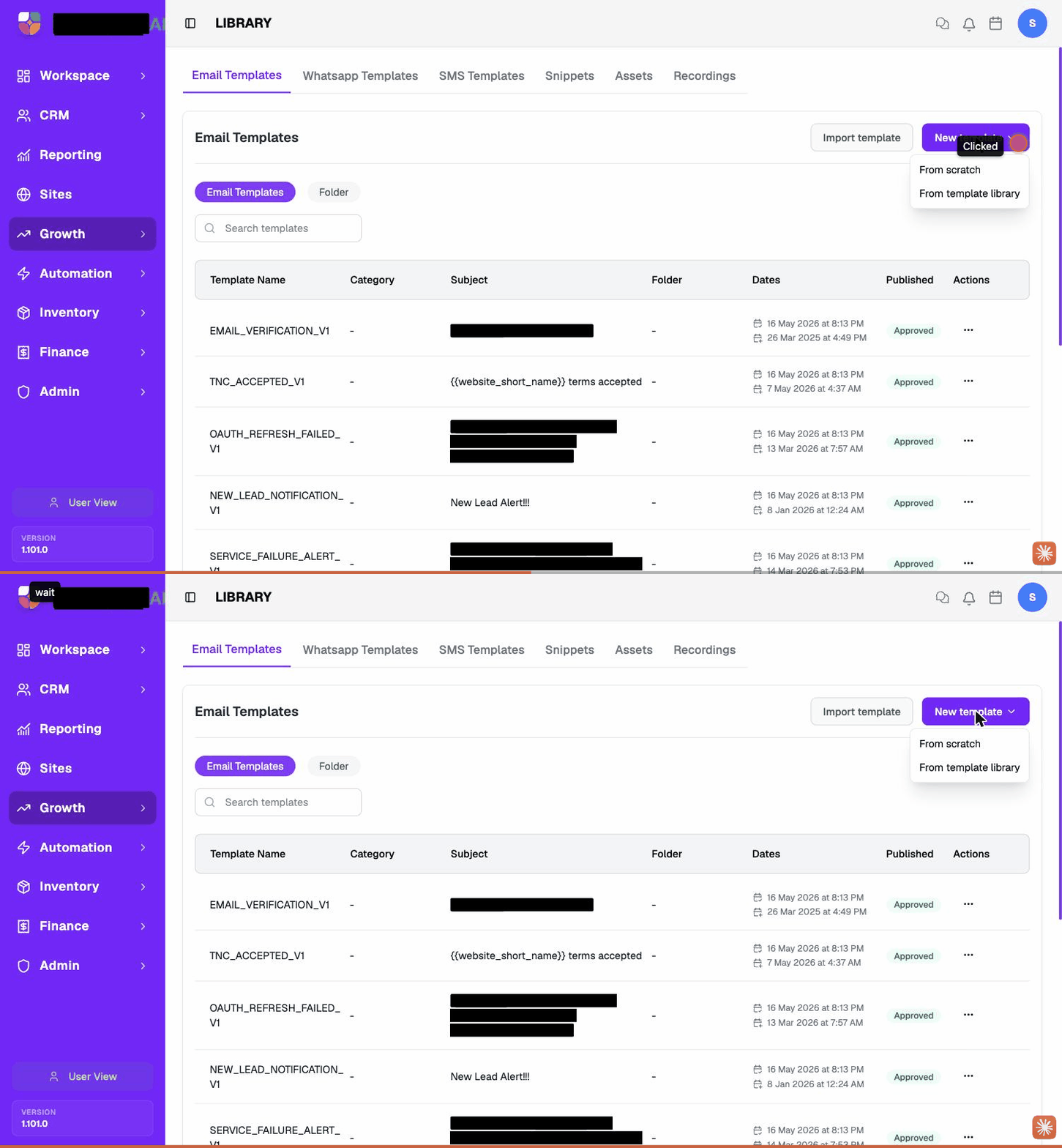
Create a new email template:
- Click New template (top-right) — a menu opens.
- Choose From scratch to start with an empty editor, or From template library to pick a Brixi-provided starting point.
- Give the template a Template Name (this is what the team picks from in the inbox).
- Add a Subject line —
{{merge fields}}are supported, e.g.{{contact_name}} – your visit on {{visit_date}}. - Build the body in the editor (text, images, links, signatures).
- Save. Templates land with a Pending publish status; an admin approves them before they're usable in production sends.
Import a template:
Click Import template to upload an HTML file or an existing template definition — useful when migrating from another tool.
Folders:
Switch the toggle to Folder to group templates by topic (e.g. Onboarding, Visits, Reminders). Folders are workspace-wide and visible in the inbox picker.
VISIT_REMINDER_24H beats Template 14 — agents type into the picker, not browse a long list.
WhatsApp Templates
WhatsApp Business requires templates for any message sent outside the 24-hour reply window. Brixi syncs your approved templates from Meta so you can pick them in the inbox.
Page layout:
- Top-right — Sync All (pulls the latest approved templates from Meta) and Create Template (opens the WhatsApp template builder).
- WhatsApp Account dropdown — pick which connected WABA's templates to view.
- Search templates input.
- Table with columns: Name, Type / Language, WABA ID, Dates, Status (Meta approval + Brixi approval), Actions.
Sync templates from Meta:
- Pick the WhatsApp account in the WhatsApp Account dropdown.
- Click Sync All (top-right). Brixi pulls every approved template from that WABA.
- Status badges show Meta: APPROVED (or PENDING / REJECTED) and the Brixi-side approval next to it.
Create a template:
- Click Create Template.
- Fill the WhatsApp template fields — name (snake_case), category (UTILITY / MARKETING / AUTHENTICATION), language, body, header, footer, optional buttons.
- Submit. Brixi pushes it to Meta for approval; the row appears with PENDING until Meta approves it (usually within minutes).
Once a WhatsApp template is approved, you can't edit it in-place — create a new versioned template (e.g. visit_reminder_v2) and submit it for fresh approval.
SMS Templates
SMS templates work like WhatsApp templates but with shorter bodies and without Meta's approval flow — your SMS provider handles approval (e.g. DLT compliance in India).
Page layout:
- Top-right — Create Template.
- SMS Account dropdown — pick which connected SMS sender.
- Table — Name, Type (OTP / Promotional / Transactional), Message preview, Provider Ref ID (DLT template ID), Dates, Status, Actions.
Create an SMS template:
- Pick the SMS account.
- Click Create Template.
- Fill Name (snake_case), Type, the Message body (with
{{merge fields}}like{{otp}}), and the Provider Ref ID if your provider needs one. - Save. Once approved by your provider, status flips to APPROVED.
Always include a clear sender identifier and an opt-out hint where regulation requires it (e.g. "Reply STOP to unsubscribe").
Snippets
Snippets are short reusable text blocks — a thank-you line, a directions paragraph, a standard objection-handling reply. Unlike templates, they're inserted mid-message rather than sent as a whole message.
Create a snippet:
- Click Create Snippet (top-right of the Snippets tab).
- Give it a short name (you'll search for it by name in the composer).
- Paste the text.
- Save.
In the inbox composer, type / (or click the snippets icon) to bring
up the snippet picker and insert one.
Assets
The Assets tab is your shared brand and document library — logos, brochure PDFs, image banners, price lists. Attach assets to email or WhatsApp templates instead of re-uploading the same file every time.
Manage assets:
- Upload a new asset (drag-and-drop, or click to browse).
- Tag assets so the team can find them.
- Mark assets as Approved so only sanctioned files are picked from the composer.
Recordings
The Recordings tab lists call recordings captured via the connected voice channel. Each recording shows the contact, date, duration and a link to the related deal / lead. Use it to listen back, share with a manager, or attach to a deal note.
Troubleshooting
| Problem | What to check |
|---|---|
| New email template sits at Pending, or a WhatsApp/SMS template is Meta-approved but still not usable in Brixi | Ask your admin to approve it on the Brixi side. |
| Missing accounts in the WhatsApp Account or SMS Account dropdowns | Those are channel connections an admin sets up under integrations. |
| Sync All doesn't pull templates that are approved in Meta Business Manager, or a submitted template never moves out of PENDING long after Meta has approved it | See Getting Help — include the WABA ID from the table and the template name. |