Manage Credentials (API Keys)
When an agent tool has to call an external system, it needs a secret — and that secret should never sit in a prompt or a tool body where it can leak to logs or the LLM. Save each API key or Bearer token once as a credential; Brixi keeps it encrypted and lets any tool reference it by name. Rotate it in one place and every tool that uses it picks up the new value.
Entry pointAutomation → AI Assistants → Credentials
| Article summary | Details |
|---|---|
| Requires | Permission to manage credentials. |
| Where to go | Automation → AI Assistants → Agents → Credentials. |
Open Credentials
- Open Automation → AI Assistants → Agents.
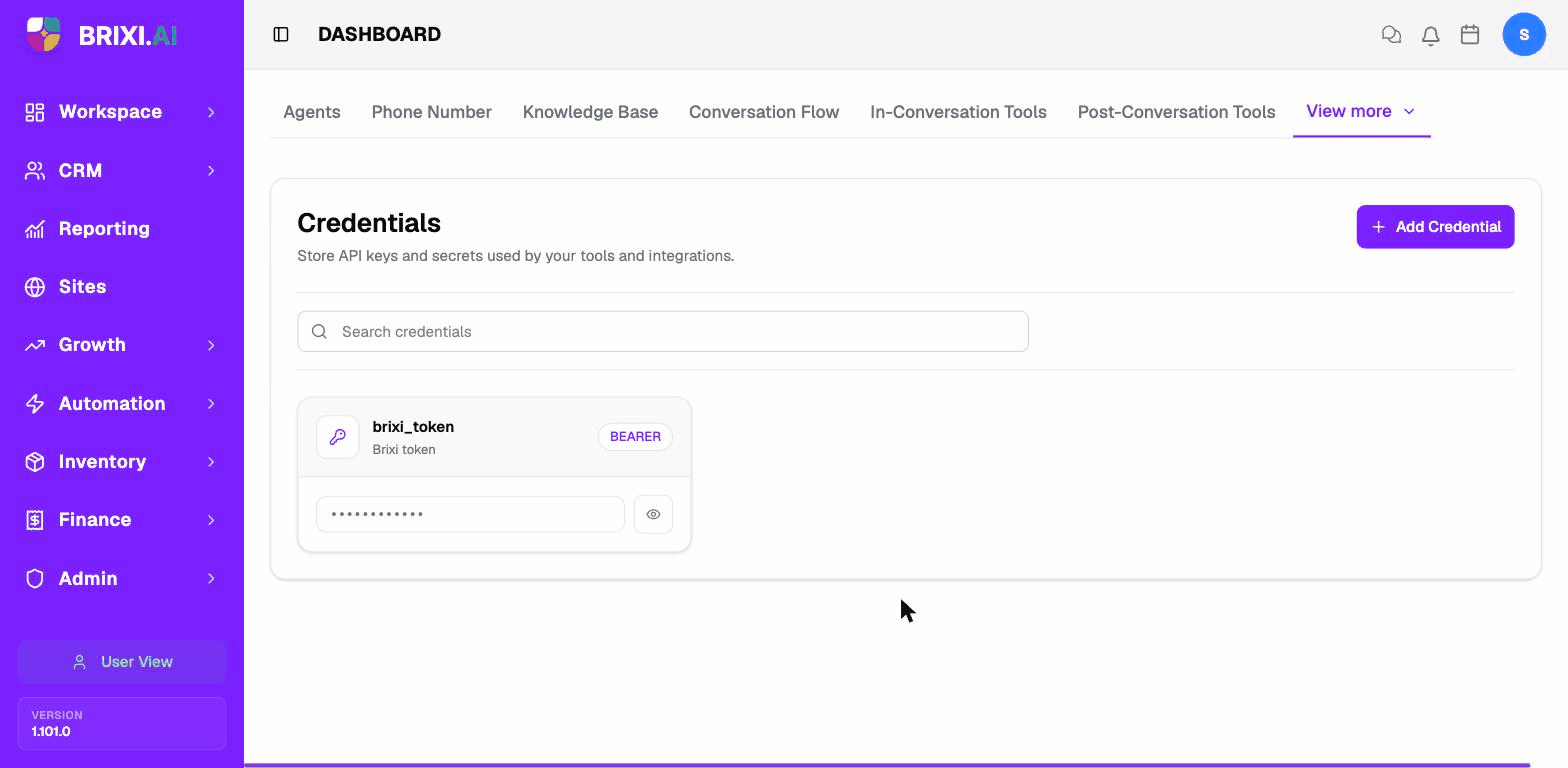
- Switch to the Credentials tab.
The tab header reads "Store API keys and secrets used by your tools and integrations." Each existing credential shows as a card with its name, the user who created it, the type badge (BEARER or APIKEY), and the masked value with an eye control to reveal it.
Add a Credential
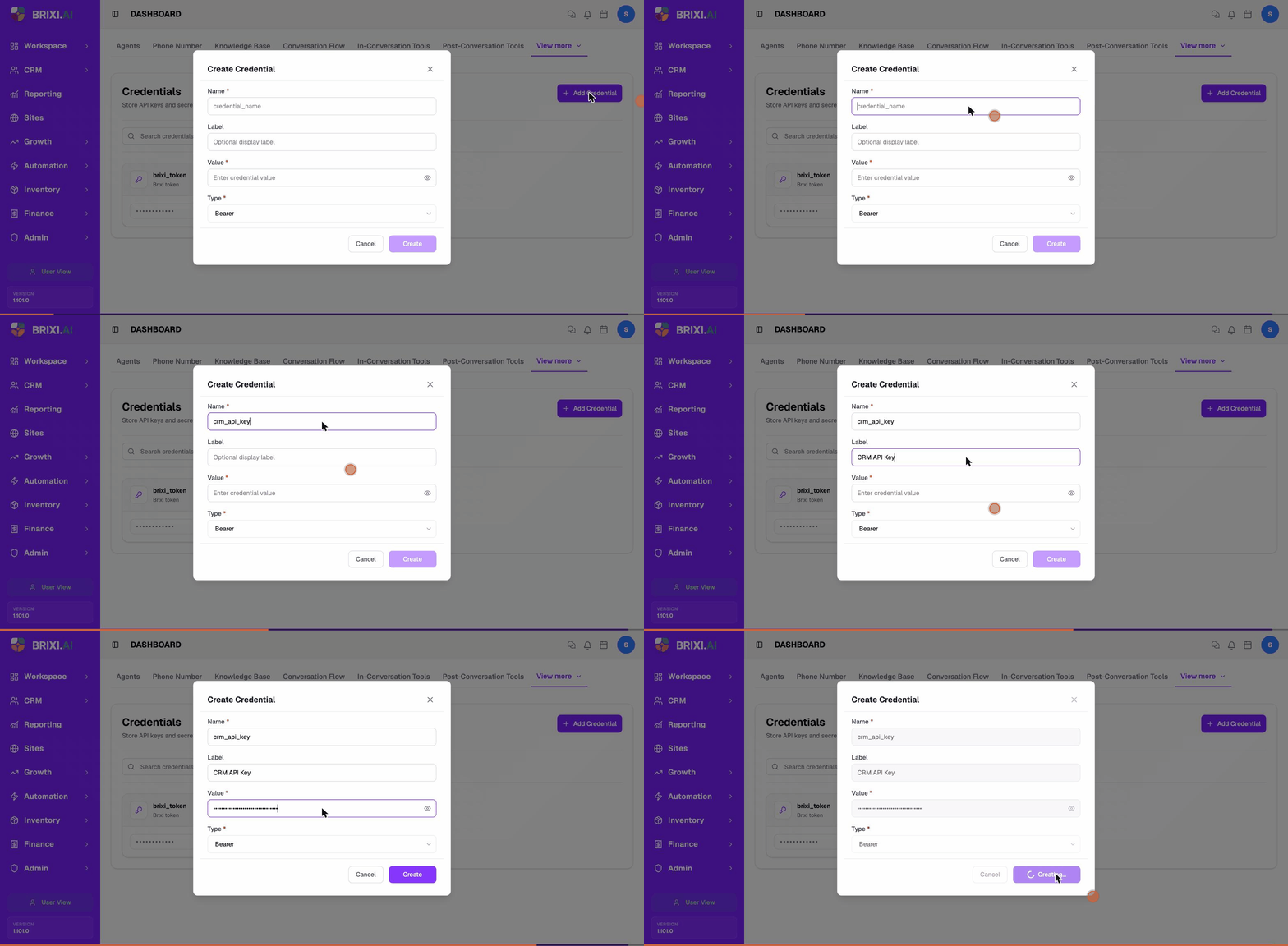
- Select + Add Credential in the top-right.
- In the Create Credential dialog, fill:
- Name — a short identifier used to pick the credential on a tool.
Snake_case works well, for example
crm_api_key. - Label (optional) — human-readable display name.
- Value — the secret itself. The field is masked by default; the eye control reveals it while you paste.
- Type — Bearer or ApiKey.
- Name — a short identifier used to pick the credential on a tool.
Snake_case works well, for example
- Select Create. The new credential appears in the list.
Brixi shows the value only to users with credential access. Never paste a secret into the agent prompt, a knowledge base, or any other field — those surface to logs and to the LLM.
Credential Types
| Type | What it means | Where it's used |
|---|---|---|
| Bearer | A bearer token sent as Authorization: Bearer <value>. | Most modern REST APIs (OAuth-style tokens, JWTs, service-account tokens). |
| ApiKey | A raw API key sent as a header or query parameter. | Legacy APIs that expect a non-Bearer scheme. |
The two types differ only in how the token is sent to the external API. Pick the one the destination API documents.
Use a Credential in a Tool
Credentials become useful when a tool references them.
- Create or open an API Tool (HTTP) under In-Conversation Tools.
- In the tool's Configuration section, pick the credential by name from the credential picker.
- Brixi attaches the value to outbound requests at runtime — you never paste it into the tool body.
The same credential can be picked on more than one tool, so rotating it once updates every tool that references it.
Rotate or Delete a Credential
To rotate a credential, open it from the Credentials tab and paste the new value into Value, then save. Every tool that references it picks up the new value automatically.
To delete a credential, remove every tool that references it first. A tool left with a broken credential will fail at call time.
Safety Rules
- Use one credential per external system — sharing a single token across unrelated tools makes incident response harder.
- Rotate credentials on a schedule that matches the source system's policy.
- Remove credentials that no longer have a tool attached.
- Never store customer secrets (card numbers, account numbers) here. Use the originating system's secure storage.
Troubleshooting
Credential access is deliberately restricted, so if the Credentials tab is hidden or the eye control won't reveal a value, that's by design — ask your admin whether your role should include credential management. A failing API tool is more often a wrong or expired token than a Brixi problem, so verify the secret against the external system first.
Contact Brixi support if a credential with a known-good value still causes authentication failures in tools, or a rotated value doesn't take effect on the tools that reference it. Share the credential name and type (Bearer or ApiKey) — never the secret itself.