Manage the Dialer and Dial Numbers
Let your team call contacts straight from the CRM — one click, no copying numbers into a phone. The Dialer connects Brixi to a click-to-dial (C2D) provider and controls which dial number each user calls from. Set it up once, then assign numbers to the people who make calls.
Entry pointAdmin → Dialer
Settings apply to the current CRM account.
Before You Start
- Confirm you have admin permission for the Dialer.
- Have your click-to-dial provider details ready, including the base URL and the dial-in (DID) number.
- Know which users need to make outbound calls.
Connect a Dialing Provider
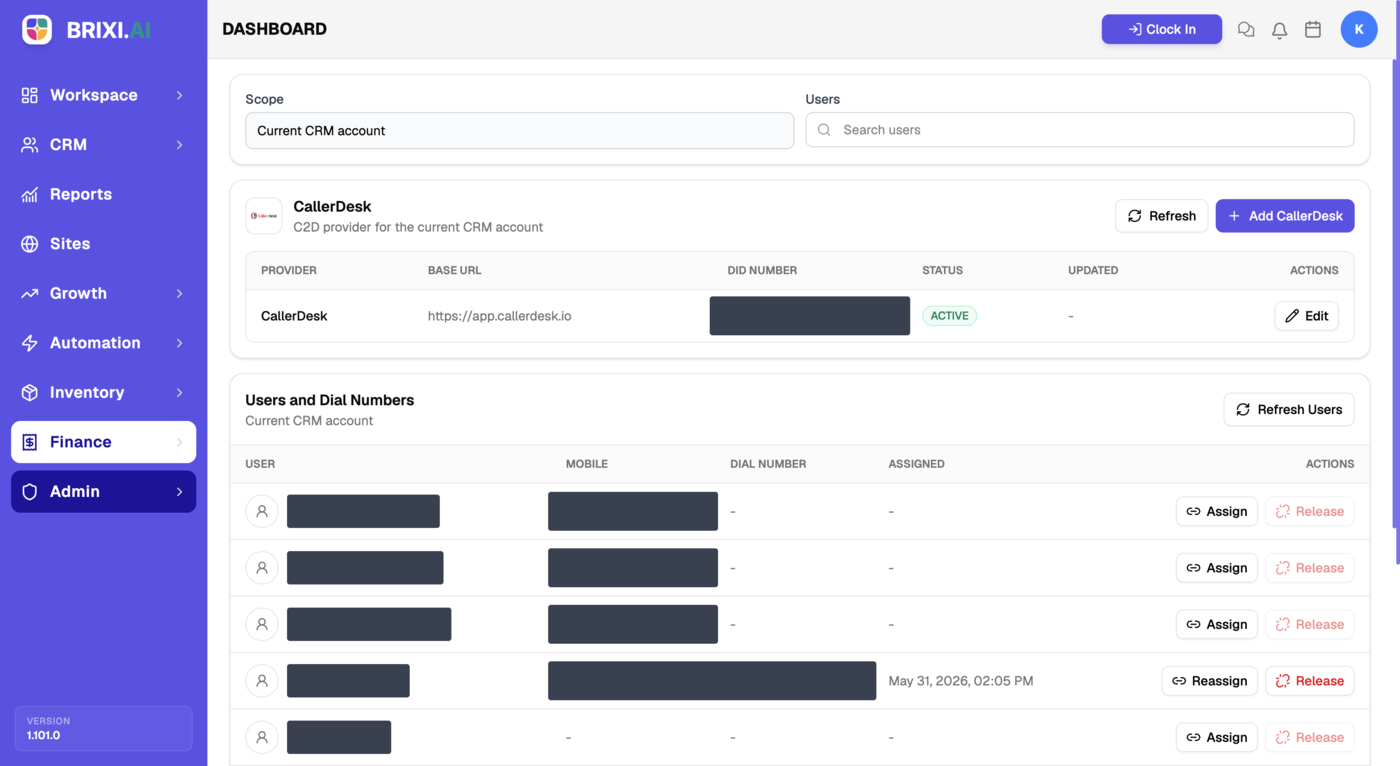
The provider card shows your click-to-dial connection with these columns: Provider, Base URL, DID Number, Status, Updated, and Actions.
- Open Admin → Dialer.
- Confirm the Scope is the current CRM account.
- Select + Add to connect a provider, or Edit to update an existing one.
- Enter the provider's base URL and DID number.
- Save, then check the Status shows Active.
- Use Refresh to pull the latest provider status.
Assign Dial Numbers to Users
The Users and Dial Numbers table lists each user with their Mobile, Dial Number, and whether a number is Assigned.
- Find the user in the table, or use Search users.
- Select Assign to give the user a dial number.
- Select Reassign to change a user's number, or Release to free a number the user no longer needs.
- Use Refresh Users to update the list after changes.
Releasing a dial number frees it so it can be assigned to someone else. Only assign numbers to users who actually make outbound calls.
Check the Result
After setup, you should see:
- The provider card with an Active status.
- Assigned users showing a dial number and an assigned date.
- Users able to place click-to-dial calls from the CRM.
Common Issues
| Issue | What to check |
|---|---|
| Provider status is not Active | Recheck the base URL and DID number, then Refresh |
| A user cannot place calls | Confirm a dial number is assigned to that user |
| Number is unavailable | Release it from the current user, then assign it |
| Changes do not show | Use Refresh and Refresh Users |
| The Dialer page or its actions are hidden | That's a permissions issue — ask another admin before assuming something's broken |
| A connection won't go Active, or a user can't call despite an assigned number | See Getting Help — send the provider name, the DID number, what you expected, and a screenshot of the provider card |
Reporting Impact
The Dialer connection and per-user dial numbers drive click-to-dial calling. Correct assignments keep call activity and telecalling reporting attributed to the right users.